

The Proxmox VE server runs the virtualization platform and provides access to storage, networks, and VMs during backup and restore. With the current release and upgrade to Proxmox 9.0. In order for Veeam to be able to correctly protect the Proxmox workloads, there is a need to update Veeam Backup for Proxmox to support PVE 9.0. Please, see this guide for the architecture and how to Backup and Restore Proxmox VE virtual machines with Veeam.
The Proxmox VE Plug-in integrates the backup server with the Proxmox VE server and enables worker deployment. From version 12.3.1 and above, you do not have to manually install this plugin.
Also, see How to delete a VM and Storage in Proxmox, how to Create a bootable USB on Mac: Proxmox VE Setup, and how to resolve the Update Package Database failure on Proxmox VE.
Download the Veeam Backup for Proxmox Plugin
You can download the Plugin for Proxmox VE directly from the referenced link. Or navigate to the release Information for Veeam Plug-in for Proxmox VE v12.1.5.17 in the following KB article.
Upon clicking on the download link, you will be prompted to save the plugin package as shown below.

To see the current version of the Veeam Backup for Proxmox plugin that you are currently using. Please launch the Control Panel or Windows Settings as you wish.
I have decided to use the Control Panel and will be launching it as shown below.

As you can see, we are currently using the version 12.1.3.217

As you can see below, this meets the requirement for the Veeam Plug-in for Proxmox VE build 12.1.3.217 which can be determined via the steps below.
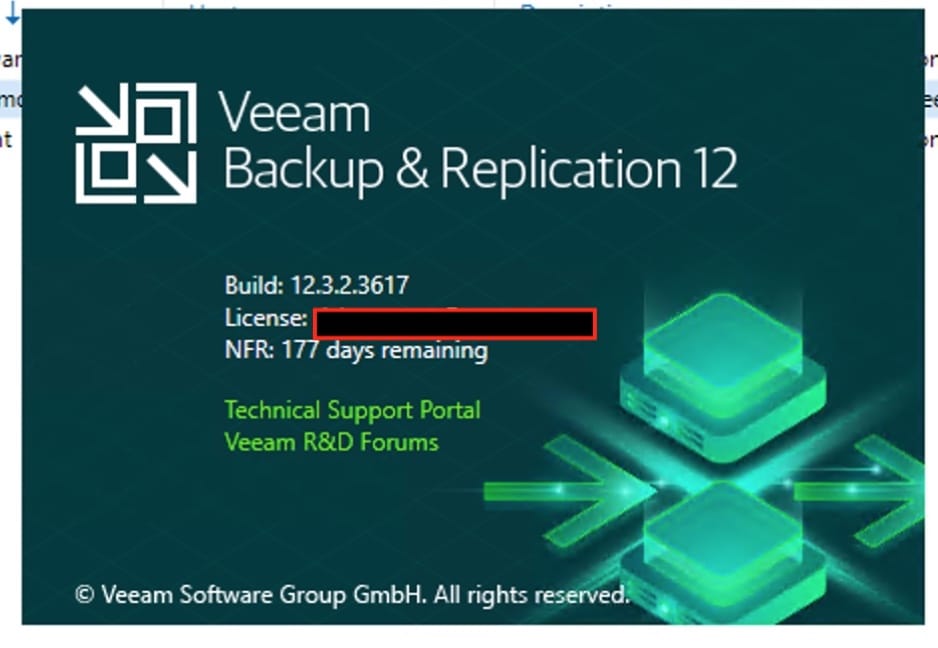
You can check the build number in the Veeam Backup & Replication Console’s Main Menu (≡) under Help > About

As you can see below, we have met the following requirments “Veeam Plug-in for Proxmox VE build 12.1.3.217 “.
Please, see how to Install Proxmox VE on a Beelink EQ12 Mini PC. Also, see What are the differences between dnf and apt package managers?, and how to fix “Error 1064: An exception occurred in the service when handling the control request“.
Close the VBR Console and Extract Plugin Package
If you have the VBR console open. you should close it, and and ensure no veeam.backup.shell.exe processes are running.
Note: veeam.backup.shell.exe is the process behind the Veeam Backup & Replication Console (GUI). The instruction is telling you to close the management console(s) so that update/maintenance tasks (like upgrading Veeam, updating configs, or applying patches) don’t conflict.
Next, we will have to copy PVEPlugin_12.1.5.17.zip to the Veeam Backup Server if you downloaded it externally. You can not unzip or extract as shown below.

As you can see, this will be extracted to the PVEPlugin_12.1.5.17 Plugin.

Upgrade Veeam Backup for Proxmox
Now, we will have to run the PVEPlugin_12.1.5.17.exe as shown below.

Follow through the update wizard

When some prerequisites are missing, you will be prompted to install them by clicking on OK.

On the License Agreement, click on “I Accept”.

Click on Next to proceed with the upgrade as shown below.

On the Ready to Upgrade wizard, click on Upgrade as shown below.

As you can see, the upgrade has kicked off

We have successfully upgrade the update of the PVE Plug-in for Veeam Backup and Replication. Click on Finish to complete the upgrade steps.

Please, see how to fix “”, and Logon Failure: User has not been granted the requested logon type, and Server Certificate could not be updated: Private key does not match.
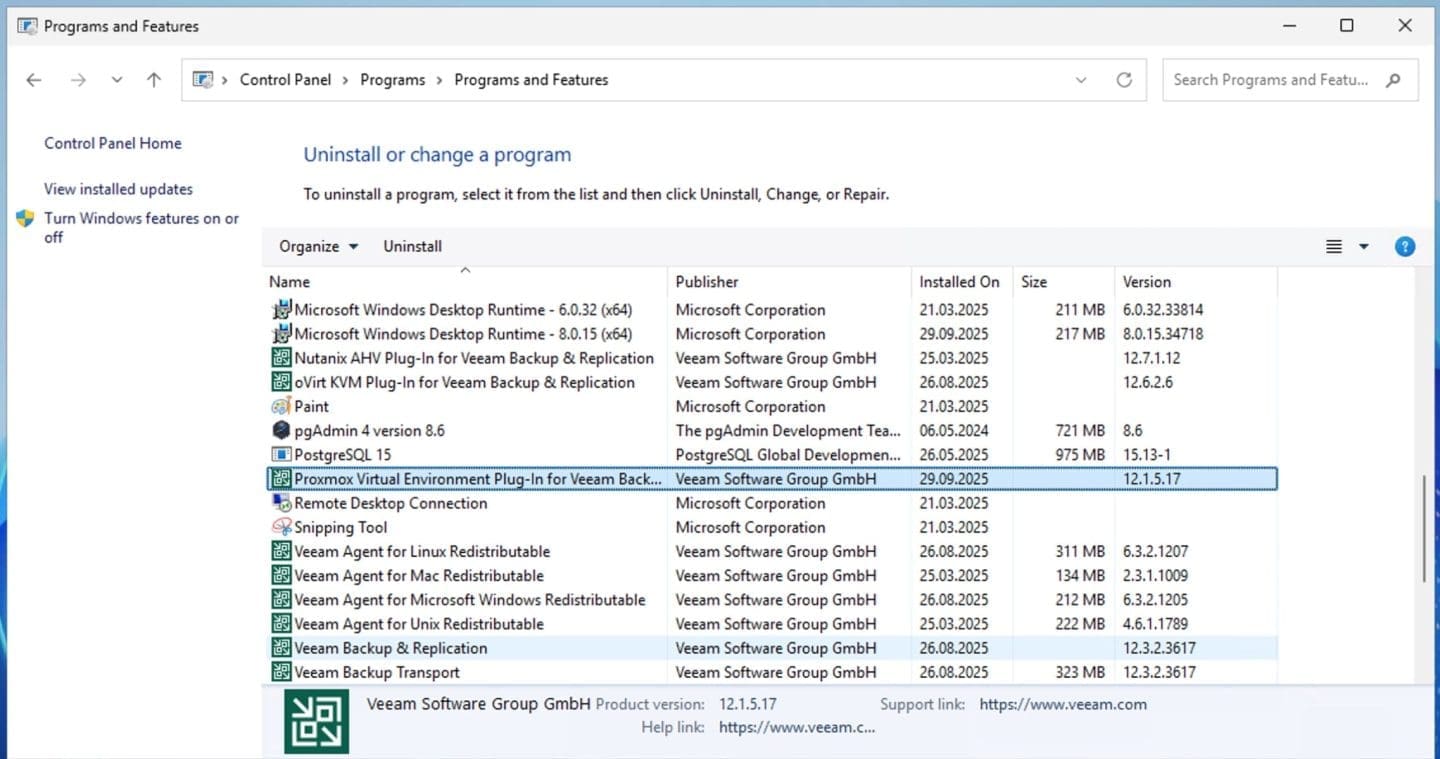
Compare Update Version
The image below shows we have correctly installed the desired version of the plugin to support Proxmox VE 9.0.
I hope you found this guide very useful on how to update Veeam Backup for Proxmox Plugin to support PVE 9.0. Please, feel free to leave a comment below.


