Skip to content

TechDirectArchive

Hands-on IT, Cloud, Security & DevOps Insights

  • Home
  • About
  • Advertise With US
  • Reviews
  • Contact
  • Toggle search form
Home » Password Manager » Configure failover for ManageEngine Password Manager Pro
  • File Audit
    File Audit: How to install and configure PA File Sight Ultra and PA Endpoints Reviews
  • Docker error manifest
    Docker image OS “windows” cannot be used on this platform: No matching manifest for linux/amd64 in the manifest list entries from Microsoft Docker Registry Network | Monitoring
  • Fatal Refusing to Merge
    How to Fix Fatal Git Error Refusing to Merge Unrelated Histories Version Control System
  • maxresdefault 2
    How to uninstall Applications with PowerShell Script Scripts
  • Fix Network related MSSQL instance error
    Fix a network-related or instance-specific error occurred while establishing a connection to SQL Server [Part 2] Oracle/MSSQL/MySQL
  • Err connection timed out DNS
    How to Fix Err Connection Timed Out DNS Error Windows
  • Remote desktop
    Is RDP enabled? Enable and disable Remote Desktop in Windows 10 for all users or selected users Windows
  • screenshot 2020 05 03 at 18.30.44
    How to Activate Cisco ASA 5505 License Network | Monitoring

Configure failover for ManageEngine Password Manager Pro

Posted on 09/03/201823/03/2024 Christian By Christian No Comments on Configure failover for ManageEngine Password Manager Pro

Password Manager Pro is a secure vault for storing and managing shared sensitive information such as passwords, documents and digital identities of enterprises. Please see how to create Virtual Hosts in a WAMPserver. In this article, I will show you how to configure failover for ManageEngine Password Manager. Please see How To Setup A New Computer Without A Microsoft Account on Windows 11, and How to create a Traffic Manager Profile in Azure.

Here are some more exciting articles: Upgrade ManageEngine Password Manager Pro, How to setup a third-party DNS server on a Linux Server, How to Upgrade Windows 11 Pro to Enterprise and vice Versa, and how to enable Hyper-V on a VMware Workstation.

Configure failover for ManageEngine Password Manager Pro

The Failover Service in Password Manager Pro is aimed at ensuring uninterrupted access to passwords and other privileged resources. While the ‘High Availability’ feature in Password Manager Pro requires two separate database instances to be mapped to the Primary and secondary servers of Password Manager Pro respectively.

The ‘Failover Service’ functions with redundant Password Manager Pro server instances which have access to a common MS-SQL cluster, which in turn has multiple Password Manager Pro database instances bound to it.

Note: Password Manager Pro has provision to use either MySQL or MS SQL Server as the backend. By default, Password Manager Pro uses the MySQL database, which comes bundled with the product. 

Please see this guide on fixing Failover Cluster Manager failed while managing one or more clusters, the error was unable to determine if the computer exists in the domain.

Step 1: Selected 9101 (Your Password Manager version).

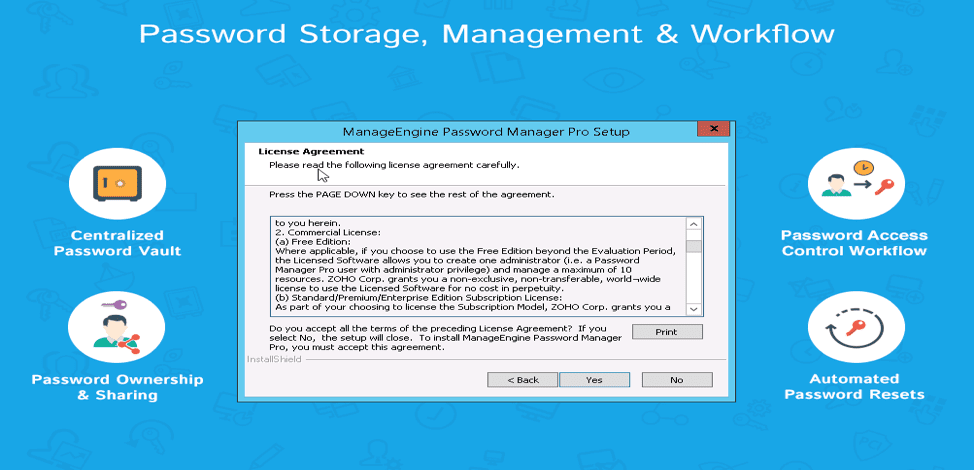
Click on ManageEngine_PMP.exe to get the setup, and double on this setup to run it. Agree to the license and next select the desired path (folder to setup the server on)
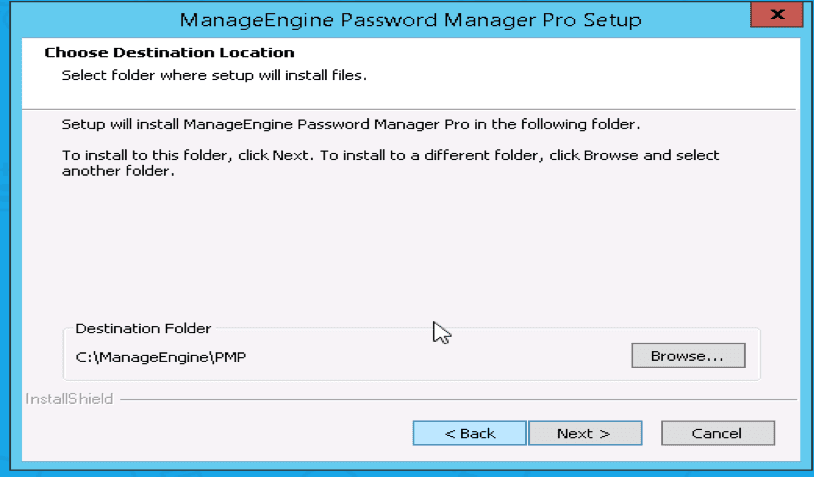
I am fine with the default Folder Installation.
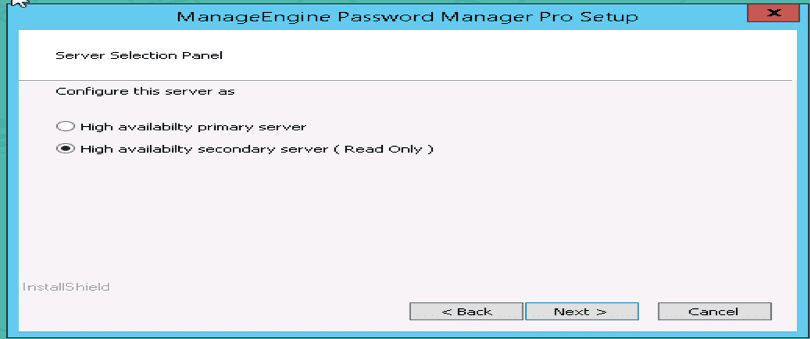
Since I am configuring it as a failover server, I chose the second option below
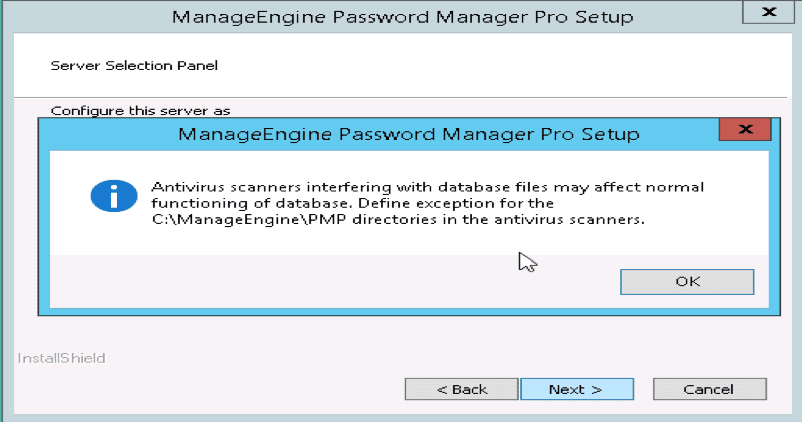
Click on Okay to add the exception
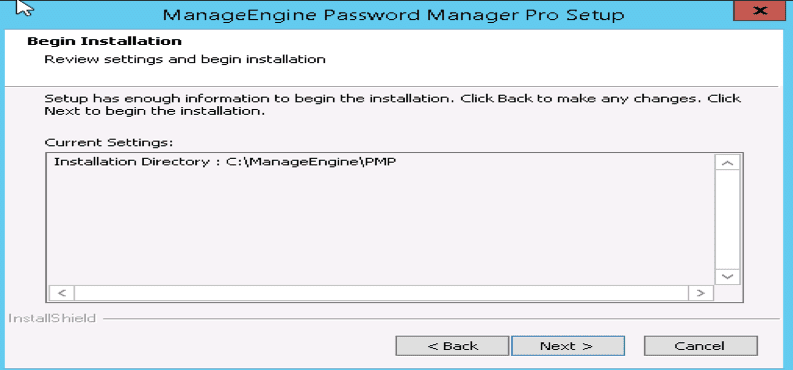
And click on next to begin the installation
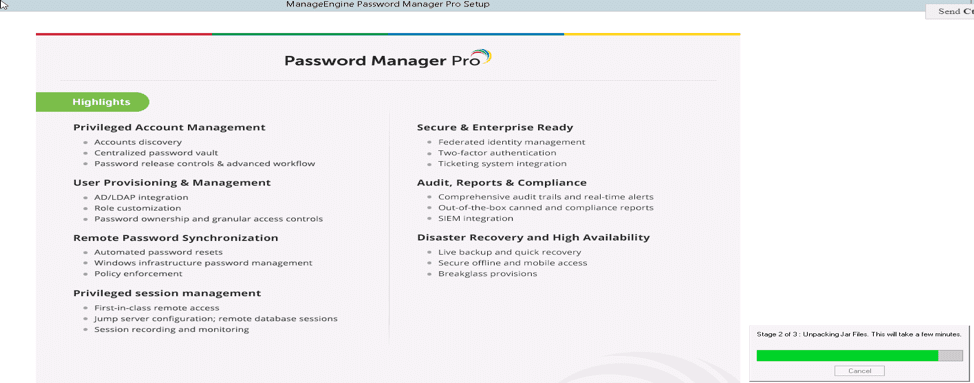
The setup window will disappear and it will look this way
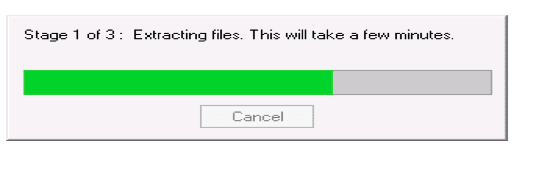
Now the installation is complete and just click on finish
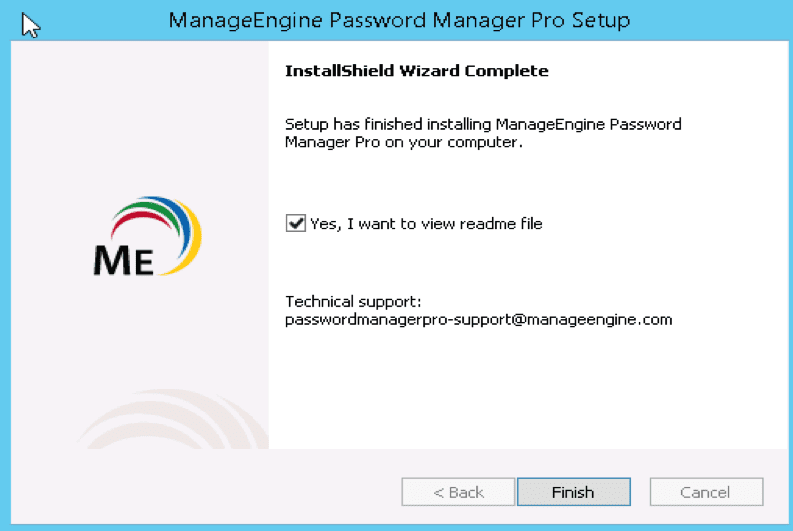
Note: You can optionally uncheck the ReadMe file. After installing do not start the service

Step 2: Create a Data Replication Pack for High Availability in Primary

Stop Primary and Secondary Servers, if running. Ensure that the Postgres process of PMP is NOT running. Open a command prompt and navigate to <PMP_Primary_Installation_Folder>/bin directory

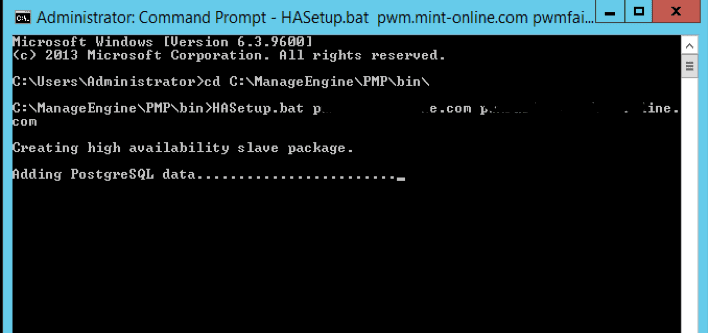
Run the script HASetup.bat <FQDN of PMP Primary Server> <FQDN OF PMP Secondary Server > (Windows) / HASetup.sh <FQDN of PMP Primary Server> <FQDN OF PMP Secondary Server >

To run this script, you need to pass the fully qualified domain names of the host where PMP primary and secondary servers are installed as command-line arguments.

For Example, if the primary server is running at (say) the primary server in the domain techda1.com and the secondary server is running at (say) secondary server in the domain techda2.com , you need to execute the above script as follows:

In Windows: HASetup.bat primary-server.zohocorpin.com secondary-server.techda1.com
In Linux: sh HASetup.sh primary-server.zohocorpin.com secondary-server.techda1.com

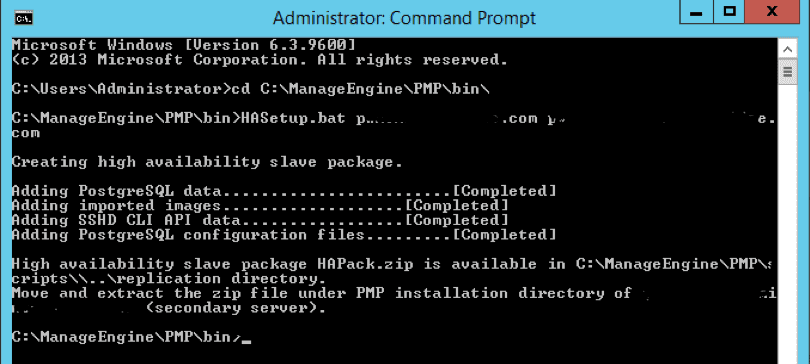
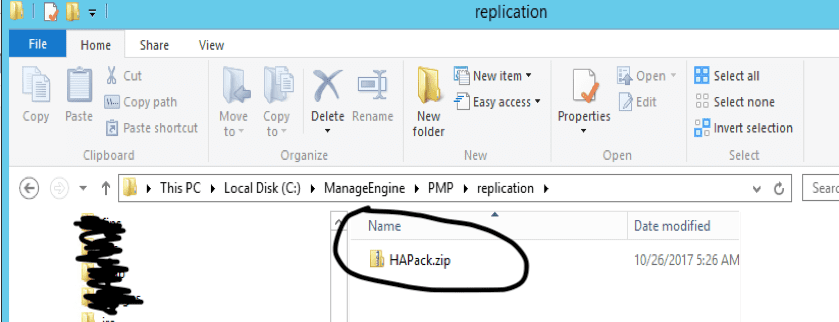
This will create a replication package named ‘HAPack.zip’ under <PMP_Primary_Installation_Folder>/replication folder. This zip contains the database package for secondary

Copy the HAPack.zip. This has to be put in the PMP Secondary installation machine as detailed in Step 3 below. Start PMP primary server. That is C:ManageEnginePMPbin. Please see the image below.
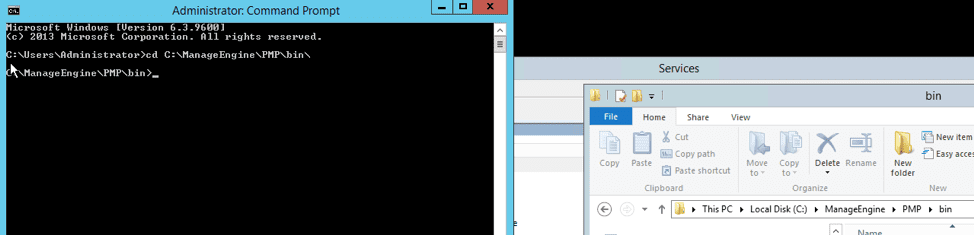
Enter the URL for the primary and secondary and execute. As you can see, it is creating the replication package needed.
Successfully created the replication package needed for setting up the secondary PWM
Folder successfully created need for replication
At some point, you will get an error via email, ignore it. This is because you do not have the secondary server setup yet.

Step 3: Put the HA Data Replication Pack in the Secondary

Put the HAPack.zip file copied from the PRIMARY Installation (as detailed in the previous step) into the <PMP_Secondary_Installation_Folder> and unzip it. 

Take care to extract the files under <PMP_Secondary_Installation_Folder> only. It will overwrite the existing data files. Now navigate to C:ManageEnginePMP on the secondary Password Manager Server.

Copy the HAPack to this folder. Use 7zip (Use Extract Files Here) to extract into the same folder, this will replace some existing files in the folders

Step 4: Specify the Location of the Encryption Master Key

After extracting HAPack.zip in PMP Secondary Server, navigate to /conf folder, edit manage_key.conf and specify the location of pmp_key.key (encryption master key). PMP requires the pmp_key.key file accessible with its full path when it starts up every time. After a successful start-up, it does not need the key anymore and so the device with the key file can be taken offline.

The High Availability configuration is ready now. To get it up and running, start the PMP Secondary server.

I hope you found this blog post helpful on how to configure failover for ManageEngine Password Manager. If you have any questions, please let me know in the comment session.

Rate this post

Thank you for reading this post. Kindly share it with others.

  • Click to share on X (Opens in new window) X
  • Click to share on Reddit (Opens in new window) Reddit
  • Click to share on LinkedIn (Opens in new window) LinkedIn
  • Click to share on Facebook (Opens in new window) Facebook
  • Click to share on Pinterest (Opens in new window) Pinterest
  • Click to share on Tumblr (Opens in new window) Tumblr
  • Click to share on Telegram (Opens in new window) Telegram
  • Click to share on WhatsApp (Opens in new window) WhatsApp
  • Click to share on Pocket (Opens in new window) Pocket
  • Click to share on Mastodon (Opens in new window) Mastodon
  • Click to share on Bluesky (Opens in new window) Bluesky
  • Click to share on Threads (Opens in new window) Threads
  • Click to share on Nextdoor (Opens in new window) Nextdoor
Password Manager Tags:Microsoft Windows, Windows 10, Windows 11, Windows Server 2016

Post navigation

Previous Post: How to setup and configure Jitsi as SoftPhone
Next Post: How to configure Windows server update services

Related Posts

  • images 5
    Perform Pleasant Password Self-Service Reset Enrolment Password Manager
  • ffd
    Unable to bind to LDAP or AD in Pleasant Password Server Password Manager
  • images 5
    How to Perform a Self-service Password Reset using the Windows Login Integration Client Password Manager
  • unnamed
    Upgrade ManageEngine Password Manager Pro Password Manager
  • banner
    How to Secure your API key in Postman Password Manager
  • download
    How to import Users and Groups into Pleasant Password Manager Password Manager

More Related Articles

images 5 Perform Pleasant Password Self-Service Reset Enrolment Password Manager
ffd Unable to bind to LDAP or AD in Pleasant Password Server Password Manager
images 5 How to Perform a Self-service Password Reset using the Windows Login Integration Client Password Manager
unnamed Upgrade ManageEngine Password Manager Pro Password Manager
banner How to Secure your API key in Postman Password Manager
download How to import Users and Groups into Pleasant Password Manager Password Manager

Leave a Reply Cancel reply

You must be logged in to post a comment.

Microsoft MVP

VEEAMLEGEND

vexpert-badge-stars-5

Virtual Background

GoogleNews

Categories

veeaam100

sysadmin top30a

  • File Audit
    File Audit: How to install and configure PA File Sight Ultra and PA Endpoints Reviews
  • Docker error manifest
    Docker image OS “windows” cannot be used on this platform: No matching manifest for linux/amd64 in the manifest list entries from Microsoft Docker Registry Network | Monitoring
  • Fatal Refusing to Merge
    How to Fix Fatal Git Error Refusing to Merge Unrelated Histories Version Control System
  • maxresdefault 2
    How to uninstall Applications with PowerShell Script Scripts
  • Fix Network related MSSQL instance error
    Fix a network-related or instance-specific error occurred while establishing a connection to SQL Server [Part 2] Oracle/MSSQL/MySQL
  • Err connection timed out DNS
    How to Fix Err Connection Timed Out DNS Error Windows
  • Remote desktop
    Is RDP enabled? Enable and disable Remote Desktop in Windows 10 for all users or selected users Windows
  • screenshot 2020 05 03 at 18.30.44
    How to Activate Cisco ASA 5505 License Network | Monitoring

Subscribe to Blog via Email

Enter your email address to subscribe to this blog and receive notifications of new posts by email.

Join 1,836 other subscribers
  • RSS - Posts
  • RSS - Comments
  • About
  • Authors
  • Write for us
  • Advertise with us
  • General Terms and Conditions
  • Privacy policy
  • Feedly
  • Telegram
  • Youtube
  • Facebook
  • Instagram
  • LinkedIn
  • Tumblr
  • Pinterest
  • Twitter
  • mastodon

Tags

Active Directory AWS Azure Bitlocker Microsoft Windows PowerShell WDS Windows 10 Windows 11 Windows Server 2016

Copyright © 2025 TechDirectArchive


Loading Comments...
 

You must be logged in to post a comment.