Skip to content

TechDirectArchive

Hands-on IT, Cloud, Security & DevOps Insights

  • Home
  • About
  • Advertise With US
  • Reviews
  • Contact
  • Toggle search form
Home » Windows Server » SimpleSAMLphp Setup on Windows Server [Part 1]
  • maxresdefault 2 1
    How to disconnect a Remote Desktop User Windows Server
  • the remote procedure call failed
    Error 0xc1420117: The directory could not be completely unmounted Windows Server
  • Windows OS type and version and build
    How to determine Windows Version or Edition and Build Windows
  • How to Install SonarQube on Ubuntu LTS
    How to Install SonarQube on Ubuntu 20.04 LTS Network | Monitoring
  • Cannot save to the location Windows
    How to Fix Cannot Save to Windows System32 Default.rdp Error Network | Monitoring
  • image 1
    How to Enable the End Task Option on Windows 11 Taskbar Windows
  • Create your own Network on AWS from Scratch
    VPC, Subnet, NACL, Security Group: Create your own Network on AWS from Scratch [Part 2] AWS/Azure/OpenShift
  • HyperV copy
    How to convert a VHDX file to a VHD Virtualization

SimpleSAMLphp Setup on Windows Server [Part 1]

Posted on 18/05/201806/12/2023 Christian By Christian No Comments on SimpleSAMLphp Setup on Windows Server [Part 1]
Authentication

SimpleSAMLphp Setup on Windows is an award-winning application written in native PHP that deals with authentication. UNINETT leads the project and has a large user base, a helpful user community, and many external contributors. The main focus of SimpleSAMLphp Setup on Windows is providing support for SAML 2.0 as a Service Provider (SP). Kindly take a look at pSimpleSAMLphp[part 2] of this guide. However, SAML SSO works by transferring the user’s identity from one place (the identity provider) to another (the service provider). This is done through an exchange of digitally signed XML documents.

Steps followed to implement this:
 1. This environment was installed on AWS (Please see previous article on how to provision an instance on AWS, assign security group(s) and EIP) to successfully connect to the instance (server).

However, Install PHP on your server: For simplicity’s sake, I will split this article into three sections.

  • Install PHP
  • Install SimpleSAMLPHP
  • Configure SimpleSAMLPHP IDP, Connect to AD etc.

Install PHP on Windows Server 2012 on AWS

In this article, I will be installing PHP on Windows Server 2012 on AWS
PHP, a widely-used open-source web scripting language, powers dynamic web page construction.

Note: Moreover, You can install PHP by visiting the PHP site or by installing Apache/WAMP etc.

  • Use the Web Platform Installer to automate the installation and configuration of PHP on your server.  Manually doing this can be highly challenging at times.
    You will find the installer.
  • Download and launch the installer Web Platform Installer
Windows Server

Nonetheless, Now search for Web Platform Installer and Launch it

Single sign-on

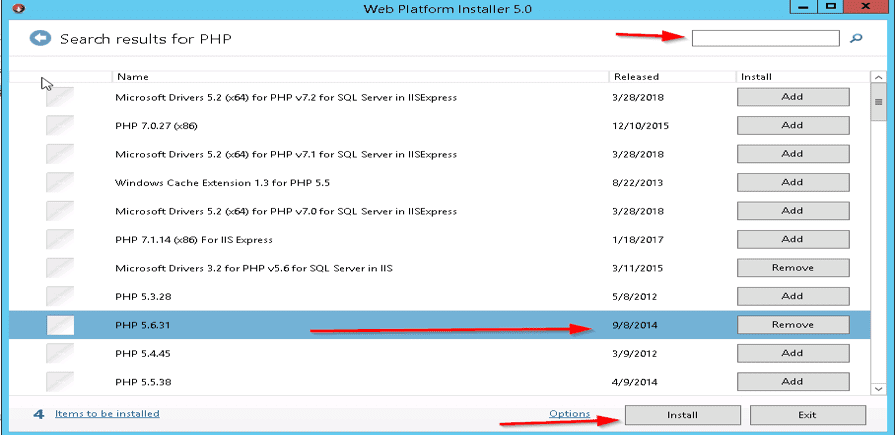
Now search for PHP, as shown below I selected PHP 5.6.31  and clicked on “Add”
Single sign-on

The PHP installation will list missing dependent components for inclusion, connecting them with transitional clarity. However, Go ahead and click the “I Accept” button

Identity provider

Installation progress

Authentication

Moreover, Once the installation finishes, the system will display a summary page detailing the installed components.  Click on Finish.

Note: Therefore, If you are unlucky 😉 an error will be prompted that PHP Manager for IIS could not be installed. I was successfully able to install some PHP and its components but was unable to install PHP Manager for IIS.

Note: However, I had both ( .NET Framework 3.5 (includes 2.0 & 3.0) installed) etc. And none of the registry key modifications I found online helped.

Solution: Here is the installer for PHP manager. Now launch Windows IIS and Set recommendations for adding index.php to default file and automatically reset php when config.php is updated.

Click on the “View recommendations.” link.

I hope you found this blog post helpful. If you have any questions, please let me know in the comment session.


Rate this post

Thank you for reading this post. Kindly share it with others.

  • Click to share on X (Opens in new window) X
  • Click to share on Reddit (Opens in new window) Reddit
  • Click to share on LinkedIn (Opens in new window) LinkedIn
  • Click to share on Facebook (Opens in new window) Facebook
  • Click to share on Pinterest (Opens in new window) Pinterest
  • Click to share on Tumblr (Opens in new window) Tumblr
  • Click to share on Telegram (Opens in new window) Telegram
  • Click to share on WhatsApp (Opens in new window) WhatsApp
  • Click to share on Pocket (Opens in new window) Pocket
  • Click to share on Mastodon (Opens in new window) Mastodon
  • Click to share on Bluesky (Opens in new window) Bluesky
  • Click to share on Threads (Opens in new window) Threads
  • Click to share on Nextdoor (Opens in new window) Nextdoor
Windows Server

Post navigation

Previous Post: How to apply Windows Updates from WSUS to AWS Instances
Next Post: Installing and configuring SimpleSAMLphp [Part 2]

Related Posts

  • xxxxxx 1
    Active Directory Administrative Tools shortcut Windows Server
  • ansible business cards 1600x0 c default
    Kerberos error: Clock skew too great while getting initial credentials Windows Server
  • update powershell in Windows
    Upgrade PowerShell Core Windows or Mac and Linux System Windows
  • VMware Error Fix
    How to fix “The process cannot access the file because another process has locked a portion of the file” Virtualization
  • Database Connection Stuck on Working on it
    How to fix TeamPass stuck on working on it Network | Monitoring
  • Screenshot 2020 09 19 at 02.22.42
    Remove Windows 10 Apps with DISM: How to remove pre-provisioned apps from Windows Image Windows Server

More Related Articles

xxxxxx 1 Active Directory Administrative Tools shortcut Windows Server
ansible business cards 1600x0 c default Kerberos error: Clock skew too great while getting initial credentials Windows Server
update powershell in Windows Upgrade PowerShell Core Windows or Mac and Linux System Windows
VMware Error Fix How to fix “The process cannot access the file because another process has locked a portion of the file” Virtualization
Database Connection Stuck on Working on it How to fix TeamPass stuck on working on it Network | Monitoring
Screenshot 2020 09 19 at 02.22.42 Remove Windows 10 Apps with DISM: How to remove pre-provisioned apps from Windows Image Windows Server

Leave a Reply Cancel reply

You must be logged in to post a comment.

Microsoft MVP

VEEAMLEGEND

vexpert-badge-stars-5

Virtual Background

GoogleNews

Categories

veeaam100

sysadmin top30a

  • maxresdefault 2 1
    How to disconnect a Remote Desktop User Windows Server
  • the remote procedure call failed
    Error 0xc1420117: The directory could not be completely unmounted Windows Server
  • Windows OS type and version and build
    How to determine Windows Version or Edition and Build Windows
  • How to Install SonarQube on Ubuntu LTS
    How to Install SonarQube on Ubuntu 20.04 LTS Network | Monitoring
  • Cannot save to the location Windows
    How to Fix Cannot Save to Windows System32 Default.rdp Error Network | Monitoring
  • image 1
    How to Enable the End Task Option on Windows 11 Taskbar Windows
  • Create your own Network on AWS from Scratch
    VPC, Subnet, NACL, Security Group: Create your own Network on AWS from Scratch [Part 2] AWS/Azure/OpenShift
  • HyperV copy
    How to convert a VHDX file to a VHD Virtualization

Subscribe to Blog via Email

Enter your email address to subscribe to this blog and receive notifications of new posts by email.

Join 1,836 other subscribers
  • RSS - Posts
  • RSS - Comments
  • About
  • Authors
  • Write for us
  • Advertise with us
  • General Terms and Conditions
  • Privacy policy
  • Feedly
  • Telegram
  • Youtube
  • Facebook
  • Instagram
  • LinkedIn
  • Tumblr
  • Pinterest
  • Twitter
  • mastodon

Tags

Active Directory AWS Azure Bitlocker Microsoft Windows PowerShell WDS Windows 10 Windows 11 Windows Server 2016

Copyright © 2025 TechDirectArchive


Loading Comments...
 

You must be logged in to post a comment.