Skip to content

TechDirectArchive

Hands-on IT, Cloud, Security & DevOps Insights

  • Home
  • About
  • Advertise With US
  • Contact
  • Reviews
  • Toggle search form
Home » Windows » Launch an application automatically during startup on Windows

Launch an application automatically during startup on Windows

Posted on 14/03/202002/10/2024 Christian By Christian No Comments on Launch an application automatically during startup on Windows
program startup

In this article, we will show you how to Launch an application automatically during startup on Windows. When you are fond of opening the same application over and over again whenever you start your device. It makes sense to have this application startup automatically when Windows starts up. Please see how to stop Cisco Webex Meetings from starting up automatically on macOS, how to stop Zoom App from launching automatically at startup on Mac, how to enable or disable automatic login on macOS: Fix username greyed out for automatic login, and how to start an application automatically on Mac.

Good management of Windows startup programs is important for several reasons. The main reason for adding applications, services, or scripts to the startup folder is obvious.

If you use programs or processes that you need or want to run automatically when you log on, you can save a lot of time by adding them to your startup folder.

I See this guide on how to “Enable or disable startup programs: How to view or change programs that run on startup”, and how to Enable or disable startup programs: How to view or change programs that run on startup.

How to launch an application automatically

The following steps below are how to ensure application launches automatically upon startup by adding the application shortcut to the startup folder.

Note: Furthermore, Ensure that the hidden items are displayed or the ProgramDate folder will not be visible as shown below.

launch application

Copy any program shortcut you desire to the path

C:\ProgramData\Microsoft\Windows\Start Menu\Programs\StartUp

Or substitute the ProgrameData as %appdata%

%appdata%

An example here is Notepad ++ as shown below, this shortcut should be copied to this path C:\ProgramData\Microsoft\Windows\Start Menu\Programs\StartUp

However, restart the device. The application should automatically launch in full-screen mode.

Note: Registry settings, group policy, and scheduled tasks can achieve this. If you wish to have any of these methods documents, kindly let me know via the comment session.

I hope you found this blog post on how to Launch an application automatically during startup on Windows helpful. Please let me know in the comment session if you have any questions.
5/5 - (1 vote)

Thank you for reading this post. Kindly share it with others.

  • Share on X (Opens in new window) X
  • Share on Reddit (Opens in new window) Reddit
  • Share on LinkedIn (Opens in new window) LinkedIn
  • Share on Facebook (Opens in new window) Facebook
  • Share on Pinterest (Opens in new window) Pinterest
  • Share on Tumblr (Opens in new window) Tumblr
  • Share on Telegram (Opens in new window) Telegram
  • Share on WhatsApp (Opens in new window) WhatsApp
  • Share on Mastodon (Opens in new window) Mastodon
  • Share on Bluesky (Opens in new window) Bluesky
  • Share on Threads (Opens in new window) Threads
  • Share on Nextdoor (Opens in new window) Nextdoor
Windows Tags:automaticstartup, Microsoft Windows

Post navigation

Previous Post: How to Hide the Action Center Taskbar Icon In Windows 10
Next Post: How to Activate Full-Screen (Kiosk Mode) in Internet Explorer

Related Posts

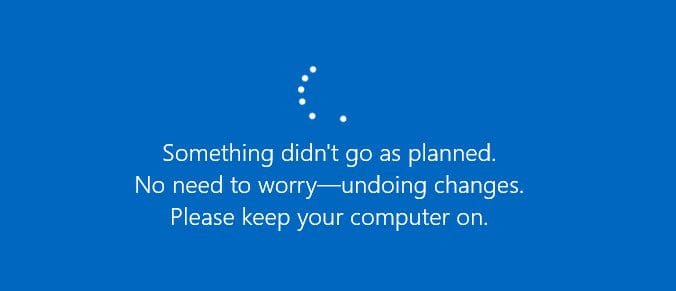
  • Security updated something did not go well as planned
    Something did not go well as planned: Windows Security update fails to install Windows
  • RE4ncJa
    How to configure favorites on Microsoft Edge via Group Policy Windows
  • username
    Is my AD user or service account password correct? Run App as a different User and switch Users in Windows Windows
  • Perform slfservice rBitLocker recovery
    Resolve Invalid Key ID when requesting BitLocker Recovery Key Windows
  • Featured image wifipass
    Find saved Wi-Fi Passwords in Windows 10 and 11 Network | Monitoring
  • img 5be0c6cdb96d8
    Is BitLocker Enabled? How to view BitLocker Disk Encryption Status in Windows Windows

More Related Articles

Security updated something did not go well as planned Something did not go well as planned: Windows Security update fails to install Windows
RE4ncJa How to configure favorites on Microsoft Edge via Group Policy Windows
username Is my AD user or service account password correct? Run App as a different User and switch Users in Windows Windows
Perform slfservice rBitLocker recovery Resolve Invalid Key ID when requesting BitLocker Recovery Key Windows
Featured image wifipass Find saved Wi-Fi Passwords in Windows 10 and 11 Network | Monitoring
img 5be0c6cdb96d8 Is BitLocker Enabled? How to view BitLocker Disk Encryption Status in Windows Windows

Leave a Reply Cancel reply

You must be logged in to post a comment.

Microsoft MVP

VEEAMLEGEND

vexpert-badge-stars-5

Virtual Background

GoogleNews

Categories

veeaam100

Veeam Vanguard

  • SSD Trim and Disable delete operaion from ending up in Recycle bin
    SSD TRIM: Delete files permanently without using the Recycle Bin Windows
  • How to Install RSAT on Windows 11
    How to Install and Uninstall RSAT on Windows 11 Windows
  • images 3 4
    What are the differences between an ADM and ADMX file Windows Server
  • Webp.net resizeimage 4
    Create, list, lock, deploy, and delete Azure Resource Group via Azure CLI AWS/Azure/OpenShift
  • unnamed
    Add or delete users and set permissions in Azure AD AWS/Azure/OpenShift
  • maxresdefault
    Linux Directory Hierarchy Linux
  • Plex DS923+ NAS
    Step-by-step guide on how to set up the Synology DS923+ NAS Reviews
  • trelloplan
    How to change or cancel your Trello plan JIRA|Confluence|Apps

Subscribe to Blog via Email

Enter your email address to subscribe to this blog and receive notifications of new posts by email.

Join 1,817 other subscribers
  • RSS - Posts
  • RSS - Comments
  • About
  • Authors
  • Write for us
  • Advertise with us
  • General Terms and Conditions
  • Privacy policy
  • Feedly
  • Telegram
  • Youtube
  • Facebook
  • Instagram
  • LinkedIn
  • Tumblr
  • Pinterest
  • Twitter
  • mastodon

Tags

Active Directory Azure Bitlocker Microsoft Windows PowerShell WDS Windows 10 Windows 11 Windows Deployment Services Windows Server 2016

Copyright © 2025 TechDirectArchive


Loading Comments...
 

You must be logged in to post a comment.