Skip to content

TechDirectArchive

Hands-on IT, Cloud, Security & DevOps Insights

  • Home
  • About
  • Advertise With US
  • Reviews
  • Contact
  • Toggle search form
Home » Windows » How to reset and reinstall Windows 10 locally
  • images 1 3
    Failed to create a new scheduled task name RemoteException: Cannot create the file when that file already exists Windows Server
  • copy and paste between host machines and VirtualBox VM
    How to copy and paste between host machines and VirtualBox VM Virtualization
  • Configure Synology DS923+ NAS for File Sharing
    How to Configure Synology DS923+ NAS for File Sharing [Part 2] Reviews
  • RDP
    The connection was denied because the user is not authorized for remote Login: Enable Remote Desktop Connection on Windows 11 for non-administrators or selected users Windows
  • Interactive logon Message for Users
    Display interactive logon messages for Windows PCs via GPO Windows
  • The evolution of Windows authentication   NTLM to Keberos
    Bidding Farewell to NTLM in favour of Kerberos Windows
  • Extend C drive with additional Software
    Fix unable to Extend Volume on Windows protected by BitLocker Windows
  • trip wire feature
    How to install and configure Tripwire on Ubuntu Linux

How to reset and reinstall Windows 10 locally

Posted on 15/03/202011/09/2023 Christian By Christian 1 Comment on How to reset and reinstall Windows 10 locally
reset Windows 10

When your device is not functioning well as desired, you may want to reset your device to the normal state by resetting your device to factory settings. On how to reset and reinstall Windows 10 from the cloud and how to recover your Windows 10 when you cannot boot to Windows. See this guide for how to perform a Fresh Start installation on Windows 10.

Using the Reset the PC Option: The below listed steps ways to reset your device in Windows 10.

  • – Open the Windows settings with the key combination [Windows] + [i].
  • – Under the category “Update and security”
  • – Under “Recovery” on the left pane,
  • – Under “Reset this PC”
  • – Click on Get Started.
reinstall Windows 10

Follow through by clicking on next

 local Windows 10 reset

Click on reset and follow the prompts.

Windows 10 reinstall locally

When complete, your device will restart.

Using the “Advanced Setup”: where you have the option to reset locally or from the cloud.

reset Windows 10

Under Troubleshooting “
– Click on Reset your PC or see advanced options” as shown below.

reinstall Windows 10

Next, click on “Reset this PC”,

 local Windows 10 reset

FYI: Under the “Advanced Option”, here are some settings that can be performed.

Windows 10 reinstall locally

Next, click on “Remove everything”

reinstall Windows 10

This will reboot the system as shown below.

local Windows 10 reset

Choose the “Local reinstall” to reinstall Windows from this device as shown below.
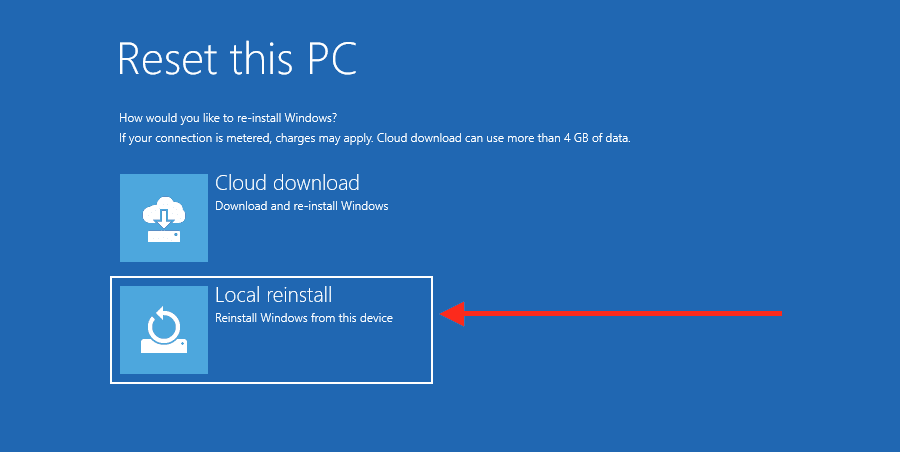
Windows 10 reinstall locally

Click on “Clean the drive fully” as shown below.

reset Windows 10

This continue with the installation

This will prompt you to “Reset” your device by clicking on the reset button.
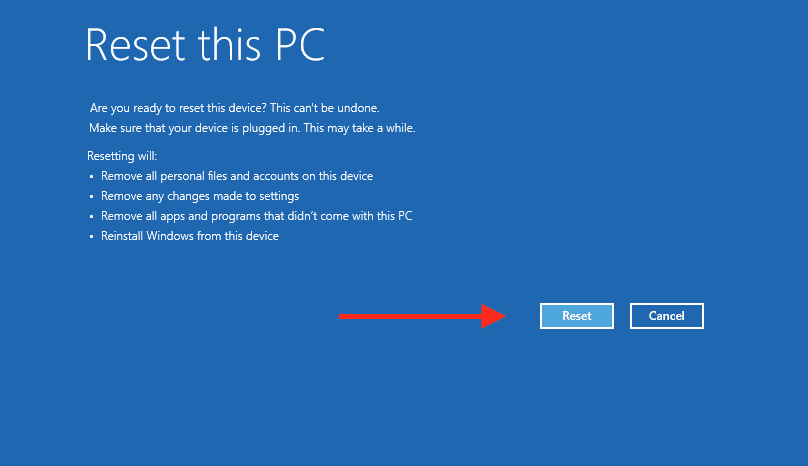
Thereafter, the device will reboot the device and reset your device.

After this step is complete, the device will continue with applying Windows Updates as shown below.

Next, select the right region, for me I will select Germany

Select the right Keyboard, I will select German and click on Yes

Skip the next stage adding for additional Keyboard layout.
– Next, accept the License Agreement.

Select “Setup for Personal settings” and click on next as shown below

Depending on your need, I will be creating an “Offline Account”
– Click on Offline Account.

Then select limited experience as shown above

Enter your password

Select the “security question for the account created” as shown below and
– Click on next

Accept the customisation etc., as shown below

When this finishes, Windows will apply settings. Please at this stage do not turn off your device.

Now, the setup is completes shown below. You can now start using your device.

Other methods reset Windows 10 is via the following below.
– Reset Windows 10 using the media creation tool
– Reinstall Windows 10 via ISO

I hope you found this blog post helpful. If you have any questions, please let me know in the comment session.

Rate this post

Thank you for reading this post. Kindly share it with others.

  • Click to share on X (Opens in new window) X
  • Click to share on Reddit (Opens in new window) Reddit
  • Click to share on LinkedIn (Opens in new window) LinkedIn
  • Click to share on Facebook (Opens in new window) Facebook
  • Click to share on Pinterest (Opens in new window) Pinterest
  • Click to share on Tumblr (Opens in new window) Tumblr
  • Click to share on Telegram (Opens in new window) Telegram
  • Click to share on WhatsApp (Opens in new window) WhatsApp
  • Click to share on Pocket (Opens in new window) Pocket
  • Click to share on Mastodon (Opens in new window) Mastodon
  • Click to share on Bluesky (Opens in new window) Bluesky
  • Click to share on Threads (Opens in new window) Threads
  • Click to share on Nextdoor (Opens in new window) Nextdoor
Windows Tags:Microsoft Windows, Reset

Post navigation

Previous Post: Fix failed to open session for the virtual machine GNS3 VM
Next Post: How to create an Environment variables in Windows

Related Posts

  • Setup FSx File System 1
    Create and mount FSx File System: Join EC2 instance to AWS Managed AD AWS/Azure/OpenShift
  • wmic4
    Security Identifier: Find User SID in Windows Windows
  • powershell commands lede 1024x276 1
    PowerShell Remoting: Guide to Windows Management Instrumentation Scripts
  • img 5be0c6cdb96d8
    Is BitLocker Enabled? How to view BitLocker Disk Encryption Status in Windows Windows
  • Configure Windows Server with Sconfig
    How to Configure Windows Server Core using SConfig Windows
  • Creating a WinPE USB Drive Fixing System Boot Issues
    Creating a WinPE USB Drive: Fixing System Boot Issues Windows

More Related Articles

Setup FSx File System 1 Create and mount FSx File System: Join EC2 instance to AWS Managed AD AWS/Azure/OpenShift
wmic4 Security Identifier: Find User SID in Windows Windows
powershell commands lede 1024x276 1 PowerShell Remoting: Guide to Windows Management Instrumentation Scripts
img 5be0c6cdb96d8 Is BitLocker Enabled? How to view BitLocker Disk Encryption Status in Windows Windows
Configure Windows Server with Sconfig How to Configure Windows Server Core using SConfig Windows
Creating a WinPE USB Drive Fixing System Boot Issues Creating a WinPE USB Drive: Fixing System Boot Issues Windows

Comment (1) on “How to reset and reinstall Windows 10 locally”

  1. Avatar photo Ahmed says:
    01/03/2022 at 7:55 PM

    Great article.
    But reset option is not that much of a deal when I want to completely delete my data.
    I tried this option and I still can retrieve my data using recovery software.
    Is there a way so that I can completely delete all data with not being able to delete.

    Log in to Reply

Leave a Reply Cancel reply

You must be logged in to post a comment.

Microsoft MVP

VEEAMLEGEND

vexpert-badge-stars-5

Virtual Background

GoogleNews

Categories

veeaam100

sysadmin top30a
 
  • images 1 3
    Failed to create a new scheduled task name RemoteException: Cannot create the file when that file already exists Windows Server
  • copy and paste between host machines and VirtualBox VM
    How to copy and paste between host machines and VirtualBox VM Virtualization
  • Configure Synology DS923+ NAS for File Sharing
    How to Configure Synology DS923+ NAS for File Sharing [Part 2] Reviews
  • RDP
    The connection was denied because the user is not authorized for remote Login: Enable Remote Desktop Connection on Windows 11 for non-administrators or selected users Windows
  • Interactive logon Message for Users
    Display interactive logon messages for Windows PCs via GPO Windows
  • The evolution of Windows authentication   NTLM to Keberos
    Bidding Farewell to NTLM in favour of Kerberos Windows
  • Extend C drive with additional Software
    Fix unable to Extend Volume on Windows protected by BitLocker Windows
  • trip wire feature
    How to install and configure Tripwire on Ubuntu Linux

Subscribe to Blog via Email

Enter your email address to subscribe to this blog and receive notifications of new posts by email.

Join 1,841 other subscribers
  • RSS - Posts
  • RSS - Comments
  • About
  • Authors
  • Write for us
  • Advertise with us
  • General Terms and Conditions
  • Privacy policy
  • Feedly
  • Telegram
  • Youtube
  • Facebook
  • Instagram
  • LinkedIn
  • Tumblr
  • Pinterest
  • Twitter
  • mastodon

Tags

AWS Azure Bitlocker Microsoft Windows PowerShell WDS Windows 10 Windows 11 Windows Deployment Services Windows Server 2016

Copyright © 2025 TechDirectArchive


Loading Comments...
 

You must be logged in to post a comment.