Skip to content

TechDirectArchive

Hands-on IT, Cloud, Security & DevOps Insights

  • Home
  • About
  • Advertise With US
  • Reviews
  • Contact
  • Toggle search form
Home » Windows » How to link your Android or iPhone to your Windows 10 PC
  • Fixed Sysprep Generalize 1
    How to Fix The Virtual Desktop is Not Sysprep Generalized Virtualization
  • ansible logo600 591x296 1
    Ansible_user=UNREACHABLE {Failed to connect to the host via SSH: SSH: Could not resolve hostname (Name or service not known, unreachable true) Configuration Management Tool
  • asdfgh
    All Group Policies (GPO) available to configure Microsoft Edge settings Windows Server
  • edge7
    How to enable Adblocker on Microsoft Edge Windows
  • Modernstanby
    Modern Standby: PC is automatically encrypted Windows
  • ghm
    Single App Kiosk Mode Configuration using MDM Bridge WMI Provider Windows
  • microsoft confirms some pcs freeze after windows 10 2
    DHCP specific reference console icons Windows Server
  • browser
    How to configure a new tab page URL in Microsoft Edge Windows

How to link your Android or iPhone to your Windows 10 PC

Posted on 15/08/202008/10/2024 Christian By Christian 8 Comments on How to link your Android or iPhone to your Windows 10 PC

In this guide, you will learn how to link your Android or iPhone to your Windows 10 PC. Windows 10 makes it very easy to link your Android or iPhone to Windows 10. With the “Continue on PC” option, you can access your apps (web pages) on your Personal Computer. This feature “Continue on PC” is currently available for devices running Windows 10 Fall Creators Update. Please see How to clear cookies, history, and cache in Safari, and How to restore accidentally deleted calendars, bookmarks, files, or contacts from iCloud.

Alternatively, you can get instant access to everything you love on your phone by linking your phone to your Personal Computer (PC). To get started, install “Link to the Windows app” on your Android phone and link it with the your Phone app on your Windows 10 PC. Kindly refer to this related guide: Uninstall Apps automatically: How to automatically Offload Unused Apps on iPhone.

Here are some prerequisites that need to be met. Ensure you are running the latest version of Windows 10 and have a very good internet connection.

Here are some related guides: Microsoft Phone Link: How to Link and Unlink an Android Phone to Windows 11, and how to configure GPS location “Google Map” on your Android Studio Emulator.

Link your Android or iPhone to your Windows PC

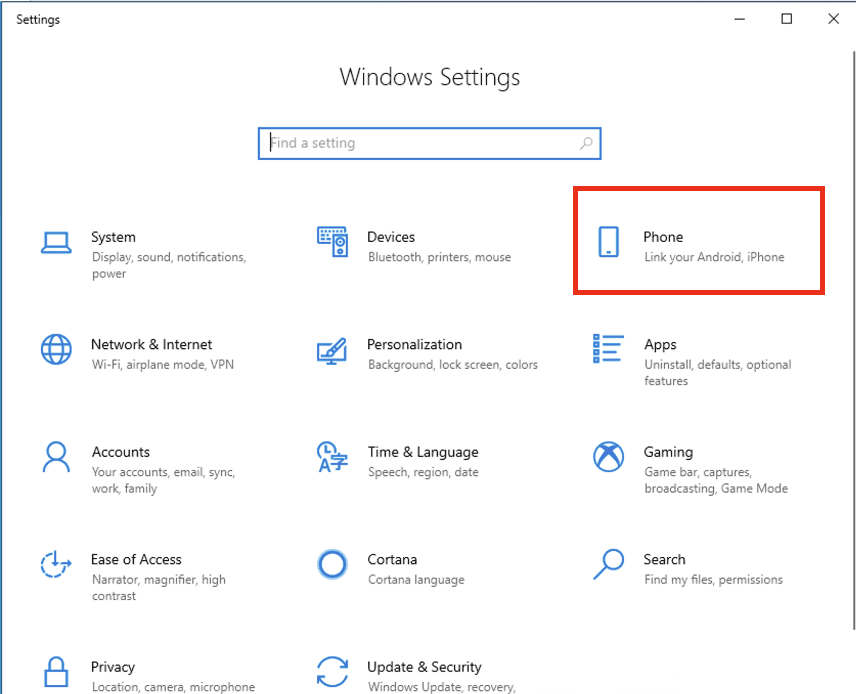
To connect your phone to your Windows 10 PC, follow the steps. Open the Settings app on your computer.

There are various ways to launch the settings menu, you can just search for it by typing “settings” or using the below method.

Next, click on the Phone Option.
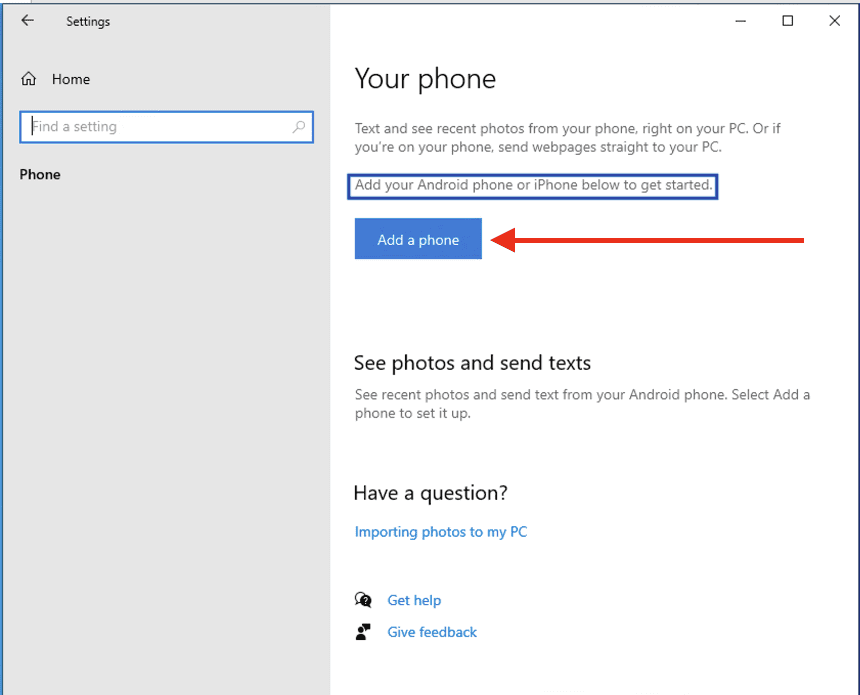
Click on the option to “Add a phone” as shown below
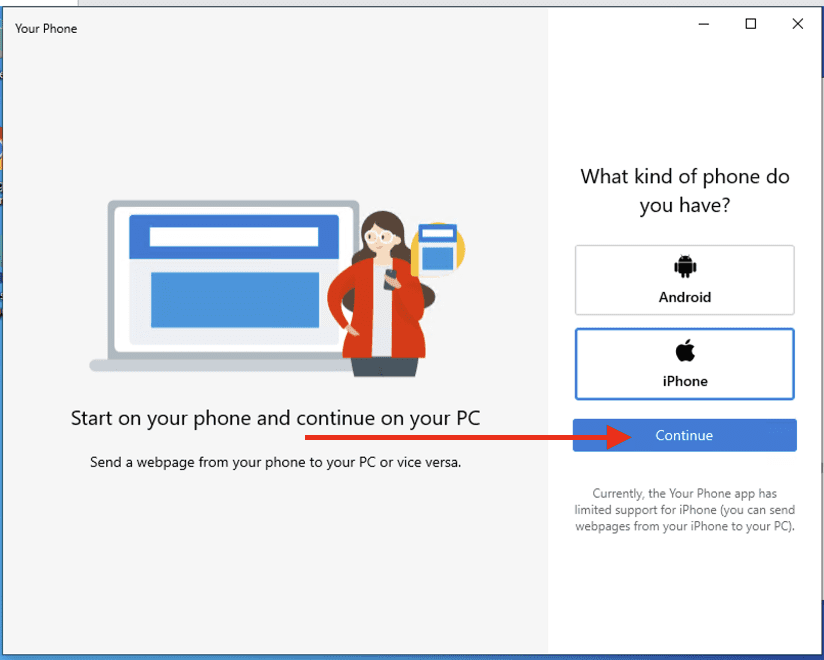
What Kind of Phone do you have – iPhone?

In the next window, select the kind of phone you will be adding. For me, I will be adding an iPhone.

Click on Continue to proceed with the linking
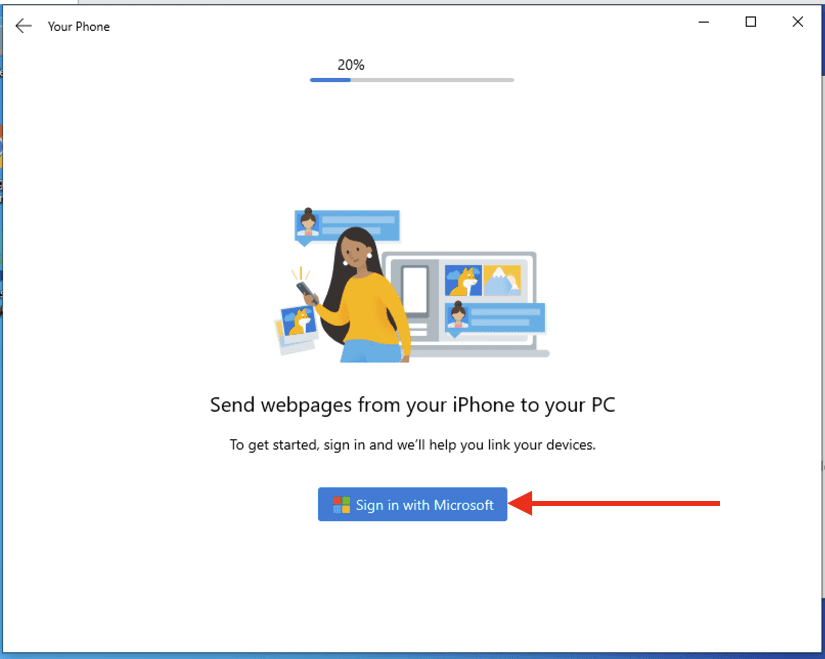
Sign in With Microsoft

Since I have not previously signed into Microsoft. It will be asked to do this.
Enter your sign-in information (could be an email or phone etc). Click on continue

Enter your password on the next screen.

If you have 2FA (MFA) turned on, you will be required to enter this code in order to proceed.

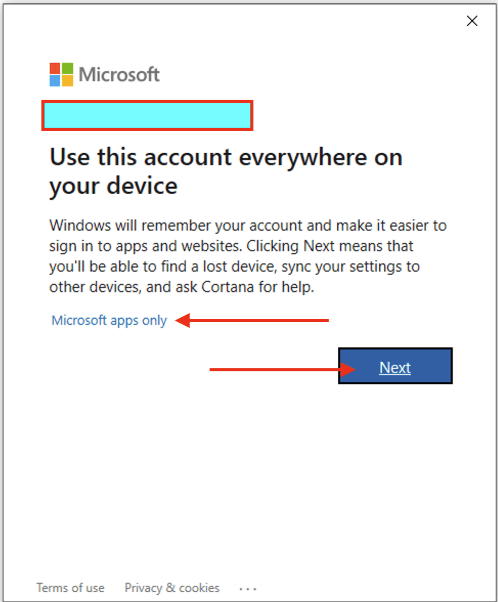
Click on Next to continue (Here Microsoft will remember your account) and make sign-in flawless.

You can alternatively click on "Microsoft apps only", In this way, your account will be used to sign in easily to Microsoft apps only.
Next, you will be prompted to install Microsoft Edge on your phone. 

Use the following link www.aka.ms/linkyourphone

Download Edge on your Mobile Phone

Upon entering the URL. You will be redirected to Apple Store to have the App downloaded.

When you have installed Microsoft Edge as shown above on your phone

You will be required to open Edge on your iPhone to sign in as shown below

Now on your iPhone, open Edge. Sign in and follow the prompts as shown below

As you can see below, you have successfully signed-in

Windows PC linked to Mobile Phone

Now, as you can see, the device has been linked. 

When this is done, it will be displayed on your laptop (PC) that you have successfully linked your iPhone.

To test of this experience, sign-in to an app on your iPhone and then click on the three dots (…) to select the Continue on PC menu

Follow the steps to have your apps opened on your PC. Click on your PC name to continue

On your laptop, this will be displayed on your PC as shown below

Kindly follow the steps described in this article to unlink your iPhone or Android from your device (PC).

I hope you found this blog post helpful on how to link your Android or iPhone to your Windows 10 PC. If you have any questions, please let me know in the comment session

5/5 - (1 vote)

Thank you for reading this post. Kindly share it with others.

  • Share on X (Opens in new window) X
  • Share on Reddit (Opens in new window) Reddit
  • Share on LinkedIn (Opens in new window) LinkedIn
  • Share on Facebook (Opens in new window) Facebook
  • Share on Pinterest (Opens in new window) Pinterest
  • Share on Tumblr (Opens in new window) Tumblr
  • Share on Telegram (Opens in new window) Telegram
  • Share on WhatsApp (Opens in new window) WhatsApp
  • Share on Pocket (Opens in new window) Pocket
  • Share on Mastodon (Opens in new window) Mastodon
  • Share on Bluesky (Opens in new window) Bluesky
  • Share on Threads (Opens in new window) Threads
  • Share on Nextdoor (Opens in new window) Nextdoor
Windows Tags:Windows 10

Post navigation

Previous Post: How to Upgrade Windows Admin Center Manually
Next Post: How to query a list of installed programs in Windows

Related Posts

  • Determine GPO from GUID or Name
    How to determine GPO from GUID or Name Windows
  • Featured image widgets
    How to use the Widgets feature on Windows 11 Windows
  • Migrate RDS CALs
    How to Migrate RDS CALs Windows
  • banner 2
    How to Configure NIC Teaming on Windows Server Network | Monitoring
  • Featured image 1
    How to Disable Internet Explorer with Group Policy & Registry Windows
  • screenshot 2020 03 14 at 22.47.56
    How to block apps from running in Windows Windows

More Related Articles

Determine GPO from GUID or Name How to determine GPO from GUID or Name Windows
Featured image widgets How to use the Widgets feature on Windows 11 Windows
Migrate RDS CALs How to Migrate RDS CALs Windows
banner 2 How to Configure NIC Teaming on Windows Server Network | Monitoring
Featured image 1 How to Disable Internet Explorer with Group Policy & Registry Windows
screenshot 2020 03 14 at 22.47.56 How to block apps from running in Windows Windows

Comments (8) on “How to link your Android or iPhone to your Windows 10 PC”

  1. Avatar photo Steve says:
    20/07/2021 at 5:25 PM

    If you are already logged in to MS Edge on your iPhone, you may have to log out first and then back in again

    Log in to Reply
  2. Avatar photo Jeremiah Agware says:
    22/10/2021 at 2:54 PM

    It’s really a nice and useful piece of information. Thank you for sharing.

    Log in to Reply
    1. chris Christian says:
      22/10/2021 at 3:31 PM

      Thank you for your comment!

      • But, please stay away from embedding other content here, or risk your IP being blacklisted!
      Log in to Reply
  3. Avatar photo Tunde says:
    21/03/2022 at 12:57 PM

    This only work with edge browser but not with messages and calls

    Log in to Reply
  4. Avatar photo timothy karn says:
    20/11/2022 at 10:51 AM

    i have spent so much time with validation problems etc. i forgot why wanted to synch in the first place, plus why i even went online, numerous codes, names, e-mail addresses, passwords numbering in the teens. I am seriously about to give up.

    Log in to Reply
    1. chris Christian says:
      04/04/2023 at 9:53 PM

      I am just getting to see this. Have you been able to resolve this issue?

      Log in to Reply
  5. Avatar photo Dmiky says:
    04/04/2023 at 9:50 PM

    I’m impressed and satisfied with your blog post (Layout and Interface), it is very informative. I would wish to get more similar content from you, and I must bookmark your site.

    Log in to Reply
    1. chris Christian says:
      04/04/2023 at 9:54 PM

      Thank you so much for your kind words @Dmiky!

      Log in to Reply

Leave a Reply Cancel reply

You must be logged in to post a comment.

Microsoft MVP

VEEAMLEGEND

vexpert-badge-stars-5

Virtual Background

GoogleNews

Categories

veeaam100

sysadmin top30a

  • Fixed Sysprep Generalize 1
    How to Fix The Virtual Desktop is Not Sysprep Generalized Virtualization
  • ansible logo600 591x296 1
    Ansible_user=UNREACHABLE {Failed to connect to the host via SSH: SSH: Could not resolve hostname (Name or service not known, unreachable true) Configuration Management Tool
  • asdfgh
    All Group Policies (GPO) available to configure Microsoft Edge settings Windows Server
  • edge7
    How to enable Adblocker on Microsoft Edge Windows
  • Modernstanby
    Modern Standby: PC is automatically encrypted Windows
  • ghm
    Single App Kiosk Mode Configuration using MDM Bridge WMI Provider Windows
  • microsoft confirms some pcs freeze after windows 10 2
    DHCP specific reference console icons Windows Server
  • browser
    How to configure a new tab page URL in Microsoft Edge Windows

Subscribe to Blog via Email

Enter your email address to subscribe to this blog and receive notifications of new posts by email.

Join 1,832 other subscribers
  • RSS - Posts
  • RSS - Comments
  • About
  • Authors
  • Write for us
  • Advertise with us
  • General Terms and Conditions
  • Privacy policy
  • Feedly
  • Telegram
  • Youtube
  • Facebook
  • Instagram
  • LinkedIn
  • Tumblr
  • Pinterest
  • Twitter
  • mastodon

Tags

AWS Azure Bitlocker Microsoft Windows PowerShell WDS Windows 10 Windows 11 Windows Deployment Services Windows Server 2016

Copyright © 2025 TechDirectArchive


Loading Comments...
 

You must be logged in to post a comment.