Skip to content

TechDirectArchive

Hands-on IT, Cloud, Security & DevOps Insights

  • Home
  • About
  • Advertise With US
  • Reviews
  • Contact
  • Toggle search form
Home » Windows Server » How to add an account to the local IIS_IUSRS group
  • Windows 11 New Security Features
    Smart App Control: Enabling Phishing Protection in Windows 11 Windows
  • VMware vCenter Standalone
    Fix VMware vCenter converter standalone started but not running Virtualization
  • gns3
    GNS3 Setup: Error opening file for writing, click on Abort to stop installation, Retry to try again, or Ignore to skip this file Windows
  • Determine GPO from GUID or Name
    How to determine GPO from GUID or Name Windows
  • Exchange password
    How to block the Change Password Feature for All Users via the Exchange Administrative Center Network | Monitoring
  • azure sql featured image
    How to delete ADFS Windows Internal Database without access credentials Oracle/MSSQL/MySQL
  • Norton Antivirus Free Download For Mac 1st
    How to fix repeated app-blocking connection alerts from Norton on Mac Mac
  • Diskspd
    Veeam Backup and Replication Disk I/O with diskspd Backup

How to add an account to the local IIS_IUSRS group

Posted on 16/03/202125/03/2024 Christian By Christian No Comments on How to add an account to the local IIS_IUSRS group
IIS_IUSRS group

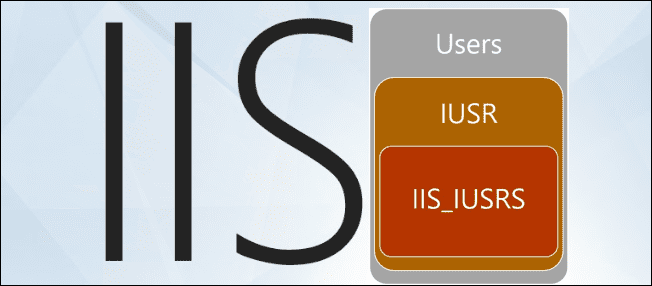
In this article, we shall discuss “How to add an account to the local IIS_IUSRS group”. IIS_IUSRS is the group for IIS Worker Process Accounts. This means the identity that the application pool itself runs under. IUSR is the anonymous user identity. That means the identity that IIS believes to be the user who is accessing the site. This user is not a member of the IIS_IUSRS group by default. Please see how to configure SSL between WSUS upstream and downstream servers, and how to perform redirection from HTTP to HTTPS.

Add Account to User Group

Kindly refer to the following related IIS guides. How to add and remove IIS Web Server on Windows Server 2019 via the Server Manager and PowerShell, and Event ID 5059: Application pool has been disabled or Changing identity user for IIS Application Pool.

I needed to have the MBAM MBAM-RO-SVC account added to the local IIS_IUSRS group. The following steps below were how I approached it. 

Fire up Server Manager

Launch the Server Manager and click Tool and then on “Computer Manager.

Alternatively, you could also search from Computer Management from the start menu or from the “Windows Administrative Tools”.

Adding accounts to IIS_IUSRS

This will open the Computer Management console. Navigate to the Local Users and Groups. Click on Groups and search for IIS_IUSRS and add the service account you created for the IIS Pool.

Local IIS group management

However, the account has been added. Click on Okay to finish the set up.

Screenshot-2021-03-16-at-23.31.49

I hope you found this blog post on How to add an account to the local IIS_IUSRS group helpful. Furthermore, Please let me know in the comment session if you have any questions.

Rate this post

Thank you for reading this post. Kindly share it with others.

  • Click to share on X (Opens in new window) X
  • Click to share on Reddit (Opens in new window) Reddit
  • Click to share on LinkedIn (Opens in new window) LinkedIn
  • Click to share on Facebook (Opens in new window) Facebook
  • Click to share on Pinterest (Opens in new window) Pinterest
  • Click to share on Tumblr (Opens in new window) Tumblr
  • Click to share on Telegram (Opens in new window) Telegram
  • Click to share on WhatsApp (Opens in new window) WhatsApp
  • Click to share on Pocket (Opens in new window) Pocket
  • Click to share on Mastodon (Opens in new window) Mastodon
  • Click to share on Bluesky (Opens in new window) Bluesky
  • Click to share on Threads (Opens in new window) Threads
  • Click to share on Nextdoor (Opens in new window) Nextdoor
Windows Server Tags:IIS, Internet Information Services, Windows 10, Windows Server 2016

Post navigation

Previous Post: How to fix Remote Desktop can’t connect to the remote computer for one of these reasons
Next Post: Unable to locate the account: Fix call to DsGetDcNameWithAccount failed with return value 0x0000054B

Related Posts

  • Banner
    Enabling and Configuring WinRM via GPO Windows
  • images
    How to fix you are not allowed to view this folder on SSRS: MBAM reports cannot be accessed because it could not load folder contents Windows Server
  • mountedimagenotaccessible
    Unable to access the image: Make sure that the image path and the Windows directory for the image exist and you have Read permissions on the folder Windows
  • telnet
    Could not open a connection to the host, on the port, connect failed Windows Server
  • original 1
    Install Wim: How to Add Packages to Windows image Using the DISM Tool Windows Server
  • SSL for Localhost on WAMP
    How to configure SSL for WAMP server Windows Server

More Related Articles

Banner Enabling and Configuring WinRM via GPO Windows
images How to fix you are not allowed to view this folder on SSRS: MBAM reports cannot be accessed because it could not load folder contents Windows Server
mountedimagenotaccessible Unable to access the image: Make sure that the image path and the Windows directory for the image exist and you have Read permissions on the folder Windows
telnet Could not open a connection to the host, on the port, connect failed Windows Server
original 1 Install Wim: How to Add Packages to Windows image Using the DISM Tool Windows Server
SSL for Localhost on WAMP How to configure SSL for WAMP server Windows Server

Leave a Reply Cancel reply

You must be logged in to post a comment.

Microsoft MVP

VEEAMLEGEND

vexpert-badge-stars-5

Virtual Background

GoogleNews

Categories

veeaam100

sysadmin top30a
 
  • Windows 11 New Security Features
    Smart App Control: Enabling Phishing Protection in Windows 11 Windows
  • VMware vCenter Standalone
    Fix VMware vCenter converter standalone started but not running Virtualization
  • gns3
    GNS3 Setup: Error opening file for writing, click on Abort to stop installation, Retry to try again, or Ignore to skip this file Windows
  • Determine GPO from GUID or Name
    How to determine GPO from GUID or Name Windows
  • Exchange password
    How to block the Change Password Feature for All Users via the Exchange Administrative Center Network | Monitoring
  • azure sql featured image
    How to delete ADFS Windows Internal Database without access credentials Oracle/MSSQL/MySQL
  • Norton Antivirus Free Download For Mac 1st
    How to fix repeated app-blocking connection alerts from Norton on Mac Mac
  • Diskspd
    Veeam Backup and Replication Disk I/O with diskspd Backup

Subscribe to Blog via Email

Enter your email address to subscribe to this blog and receive notifications of new posts by email.

Join 1,841 other subscribers
  • RSS - Posts
  • RSS - Comments
  • About
  • Authors
  • Write for us
  • Advertise with us
  • General Terms and Conditions
  • Privacy policy
  • Feedly
  • Telegram
  • Youtube
  • Facebook
  • Instagram
  • LinkedIn
  • Tumblr
  • Pinterest
  • Twitter
  • mastodon

Tags

AWS Azure Bitlocker Microsoft Windows PowerShell WDS Windows 10 Windows 11 Windows Deployment Services Windows Server 2016

Copyright © 2025 TechDirectArchive


Loading Comments...
 

You must be logged in to post a comment.