Skip to content

TechDirectArchive

Hands-on IT, Cloud, Security & DevOps Insights

  • Home
  • About
  • Advertise With US
  • Reviews
  • Contact
  • Toggle search form
Home » Windows » Unable to install Microsoft Bitlocker Administration: Uninstall your current version of MBAM and run setup again

Unable to install Microsoft Bitlocker Administration: Uninstall your current version of MBAM and run setup again

Posted on 17/03/202120/12/2025 Christian By Christian No Comments on Unable to install Microsoft Bitlocker Administration: Uninstall your current version of MBAM and run setup again
Bitlocker Administration installation issues

In this guide, we shall discuss “Unable to install Microsoft Bitlocker Administration: Uninstall your current version of MBAM and run setup again”. Microsoft Desktop Optimization Pack (MDOP) is a suite (portfolio) of technologies available to Software Assurance customers through an additional subscription. Please, See how to view BitLocker disk encryption status, how to backup existing and new BitLocker recovery keys to AD.

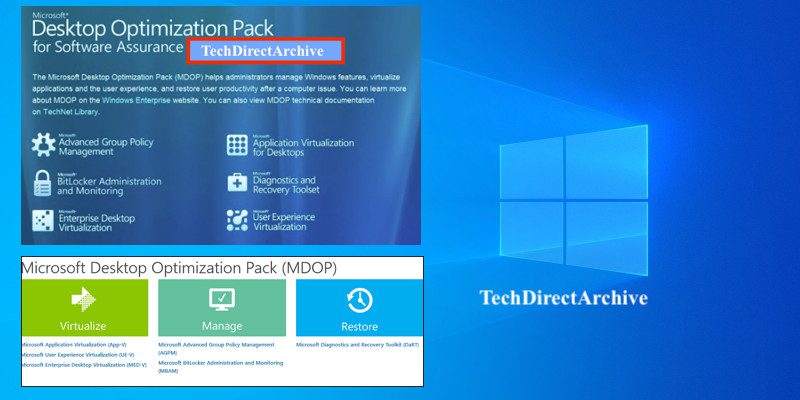
The following components are included in the MDOP suite: Microsoft Application Virtualization (App-V), Microsoft User Experience Virtualization (UE-V), Microsoft Advanced Group Policy Management (AGPM), Microsoft Diagnostics & Recovery Toolset (DaRT), and Microsoft BitLocker Administration and Monitoring (MBAM). 

MBAM is an administrator interface used to manage BitLocker drive encryption. It allows you to configure your enterprise with the correct BitLocker encryption policy options. As well as monitor compliance with these policies. Kindly refer to the following similar guides on BitLocker.

Also, see BitLocker Drive Encryption architecture and implementation types on Windows, how to fix missing BitLocker Recovery Tab in Active Directory Users and Computers, and how to enable or disable BitLocker Drive Encryption on Windows 10 and Virtual Machines.

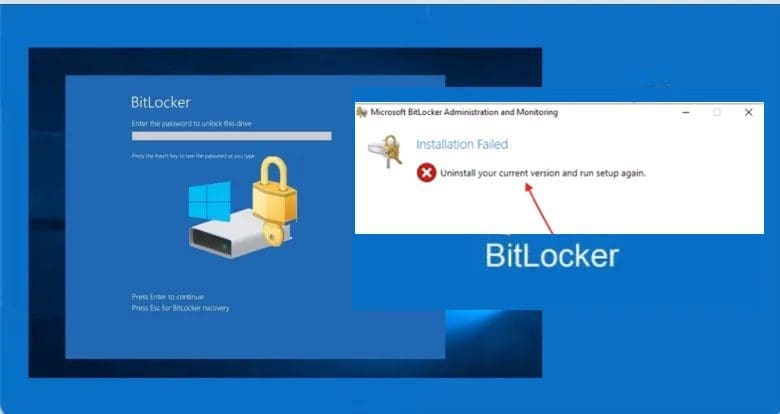
Unable to install Microsoft Bitlocker Administration

Reason for error: I installed this additional component (the July 2018 Servicing Release for MDOP update). Before installing the MBAM setup (original installation files). Furthermore, The July 2018 Servicing Release for MDOP update is to be installed after installing the original MBAM installation files.

The following error was prompted because I had initially installed the July 2018 Servicing Release for MDOP update

MBAM uninstallation problems

Please, see Query MBAM-protected Client for non-compliance [Part 2], how to uninstall Applications with PowerShell Script, and Unable to find my BitLocker Recovery Key in AD.

Uninstall MBAM

Unfortunately, you cannot find this in the list of installed programs. To uninstall this program. However, You must re-run the July 2018 Servicing Release for the MDOP update setup file, as shown below. Moreover, It must be reinstalled after installing the MBAM setup. This is the recommended installation steps.

In addition, Click on the download MBAM  July 2018 Servicing Release for MDOP to uninstall it as shown below.

Microsoft Bitlocker setup errors

Nonetheless, The uninstallation is very fast and will be uninstalled very quickly. Click on Finish to complete the uninstallation.

Screenshot-2021-03-17-at-03.43.57

Please, see How to uninstall a program via command prompt in Windows, How to uninstall Applications with PowerShell Script, and how to get MBAM BitLocker Recovery Keys from Microsoft SQL Server.

Install MBAM

Now, if you’re experiencing issues like ‘Unable to install Microsoft Bitlocker Administration’. You should be able to install the MBAM again. Remember to install the July 2018 Servicing Release for MDOP after the installation.

Screenshot-2021-03-17-at-03.51.20

To install SQL2017 to support MBAM, you must also install the July 2018 Servicing Release for MDOP from the following link. This will enable MBAM to support the newer AES XTS ciphers in Windows 10 and SQL 2017. More information can be found at this link.

I hope you found this blog post about “Unable to install Microsoft Bitlocker Administration: Uninstall your current version of MBAM and run setup again” helpful. If you have any questions, please let me know in the comment session.

5/5 - (1 vote)

Thank you for reading this post. Kindly share it with others.

  • Share on X (Opens in new window) X
  • Share on Reddit (Opens in new window) Reddit
  • Share on LinkedIn (Opens in new window) LinkedIn
  • Share on Facebook (Opens in new window) Facebook
  • Share on Pinterest (Opens in new window) Pinterest
  • Share on Tumblr (Opens in new window) Tumblr
  • Share on Telegram (Opens in new window) Telegram
  • Share on WhatsApp (Opens in new window) WhatsApp
  • Share on Mastodon (Opens in new window) Mastodon
  • Share on Bluesky (Opens in new window) Bluesky
  • Share on Threads (Opens in new window) Threads
  • Share on Nextdoor (Opens in new window) Nextdoor
Windows Tags:Bitlocker, MBAM, Microsoft Windows, Windows 10

Post navigation

Previous Post: How to alter a DATABASE compatibility level
Next Post: How to configure a service account for Kerberos delegation

Related Posts

  • Ping request could not find the hos
    Ping request could not find the host: Verify if the name is entered correctly Windows
  • Featured image 1
    Add and Remove Folders in Favorites in Microsoft Outlook Windows
  • windowsztrf
    Microsoft Desktop Optimization Pack [MDOP] at a glance Windows
  • Featured image MsTeams.
    How to share an app window on Microsoft Teams Windows
  • RDP Certificate Issues
    Connecting to the RDP host: Fix the Certificate could not be verified back to the root certificate Mac
  • mountedimagenotaccessible
    Unable to access the image: Make sure that the image path exist Windows

More Related Articles

Ping request could not find the hos Ping request could not find the host: Verify if the name is entered correctly Windows
Featured image 1 Add and Remove Folders in Favorites in Microsoft Outlook Windows
windowsztrf Microsoft Desktop Optimization Pack [MDOP] at a glance Windows
Featured image MsTeams. How to share an app window on Microsoft Teams Windows
RDP Certificate Issues Connecting to the RDP host: Fix the Certificate could not be verified back to the root certificate Mac
mountedimagenotaccessible Unable to access the image: Make sure that the image path exist Windows

Leave a Reply Cancel reply

You must be logged in to post a comment.

Microsoft MVP

VEEAMLEGEND

vexpert-badge-stars-5

Virtual Background

GoogleNews

Categories

veeaam100

Veeam Vanguard

  • Slide1 4
    How to create and configure a Shared Folder on Windows Server Windows Server
  • 1 WeXxkEX0JG3oB781HD8Hrg
    Error 0x204: Unable to Connect to Remote PC [Part 1] Windows Server
  • Slide2
    How to Clear Cache on Windows 10 Windows
  • vcenter sign on
    CVE-2021-22048: VMware vCenter Server updates address a privilege escalation vulnerability Security | Vulnerability Scans and Assessment
  • Screenshot 2022 04 27 at 00.50.35
    How to create a BitLocker System Partition [Part 2] Windows
  • SSH Keys Generation
    How to Generate SSH keys in Windows 11 Windows
  • finalelastic
    How to Install and Configure Elasticsearch on Linux  Linux
  • automatepythonsinwindows
    Python Automation in Windows with Visual Studio Code Version Control System

Subscribe to Blog via Email

Enter your email address to subscribe to this blog and receive notifications of new posts by email.

Join 1,817 other subscribers
  • RSS - Posts
  • RSS - Comments
  • About
  • Authors
  • Write for us
  • Advertise with us
  • General Terms and Conditions
  • Privacy policy
  • Feedly
  • Telegram
  • Youtube
  • Facebook
  • Instagram
  • LinkedIn
  • Tumblr
  • Pinterest
  • Twitter
  • mastodon

Tags

Active Directory Azure Bitlocker Microsoft Windows PowerShell WDS Windows 10 Windows 11 Windows Deployment Services Windows Server 2016

Copyright © 2025 TechDirectArchive


Loading Comments...
 

You must be logged in to post a comment.