Skip to content

TechDirectArchive

Hands-on IT, Cloud, Security & DevOps Insights

  • Home
  • About
  • Advertise With US
  • Reviews
  • Contact
  • Toggle search form
Home » Windows » Google Chrome reports your clock is behind: How to fix clock synchronization issues in Windows
  • Feature image OCS inventory
    Install and use OCS inventory on Windows Windows
  • image 3
    How to Migrate Your WordPress Site with WordPress Duplicator Network | Monitoring
  • How To Upgrade Windows 11 Pro to Enterprise
    Upgrade Windows 11 Pro to Enterprise and vice Versa Windows
  • Snapshot replication fix on synology
    Fix Task failed to perform Scheduled Snapshot Replication Storage
  • Capture 12
    How to Generate SSH Keys in Windows 10 Windows
  • dotnet6783
    Various methods to Install .NET Framework in Windows Windows
  • any
    Install AnyDesk on Windows for remote Connections Windows
  • VMware Tech Showcase
    Great details on VMware Tech Showcase Virtualization

Google Chrome reports your clock is behind: How to fix clock synchronization issues in Windows

Posted on 24/05/202120/10/2023 Christian By Christian No Comments on Google Chrome reports your clock is behind: How to fix clock synchronization issues in Windows
Google Chrome

Clock synchronization is a form of synchronizing clock values between devices with the use of an external reference clock or internal clock value of the device. The Windows clock synchronizes with internet time once a week if it’s connected to the internet. You can also manually force the clock to synchronize with internet time whenever you want. Thereby helping resolve any form of synchronization errors. Please see how to set a browser as default in macOS, and how to fix Google Chrome redirects: How to remove unwanted site redirects or pop-up from Google Chrome on Mac and Windows.

In this guide, I will show you how to sync your device clock with internet time in Windows settings and also by using the command line to describe how Windows Time service (W32Time) works. Here are some guides relating to Google Chrome: How to set a browser as default in Windows and how to make Cortana use To your default web browser such as Google Chrome,. Also, see

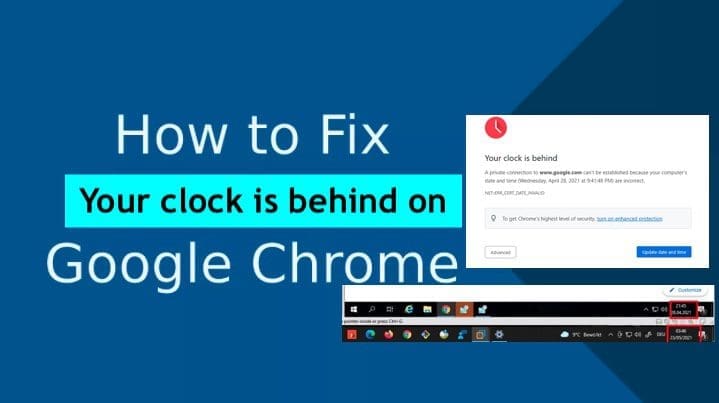
Why was the error “Google Chrome reports your clock is behind”prompted?

The following error below was displayed on Chrome when there were issues with your device’s time and date configuration.

There are other possible reasons why this can occur (such as certificate issues or Your clock is ahead etc). In this guide, I will fix the root issue and other issues will be taken care of.

clock synchronization

You may want to see Kerberos error: Clock skew too great while getting initial credentials, Unspecified GSS failure: How to fix Clock skew too great, and how to fix Enable or disable Linux System’s Clock Sync with NTP Server.

Time Synchronization Settings

By default, computers synchronize their timeless frequently. Non-domain joined devices are configured to synchronize with time.windows.com. Therefore, it is impossible to guarantee time accuracy on computers that have intermittent or no network connections.

Network Time Protocol (NTP) is a networking protocol and the default time synchronization protocol used by the Windows Time service in the operating system.

Furthermore, NTP is a fault-tolerant, highly scalable time protocol and is the protocol used most often for synchronizing computer clocks by using a designated time reference. NTP time synchronization takes place over a period of time and involves the transfer of NTP packets over a network.

However, NTP packets contain timestamps that include a time sample from both the client and the server participating in time synchronization.

Moreover, NTP relies on a reference clock to define the most accurate time to be used. This reference clock (PC) synchronizes all clocks on a network to that reference clock. NTP uses Coordinated Universal Time (UTC) as the universal standard for the current time. UTC is independent of time zones and enables NTP to be used anywhere worldwide regardless of time zone settings.

As you can see below, there is a significant difference (discrepancy) between the host VM and the Virtual machines in my virtual environment. To fix this issue, please refer to the steps below.

fix

Please see how to Synchronize your Domain Controller with an external time source, and how to schedule and join meetings with Microsoft Teams.

Solution “Fix Google Chrome reports your clock is behind”

Right-click the date on your computer’s taskbar and select ‘Adjust date/time’ as shown below. This is one of the quickest ways to access the date and time settings in Windows.

Windows

This will open the Date and Time wizard of the Windows Settings menu. If your device date and time are incorrect, please perform the following:
– Toggle on the ‘Set time automatically option.
– Under the ‘Set time and date automatically’ is switched on.

Screenshot-2021-05-23-at-03.48.55

As you can see below, the time has been synchronised and now I can surf the net

Screenshot-2021-05-23-at-03.50.23

Google Chrome reports your clock is behind

If you wish to implement this via the command line, please follow the steps described below. W32tm.exe is used to configure Windows Time service settings. It can also be used to diagnose problems with the time service.

W32tm.exe is the preferred command-line tool for configuring, monitoring or troubleshooting the Windows Time service.

Launch the Command Prompt as an Administrator. Type each one of the commands below and press enter. When you are done, you may have to restart your computer to test the issue again.

- net stop w32time
- w32tm /unregister
- w32tm /register
- net start w32time
- w32tm /resync

Note: If you have a server that is actually having this issue and it is not joined to the domain, you can create a scheduled task to ensure the time is frequently synchronized instead of waiting once a week to have it synced by default.

I hope you found this blog post helpful. If you have any questions, please let me know in the comment session.
Rate this post

Thank you for reading this post. Kindly share it with others.

  • Click to share on X (Opens in new window) X
  • Click to share on Reddit (Opens in new window) Reddit
  • Click to share on LinkedIn (Opens in new window) LinkedIn
  • Click to share on Facebook (Opens in new window) Facebook
  • Click to share on Pinterest (Opens in new window) Pinterest
  • Click to share on Tumblr (Opens in new window) Tumblr
  • Click to share on Telegram (Opens in new window) Telegram
  • Click to share on WhatsApp (Opens in new window) WhatsApp
  • Click to share on Pocket (Opens in new window) Pocket
  • Click to share on Mastodon (Opens in new window) Mastodon
  • Click to share on Bluesky (Opens in new window) Bluesky
  • Click to share on Threads (Opens in new window) Threads
  • Click to share on Nextdoor (Opens in new window) Nextdoor
Windows Tags:Google, Google Chrome, Windows 10

Post navigation

Previous Post: Install and configure Veeam Backup and Replication Community Edition
Next Post: Failed to connect to Veeam Backup and Replication server: Remote Channel Sink UriNotPublished, remote connection refused, and failed to start the service

Related Posts

  • delete5
    How to Delete Diagnostic Data in Windows 10 and Windows 11 Windows
  • How To Fix “Startup Repair Couldn’t Repair Your PC
    How To Fix “Startup Repair Couldn’t Repair Your PC Windows
  • Retrict access to external storage
    Restrict access to removable Storage Drives [Part 2] Windows
  • Featured image 1
    How to enable or disable color filters in Windows Windows
  • Computer policy could not be updated
    How to fix Computer Policy could not be updated successfully Windows
  • Screensaver
    How to Enable or Disable Screen Saver on Windows Windows

More Related Articles

delete5 How to Delete Diagnostic Data in Windows 10 and Windows 11 Windows
How To Fix “Startup Repair Couldn’t Repair Your PC How To Fix “Startup Repair Couldn’t Repair Your PC Windows
Retrict access to external storage Restrict access to removable Storage Drives [Part 2] Windows
Featured image 1 How to enable or disable color filters in Windows Windows
Computer policy could not be updated How to fix Computer Policy could not be updated successfully Windows
Screensaver How to Enable or Disable Screen Saver on Windows Windows

Leave a Reply Cancel reply

You must be logged in to post a comment.

Microsoft MVP

VEEAMLEGEND

vexpert-badge-stars-5

Virtual Background

GoogleNews

Categories

veeaam100

sysadmin top30a

  • Feature image OCS inventory
    Install and use OCS inventory on Windows Windows
  • image 3
    How to Migrate Your WordPress Site with WordPress Duplicator Network | Monitoring
  • How To Upgrade Windows 11 Pro to Enterprise
    Upgrade Windows 11 Pro to Enterprise and vice Versa Windows
  • Snapshot replication fix on synology
    Fix Task failed to perform Scheduled Snapshot Replication Storage
  • Capture 12
    How to Generate SSH Keys in Windows 10 Windows
  • dotnet6783
    Various methods to Install .NET Framework in Windows Windows
  • any
    Install AnyDesk on Windows for remote Connections Windows
  • VMware Tech Showcase
    Great details on VMware Tech Showcase Virtualization

Subscribe to Blog via Email

Enter your email address to subscribe to this blog and receive notifications of new posts by email.

Join 1,836 other subscribers
  • RSS - Posts
  • RSS - Comments
  • About
  • Authors
  • Write for us
  • Advertise with us
  • General Terms and Conditions
  • Privacy policy
  • Feedly
  • Telegram
  • Youtube
  • Facebook
  • Instagram
  • LinkedIn
  • Tumblr
  • Pinterest
  • Twitter
  • mastodon

Tags

Active Directory AWS Azure Bitlocker Microsoft Windows PowerShell WDS Windows 10 Windows 11 Windows Server 2016

Copyright © 2025 TechDirectArchive


Loading Comments...
 

You must be logged in to post a comment.