Skip to content

TechDirectArchive

Hands-on IT, Cloud, Security & DevOps Insights

  • Home
  • About
  • Advertise With US
  • Contact
  • Reviews
  • Toggle search form
Home » Linux » How to configure user resource limits and restrictions in Linux
  • speedtest
    How to set up a self-hosted speed test server on Ubuntu Linux Linux
  • Logon fsilure errors
    Logon Failure Reasons for Windows Event Viewer Windows Server
  • Configure Multiple IP Addresses on a Single or Multiple Network Cards
    Configure Multiple IP Addresses on a Single or Multiple NICs Network | Monitoring
  • erroradkupdate
    An error has occurred in the script on this page: HTA applications report a Script error after upgrading to ADK for Windows 11, version 22H2 Windows Server
  • integrate VHR with VBR
    How to deploy and integrate VHR with VBR Backup
  • screenshot 2020 03 01 at 21.19.07
    Various ways to hide Windows Taskbar Windows
  • banner
    How To Add Google Drive To File Explorer in Windows Windows
  • screenshot 2020 03 20 at 16.10.20
    How to install Ansible on Windows with Cygwin Windows Server

How to configure user resource limits and restrictions in Linux

Posted on 15/11/202115/08/2023 Raphael Gab-Momoh By Raphael Gab-Momoh 4 Comments on How to configure user resource limits and restrictions in Linux
etcconf

Before discussing this, I would briefly like to touch on PAM (Pluggable Authentication Module) in Linux. PAM helps us to authenticate. Meanwhile, authentication is used by programs that provide users access to a system to be able to determine their identities. In Linux, especially centos and RedHat, many programs undergo configuration to make authentication possible from a central spot. Discover how to configure user resource limits and restrictions in Linux.

You can find other guides in these links: Practical use of SELinux in production: How to locate directory file context and restore it, how-to-create-a-static-pod-in-kubernetes-with-demos-that-can-help-you-become-a-better-kubernetes-administrator,how-to-create-and-deliver-a-report-on-system-utilization-on-a-linux-based-os/ and how-to-use-container-insights-to-get-the-full-benefits-of-azure-monitor-for-azure-kubernetes-workload/

User resource limits determine the amount of resources that can be used in  a particular user session. 

Steps in Configuring User Resource Limits

As the subject bothers on authentication and access, you should already have realized that we are being pointed to security. To configure access and limits for a user or groups of users, we should look at the configuration file in /etc/security.

How to configure  user resource limits -conf

Setting User Resource Limits

On the command line, we changed from where we were into /etc/security, and we then listed all the content in that directory as shown above. The particular file that we want to work on is limits. conf. So the next thing to do is to use a text editor like vim or nano to go into the configuration file limits. conf and make any changes that we want.
How to configure  user resource limits -limits.conf_
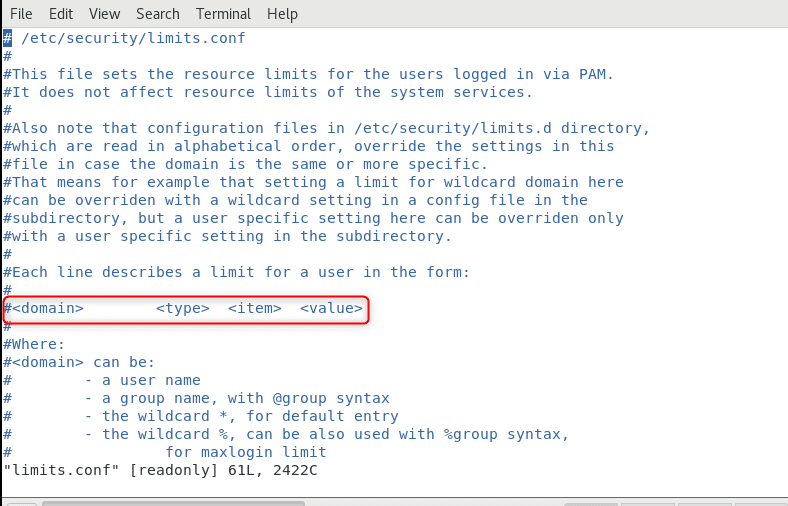
limits.conf

The configuration file on its own holds much valuable information that can guide us through setting user resource limits. The format it follows is <domain> <type> <item> <value>

A domain can be a user or group. Let us assume that we have a group called @techdirectarchive and a user called @raphael (it is always a good practice to put a @in front of a domain element). The type can either be a hard or a soft limit, item can be the size of the core, or the size of nproc. The value is usually the restriction that you want to set. If, for example, you want a particular group called coders to have only 30 processes running, the value will be 30.

Hard limit means that the limit will be enforced.
A soft limit is the type of limit that is not enforced immediately and sends a warning to the user before continuing the following line of action.

How to configure  user resource limits -configurationx1

In the screenshot above @students means for members of the group students. In addition, there is a hard limit that sets the number of processes to 20. Please see how to resolve Account restrictions are preventing this user from signing in: User Account Password has expired.

Demo

Assuming the @techdirectarchive team is using a server running low on resources. So that every memteam members a fair chance to use the server, we will be limiting the available resource. We will give configure @techdirectarchive group so that they can only start 25 processes . However, a user @christian will have privileged access so that he can start an unlimited number of methods. So guys, let’s head over to the console. Type the command shown in earlier steps and add it to the configuration file just shown in the screenshot below. The steps are below. With these steps, you can set user resource limits in Linux without hassle.

# cd /etc/security
#ls
# vim limits.conf
configuredxx1

We just need to enter the insert mood if we are using vi editor. Then configure the file so that the group and user can have the type, item, and values as shown above

The default number of processes that a root privileged user can have is 4026

Summary

In conclusion, we can configure /etc/security‘s limit.conf with the specific domain, type, item, and value to reflect the desired requirement using a text editor. Overall, you’ve learned how to configure user resource limits in Linux.

Rate this post

Thank you for reading this post. Kindly share it with others.

  • Click to share on X (Opens in new window) X
  • Click to share on Reddit (Opens in new window) Reddit
  • Click to share on LinkedIn (Opens in new window) LinkedIn
  • Click to share on Facebook (Opens in new window) Facebook
  • Click to share on Pinterest (Opens in new window) Pinterest
  • Click to share on Tumblr (Opens in new window) Tumblr
  • Click to share on Telegram (Opens in new window) Telegram
  • Click to share on WhatsApp (Opens in new window) WhatsApp
  • Click to share on Pocket (Opens in new window) Pocket
  • Click to share on Mastodon (Opens in new window) Mastodon
  • Click to share on Bluesky (Opens in new window) Bluesky
  • Click to share on Threads (Opens in new window) Threads
  • Click to share on Nextdoor (Opens in new window) Nextdoor
Linux Tags:Linux distro

Post navigation

Previous Post: Block Upgrade to Windows 11 via Group Policy or Registry
Next Post: How to install LXC/LXD for container management

Related Posts

  • systemd services
    How to use Systemd Timers on Linux Linux
  • unionfsfeature
    How to Overlay two files with UnionFs in a Linux System Linux
  • HOW TO AUTOMATE A PROCESS IN LINUX@
    Shell Scripting: How to Automate a Process in Linux Linux
  • Screenshot 2020 05 14 at 17.47.09
    Configure OpenSSH Server: A Quick Guide Linux
  • Gfeature
    How to install Googler on a Linux System Linux
  • discorddd
    Discord Installation Guide for Linux System Linux

More Related Articles

systemd services How to use Systemd Timers on Linux Linux
unionfsfeature How to Overlay two files with UnionFs in a Linux System Linux
HOW TO AUTOMATE A PROCESS IN LINUX@ Shell Scripting: How to Automate a Process in Linux Linux
Screenshot 2020 05 14 at 17.47.09 Configure OpenSSH Server: A Quick Guide Linux
Gfeature How to install Googler on a Linux System Linux
discorddd Discord Installation Guide for Linux System Linux

Comments (4) on “How to configure user resource limits and restrictions in Linux”

  1. Raph Raphael Gab-Momoh says:
    15/11/2021 at 8:04 PM

    Well, it’s possible but as we all know, the more resources you have on a system the better it is for you as a user. We can use the command ulimit – S to increase resources on a soft limit. S Indicate that the resource’s soft limit has been set. A soft limit can be raised up to the hard limit’s value. If you don’t add the -S or -H flag the system will take it that you applied the increase to both Hard and Soft limit, So it’s good to specify. For hard limits, only a user with admin privileges will be able to change resource limits.

    Log in to Reply
  2. Avatar photo Uzodimma says:
    15/11/2021 at 10:37 PM

    Thank you Raphael for this piece, I did not know system resources could be managed until now.

    How do I save the new configuration after modifying the limits?

    Log in to Reply
    1. Raph Raphael Gab-Momoh says:
      15/11/2021 at 10:50 PM

      Hi Uzodinmma, thank you for reading, the particular config file in this article is limits. conf, it is a read-only vim file and there are about 5 commands that you can use to save a read-only vim file. The one I use is this, you hit ESCAPE on your keyboard then: w ! sudo tee % it will still be in read mode. The next thing to do is to hit ESCAPE:q! and u will be returned to the terminal

      Log in to Reply
      1. Avatar photo Uzodimma says:
        15/11/2021 at 11:07 PM

        Thank you for response. It is much helpful.

        Just as most config file, only root has the right to modify it, right?

Leave a Reply Cancel reply

You must be logged in to post a comment.

Microsoft MVP

VEEAMLEGEND

vexpert-badge-stars-5

Virtual Background

GoogleNews

Categories

veeaam100

sysadmin top30a

  • speedtest
    How to set up a self-hosted speed test server on Ubuntu Linux Linux
  • Logon fsilure errors
    Logon Failure Reasons for Windows Event Viewer Windows Server
  • Configure Multiple IP Addresses on a Single or Multiple Network Cards
    Configure Multiple IP Addresses on a Single or Multiple NICs Network | Monitoring
  • erroradkupdate
    An error has occurred in the script on this page: HTA applications report a Script error after upgrading to ADK for Windows 11, version 22H2 Windows Server
  • integrate VHR with VBR
    How to deploy and integrate VHR with VBR Backup
  • screenshot 2020 03 01 at 21.19.07
    Various ways to hide Windows Taskbar Windows
  • banner
    How To Add Google Drive To File Explorer in Windows Windows
  • screenshot 2020 03 20 at 16.10.20
    How to install Ansible on Windows with Cygwin Windows Server

Subscribe to Blog via Email

Enter your email address to subscribe to this blog and receive notifications of new posts by email.

Join 1,839 other subscribers
  • RSS - Posts
  • RSS - Comments
  • About
  • Authors
  • Write for us
  • Advertise with us
  • General Terms and Conditions
  • Privacy policy
  • Feedly
  • Telegram
  • Youtube
  • Facebook
  • Instagram
  • LinkedIn
  • Tumblr
  • Pinterest
  • Twitter
  • mastodon

Tags

AWS Azure Bitlocker Microsoft Windows PowerShell WDS Windows 10 Windows 11 Windows Deployment Services Windows Server 2016

Copyright © 2025 TechDirectArchive


Loading Comments...
 

You must be logged in to post a comment.