




Linux Boot Process Explained Step by Step for Beginners


The process of starting a computer is referred to as “booting.” You can trigger booting by either hardware, such as a button push, or software, such as a command. A computer’s central processor unit has no software in its main memory when it is turned on, so some processes must load software into memory before they can run. This guide explains Linux boot process.
You can find other related guides here: install-lxc-lxd-for-container-management-linux-container/ and how configure-user-resource-limits-and-restrictions-in-linux and use-of-selinux-in-production-how-to-locate-directory-file-context-and-restore-it-with-selinux/ and the-differences-between-dnf-and-apt-package-managers/
Steps Involved in Linux Boot Process
In this guide, I walk you through the major steps involved in getting a computer to boot.
THE BIOS STAGE
BIOS is an acronym for Basic Input/Output System. When you turn a computer on, the BIOS is the first program to run, checking to see if the hardware is present and working. Bios does its integrity test of the hardware or program by performing a Power On Self Test (POST).
When the test is done, the BIOS will search for and execute the bootloader. Furthermore, it searches for a boot loader on a floppy disk, a CD-ROM, or a hard drive. When the BIOS is starting, you can modify the boot sequence by hitting a key (usually F12 or F2, although it depends on your system).
When BIOS grants control to the boot loader program, the program will load into memory.
So, at this stage, we are here: BIOS---> POST----> MBR bootloaderTHE MASTER BOOT RECORD (MBR)/GUID PARTITION TABLE (GPT)’S BOOTLOADER STAGE
The bootloader can be found on the bootable disk’s first sector, which is usually on /dev/sda or /dev/hd1 depending on your computer’s architecture. At times, it can also be accessible on a Linux Live USB or DVD installation. Besides, an MBR or GPT disk may have up to 2^64 logical blocks. Meanwhile, the most typical size of logical blocks is 512 bytes.
GPT is a new standard that's progressively taking over from MBR. GPT gets the name "GUID Partition Table" because the partition on your disk has a globally unique identifier. So, every GPT partition is distinctively unique. GPT does not have any of the limitations of MBR.
In Linux boot process, GRUB, GRUB2 and LILO are the main bootloaders. Besides, the GRUB2 bootloader, is the latest and primary bootloader in contemporary Linux distributions. Because of this, we will just focus on GRUB2.
GRUB2 is an acronym for Grand Unified Bootloader version 2. The BIOS executes and installs the grub2 bootloader on the main memory after it locates the RAM. One interesting thing is that grub2 menu helps us to choose the Linux kernel version you wish to use.

If you’ve upgraded your system a few times, you’ll notice that it shows several kernel versions. As seen from the screenshot above, we can choose to load any of the options. We can even hit the escape key and press E so that we will be able to edit the Grub menu.
/boot/grub2/grub2.cfg is the Grub2 configuration file. The core objective of GRUB is to load the Linux kernel into primary memory.THE KERNEL INITIALIZATION STAGE
The kernel forms the basis of any Linux system. It connects the hardware of the PC to the underlying Linux boot processes. The kernel controls all the processes on your Linux system. After the bootloader loads the selected Linux kernel, it must self-extract from its compressed version before performing any tasks.
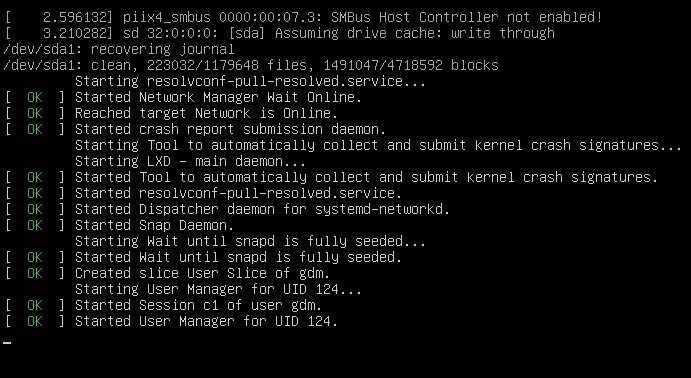
Next, the kernel will then launch the init process, which has a process identifier (PID) of “1” as it is the first background process or daemon initiated by the kernel upon startup. The init process is still accepted as a general industry practice, but it is now known as systemd.
THE SYSTEMD STAGE IN LINUX BOOT PROCESS
The kernel; eventually launches the Systemd, which replaces the previous SysV init process. It is the parent of all Linux boot processes, and it is important for a range of tasks such as mounting file systems, initiating and terminating services, and so on.
Systemd is a Linux init and system management that has rapidly become the accepted standard.
Systemd uses the /etc/systemd/system/default. target file to determine the state or target that the Linux system should boot into.
various run levels that systemd targets
| poweroff.target (runlevel 0): Turns off or shut down the computer. | |
| rescue.target (runlevel 1): Initiates a rescue shell process. | |
| multi-user.target (runlevel 2,3,4): configures the system to a multi-user non-graphical (console) system. | |
| graphical.target (runlevel 5): Establishes a graphical multi-user interface with network services on the machine. | |
| reboot.target (runlevel 6): restarts the machine |
Summary
Congratulations! We’ve successfully explained the Linux boot process. The steps for a computer to boot are as shown in the chart below. The services encompass all the services needed for the program that the user is calling into action. The shell represents where the user will be working and executing his commands from on the terminal.
Bios---> POST ---> Disk--> bootloader--> Kernel----> Init/Systemd----> Services----> ShellI hope you found this blog post helpful. If you have any questions, please let me know in the comment session.