Skip to content

TechDirectArchive

Hands-on IT, Cloud, Security & DevOps Insights

  • Home
  • About
  • Advertise With US
  • Contact
  • Reviews
  • Toggle search form
Home » Linux » How to Install LAMP Stack on Ubuntu 18.04
  • How to stop remove and manage docker container
    Stopping, Removing and Naming Docker Container Containers
  • Featured image Clearing cache
    How to clear cache in Windows 11 Windows
  • Screenshot 2022 03 29 at 19.47.05
    CVE-2022-22948: Patch available to address vCenter Server information disclosure vulnerability  Security | Vulnerability Scans and Assessment
  • VBAWS comprehensive guide
    Deep Dive into Protecting AWS EC2, RDS Instances and VPC AWS/Azure/OpenShift
  • How to Enable Time Limit to Disconnect Remote Desktop After Inactivity
    How to Enable Time Limit to Disconnect Remote Desktop After Inactivity Windows
  • Trellix configurations after ePo setup
    ePO Server Settings: Trellix ePO AD integration and ENS Agents Installation Security | Vulnerability Scans and Assessment
  • Confluence setup
    How to set up Confluence Site and Spaces in Confluence Cloud JIRA|Confluence|Apps
  • OOBEZDP
    OOBEZDP: Something went wrong during the Windows deployment Windows

How to Install LAMP Stack on Ubuntu 18.04

Posted on 22/12/202128/09/2023 Raphael Gab-Momoh By Raphael Gab-Momoh No Comments on How to Install LAMP Stack on Ubuntu 18.04
lampstack-feature-lamp-stack-ubuntu

The LAMP stack is a collection of open-source tools for developing web applications. In addition, an operating system, a web server, a database, and a programming language are all required for a web application to function. For a database-driven and dynamic website, each layer of software is critical. So, here’s a step-by-step tutorial on how to install LAMP Stack on Ubuntu 18.04. In this guide, I will walk you through how to install each of the components as it is important that we install each component of the stack separately. You can view similar guides from here: How to Configure Advanced PAM in Linux/ and How to locate directory file context and restore it with SELinux/ also differences between dnf and apt package managers/ and How to create and deliver a report on System Utilization on a Linux based OS

The acronym LAMP stands for the following programs:

Linux which is a free and open-source operating system.
Apache which is an HTTP Server 
MySQL which is a relational database management system.
PHP which is a scripting language. Please also take a look at this guide: How to setup and configure a lamp stack on CentOS.

Requirements for installing LAMP Stack on Ubuntu 18.04

Ubuntu user with sudo rights in Ubuntu 18.04 Bionic Beaver
The ability to use a terminal/command line
The apt package manager, which comes pre-installed in Ubuntu and other Debian-based distributions.

Steps to Install LAMP Stack on Ubuntu 18.04

Step 1: Update Package Repository Cache

Update the package repository cache to guarantee that the software is installed with the most recent versions. Therefore, to successfully install LAMP Stack on Ubuntu, you need to update package repository to the latest version. To do so, enter the command below.

sudo apt update

Step 2: Install Apache Server on Ubuntu 18.04

Run the following command in the terminal to install Apache:

sudo apt install apache2

Hit y which means yes & enter on your keyboard when prompted

apache-2
apache 2

It is alright but just to be sure we will run another command to check the status

sudo service apache2 status
status

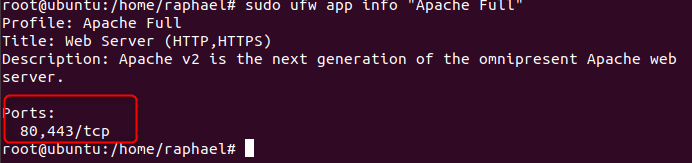
Next, type the following command to see if the UFW firewall has an application profile for Apache:

sudo ufw app info "Apache Full"
ports
ports

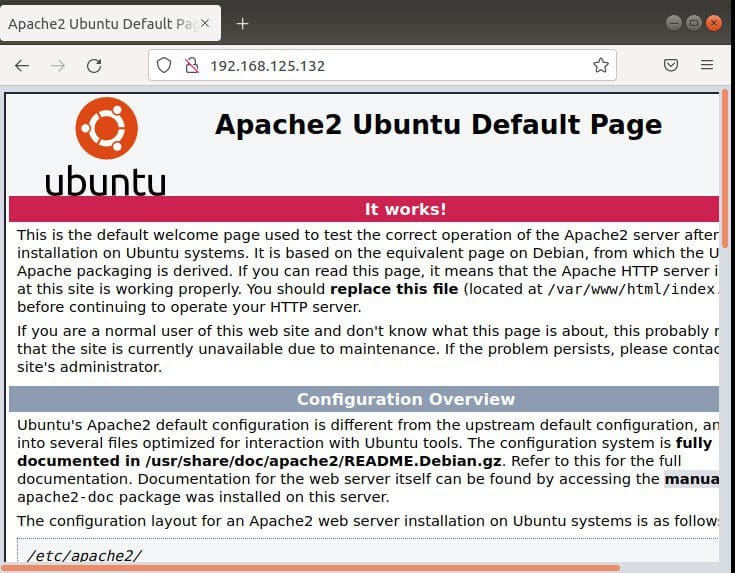
To know how if installation works, we need to run the local IP address and specify the port highlighted above. Hence, we can get the IP by running the command.

curl http://icanhazip.com

ipaddress
how to get ip
apache2
apache 2

Step 3: Install MySQL and Create a Database

sudo apt install MySQL-server

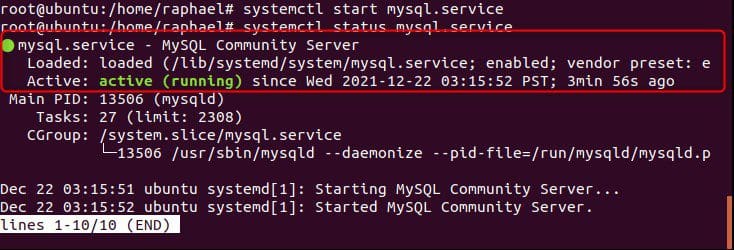
To check if our MySQL-server has been installed, run the following commands below

#systemctl start MySQL. Service
#systemctl status MySQL. Service
mysql
MySQL running

Step 4: Install PHP

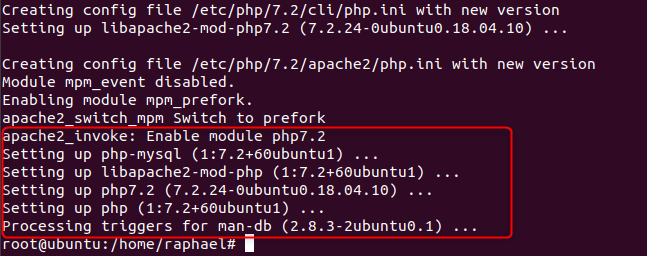
sudo apt install php libapache2-mod-php php-mysql 
php
php set up

The next step to install LAMP Stack on Ubuntu 18.04 is to change how Apache serves files when directories are needed. Thus, Apache scans for a file card named index.html by default. Rather than searching for the index.html file, we want it to look for the index.php file.

sudo nano /etc/apache2/mods-enabled/dir.conf
index
dir.conf

The command we ran gave us the output above, we need to swap the position of index.html and index.php so that index.php is number 2. After the swap we save and close the file.

how to install LAMP Stack on Ubuntu 18.04- index.php_
dir.conf

Press CTRL + X to save and close the file. Then, press y and ENTER to confirm.

Step 5: Restart Apache

We need to restart the Apache service for the modifications to take effect.

sudo systemctl restart apache2

Step 6: Test PHP Processing on Web Server

To confirm that you’ve installed LAMP Stack on Ubuntu 18.04, create a simple PHP script and save it in the “web root” folder. Meanwhile, this is required for Apache to correctly locate and serve the file. /var/www/html/ is the location of this directory.

Type the following command to generate a file in that directory:

sudo nano /var/www/html/info.php

This opens an empty nano file

how to install LAMP Stack on Ubuntu 18.04-empty-nano-file
empty nano file

To install LAMP Stack on Ubuntu 18.04, we need to type in the PHP code below:

<?php
phpinfo ();
?>

Then, press CTRL + X to save and close the file. Press y and ENTER to confirm.

To confirm that our LAMP stack on Ubuntu 18.04 is installed and working, Open a browser and type in your IP address/info.php

NOTE: only the IP address of the VM will make this work so run ip addr show in terminal and copy the ip.
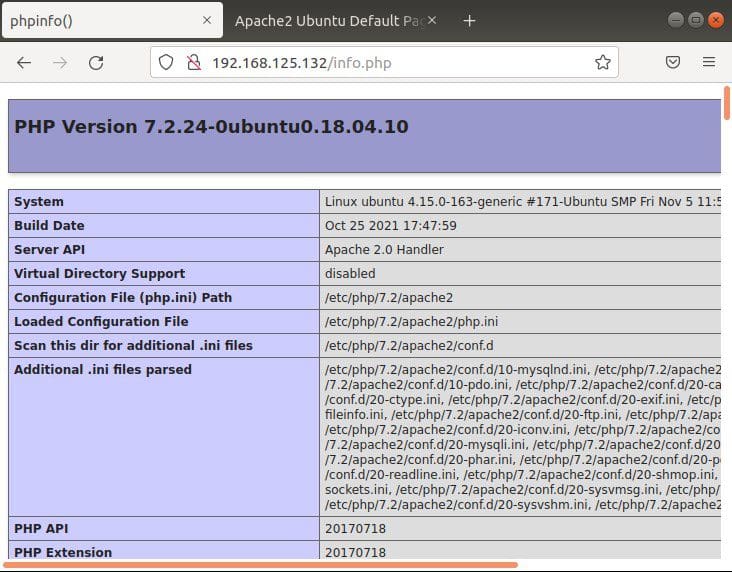
 how to install LAMP Stack on Ubuntu 18.04-info.php_
php

Summary

Congratulations, we have successfully installed the LAMP stack on Ubuntu 18.04. This we did by installing each of the components individually and this is especially important for web development.

Rate this post

Thank you for reading this post. Kindly share it with others.

  • Click to share on X (Opens in new window) X
  • Click to share on Reddit (Opens in new window) Reddit
  • Click to share on LinkedIn (Opens in new window) LinkedIn
  • Click to share on Facebook (Opens in new window) Facebook
  • Click to share on Pinterest (Opens in new window) Pinterest
  • Click to share on Tumblr (Opens in new window) Tumblr
  • Click to share on Telegram (Opens in new window) Telegram
  • Click to share on WhatsApp (Opens in new window) WhatsApp
  • Click to share on Pocket (Opens in new window) Pocket
  • Click to share on Mastodon (Opens in new window) Mastodon
  • Click to share on Bluesky (Opens in new window) Bluesky
  • Click to share on Threads (Opens in new window) Threads
  • Click to share on Nextdoor (Opens in new window) Nextdoor
Linux Tags:MySQL, MySQL-server

Post navigation

Previous Post: How to Configure Advanced PAM in Linux
Next Post: Setup Public Load Balancer in Azure

Related Posts

  • How to create edit save exit file
    Mastering Vim in Linux: How to Create, Edit, Save, and Quit Files Linux
  • screenshot 2020 04 23 at 00.30.09
    How to mount a USB Drive in Linux Linux
  • HAProxy
    Deploying a load balancer from scratch and adding backend servers Linux
  • parttt
    Adding a new partition to an existing Linux server Linux
  • PRIVATE DOCKER REGISTRY
    How to Set up Private Docker Registry Containers
  • dfeef
    How to automatically resolve errors associated with failed dependencies Linux

More Related Articles

How to create edit save exit file Mastering Vim in Linux: How to Create, Edit, Save, and Quit Files Linux
screenshot 2020 04 23 at 00.30.09 How to mount a USB Drive in Linux Linux
HAProxy Deploying a load balancer from scratch and adding backend servers Linux
parttt Adding a new partition to an existing Linux server Linux
PRIVATE DOCKER REGISTRY How to Set up Private Docker Registry Containers
dfeef How to automatically resolve errors associated with failed dependencies Linux

Leave a Reply Cancel reply

You must be logged in to post a comment.

Microsoft MVP

VEEAMLEGEND

vexpert-badge-stars-5

Virtual Background

GoogleNews

Categories

veeaam100

sysadmin top30a

  • How to stop remove and manage docker container
    Stopping, Removing and Naming Docker Container Containers
  • Featured image Clearing cache
    How to clear cache in Windows 11 Windows
  • Screenshot 2022 03 29 at 19.47.05
    CVE-2022-22948: Patch available to address vCenter Server information disclosure vulnerability  Security | Vulnerability Scans and Assessment
  • VBAWS comprehensive guide
    Deep Dive into Protecting AWS EC2, RDS Instances and VPC AWS/Azure/OpenShift
  • How to Enable Time Limit to Disconnect Remote Desktop After Inactivity
    How to Enable Time Limit to Disconnect Remote Desktop After Inactivity Windows
  • Trellix configurations after ePo setup
    ePO Server Settings: Trellix ePO AD integration and ENS Agents Installation Security | Vulnerability Scans and Assessment
  • Confluence setup
    How to set up Confluence Site and Spaces in Confluence Cloud JIRA|Confluence|Apps
  • OOBEZDP
    OOBEZDP: Something went wrong during the Windows deployment Windows

Subscribe to Blog via Email

Enter your email address to subscribe to this blog and receive notifications of new posts by email.

Join 1,839 other subscribers
  • RSS - Posts
  • RSS - Comments
  • About
  • Authors
  • Write for us
  • Advertise with us
  • General Terms and Conditions
  • Privacy policy
  • Feedly
  • Telegram
  • Youtube
  • Facebook
  • Instagram
  • LinkedIn
  • Tumblr
  • Pinterest
  • Twitter
  • mastodon

Tags

AWS Azure Bitlocker Microsoft Windows PowerShell WDS Windows 10 Windows 11 Windows Deployment Services Windows Server 2016

Copyright © 2025 TechDirectArchive


Loading Comments...
 

You must be logged in to post a comment.