Install Windows Admin Center on Windows 10 and Windows 11


In this post, I will take you through how to Install Windows Admin Center on Windows 10 and Windows 11, Windows Servers as well as clusters, and hyper-converged infrastructure through a web browser. Windows Admin Center can be installed on Windows 10 and 11 and is fully compatible with computers running modern Windows Operating Systems. Please see how to Test the Network Connection to the Windows Admin Center (WAC) Gateway.
Windows Admin Center can be seen as your remote management tool for PCs running Windows 10 and 11 as well as Windows Server. It could be physical, virtual, on-premises, in Azure, or in a hosted environment at no additional cost.
It’s a way you can simplify Windows and server administration. It allows you to configure and troubleshoot your Windows or servers, and manage all of your workloads remotely from a web browser and one location. It integrates your on-premises Windows 10 & 11 PCs with Azure in just a few clicks.
You may also be interested to learn about the following: How to fix CPU at 100% when nothing is running problem on Windows, How to Disable Or Enable Secure Boot on Windows 10 & 11, and how to Solve “The parameter is incorrect” problem on External Hard Disk in Windows.
What is Windows Admin Center?
According to Microsoft, Windows Admin Center is a lightweight, browser-based GUI platform and toolset for IT Admins to manage Windows Server, Windows 10, and Windows 11. It’s the evolution of familiar in-box administrative tools, such as Server Manager and Microsoft Management Console (MMC) into a modernized, simplified, integrated, and secure experience.
Windows Admin Center is a locally deployed, browser-based app for managing Windows servers, clusters, and hyper-converged infrastructure, as well as Windows 11 and 10 PCs.
On a Windows 11 or 10 PC, when you install Windows Admin Center, it offers the following benefits :
- Simple and modern management experience
- Hybrid capabilities
- Integrated toolset
- Designed for extensibility
This post covers the manual installation of Windows Admin Center on Windows 11 computers. You can also deploy Windows Admin Center on multiple Windows 10 & 11 PCs using Microsoft System Center Configuration Manager (SCCM).
With Windows Admin Center, the management of Windows 10 & 11, Servers, reimagined with Windows Admin Center
Here are some related WAC guides: how to install Windows Admin Center (WAC) in an unattended mode using a self-signed certificate, “How to setup Windows Admin Center (WAC) and also how to troubleshoot Windows Admin Center (WAC) access from the Web.
Let’s get started with the installation
Step 1 – Get to started with the installation of this amazing feature by Microsoft, head over to Download Admin Center and get your copy before we proceed. The file is a super lightweight MSI file format of 79.2 MB (83,062,784 bytes).
Before you download the Windows Admin Center setup file, you will be asked for few details, enter them and click Download. What you get is the WindowsAdminCenter.msi installer.
The Windows Admin Center updates are released frequently by Microsoft. You can update Windows Admin Center using Windows Updates.

Step 2 – Double click on the MSI in application just downloaded and proceed with the prompts as shown below:

Decide on diagnostic data
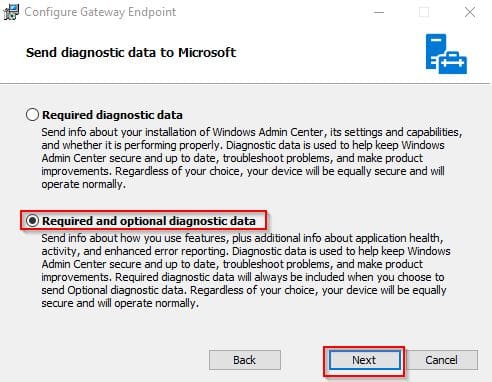
Step 3: For the option of sending diagnostic data to Microsoft, there are two options :
- Required diagnostic data – Select this option if you want to send info about your installation of Windows Admin Center, its settings, and capabilities to Microsoft.
- Required and optional diagnostic data – Select this option to send info about how you use features, plus additional info about application health, activity, and error reporting.
Select the appropriate option and click Next.
4. Confirm if you would use Microsoft update or not and hit “Next“. It’s recommended that you use Microsoft update

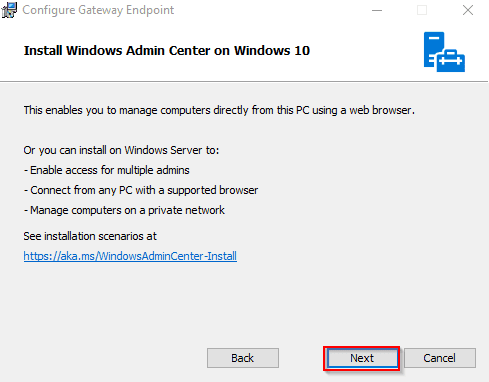
Once you install Windows Admin Center, you can manage computers directly from this PC using a web browser. Click Next to continue with the installation.
You must select a port for the Windows Admin Center site. By default, the Windows Admin Center uses port 6516, however, you can enter a different port number that’s available to you.
You can also allow the installer to create a shortcut on your PC to launch Windows Admin Center directly from your desktop.
The option Automatic update Windows Admin Center ensure the latest updates are installed via Windows Updates. Click Install. See the screenshot below!

The Windows Admin Center installation on Windows 10 & 11 is complete. The next important step is to select a certificate that is covered in the next step. Click Finish.

Please see how to Clear Cache on Windows 10, and How to Decrypt Files and Folders Encrypted with Encryption File System in Windows 10.
Click to Launch Windows Admin Center on Windows 10 & 11 PC
There are basically two ways you can launch Windows Admin Center on the Windows PC:
On your Windows 10 or 11 PC, Click Start > type Windows Admin Center in the Search box and open the Windows Admin Center application. This will automatically open the web browser Window via
http://localhost:6516You can also launch the Windows Admin Center by using the desktop shortcut created by Windows Admin Center during setup.

When you start Windows Admin Center from the Start menu, it opens in your default browser. I recommend using the Microsoft Edge browser or Google Chrome because it is secure, and the performance is excellent
Configure Windows Admin Center Certificate for Authentication
After you install Windows Admin Center and launch it, the first step involves selecting a client certificate. You should see a Windows Admin Center client certificate prompt.

If you click on Certificate Information, the certificate details are displayed. To use this certificate as shown below, click OK.

With Windows Admin Center installed you can manage almost everything from your local browser. For example, You can now add your Windows 10, 11 or Windows Server one by one, import a list or search from Active Directory. This is quite easy and flexible.

You can also add tools such as Computer Management, and Cluster Manager, and the list are endless.
Failed Connection in Windows Admin Center
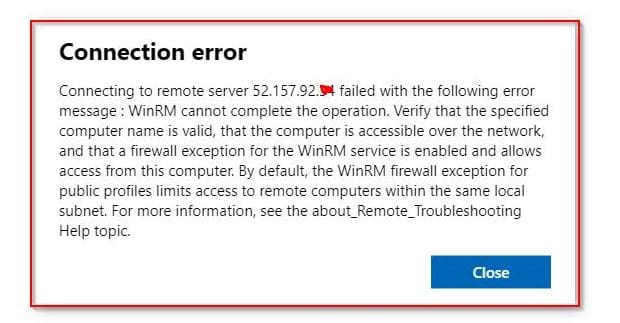
What if it reports a connection error when trying to add and connect to a Windows 10 or 11 or Windows Server PC? If you encounter such an error as shown below, do the following:
1: Check Windows Version by opening the run dialog (Windows Key + R) and run winver.
2: If you are using Windows 10 version 1703 or below, Windows Admin Center doesn’t support the version of your Microsoft Edge. You can either upgrade to a recent version of Windows 10 or use Google Chrome. This is not applicable to Windows 11.
3: If you are using an insider preview version of Windows 10 or a Server with a build version between 17134 and 17637, Windows had a bug that caused Windows Admin Center to fail. Please use a currently supported version of Windows.
4: Ensure that the Firewall on the PC you’re trying to connect to is disabled. This can prevent Windows Remote Management (WinRM) from establishing a connection.
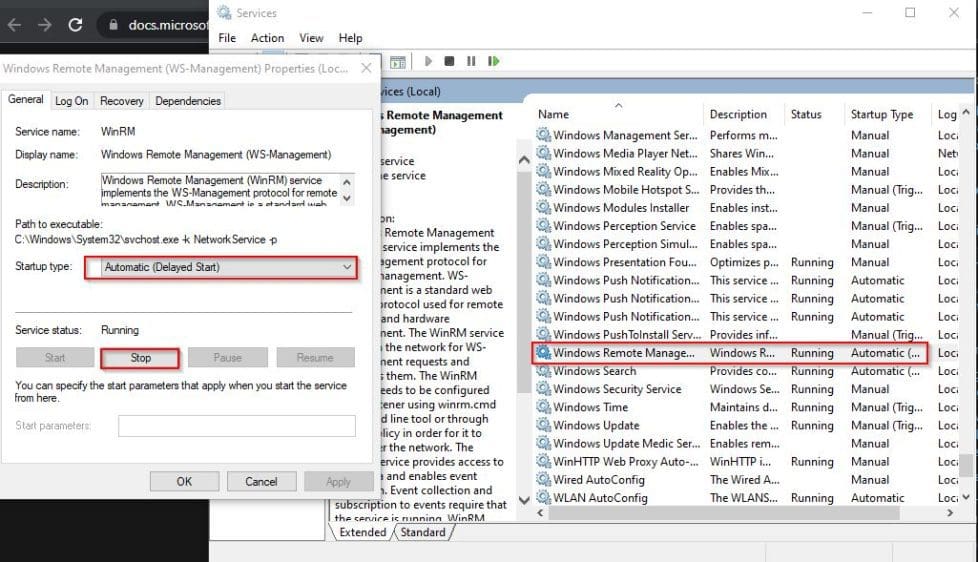
5: Ensure that the Windows Remote Management (WinRM) is running. Open the run dialog (Windows Key + R) and run service.msc
As I explore these tools, I will publish more information in the coming days. Keep following this blog for more updates on Windows Admin Center and other related articles.
I hope you found this article useful on how to Install Windows Admin Center on Windows 10 and Windows 11. Please feel free to leave a comment below.