Skip to content

TechDirectArchive

Hands-on IT, Cloud, Security & DevOps Insights

  • Home
  • About
  • Advertise With US
  • Reviews
  • Contact
  • Toggle search form
Home » Windows » How to Resolve Microsoft RDP Connection Black Screen

How to Resolve Microsoft RDP Connection Black Screen

Posted on 15/01/202230/09/2023 Temitope Odemo By Temitope Odemo No Comments on How to Resolve Microsoft RDP Connection Black Screen
Remote Desktop Connection

In this article, I will be showing you the steps to take if you see a black screen instead of a desktop screen when you connect to a remote computer via Remote Desktop Protocol (RDP). This problem usually happens on Windows 10 and Windows Server editions. When you try to access a remote system remotely using RDP Client (mstsc.exe) and enter your valid credentials what you see next is a blank screen and leaves you with no clue on what to do. Follow the below steps on resolving this issue that is not new to the Windows system.

For more related Windows Operating System errors you can read this: How to Fix “Insufficient System Resources Exist to Complete the Requested Service” error, how to fix the issue “The Security Database on the Server does not have a Computer Account for this Workstation Trust Relationship” on Windows Server [Part 2], How to Quickly Fix Windows Search Bar Not Working, Windows Out Of Box Experience: OOBESETTINGSMULTIPLEPAGE error on Windows 10, how to fix Windows cannot connect to the printer: Operation Failed with error 0x000004f8, How to Fix “Unknown hard error” on Windows Server and Windows 10 and how to make taskbar appear on one or both displays in Windows.

Black screen
Black Screen

How to Fix Black screen

To resolve Microsoft RDP Connection Black Screen, start by launching Remote Desktop Connection. Next, access the Display tab. Adjust display settings by selecting different sizes. You may also want to see this guide: Terminal Server (Now RDS): How to setup and configure Remote Desktop Services.

adjust the display configuration
Remote Desktop Connection Display
  • The next thing you need to do is to click on the Experience tab and uncheck the box Persistent bitmap cashing.
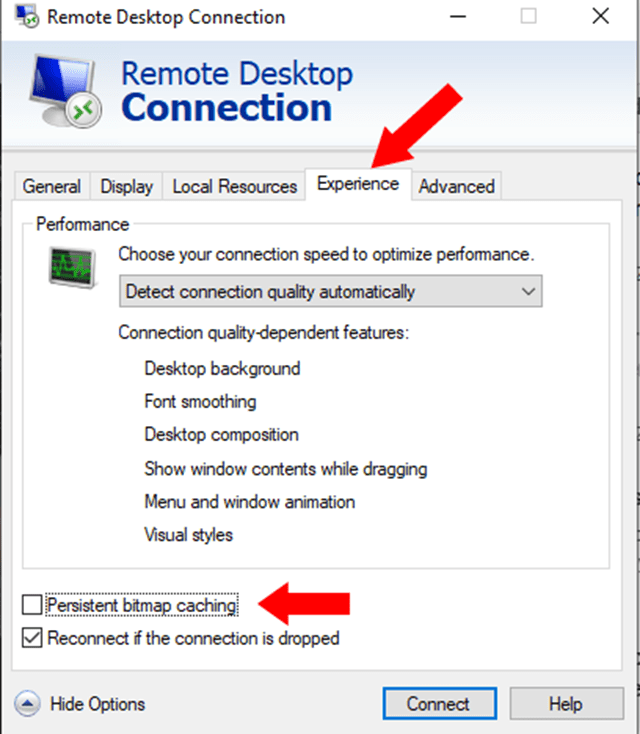
uncheck the box Persistent bitmap cashing.
Remote Desktop Connection
  • One temporary measure is to launch the Task Manager by pressing Ctrl+Shift+Esc on the keyboard. The launching of the Task Manager can display something on the screen.
Task manager
Task Manager
  • Another resolution to this issue is to update your system. It is very possible you have some pending updates to be completed and can result to issues like this
Windows Update
Windows Update

I hope you found this blog post on How to resolve Microsoft RDP connection black screen very interesting and helpful. In case you have any questions do not hesitate to ask in the comment section.

Rate this post

Thank you for reading this post. Kindly share it with others.

  • Share on X (Opens in new window) X
  • Share on Reddit (Opens in new window) Reddit
  • Share on LinkedIn (Opens in new window) LinkedIn
  • Share on Facebook (Opens in new window) Facebook
  • Share on Pinterest (Opens in new window) Pinterest
  • Share on Tumblr (Opens in new window) Tumblr
  • Share on Telegram (Opens in new window) Telegram
  • Share on WhatsApp (Opens in new window) WhatsApp
  • Share on Mastodon (Opens in new window) Mastodon
  • Share on Bluesky (Opens in new window) Bluesky
  • Share on Threads (Opens in new window) Threads
  • Share on Nextdoor (Opens in new window) Nextdoor
Windows, Windows Server Tags:Microsoft Windows, RDP, Remote Access, Remote Desktop, Remote Desktop Protocol, RemoteConnection, Windows 10, Windows Server 2016

Post navigation

Previous Post: How to fix Unknown Hard Error on Windows Server and Windows 10
Next Post: How to force your website to redirect from HTTP to HTTPS using a web.config file

Related Posts

  • Banner
    How to determine Tombstone Lifetime in Active Directory Windows Server
  • wsl5678uh
    Various methods to install Windows Subsystem for Linux Windows
  • Raise or Downgrade AD Domain and Forest Functional Level
    Raise or Downgrade AD Domain and Forest Functional Level Windows Server
  • Active Directory Setup
    Active Directory: How to Setup a Domain Controller Windows Server
  • Windows10 11
    Block Upgrade to Windows 11 via Group Policy or Registry Windows
  • sid5
    How to Find Security Identifier on Windows [Part 2] Windows

More Related Articles

Banner How to determine Tombstone Lifetime in Active Directory Windows Server
wsl5678uh Various methods to install Windows Subsystem for Linux Windows
Raise or Downgrade AD Domain and Forest Functional Level Raise or Downgrade AD Domain and Forest Functional Level Windows Server
Active Directory Setup Active Directory: How to Setup a Domain Controller Windows Server
Windows10 11 Block Upgrade to Windows 11 via Group Policy or Registry Windows
sid5 How to Find Security Identifier on Windows [Part 2] Windows

Leave a Reply Cancel reply

You must be logged in to post a comment.

Microsoft MVP

VEEAMLEGEND

vexpert-badge-stars-5

Virtual Background

GoogleNews

Categories

veeaam100

Veeam Vanguard

  • sign11
    Windows sign-in options and account protection on Windows 11 Windows
  • linux windows 10
    Windows Subsystem for Linux: How to install WSL on Windows 10 Linux
  • http trace fiddler
    How to Disable HTTP TRACE Method for Apache, IIS, sunOne, and Lotus Domino Web Server
  • screenshot 2020 02 08 at 15.53.31
    Auto Logon Error “Username and password specified is not valid” Windows
  • Featured image TeamsGif.
    How to fix Microsoft Teams GIFs or Images not working Windows
  • DEvolusion RDP Manager
    How to set up Devolusion Remote Desktop Manager on Windows Windows
  • IIS Installed
    Add and remove IIS Web Server on Windows Server 2019 via the Server Manager and PowerShell Web Server
  • dd
    How to update Microsoft Defender Antivirus into the install image of Windows (install.wim) Windows

Subscribe to Blog via Email

Enter your email address to subscribe to this blog and receive notifications of new posts by email.

Join 1,819 other subscribers
  • RSS - Posts
  • RSS - Comments
  • About
  • Authors
  • Write for us
  • Advertise with us
  • General Terms and Conditions
  • Privacy policy
  • Feedly
  • Telegram
  • Youtube
  • Facebook
  • Instagram
  • LinkedIn
  • Tumblr
  • Pinterest
  • Twitter
  • mastodon

Tags

Active Directory Azure Bitlocker Microsoft Windows PowerShell WDS Windows 10 Windows 11 Windows Deployment Services Windows Server 2016

Copyright © 2025 TechDirectArchive


Loading Comments...
 

You must be logged in to post a comment.