Skip to content

TechDirectArchive

Hands-on IT, Cloud, Security & DevOps Insights

  • Home
  • About
  • Advertise With US
  • Reviews
  • Contact
  • Toggle search form
Home » AWS/Azure/OpenShift » How to deploy a React Application to AWS S3
  • picture1 101
    Can’t Sign In: Domain Unavailable & 169.254 IP Address Issue Windows Server
  • images copy
    How to clean packages lying around in Linux Linux
  • Screenshot 2021 02 09 at 16.10.30
    Download and install Fujitsu DeskUpdate & DeskUpdate Manager Windows Server
  • fgh
    Configure log on as a batch job permissions on any server Windows Server
  • Jenkins
    How to Install Jenkins Automation Server on Ubuntu 20.04 LTS Linux
  • images 1 1
    How To Use Pleasant Password Private Folder Password Manager
  • screenshot 2020 04 18 at 00.01.07
    Different ways to check for Ansible syntax errors Configuration Management Tool
  • Gfeature
    How to install Googler on a Linux System Linux

How to deploy a React Application to AWS S3

Posted on 12/03/202204/05/2024 Dickson Victor By Dickson Victor 2 Comments on How to deploy a React Application to AWS S3
react

In this article, we are going to learn how to deploy a React Application to AWS S3. Simple Storage Service, aka S3, is a block storage service offered by AWS. It is the most commonly used, go-to storage service for AWS users. It provides valuable features like high availability, security, easy connection to AWS services, and hosting static websites. In this tutorial, we will create a sample react app and deploy it as a static website to AWS S3.

There is almost negligible cost to host your websites using S3 website hosting so this can be a great way for you to host your websites for personal work.

Kindly refer to our related AWS guides: Creating IAM Users, Adding MFA and Policies on AWS, how to manage cost with AWS Budgets, how to deploy an Angular App to AWS S3, and how to deploy Dynamic Website to AWS EC2.

Take a look at what we shall be covering in this article: 
- We shall create a simple React App using the "create react app" command
- We shall configure an S3 bucket for static web hosting
- We will be deploying to AWS Cloud

For this tutorial, you should have NodeJS installed on your computer and access to an AWS Account. So, let’s get started.

Creating a ReactJS Application

Go to the CLI in your computer, access the directory where you want to create the react app, and run the following command with any app name of your choice. I have chosen to create a “techdirectarchive-app”

npx create-react-app techdirectarchive-app

This will create a new “techdirectarchive-app” folder in our current directory. Let us move into this directory by running the following command.

 cd techdirectarchive-app

Before we start the default React App. We need to install all the application dependencies by running the following command.

npm install 

Let us now start our React App by running the following command

npm start

This should open a browser tab for you and you should see the default react app running on a localhost port. You can stop the application by pressing Ctrl+C in the terminal.

With this, we have now successfully created our first react app. Let us now access the AWS Console and configure our S3 bucket for website hosting.

Setting up your AWS S3 bucket for website hosting.

– Sign in to the AWS Management Console.
– Navigate to AWS S3 dashboard.

This is the S3 dashboard where you can see the S3 buckets created in your account. Click on Create bucket to create your S3 bucket for website hosting.

1-final-1

The first option when creating the S3 bucket is to give it a name. Note here that your bucket name should be unique across All the S3 buckets in the world, so, if you try to keep common names, you might get some conflicts. See S3 bucket naming rules. Choose a unique name for your bucket. The next option is the AWS region. Choose a region closest to your location.

2

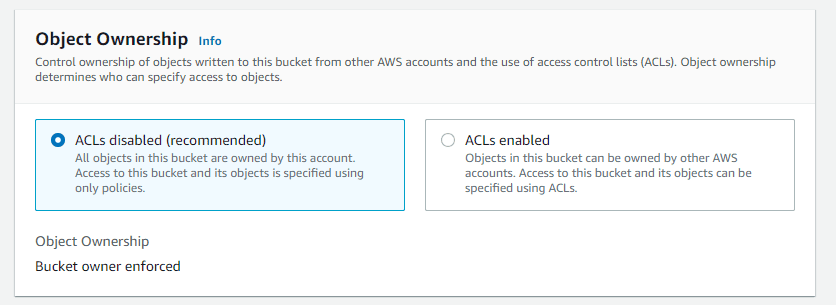
Leave the Object Ownership Option as default.
3

For the Bucket Public Access option, uncheck the default Block all public access and acknowledge the box below as shown in the image. We want our S3 website to be accessible to anyone in the world. SO, it is important that we do not restrict public access.

4-final-1

You can leave all the other parameters as default and click on the Create Bucket button at the end of the page.

You can now see your S3 bucket in the list. Click on the bucket name.

5-final

Go to the properties tab.

6-f

Now scroll down to find the Static website hosting property. Click edit.

7-f

Enable the Static website hosting

Choose to enable Static website hosting. Add index.html as your Index and Error document. Click on the Save Changes button below.

8

Scroll to the top of the page and choose the Permissions tab. We need to make changes to the S3 bucket policy. Click the Edit button as shown below.

9-f

Copy and enter the following bucket policy and replace the REPLACE_ME value with the bucket ARN of your bucket.

{
    "Version": "2012-10-17",
    "Statement": [
        {
            "Sid": "PublicReadGetObject",
            "Effect": "Allow",
            "Principal": "*",
            "Action": "s3:GetObject",
            "Resource": "REPLACE_ME/*"
        }
    ]
}
10-f

Click on save changes. We have now successfully configured a new S3 bucket for website hosting. Let us now deploy the React application to S3.

Deploy the React App to S3

Move to the project directory using your command line and run the following command.

npm run build

Note that this command created a build directory in your project.

11

Now go to your bucket in the S3 console and Click on the Upload button.

12-f

Use the Add files and Add folder button to upload all the files and the static folder in the build folder as shown below. Click the Upload button at the bottom of the page.

13-f

After a successful upload, close the upload page. Back in your S3 bucket Go to the properties tab find the URL of your S3 website in the static website hosting option and click on it.

15-f

You should see your create-react-app website on the screen.

14-f

You have now successfully created and deployed a React app to AWS S3.

I hope you found this blog post helpful on how to deploy a React Application to AWS S3. If you have any questions, please let me know in the comment session.

Rate this post

Thank you for reading this post. Kindly share it with others.

  • Click to share on X (Opens in new window) X
  • Click to share on Reddit (Opens in new window) Reddit
  • Click to share on LinkedIn (Opens in new window) LinkedIn
  • Click to share on Facebook (Opens in new window) Facebook
  • Click to share on Pinterest (Opens in new window) Pinterest
  • Click to share on Tumblr (Opens in new window) Tumblr
  • Click to share on Telegram (Opens in new window) Telegram
  • Click to share on WhatsApp (Opens in new window) WhatsApp
  • Click to share on Pocket (Opens in new window) Pocket
  • Click to share on Mastodon (Opens in new window) Mastodon
  • Click to share on Bluesky (Opens in new window) Bluesky
  • Click to share on Threads (Opens in new window) Threads
  • Click to share on Nextdoor (Opens in new window) Nextdoor
AWS/Azure/OpenShift Tags:AWS, AWS s3

Post navigation

Previous Post: Set up and configure Route 53 for your Domain in AWS
Next Post: How to Install Jenkins Automation Server on Ubuntu 20.04 LTS

Related Posts

  • CloudFrontAWS
    Serve Private S3 Bucket Contents Via CloudFront AWS/Azure/OpenShift
  • mfa
    Microsoft Azure Multi-Factor Authentication (MFA) AWS/Azure/OpenShift
  • EC2 Public IP
    How to Allocate, Associate, Disassociate and Release Elastic IP Address from an EC2 Instance AWS/Azure/OpenShift
  • azure logo 1
    How to use the built-in Azure Active Directory Connect tool AWS/Azure/OpenShift
  • How to backup Azure VIM 3
    How to backup Azure VM with VM Settings AWS/Azure/OpenShift
  • Docker Guide
    Pull and Deploy Nginx Container Images from Docker Hub AWS/Azure/OpenShift

More Related Articles

CloudFrontAWS Serve Private S3 Bucket Contents Via CloudFront AWS/Azure/OpenShift
mfa Microsoft Azure Multi-Factor Authentication (MFA) AWS/Azure/OpenShift
EC2 Public IP How to Allocate, Associate, Disassociate and Release Elastic IP Address from an EC2 Instance AWS/Azure/OpenShift
azure logo 1 How to use the built-in Azure Active Directory Connect tool AWS/Azure/OpenShift
How to backup Azure VIM 3 How to backup Azure VM with VM Settings AWS/Azure/OpenShift
Docker Guide Pull and Deploy Nginx Container Images from Docker Hub AWS/Azure/OpenShift

Comments (2) on “How to deploy a React Application to AWS S3”

  1. Avatar photo Sidd Saran says:
    16/07/2022 at 7:48 PM

    Thanks. This was helpful!

    Log in to Reply
    1. chris Christian says:
      18/07/2022 at 11:16 PM

      You are welcome

      Log in to Reply

Leave a Reply Cancel reply

You must be logged in to post a comment.

Microsoft MVP

VEEAMLEGEND

vexpert-badge-stars-5

Virtual Background

GoogleNews

Categories

veeaam100

sysadmin top30a

  • picture1 101
    Can’t Sign In: Domain Unavailable & 169.254 IP Address Issue Windows Server
  • images copy
    How to clean packages lying around in Linux Linux
  • Screenshot 2021 02 09 at 16.10.30
    Download and install Fujitsu DeskUpdate & DeskUpdate Manager Windows Server
  • fgh
    Configure log on as a batch job permissions on any server Windows Server
  • Jenkins
    How to Install Jenkins Automation Server on Ubuntu 20.04 LTS Linux
  • images 1 1
    How To Use Pleasant Password Private Folder Password Manager
  • screenshot 2020 04 18 at 00.01.07
    Different ways to check for Ansible syntax errors Configuration Management Tool
  • Gfeature
    How to install Googler on a Linux System Linux

Subscribe to Blog via Email

Enter your email address to subscribe to this blog and receive notifications of new posts by email.

Join 1,841 other subscribers
  • RSS - Posts
  • RSS - Comments
  • About
  • Authors
  • Write for us
  • Advertise with us
  • General Terms and Conditions
  • Privacy policy
  • Feedly
  • Telegram
  • Youtube
  • Facebook
  • Instagram
  • LinkedIn
  • Tumblr
  • Pinterest
  • Twitter
  • mastodon

Tags

AWS Azure Bitlocker Microsoft Windows PowerShell WDS Windows 10 Windows 11 Windows Deployment Services Windows Server 2016

Copyright © 2025 TechDirectArchive


Loading Comments...
 

You must be logged in to post a comment.