Skip to content

TechDirectArchive

Hands-on IT, Cloud, Security & DevOps Insights

  • Home
  • About
  • Advertise With US
  • Reviews
  • Contact
  • Toggle search form
Home » Windows » How to enable or disable a Remote WMI Connection in Windows

How to enable or disable a Remote WMI Connection in Windows

Posted on 21/05/202202/07/2025 Matthew By Matthew No Comments on How to enable or disable a Remote WMI Connection in Windows
Featured-Image_1

To enable or disable a Remote WMI Connection in Windows, employ Command Prompt. Manage multiple WMI rules swiftly, enhancing system control. Enabling these rules allows WMI to accept remote connections and asynchronous callbacks from Unsecapp.exe. This comprehensive guide outlines the process for managing WMI traffic directly from the command prompt, providing valuable insights into controlling remote access and thereby optimizing system management. Please see this detailed guide on: Windows Management Instrumentation: WMI Commands.

See How to Enable and Disable WMI Traffic through Windows CMD, and Remote WMI Connection: How to enable or disable WMI Traffic Using Firewall UI.

Configuring Network Access via Command Prompt Rule Group

Please see this detailed guide on Windows Management Instrumentation: WMI Commands.

Remote WMI Access

Enable WMI traffic through the firewall:

netsh advfirewall firewall set rule group="windows management instrumentation (wmi)" new enable=yes
WMI Connectivity

The “Remote WMI Connection” command activates 8 vital WMI rules, enhancing remote system management. This results in seamless control and comprehensive monitoring.

The Remote WMI Connection significantly empowers control by streamlining system management by integrating 8 essential Windows Management Instrumentation (WMI) rules.

These rules are essential, providing data collection, remote management, and performance monitoring, thus bolstering system security and stability.

Such automation significantly saves time and ensures the consistent application of essential settings, consequently contributing to a more robust and dependable IT infrastructure.

Here is Windows Management Instrumentation Commands, how to Get a list of installed programs locally or remotely in Windows, and “How to delete an Instance (AssignedAccess) when applied via MDM WMI bridge Provider“.

Steps to Turn Off

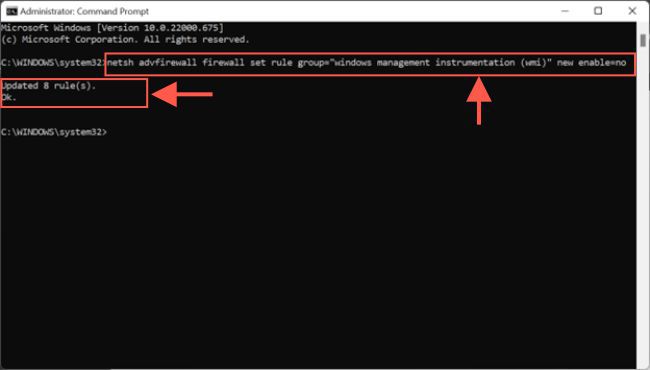
First, run the command prompt as administrator.

netsh advfirewall firewall set rule group="windows management instrumentation (wmi)" new enable=no
Remote System Management

The command removes 8 rules added to the WMI, streamlining the configuration and improving system management.

Please see see how to query a list of installed programs in Windows via Windows Settings, Control Panel, WMIC, PowerShell and Windows Registry, and How to setup and configure Remote Desktop Services via Standard Deployment on Windows Server.

If you’ve found this blog post on how to enable or disable a Remote WMI Connection in Windows helpful, please share your thoughts or questions in the comment section. Additionally, your feedback is greatly appreciated, and I’m here to assist with any inquiries.

5/5 - (1 vote)

Thank you for reading this post. Kindly share it with others.

  • Share on X (Opens in new window) X
  • Share on Reddit (Opens in new window) Reddit
  • Share on LinkedIn (Opens in new window) LinkedIn
  • Share on Facebook (Opens in new window) Facebook
  • Share on Pinterest (Opens in new window) Pinterest
  • Share on Tumblr (Opens in new window) Tumblr
  • Share on Telegram (Opens in new window) Telegram
  • Share on WhatsApp (Opens in new window) WhatsApp
  • Share on Mastodon (Opens in new window) Mastodon
  • Share on Bluesky (Opens in new window) Bluesky
  • Share on Threads (Opens in new window) Threads
  • Share on Nextdoor (Opens in new window) Nextdoor
Windows Tags:MDM Bridge WMI Provide, Remote Access, Remote Desktop, Remote Desktop Services, Remote Server Administration Tools, RemoteConnection

Post navigation

Previous Post: How to deactivate and reactivate a Slack user
Next Post: How to remove a user from a Slack Channel

Related Posts

  • tux through window 620x354 1
    WSL Error 0x8007019e: WSL Register Distribution failed with error Windows
  • wmic4
    How to find User Security Identifier (SID) in Windows [Part 1] Windows
  • Smartscreen defender blocking application
    Unable to run downloaded Programs due to Defender SmartScreen Windows
  • Featured image wifipass
    Find saved Wi-Fi Passwords in Windows 10 and 11 Network | Monitoring
  • Database Connection Stuck on Working on it
    How to fix TeamPass stuck on working on it Network | Monitoring
  • change keyboard layout windows 10 thumb800
    Prevent on-screen keyboard from starting automatically and from appearing at login Windows

More Related Articles

tux through window 620x354 1 WSL Error 0x8007019e: WSL Register Distribution failed with error Windows
wmic4 How to find User Security Identifier (SID) in Windows [Part 1] Windows
Smartscreen defender blocking application Unable to run downloaded Programs due to Defender SmartScreen Windows
Featured image wifipass Find saved Wi-Fi Passwords in Windows 10 and 11 Network | Monitoring
Database Connection Stuck on Working on it How to fix TeamPass stuck on working on it Network | Monitoring
change keyboard layout windows 10 thumb800 Prevent on-screen keyboard from starting automatically and from appearing at login Windows

Leave a Reply Cancel reply

You must be logged in to post a comment.

Microsoft MVP

VEEAMLEGEND

vexpert-badge-stars-5

Virtual Background

GoogleNews

Categories

veeaam100

Veeam Vanguard

  • How To Stop Mac From Sleeping Automatically
    How to prevent macOS from going to sleep Mac
  • How to create an Advanced Windows Scheduled Task Windows Server
  • Fix this PC cannot run Windows 11
    Bypass unsupported CPU and Processor by upgrading to Windows 11 via Windows Update Virtualization
  • adm
    Create and access a hidden share folder on Windows Windows
  • Feature image
    When Should I Use TPM or TPM + PIN Security | Vulnerability Scans and Assessment
  • 71PSZcv0RL. AC SX425
    How to disable unused Cisco Access Ports Network | Monitoring
  • maxresdefault
    Error 0x8007232B: Can’t activate Windows on this device as we can’t connect to your organization’s activation server Windows
  • HiveNightmare
    Workaround for “SeriousSAM or HiveNightmare” registry vulnerability for Windows 10 and 11 Security | Vulnerability Scans and Assessment

Subscribe to Blog via Email

Enter your email address to subscribe to this blog and receive notifications of new posts by email.

Join 1,814 other subscribers
  • RSS - Posts
  • RSS - Comments
  • About
  • Authors
  • Write for us
  • Advertise with us
  • General Terms and Conditions
  • Privacy policy
  • Feedly
  • Telegram
  • Youtube
  • Facebook
  • Instagram
  • LinkedIn
  • Tumblr
  • Pinterest
  • Twitter
  • mastodon

Tags

Active Directory Azure Bitlocker Microsoft Windows PowerShell WDS Windows 10 Windows 11 Windows Deployment Services Windows Server 2016

Copyright © 2025 TechDirectArchive


Loading Comments...
 

You must be logged in to post a comment.