Skip to content

TechDirectArchive

Hands-on IT, Cloud, Security & DevOps Insights

  • Home
  • About
  • Advertise With US
  • Reviews
  • Contact
  • Toggle search form
Home » Windows » DbxSvc Process: How to Fix “Cannot Start Proctored Exam”

DbxSvc Process: How to Fix “Cannot Start Proctored Exam”

Posted on 26/05/202211/09/2025 Imoh Etuk By Imoh Etuk 3 Comments on DbxSvc Process: How to Fix “Cannot Start Proctored Exam”
Cannot Start Proctored Exam

In this article, we shall discuss how DbxSvc Process: How to Fix “Cannot Start Proctored Exam”. The EXE file extension is used by Dbxsvc.exe, which is also known as a Dropbox Service file. Dropbox, Inc. generated this file as a Win32 EXE (Executable application) file for Dropbox. DbxSvc Process was originally released with Dropbox 72.4.136 on the Windows 10 Operating System on 05/07/2019. Please, see “Veeam Certified Architect: VMCA Training: Certification Review, and how to fix Couldn’t start Dropbox: How to fix and reinstall Dropbox.

This issue that’s caused by DbxSvc Process can be a stumbling block for you when you’re about to write your certification test at home with Pearson VUE.

I faced the issue when I was about to take my test with Pearson VUE, and since I couldn’t rectify it immediately, I had my exam cancelled and rescheduled by the proctor. So I’m putting up this short guide to help others who may encounter the same error while attempting to write their exam with Pearson VUE. The file that is causing all of these problems is called dbxsvc.exe, and it is tied to Dropbox.

This file’s primary function is to install Dropbox’s Smart Sync driver. If you have the Dropbox application installed on your computer, you may encounter this problem during testing if you don’t manually end the background process before your exam.

There are a few services which the Proctortrack app cannot close due to restricted access and exam takers need to close those services from the task manager or any other methods available to them. We’ll walk through 3 methods of ending the DbxSvc process. Please follow the following steps to close the DbxSvc manually : 

Method 1 -Ending the DbxSvc Process through the Task Manager

Step 1 – Right-click on Task Bar at the bottom of your Windows PC to launch the " Task Manager ". Alternatively, press the ALT+CTRL+DELETE keys simultaneously to open the Task Manager.

Ending-Proctor-Track
Opening Task Manager

Step 2 – Click on ” More Details “.

dbxsvc-error-Pearson-OnVue-Exam
Click on more details

 Step 3 – Under " Background processes "  locate  " Dropbox Service ". Click to expand the button,  and select " DbxSvc "  and then simply click on "End Task "

End-DBXSVC-error
End Background Process

You should be able to continue with your test after ending the process.

Also, see Best Way to Backup Dropbox to Box in 2022, and A review of the VMCE training and certification.

Method 2 – Ending DbxSvc Process with Command Prompt

To end the DbxSvc process with the command prompt, follow the steps below:

  1. Press the Windows key once
  2. Type the command prompt in the Windows Search box and right-click to open it as an administrator
Ending-Dbsxvc-process
Opening the Command Prompt

3. Type the command below:

sc stop DbxSvc
Stop-DbxSvc-with
Stopping DbxSvc with Command Prompt

4. Run the command below to delete the DbxSvc

sc delete DbxSvc
DBXSVC-deleted
DbxSvc deleted

See how to end a program via the Task Manager in Windows 11, and how to Enable the End Task Option on Windows 11 Taskbar.

Method 3 –  Disable Service under Services

Note: Deleting or disabling the DbxSvc may result in future issues. You will have troubles later if you opt to decide to get the Smart Sync because it is tied to it (or any other feature that might be dependent on DbxSvc). As a result, proceed at your own risk.

Meanwhile, for many individuals, simply disabling the DbxSvc Process has addressed the problem. This is for people that want to keep Dropbox but are having trouble with the event viewer.

  1. Press the Windows key + R
  2. Type services.msc and press Enter
Service-msc
Services.msc

To read more on ways to resolve issues similar to the issue we’re about to resolve now refer to the following guides: Disk Drill: How to Recover Deleted Temp Files on Windows 10 and 11, how to change or cancel your Trello plan, and how to fix error “The request to add or remove features on the specified server failed”.

3. Locate and double click the service named DbxSvc

Locate-DbxSvc-Service
Locate DbxSvc Service

4. Select Disabled from the drop down menu in Startup Type and then click on Stop

Select-stop
Select Disabled and Press Stop

5. Click Apply then select Ok

Apply-and-Okay-it
Click Apply and Ok

The alternate option of stopping the DbxSvc process service is to click Stop directly on the services menu after highlighting it as shown below.

Alternate-option
Stopping DbxSvc Service

I hope you found this guide useful on DbxSvc Process: How to Fix “Cannot Start Proctored Exam”. Please feel free to leave a comment below.

5/5 - (1 vote)

Thank you for reading this post. Kindly share it with others.

  • Share on X (Opens in new window) X
  • Share on Reddit (Opens in new window) Reddit
  • Share on LinkedIn (Opens in new window) LinkedIn
  • Share on Facebook (Opens in new window) Facebook
  • Share on Pinterest (Opens in new window) Pinterest
  • Share on Tumblr (Opens in new window) Tumblr
  • Share on Telegram (Opens in new window) Telegram
  • Share on WhatsApp (Opens in new window) WhatsApp
  • Share on Mastodon (Opens in new window) Mastodon
  • Share on Bluesky (Opens in new window) Bluesky
  • Share on Threads (Opens in new window) Threads
  • Share on Nextdoor (Opens in new window) Nextdoor
Windows Tags:Microsoft Windows, Processes, Windows 10, Windows 11

Post navigation

Previous Post: Grant or Deny Microphone Access on Mac
Next Post: Serve Private S3 Bucket Contents Via CloudFront

Related Posts

  • Featured image widgets
    How to use the Widgets feature on Windows 11 Windows
  • Featured image
    Exploring the Reasons to use or not use Screensavers in Windows Windows
  • Featured image   This network connection does not exist
    How to fix this network connection does not exist Windows
  • VMware workstation networking issues
    Network cable Unplugged: Fix VMware “Warning – Multiple default gateways are intended to provide redundancy to a single network Virtualization
  • Fixing TPM Vulnerability
    How to fix a vulnerable Trusted Platform Module [TPM] Windows
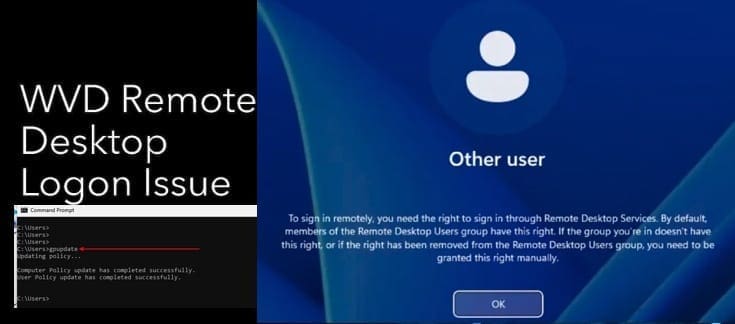
  • you need the right to sign in through Remote Desktop Services
    Fix you need the right to sign in through Remote Desktop Services Windows

More Related Articles

Featured image widgets How to use the Widgets feature on Windows 11 Windows
Featured image Exploring the Reasons to use or not use Screensavers in Windows Windows
Featured image   This network connection does not exist How to fix this network connection does not exist Windows
VMware workstation networking issues Network cable Unplugged: Fix VMware “Warning – Multiple default gateways are intended to provide redundancy to a single network Virtualization
Fixing TPM Vulnerability How to fix a vulnerable Trusted Platform Module [TPM] Windows
you need the right to sign in through Remote Desktop Services Fix you need the right to sign in through Remote Desktop Services Windows

Comments (3) on “DbxSvc Process: How to Fix “Cannot Start Proctored Exam””

  1. Avatar photo Amy says:
    29/05/2022 at 6:30 AM

    Thank you!! This literally happened to me this afternoon and I wasn’t able to take my test and I hope they will allow me to reschedule it. Your tutorial here allowed me to figure out it, though it was five hours too late. Now, I know what to do for my next test.

    Log in to Reply
    1. E Imoh1 Imoh Etuk says:
      30/05/2022 at 10:52 AM

      Hello Amy, I’m glad you found the post helpful. To get support in rescheduling your test, you can contact Pearson Vue via https://home.pearsonvue.com/microsoft/contact for Microsoft certification exams or https://home.pearsonvue.com/Test-takers/Customer-service.aspx for others.

      Log in to Reply
  2. Avatar photo Greg says:
    07/12/2022 at 2:20 PM

    Awesome, thanks so much – task manager wouldnt stop it (it would immediately restart), so disabling the service did the trick 🙂

    Log in to Reply

Leave a Reply Cancel reply

You must be logged in to post a comment.

Microsoft MVP

VEEAMLEGEND

vexpert-badge-stars-5

Virtual Background

GoogleNews

Categories

veeaam100

Veeam Vanguard

  • CVE 2026 25177 Privilege Escalation In AD
    Unicode Manipulation: CVE-2026-25177 Privilege Escalation in AD Windows Server
  • asdfgh
    Install RSAT on Windows via Windows features Windows
  • Check Virtualization
    Enable Virtualization in BIOS: Determine if the Intel VT-x or AMD-V Virtualization Technology is enabled in BIOS Virtualization
  • SystemUtilization
    Delivering System Utilization Report on a Linux based OS Linux
  • How to Disable Automatic Opening of Previous files in Notepad on Windows 11
    How to Disable Automatic Opening of Previous Files in Notepad on Windows 11 Windows
  • windows sign in options
    Sign-in options for Windows: Ditch Password for Enhanced Security Windows
  • microsoft edge
    How to configure static page in Microsoft Edge browser via Local Group Policy on Windows Windows
  • Bang ad Olufsen.
    Bang and Olufsen Bluetooth connection: How to connect and remove Beoplay E8 3rd Generation to Mac Mac

Subscribe to Blog via Email

Enter your email address to subscribe to this blog and receive notifications of new posts by email.

Join 1,814 other subscribers
  • RSS - Posts
  • RSS - Comments
  • About
  • Authors
  • Write for us
  • Advertise with us
  • General Terms and Conditions
  • Privacy policy
  • Feedly
  • Telegram
  • Youtube
  • Facebook
  • Instagram
  • LinkedIn
  • Tumblr
  • Pinterest
  • Twitter
  • mastodon

Tags

Active Directory Azure Bitlocker Microsoft Windows PowerShell WDS Windows 10 Windows 11 Windows Deployment Services Windows Server 2016

Copyright © 2025 TechDirectArchive


Loading Comments...
 

You must be logged in to post a comment.