Focus on Tasks: Limit Distraction & Get Things Done on Windows


When working on a Windows PC and needing to focus on tasks, it can be disrupted by various Windows processes and notifications, making it difficult to concentrate and accomplish tasks on time. In this article, we shall discuss “Focus on Tasks: Limit Distraction & Get Things Done on Windows”. Here are other related guides: How to use color filters in Windows, and Internet Explorer: How to disable IE via Group Policy or Windows Registry Settings.
Windows provides several options for reducing distractions, making it simpler to focus on activities. You can use Focus Assist to manage notifications and Immersive Reader to remove visual distractions when reading a webpage in Microsoft Edge. Kindly refer to these related guides also: Set Google Chrome as default: How to set a browser as default in Windows, and how to Enable or Prevent Reopen Windows when logging back in after Restart or Shutdown on Mac.
Focus Assist: Manage notifications
Focus Assist is in Windows Do Not Disturb mode. When enabled, it will automatically hide incoming notifications so they don’t come up and disturb you when you’re playing a game, giving a presentation, or using any full-screen applications.
Focus Assist can also automatically silence notifications during certain hours of the day. Here’s how to help you Focus on Tasks and to turn focus assist on or off:
Press Windows Key + I to open Settings, then click on System. From the left-hand menu, click on Focus Assist.

Select Priority only or Alerts only to see and hear fewer notifications.
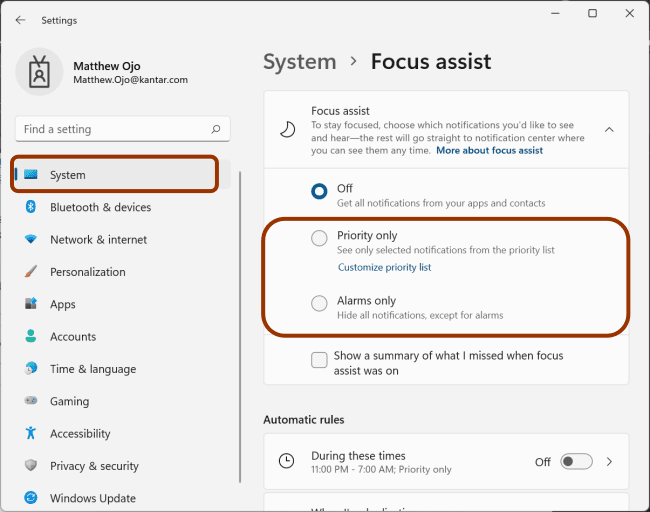
If you selected Priority only, you could define which notifications are allowed. Select Customize Priority List, and then change the By Naming options.

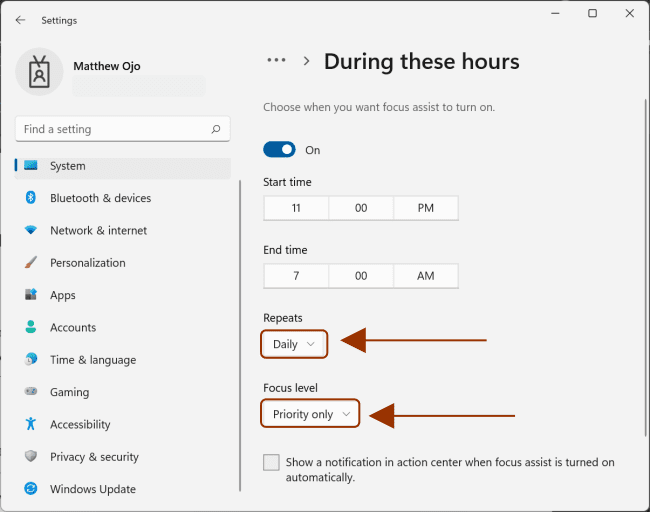
To limit notifications at night, follow the steps below. Under Automatic rules, select During these times, and then toggle the switch to On. Then set the Focus Assist start and end times to limit your notifications.

Expand the Repeat and select which days the rule should apply. Also, to choose which types of notifications you want to continue receiving during the set times, expand the Focus level list and select the option.
Here are some related guides as well: How to forcefully remove Microsoft Edge Browser the hard way from your device, and how to Block downloads on Microsoft Edge using GPO on Windows Server 2019 and 2022.
Clearer start menu for Focus on Tasks
Press Windows Key + I to open Settings then click on Personalization. From the left-hand menu, click on Start.
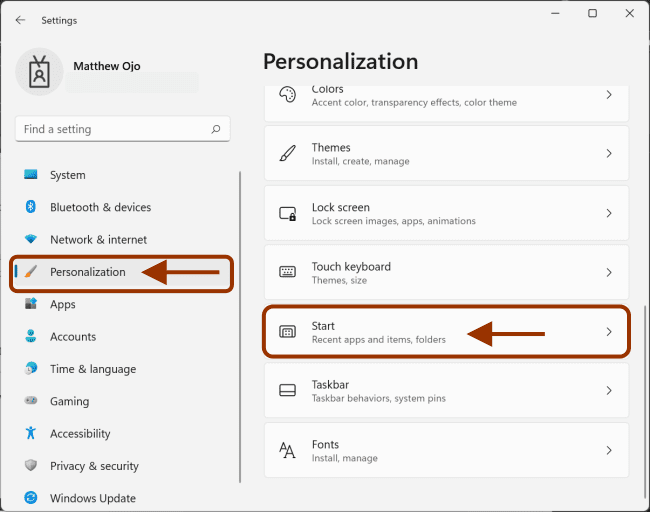
To make the start menu easier to use, do the following to help you Focus on Tasks:
- Toggle “Show recently added apps” option on or off to show or hide recently added apps.
- Toggle “Show Most used apps” option on or off to show or hide the most frequently used apps.
- To show or hide your recently opened items, toggle the “Show recently opened items switch in Start, Jump Lists, and File Explorer” on or off.
- To choose which folders to show or hide on the Start menu next to the power button, select Folders, and then turn on the switches for the folders you want to show or hide for the folders you want to hide.

Focus on Tasks: Limit Distraction & Get Things Done on Windows with Fewer animations
Turn off animations, background images, and other visual distractions to reduce visual distractions. Press Windows Key + I to open Settings then click on Accessibility. From the left-hand menu, click on Visual Effects.
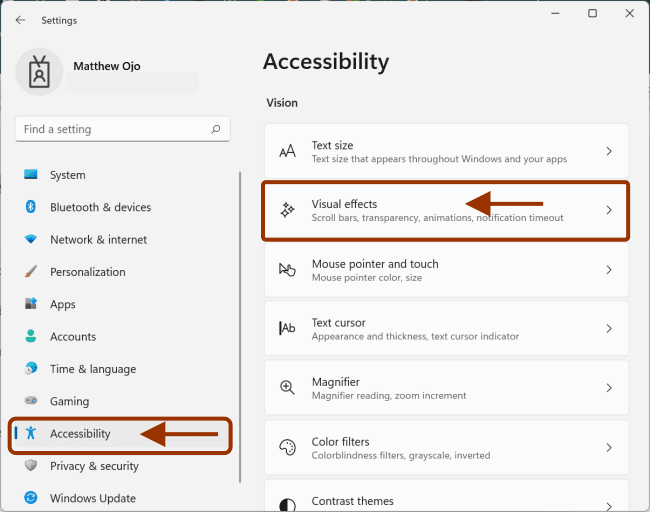
To minimize distractions, do the following:
- Disable the Always show scroll bars switch, and Windows to hide the scroll bars in the list automatically.
- If some window backgrounds are opaque, turn off the Transparency Effects toggle.
- If you don’t want Windows to appear, turn off the Animation Effects switch.
- To define how long notifications are shown, expand the Close notifications after this period menu and select the option to help you Focus on Tasks.

Clear taskbar for Focus on Tasks
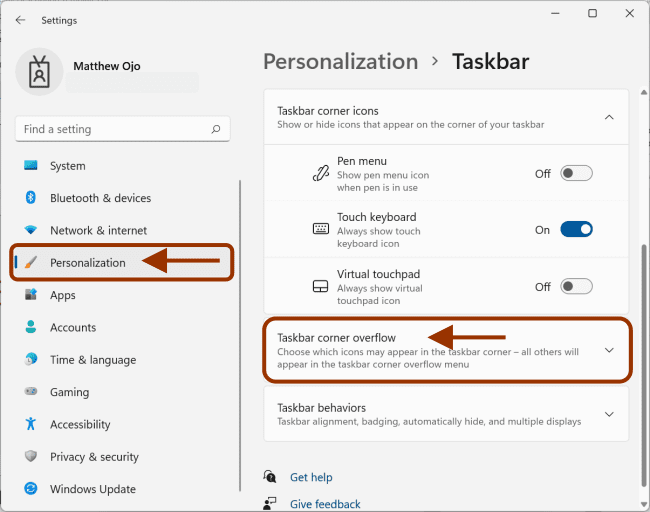
Choose which icons to show on the taskbar and reduce the number of items in the view. Press Windows Key + I to open Settings, then click on Personalization. From the left-hand menu, click on Taskbar to help you Focus on Tasks.

Under Taskbar Items, turn off the toggles for the items you don’t want to appear on the taskbar to help you Focus on Tasks.

To choose which icons can appear in the taskbar corner, select Overflow in the taskbar corner. Turn on the toggles for the icons you want to display in the taskbar corner.
The icons with disabled switches appear in the overflow menu in the taskbar corner to help you Focus on Tasks.
Choosing which apps to show notifications in
If you find the on-screen notifications annoying, you can customize which apps can show notifications and how they are presented to help you Focus on Tasks.
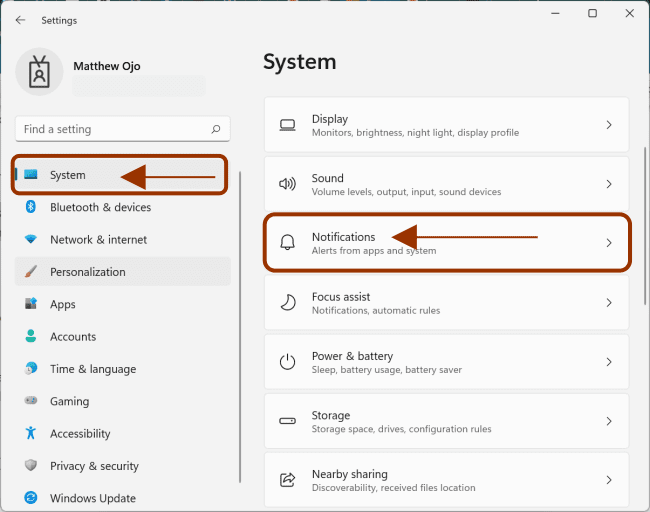
Press Windows Key + I to open Settings, then click on System. From the left-hand menu, click on Notifications.
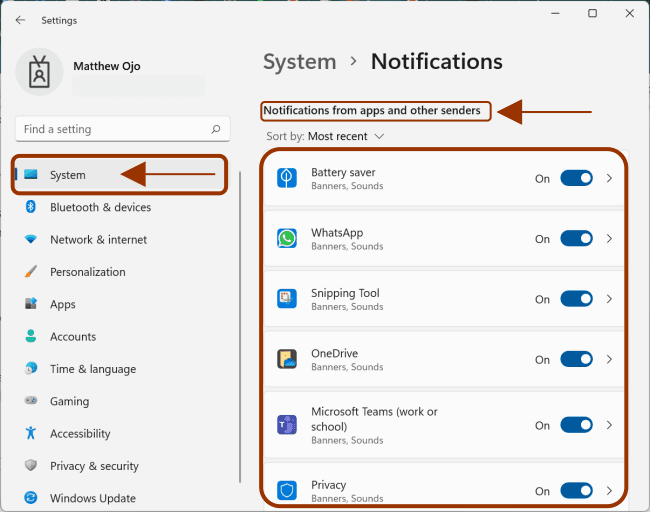
Under Notifications from apps and other senders, turn off the toggles for the apps you don’t want to send notifications for and turn on the toggles for the apps you want to keep showing notifications for to help you Focus on Tasks.
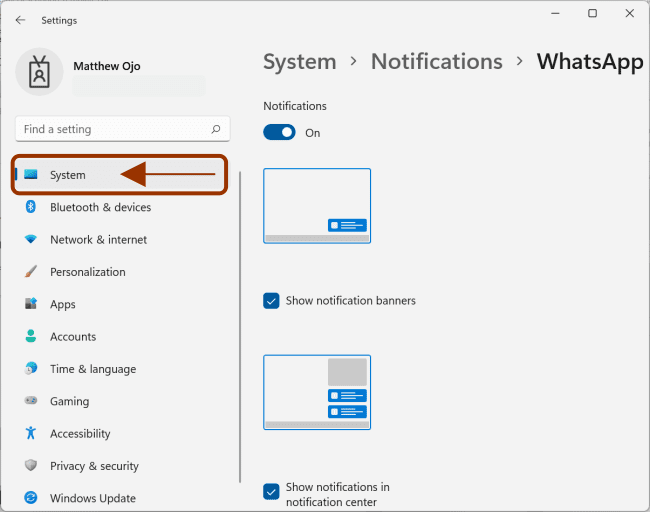
To define where the notifications appear for each app, select the app under Notifications from apps and other senders, and then change the options to your liking.
Immersive Reader: Read without distractions
Use the Immersive Reader in Microsoft Edge to view a webpage in a more straightforward and cleaner layout.
To start using Immersive Reader, open the Microsoft Edge browser, type the web address you want to read, and press F9. Alternatively, click the Immersive Reader icon on the address bar to enter Immersive Reader mode to help you Focus on Tasks.
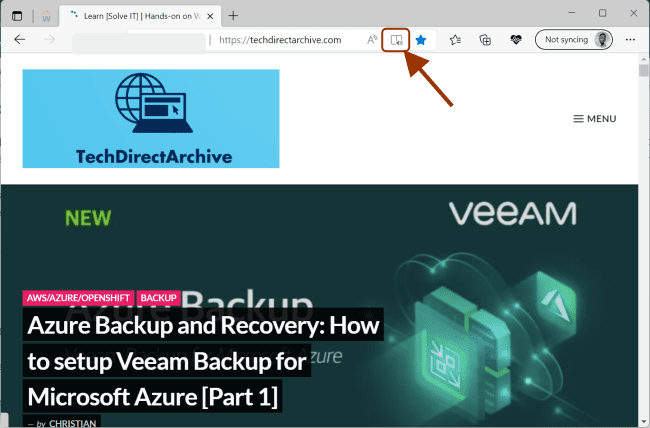
The page opens in a more straightforward layout. If you want to change how the page is displayed, check the options on the toolbar at the top of the page. For example, you can change the background color and font to help you Focus on Tasks.
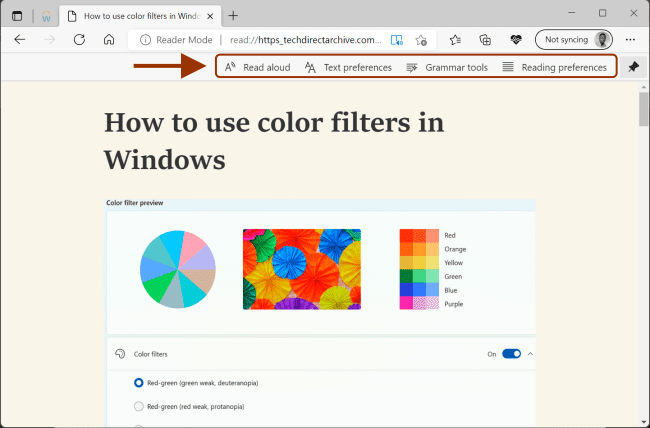
To exit Immersive Reader, press F9 or click the Immersive Reader icon on the address bar.
I hope you found this blog post helpful on how to Focus on Tasks: Limit Distraction & Get Things Done on Windows. Please let me know in the comment session if you have any questions helping to Focus on Tasks.


