Skip to content

TechDirectArchive

Hands-on IT, Cloud, Security & DevOps Insights

  • Home
  • About
  • Advertise With US
  • Reviews
  • Contact
  • Toggle search form
Home » Windows » How to Move OneDrive Folder to a different location in Windows
  • ycx
    Install SysInternals from the Microsoft Store Windows
  • stopsappsfromstart
    How to Hide or Stop Apps Like OneDrive from Auto-Opening Mac
  • windows admin center banner 825x400 1
    Fix failed to create new Scheduled Task RemoteException Windows Server
  • How to Convert Google Forms Into Microsoft Forms banner
    Convert Google Forms Into Microsoft Forms Microsoft Exchange/Office/365
  • docker desktop 1
    Failed to remove network for build: Error during connect in the default daemon configuration on Windows, the Docker client must be run with elevated privileges Containers
  • parttt
    Adding a new partition to an existing Linux server Linux
  • image 42
    How to Install and Setup WordPress into a cPanel and Configure Your First WordPress Theme Configuration Management Tool
  • Building VPC
    Build a Scalable VPC for Your AWS Environment [Part 1] AWS/Azure/OpenShift

How to Move OneDrive Folder to a different location in Windows

Posted on 27/06/202223/03/2024 Temitope Odemo By Temitope Odemo No Comments on How to Move OneDrive Folder to a different location in Windows
Moving OneDrive Folder

Looking to streamline your files? Easily move OneDrive Folder, a default Microsoft service in Windows 10 (that is, Move OneDrive Folder to a different location in Windows). Sync and access files across devices seamlessly. Looking to optimize your file management? Easily move OneDrive Folder to a new location. Accessible on any device once logged in, OneDrive offers a default storage spot. However, situations may arise where relocating the OneDrive location becomes beneficial. Please see how to Stop OneDrive from Starting Up Automatically on Windows 11.

In this guide, I will be showing you how to change the default location to your desired location. If you want to read more guides on OneDrive, you can check these: How to Disable or Uninstall OneDrive on Windows 10 and 11, and how to Share Files, Stop Sharing and Restore Previous Versions of Files on Microsoft OneDrive.

Accessing the Default OneDrive Location on Windows 10

Open your Windows 10 system and locate the User’s folder or use this “C:\Users\Your User Account\OneDrive.”, you will see the OneDrive icon inside this location and when you click, it will open the OneDrive service where you can save your files.

This is the default location that comes with Windows 10.

Change OneDrive Folder Location
OneDrive Location

An alternative way to open OneDrive is by checking the right side of the taskbar, you would see OneDrive’s icon that looks like a cloud.

Relocate OneDrive Folder
OneDrive Icon

Another way you can access it is through the search box and type OneDrive
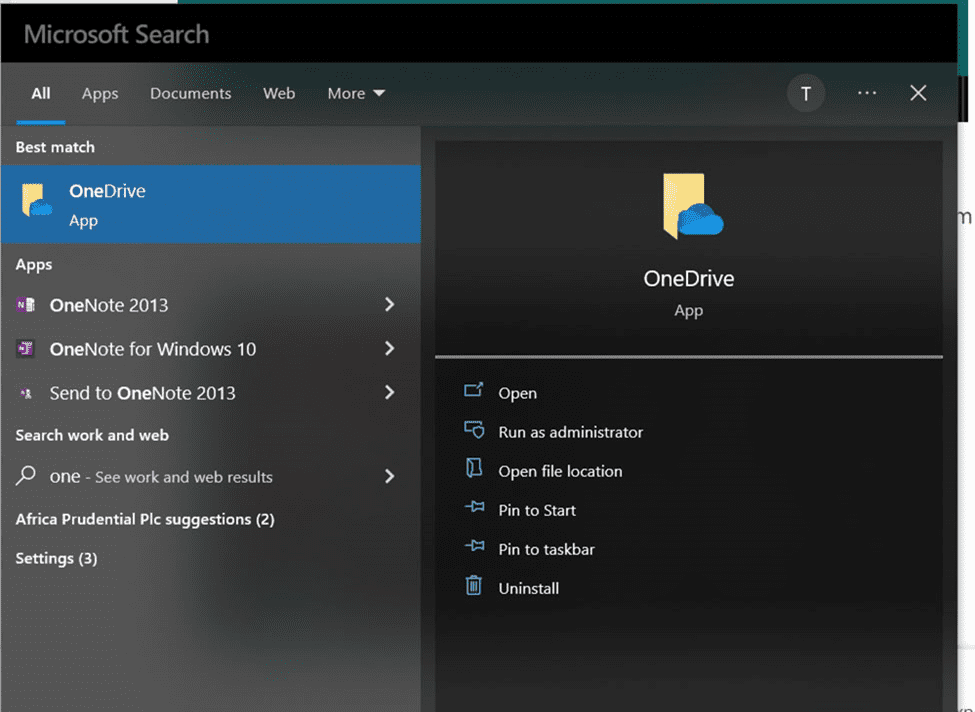
Transfer OneDrive Folder
OneDrive Shortcut

To access the setting right-click on the OneDrive icon and click on Settings

Moving OneDrive Folder
OneDrive Settings

Unlink OneDrive from Windows

On the next page called Microsoft OneDrive you need to select the Account tab, and then click Unlink this PC.

Change OneDrive Folder Location
Unlinking OneDrive

Immediately you click on the Unlink this PC OneDrive will inform you of all the actions that will be carried out once you click the button that will confirm the action.

This will make OneDrive to stop syncing your files, and this is a compulsory steps that must be carried out for you to be able to move the OneDrive folder to another location.

image-12
Unlinking your Account

Once this is done then the next step is to move your OneDrive folder from its original location to the location that you prefer. Open the default location for the OneDrive which is “C:\Users\Your User Account\OneDrive.”

Then select the OneDrive icon and click on Move to which will now open different folders or you can click on Choose location to select a new location for your OneDrive.

Also, see Files On-Demand with OneDrive: Microsoft OneDrive Setup On Windows 10 and 11 and Key Features Explained, and How to remove OneDrive from Windows.

Selecting Destination and Initiating OneDrive Move

Now make your choice of the folder or drive you to want for your OneDrive and click on the Move button to start moving the OneDrive. The time spent on the movement is dependent on the number of files available in the OneDrive.

image-13
Moving Items

Now go ahead to re-login to your Microsoft OneDrive account

image-14
OneDrive Login

Since we want to use a different location for the OneDrive, click “Change location” link.

You can now “Choose your OneDrive location.” Find and select the location where you moved the OneDrive folder on your system and click the Select Folder button.

image-15
OneDrive Folder

Moreover, OneDrive immediately detects that the OneDrive folder already exists on this PC before, you only need to confirm you still want to continue to use the folder.

image-16
OneDrive folder exist

Here are some intersting guides: Microsoft Phone Link: Connect Android to Windows 11, How to Disable or Uninstall OneDrive on Windows 10 and 11, and how to share Files and Restore Previous versions of Files in Microsoft OneDrive.

I hope you found this blog post on How to move OneDrive Folder to a Different Location in Windows 10 interesting and helpful. In case you have any questions do not hesitate to ask in the comment section.

Rate this post

Thank you for reading this post. Kindly share it with others.

  • Share on X (Opens in new window) X
  • Share on Reddit (Opens in new window) Reddit
  • Share on LinkedIn (Opens in new window) LinkedIn
  • Share on Facebook (Opens in new window) Facebook
  • Share on Pinterest (Opens in new window) Pinterest
  • Share on Tumblr (Opens in new window) Tumblr
  • Share on Telegram (Opens in new window) Telegram
  • Share on WhatsApp (Opens in new window) WhatsApp
  • Share on Pocket (Opens in new window) Pocket
  • Share on Mastodon (Opens in new window) Mastodon
  • Share on Bluesky (Opens in new window) Bluesky
  • Share on Threads (Opens in new window) Threads
  • Share on Nextdoor (Opens in new window) Nextdoor
Windows Tags:Microsoft Windows, OneDrive, Windows 10, Windows 11, Windows Server 2016

Post navigation

Previous Post: Focus on Tasks: Limit Distraction & Get Things Done on Windows
Next Post: SSH into a VM created using Azure CLI or GUI

Related Posts

  • Enable only Windows Admin to shutdown PC
    Allow only Administrators to shut down and reboot Server Windows
  • connect to RDP automatically
    RDP Configuration Settings: Connect automatically to RDP session Windows
  • hh
    Graphical Network Simulator: How to install GNS3 on a Windows device Windows
  • image 24
    How to Resolve Microsoft RDP Connection Black Screen Windows
  • updates
    How to stop Windows from applying updates Windows
  • WCD
    Join Bulk Devices using a Provisioning Package to Azure AWS/Azure/OpenShift

More Related Articles

Enable only Windows Admin to shutdown PC Allow only Administrators to shut down and reboot Server Windows
connect to RDP automatically RDP Configuration Settings: Connect automatically to RDP session Windows
hh Graphical Network Simulator: How to install GNS3 on a Windows device Windows
image 24 How to Resolve Microsoft RDP Connection Black Screen Windows
updates How to stop Windows from applying updates Windows
WCD Join Bulk Devices using a Provisioning Package to Azure AWS/Azure/OpenShift

Leave a Reply Cancel reply

You must be logged in to post a comment.

Microsoft MVP

VEEAMLEGEND

vexpert-badge-stars-5

Virtual Background

GoogleNews

Categories

veeaam100

sysadmin top30a

  • ycx
    Install SysInternals from the Microsoft Store Windows
  • stopsappsfromstart
    How to Hide or Stop Apps Like OneDrive from Auto-Opening Mac
  • windows admin center banner 825x400 1
    Fix failed to create new Scheduled Task RemoteException Windows Server
  • How to Convert Google Forms Into Microsoft Forms banner
    Convert Google Forms Into Microsoft Forms Microsoft Exchange/Office/365
  • docker desktop 1
    Failed to remove network for build: Error during connect in the default daemon configuration on Windows, the Docker client must be run with elevated privileges Containers
  • parttt
    Adding a new partition to an existing Linux server Linux
  • image 42
    How to Install and Setup WordPress into a cPanel and Configure Your First WordPress Theme Configuration Management Tool
  • Building VPC
    Build a Scalable VPC for Your AWS Environment [Part 1] AWS/Azure/OpenShift

Subscribe to Blog via Email

Enter your email address to subscribe to this blog and receive notifications of new posts by email.

Join 1,832 other subscribers
  • RSS - Posts
  • RSS - Comments
  • About
  • Authors
  • Write for us
  • Advertise with us
  • General Terms and Conditions
  • Privacy policy
  • Feedly
  • Telegram
  • Youtube
  • Facebook
  • Instagram
  • LinkedIn
  • Tumblr
  • Pinterest
  • Twitter
  • mastodon

Tags

AWS Azure Bitlocker Microsoft Windows PowerShell WDS Windows 10 Windows 11 Windows Deployment Services Windows Server 2016

Copyright © 2025 TechDirectArchive


Loading Comments...
 

You must be logged in to post a comment.