Skip to content

TechDirectArchive

Hands-on IT, Cloud, Security & DevOps Insights

  • Home
  • About
  • Advertise With US
  • Contact
  • Reviews
  • Toggle search form
Home » Windows » How to use Windows 11 PC Health Check App
  • SSH Keys Generation
    How to Generate SSH keys in Windows 11 Windows
  • FileNotFoundError Errno 2 No such file or directory
    Fix FileNotFoundError: [Errno 2] No such file or directory Scripts
  • Retrict access to external storage
    Restrict access to removable Storage Drives [Part 2] Windows
  • image 3
    How to Migrate Your WordPress Site with WordPress Duplicator Network | Monitoring
  • domain14 1
    How To Configure a Domain Password Policy Windows
  • Keep personal files and apps
    Fix Keep personal files and apps option greyed out during Upgrade Windows Server
  • windows pe screenshot1 rcm1200x0
    Workaround and Permanent fix for this snap-in performed a non-valid operation and has been unloaded: To continue using this snap-in restart MMC or try loading the snap-in again Windows Server
  • office365 1200x675 1
    How to prevent emails from going into a junk folder in Office365 Network | Monitoring

How to use Windows 11 PC Health Check App

Posted on 30/06/202212/12/2023 Matthew By Matthew No Comments on How to use Windows 11 PC Health Check App
Featured-image-samp

The PC Health Check app offers device health info, empowering you to optimize and address performance concerns. In this article, we shall discuss “How to use Windows 11 PC Health Check App”. The tool checks essential components, ensuring your machine supports updates in a few steps. Please refer to these related guides. Internet Explorer: How to disable IE via Group Policy or Windows Registry Settings, and how to forcefully remove Microsoft Edge Browser the hard way from your device.

The overall status check takes only a few seconds. All you have to do is launch the app and press the Check Now button. The main screen provides access to crucial PC Health Check data, including recent OS updates, battery charge, and storage space. You can also examine the load time at the start of the session in another area.

Here are other related guides: Files On-Demand with OneDrive: Microsoft OneDrive Setup On Windows 10 and 11 and Key Features Explained, Focus on tasks: How to get your task done on Windows by minimizing distractions, and How to use color filters in Windows, 

The various task you can perform with the PC Health Check App

In this section, we’ll demonstrate using Windows 11’s PC Health Check to assess crucial system components.

If the app is already installed, you can explore its functionalities within the PC Health Check app. If the PC Health Check app is not available on your system, you can download it from here. Once downloaded, run the file and tick the “I accept the terms in the License Agreement” then click Install.

System diagnostics

After the PC Health Check setup ends, click the Finish button.

Check Now Windows 11 eligibility

The app’s Check Now feature displays supported Windows 11 requirements, whether by your system or currently. This feature is essential for Windows 10 users looking to upgrade to Windows 11.

You’ll get info on why your device is or isn’t eligible and what you can do if your device doesn’t meet the requirements.

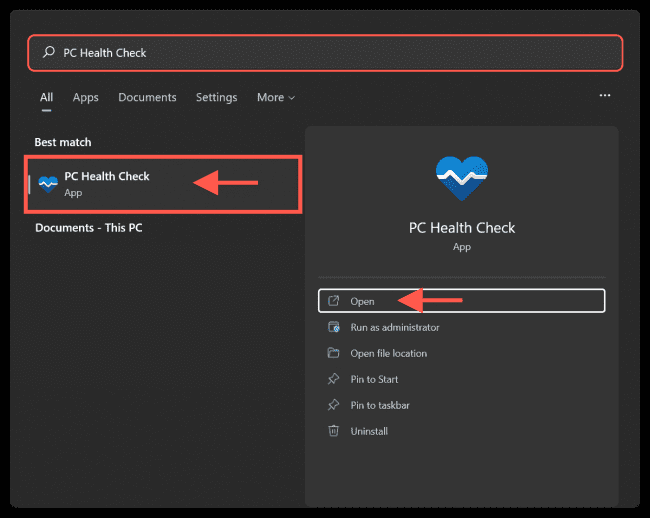
To open the PC Health Check app in Windows 11, click the Windows Key to open the Start menu and search for “PC Health Check,” then select it from the results list.  
computer performance

Select Check now to see if your device can run Windows 11. 

hardware analysis

Backup and sync 

Sign in with your Microsoft account or create a new one to sync your preferences across your devices, such as passwords, Microsoft Edge browser settings like favourites and reading lists, themes, and more. 

To use the Backup and sync feature, launch the app and click the Backup and sync tab.

PC maintenance

You can also back up your photos and files to OneDrive. They’ll then be protected and accessible across your devices. Please see Files On-Demand with OneDrive: Microsoft OneDrive Setup On Windows 10 and 11 and Key Features Explained.

Windows Update 

Regular Windows updates ensure that your device operates properly and securely. If your device isn’t up to date or needs attention, the PC Health Check will let you know.  To use this feature, select the Windows Update tab and click on Open Windows Update to go right to Windows Update in Settings.

System diagnostics

In the Windows Update area, click on Check updates to see if there is any available update for your system and click on Download and install to effect the update.

computer performance

Battery capacity 

Use this section of PC Health Check to get info on how your batteries are performing compared to their original capacity for devices with one or two batteries. Battery capacity will be available for devices older than 3 years.  

Open the app and select the Battery Capacity tab, then click See battery saving tips for steps you can take to improve battery. 

image7-3

On clicking the link, you will be redirected to a Microsoft website which contains details on how you can improve your battery life.

Storage capacity 

See how much storage space is being used for your device’s main drive, which contains your files, apps, and Windows. You’ll see the percentage of your drive is full.

To use this feature, expand the Storage capacity section and click Manage storage settings. 

image8-2

Storage Sense is a crucial tool to utilize since it helps to automatically delete temporary system files and free up space. Scroll down to the Storage management section in the Storage settings and click on the Storage Sense button to enable this option.

image9-3

You can get other cleanup recommendations in the Storage settings to free up even more space if you want.

Startup time 

Get info on the startup time for your device, along with more info about what affects these times. Click Manage your startup programs to review and change your startup apps. 
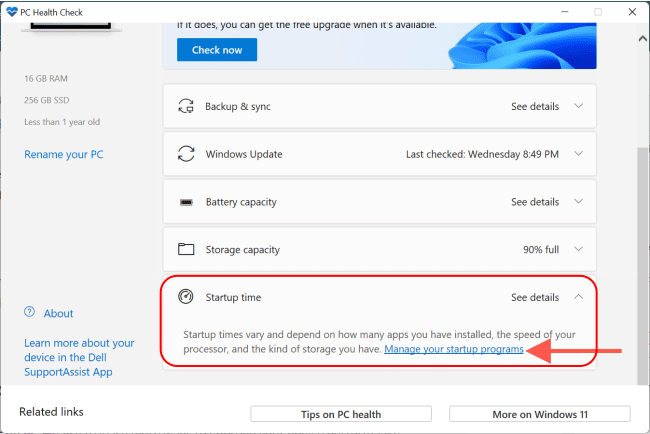
image10-2

Tips on PC Health 

Select Tips on PC Health Check to learn more ways to improve your device performance.  

image11-1

See your device specifications 

You can find more info about your device specifications, including processor speed, PC Health Check, installed RAM, System type, and Windows version. Select Rename your PC to give your device a different name.  

image12-1

I hope you found this blog post on how to use Windows 11 PC Health Check App helpful. Please let me know in the comment session if you have any questions.

Rate this post

Thank you for reading this post. Kindly share it with others.

  • Click to share on X (Opens in new window) X
  • Click to share on Reddit (Opens in new window) Reddit
  • Click to share on LinkedIn (Opens in new window) LinkedIn
  • Click to share on Facebook (Opens in new window) Facebook
  • Click to share on Pinterest (Opens in new window) Pinterest
  • Click to share on Tumblr (Opens in new window) Tumblr
  • Click to share on Telegram (Opens in new window) Telegram
  • Click to share on WhatsApp (Opens in new window) WhatsApp
  • Click to share on Pocket (Opens in new window) Pocket
  • Click to share on Mastodon (Opens in new window) Mastodon
  • Click to share on Bluesky (Opens in new window) Bluesky
  • Click to share on Threads (Opens in new window) Threads
  • Click to share on Nextdoor (Opens in new window) Nextdoor
Windows Tags:automaticstartup, Microsoft Windows, OneDrive, startup, Windows 10, Windows 11, Windows Updates

Post navigation

Previous Post: How to add a device to Windows
Next Post: How to automatically offload unused Apps on iPhone

Related Posts

  • image 2
    How to Fix Microsoft Edge Not Responding Windows
  • sign11
    Windows sign-in options and account protection on Windows 11 Windows
  • Convert PEM to PPK 1
    Convert a PEM Key to a PPK Key on a Linux and Windows AWS/Azure/OpenShift
  • image 23
    Copy Deployment Share between Servers without using linked Deployment Shares Windows
  • maxresdefault
    How to fix Error reading setup initialization file Windows
  • Screenshot 2022 04 02 at 23.05.24
    How to apply Windows Updates with PowerShell Windows

More Related Articles

image 2 How to Fix Microsoft Edge Not Responding Windows
sign11 Windows sign-in options and account protection on Windows 11 Windows
Convert PEM to PPK 1 Convert a PEM Key to a PPK Key on a Linux and Windows AWS/Azure/OpenShift
image 23 Copy Deployment Share between Servers without using linked Deployment Shares Windows
maxresdefault How to fix Error reading setup initialization file Windows
Screenshot 2022 04 02 at 23.05.24 How to apply Windows Updates with PowerShell Windows

Leave a Reply Cancel reply

You must be logged in to post a comment.

Microsoft MVP

VEEAMLEGEND

vexpert-badge-stars-5

Virtual Background

GoogleNews

Categories

veeaam100

sysadmin top30a
 
  • SSH Keys Generation
    How to Generate SSH keys in Windows 11 Windows
  • FileNotFoundError Errno 2 No such file or directory
    Fix FileNotFoundError: [Errno 2] No such file or directory Scripts
  • Retrict access to external storage
    Restrict access to removable Storage Drives [Part 2] Windows
  • image 3
    How to Migrate Your WordPress Site with WordPress Duplicator Network | Monitoring
  • domain14 1
    How To Configure a Domain Password Policy Windows
  • Keep personal files and apps
    Fix Keep personal files and apps option greyed out during Upgrade Windows Server
  • windows pe screenshot1 rcm1200x0
    Workaround and Permanent fix for this snap-in performed a non-valid operation and has been unloaded: To continue using this snap-in restart MMC or try loading the snap-in again Windows Server
  • office365 1200x675 1
    How to prevent emails from going into a junk folder in Office365 Network | Monitoring

Subscribe to Blog via Email

Enter your email address to subscribe to this blog and receive notifications of new posts by email.

Join 1,841 other subscribers
  • RSS - Posts
  • RSS - Comments
  • About
  • Authors
  • Write for us
  • Advertise with us
  • General Terms and Conditions
  • Privacy policy
  • Feedly
  • Telegram
  • Youtube
  • Facebook
  • Instagram
  • LinkedIn
  • Tumblr
  • Pinterest
  • Twitter
  • mastodon

Tags

AWS Azure Bitlocker Microsoft Windows PowerShell WDS Windows 10 Windows 11 Windows Deployment Services Windows Server 2016

Copyright © 2025 TechDirectArchive


Loading Comments...
 

You must be logged in to post a comment.