Skip to content

TechDirectArchive

Hands-on IT, Cloud, Security & DevOps Insights

  • Home
  • About
  • Advertise With US
  • Reviews
  • Contact
  • Toggle search form
Home » Mac » How to automatically offload unused Apps on iPhone
  • officelicensedeactivation
    Remove Office license file: How do you change the account that Office says it belongs to on a Mac JIRA|Confluence|Apps
  • fghj
    MDT deployment failed and Stuck at Command Prompt: Windows installation does not proceed via PXE boot Windows Server
  • header picture
    Creating and Deploying Docker Registry Using Docker Image AWS/Azure/OpenShift
  • MDt
    Failure 5456: Unable to determine destination disk, partition, and/or drive, see BDD Log Windows
  • sql server
    Download and install MSSQL 2019 Express Edition and SSMS Oracle/MSSQL/MySQL
  • original
    Windows Deployment Services: WDSUTIL CommandLine Options on Windows Server 2019 Windows Server
  • Slide2
    How to Clear Cache on Windows 10 Windows
  • blog banner 1
    Reset and reinstall Windows 10 from the cloud and how to recover your Windows 10 when you cannot boot to Windows Windows

How to automatically offload unused Apps on iPhone

Posted on 03/07/202211/12/2023 Christian By Christian No Comments on How to automatically offload unused Apps on iPhone
offloading apps

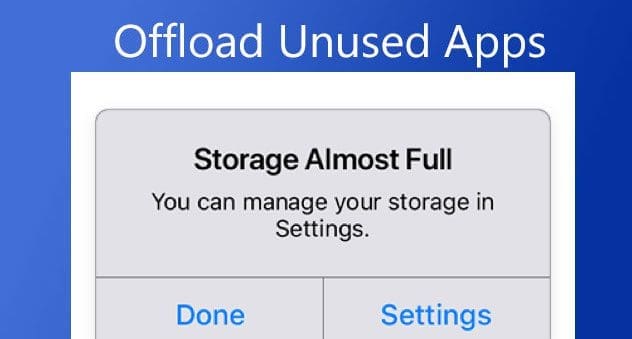
You must have been notified by the following alert “Storage Almost Full” on your iPhone. iOS monitors the storage on your device by analyzing how much space each App uses etc. As a result, when your storage space grows, you’ll receive an alert to buy additional cloud storage or offload unused apps to the Cloud. Opting for the latter option leads to offloading your apps. Kindly refer to these related guides: Turn off calls from iPhone: How to unlink FaceTime from Mac, and how to link your Android or iPhone to your Windows 10 PC.

As you can see in the image below, I have some rarely used apps offloaded in order to manage space. This can be done automatically or manually to free up local iPhone storage.

iPhone storage management

What is Offload App?

Before I proceed to discuss the steps to address this, I would like to discuss what an offload App is. Previously, you had the option to keep an app on your device (iPhone) or have it deleted.

If the app is kept, the app and its data will continue to occupy local storage. If the app is deleted, the app itself and all its local data are gone! You may want to see these related guides:

From iOS 11, Apple introduced the option to offload apps. This keeps in keeping your apps, by offloading to the cloud instead of deleting them. In theory, when an app is offloaded, the app itself is deleted, which clears local storage.

However, the app documents and data are still saved locally on your iPhone. Once you reinstall the offloaded app, you can keep using it like before as the app data is still saved.

One of the advantages of offloading unused apps is the ability to free up storage space. Apps can take up a lot of storage space on your iPhone. Therefore, offloading the apps you don’t use often is an easy way to free up more space on your iPhone.

Here are some related guides: Microsoft Phone Link: How to Link and Unlink an Android Phone to Windows 11, and how to configure GPS location “Google Map” on your Android Studio Emulator.

How to automatically offload unused apps on iPhone

Given the increasing app sizes, it is only reasonable to offload apps to keep local iPhone storage free. To do this, kindly Open Settings as shown below on your device.

automatic app offloading

Click on the App Store

optimizing iPhone storage

As you can see below, the Offload unused App is currently disabled by default as at the time of writing this guide.

offloading apps

To enable it, we will have to toggle the switch on as shown below. That is all you need to have some of your unused apps automatically offloaded to reduce space.

iPhone storage management

Method 2

Alternatively, you could also do this from the following “iPhone Storage” as discussed below. To do this, open settings as shown below

IMG_7115

Click on General

IMG_7120

Select on iPhone Storage as shown below.

IMG_7121

Click on Enable Offload Unused Apps.

IMG_7128

But you cannot disable it from this window. To disable the automatic offload of data, you will need to do this via the App Store.

Please see How to clear cookies, history, and cache in Safari, and How to restore accidentally deleted calendars, bookmarks, files, or contacts from iCloud.

Note: You can offload all third-party apps you downloaded from the App Store and several Apple apps like TV, Music, Mail, Files, Maps, etc. You cannot offload or delete Photos, Phones, Safari, Wallets, Messages, and Health apps.

I hope you found this blog post helpful. Please let me know in the comment session if you have any questions.

Rate this post

Thank you for reading this post. Kindly share it with others.

  • Share on X (Opens in new window) X
  • Share on Reddit (Opens in new window) Reddit
  • Share on LinkedIn (Opens in new window) LinkedIn
  • Share on Facebook (Opens in new window) Facebook
  • Share on Pinterest (Opens in new window) Pinterest
  • Share on Tumblr (Opens in new window) Tumblr
  • Share on Telegram (Opens in new window) Telegram
  • Share on WhatsApp (Opens in new window) WhatsApp
  • Share on Pocket (Opens in new window) Pocket
  • Share on Mastodon (Opens in new window) Mastodon
  • Share on Bluesky (Opens in new window) Bluesky
  • Share on Threads (Opens in new window) Threads
  • Share on Nextdoor (Opens in new window) Nextdoor
Mac

Post navigation

Previous Post: How to use Windows 11 PC Health Check App
Next Post: How to Add or Remove Sites from Favorites list in Microsoft Edge

Related Posts

  • RDP Certificate Issues
    Connecting to the RDP host: Fix the Certificate could not be verified back to the root certificate Mac
  • safari 1
    How to clear cookies history and cache in Safari Mac
  • powershell
    How to install and uninstall PowerShell on macOS via Homebrew Mac
  • iOS Apps
    How to redeem App Store gift card or content codes on MacBook Pro Mac
  • Mendeley Cite with MSWord Issue resolved
    Mendeley Cite ECITE40001 Error: Fix issue using Microsoft Word Desktop application Mac
  • Turn bluetooth on and off
    Unable to Turn Bluetooth On or Off on Mac Mac

More Related Articles

RDP Certificate Issues Connecting to the RDP host: Fix the Certificate could not be verified back to the root certificate Mac
safari 1 How to clear cookies history and cache in Safari Mac
powershell How to install and uninstall PowerShell on macOS via Homebrew Mac
iOS Apps How to redeem App Store gift card or content codes on MacBook Pro Mac
Mendeley Cite with MSWord Issue resolved Mendeley Cite ECITE40001 Error: Fix issue using Microsoft Word Desktop application Mac
Turn bluetooth on and off Unable to Turn Bluetooth On or Off on Mac Mac

Leave a Reply Cancel reply

You must be logged in to post a comment.

Microsoft MVP

VEEAMLEGEND

vexpert-badge-stars-5

Virtual Background

GoogleNews

Categories

veeaam100

sysadmin top30a

  • officelicensedeactivation
    Remove Office license file: How do you change the account that Office says it belongs to on a Mac JIRA|Confluence|Apps
  • fghj
    MDT deployment failed and Stuck at Command Prompt: Windows installation does not proceed via PXE boot Windows Server
  • header picture
    Creating and Deploying Docker Registry Using Docker Image AWS/Azure/OpenShift
  • MDt
    Failure 5456: Unable to determine destination disk, partition, and/or drive, see BDD Log Windows
  • sql server
    Download and install MSSQL 2019 Express Edition and SSMS Oracle/MSSQL/MySQL
  • original
    Windows Deployment Services: WDSUTIL CommandLine Options on Windows Server 2019 Windows Server
  • Slide2
    How to Clear Cache on Windows 10 Windows
  • blog banner 1
    Reset and reinstall Windows 10 from the cloud and how to recover your Windows 10 when you cannot boot to Windows Windows

Subscribe to Blog via Email

Enter your email address to subscribe to this blog and receive notifications of new posts by email.

Join 1,825 other subscribers
  • RSS - Posts
  • RSS - Comments
  • About
  • Authors
  • Write for us
  • Advertise with us
  • General Terms and Conditions
  • Privacy policy
  • Feedly
  • Telegram
  • Youtube
  • Facebook
  • Instagram
  • LinkedIn
  • Tumblr
  • Pinterest
  • Twitter
  • mastodon

Tags

AWS Azure Bitlocker Microsoft Windows PowerShell WDS Windows 10 Windows 11 Windows Deployment Services Windows Server 2016

Copyright © 2025 TechDirectArchive


Loading Comments...
 

You must be logged in to post a comment.