How to Enable or Prevent Reopen Windows when logging back in after Restart or Shutdown on Mac


When your apps windows reopens during restart or shutdown, this behaviour can help save some quality time. Especially because you can quickly jump in and continue what you were doing. But if you prefer to disable or enable this feature (like wanting to pick off where you left on your Mac device after restart or shutdown), then you are at the right place. In this guide, I will be showing you how to enable or prevent apps from automatically reopening when you log in to your Mac. Kindly refer to the following related guides: How to prevent a remote shutdown and restart in Windows, and Cannot uninstall the OneDrive App: The item “OneDrive” can’t be moved to the Bin because it’s open on Mac, how to logoff, restart, or shutdown Windows PC or Server remotely via Command Prompt and PowerShell,
There is a difference between Restart and Shutdown operation and this is quite self-explanatory. As for shut down, your Mac won’t start until you press the Power button again. It will interest you to know that newer macOS have an automatic reboot feature built-into them. As a result, the ‘shut down’ or ‘restart’ process clears everything, including processes, cache, and memory. This provides the device with a fresh start by completely clearing all previous data. Here are other interesting guide: How to use command prompt to shutdown and restart your computer, and How to Hide or Remove the Search Button from Windows 10 Taskbar.
In contrast to before, when you restart your Mac, it reloads previously active apps. The device brings back apps that were open before the restart, operating differently from earlier. This action involves reopening all windows that were active at the time of the restart. Specifically, I’ll walk you through the steps required to either Enable or Prevent Reopen Windows after a shutdown or restart on Mac.
Note: Ensure the app isn’t in System Preferences > Users & Groups > Login Items, as explained here. How to hide or stop Apps such as OneDrive from opening automatically upon login on Macbook Pro.
Use the setting in the logout or restart dialog to Enable or Disable reopen windows at login time
If you disable a login item from the Mac Dock, but it still appears again after you reboot your Mac, then, you may have your MacBook set up to restore all open apps when booting up or restarting. To clear the reopen windows functionality, please follow the following steps:
Click on the Apple menu, then select Restart or Shut Down from the drop-down list.

Disable Reopen Windows at login: Uncheck the Reopen windows when logging back in option. Then click on the Restart or Shut Down button to activate the process.

Enable Windows Reopen at Login: check the Reopen windows when logging back in option. Then click on the Restart or Shut Down button to activate the process.

If you want certain apps to launch at startup without popping up on your Mac screen. You can tick the Hide box next to each app that is in the Login Items list. This ensures the program won’t get in your way but will be ready to use when you need it. In this case, please refer to this guide: How to hide or stop Apps such as OneDrive from opening automatically upon login on Macbook Pro.
Use the setting in General preferences
The same behavior can be achieved by using the General settings as shown below. To enable or prevent apps from remembering the windows they had open, choose Apple menu > System Preferences.
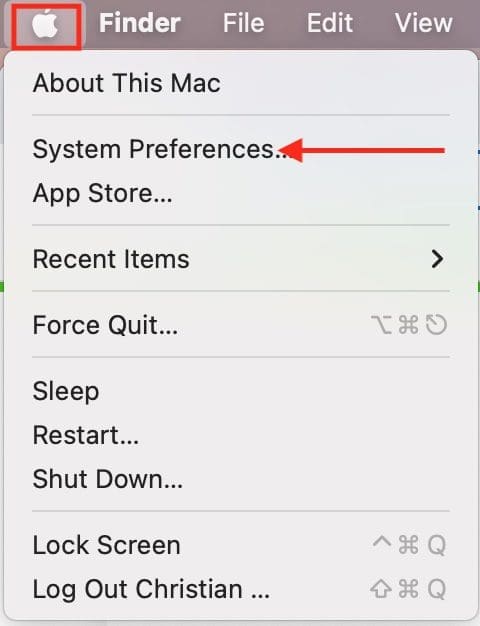
In the System Preferences window, click on General as shown below.

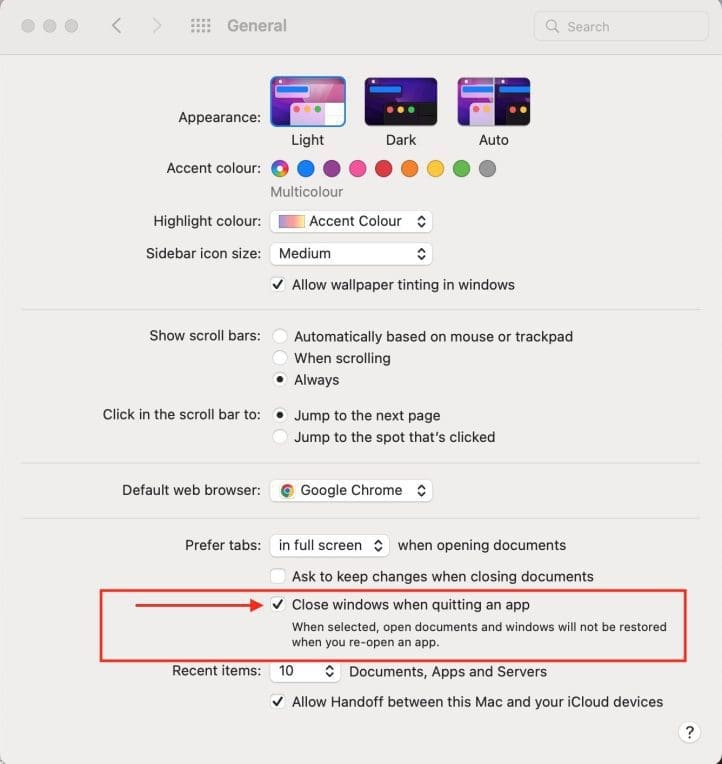
In this panel, please check the box ”Close windows when quitting an app” to disable it or uncheck the box to enable it.
Alternatively, press and hold the Shift key while opening an app. This doesn’t change the setting, but the app forgets any windows that were open the last time you quit the app. If these steps don’t work for an app, the app might have its own setting for reopening windows. Please refer to this guide: How to hide or stop Apps such as OneDrive from opening automatically upon login on Macbook Pro.
I hope you found this blog post on Enable or Prevent Reopen Windows on Mac Restart and Shutdown helpful. Please let me know in the comment session if you have any questions.


Christian, I appreciate your clear instructions here, and I’ve gone through and done everything you suggest. But what you have said does not address my big problem with the issue of things re-opening on startup. Usually when I reboot my Macbook, the apps that re-open are not only ones that were open before I rebooted. It *also* includes a lot of apps that weren’t open. Not only that, but oftentimes even the apps that I did have open before the boot open up *many more* files (windows) than were open before. Frequently an app like Preview or MSWord will reopen the last several files I’ve worked on — even ones that I haven’t had open since several days ago! What is that all about? This is *not* something new or specific to a particular OS version. It’s been happening to me for years on different Macs with different OS’s. I’ve seen many complaints about this from people online, but have never come across any expert even trying or claiming to solve it.
Hello Robert, this guide will help: https://techdirectarchive.com/2019/08/08/configure-your-apps-to-launch-automatically/
On Windows: https://techdirectarchive.com/2020/11/09/enable-or-disable-startup-programs-how-to-view-or-change-programs-that-run-on-startup/