How to Hide or Stop Apps Like OneDrive from Auto-Opening


Learn How to Hide or Stop Apps Like OneDrive from Auto-Opening on Macbook Pro. By default, certain applications are configured to launch upon login on your Macbook Pro. However, this behavior can potentially impact your device’s performance by slowing down the startup process and consuming memory and CPU resources. This article is very similar to this guide “Cannot uninstall the OneDrive App: The item “OneDrive” can’t be moved to the Bin because it’s open on Mac.”
This made the uninstallation on OneDrive impossible because it was open at startup. In this article, I will show you how to prevent or hide applications such as Dropbox and OneDrive from opening automatically upon login on Mac.
Here are some related guides: Microsoft OneDrive Setup On Windows 10 and 11, and Key Features Explained, how to move OneDrive Folder to a Different Location in Windows 10, and how to Share Files, Stop Sharing and Restore Previous Versions of Files on Microsoft OneDrive.
Note: How to hide or stop Apps such as OneDrive from opening automatically upon login on Macbook Pro is a common concern for users looking to streamline their startup experience. While uninstalling apps on the Mac might seem simple, merely dragging the app to the Trash, the reality is more intricate. This process can leave behind remnants of partially uninstalled apps and lingering startup items.
If you’re wondering how to hide or stop apps such as OneDrive from opening automatically upon login on your Macbook Pro, it’s important to note that even after uninstallation, certain apps may persist in running during startup.
Take, for example, the scenario where I uninstalled Norton Secure VPN using the steps outlined in this guide. To my surprise, certain residual components remained. I’m determined to resolve this by ensuring these components no longer launch automatically at startup.
Prevent Apps from opening on startup macOS Monterey
Click on the Apple Logo from the top menu and click on System Preferences. This will open up the system Preference window as shown below.
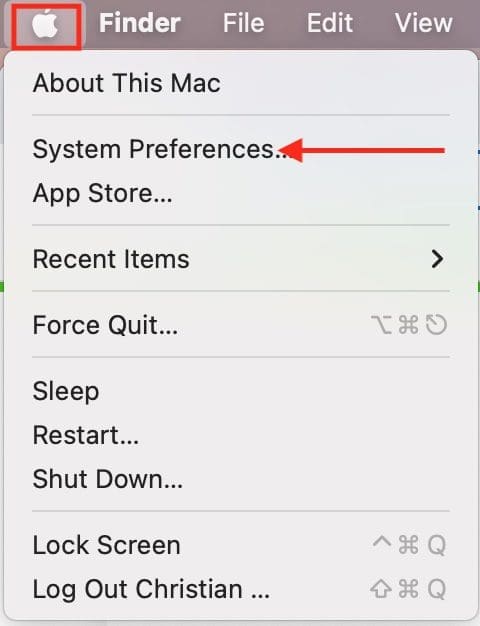
Alternatively, from the LaunchPad, search for “System Preferences” as shown below.

As you can see from the System Preference below, click on “Users & Groups“. This will open the Login User name side panel.
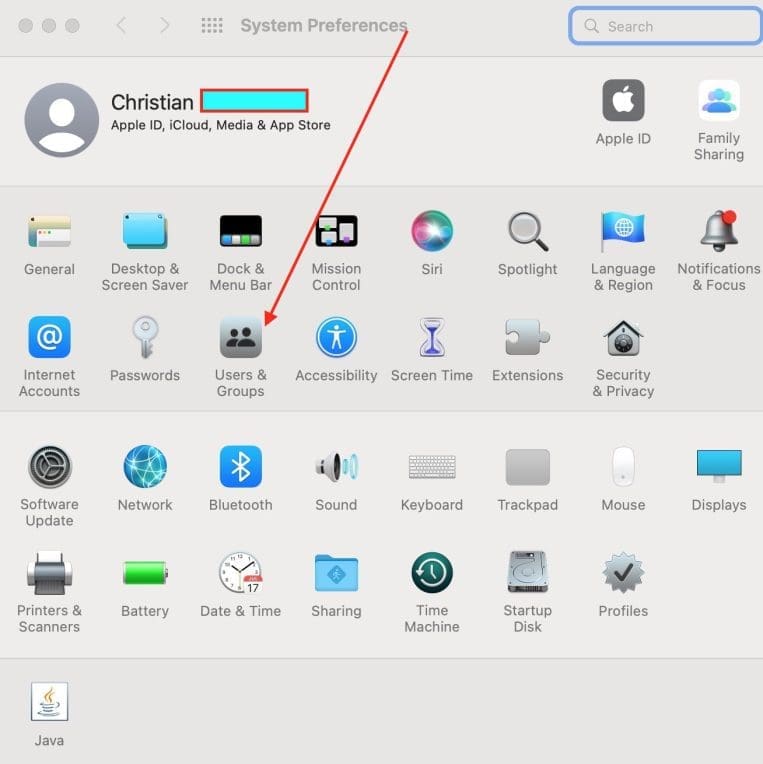
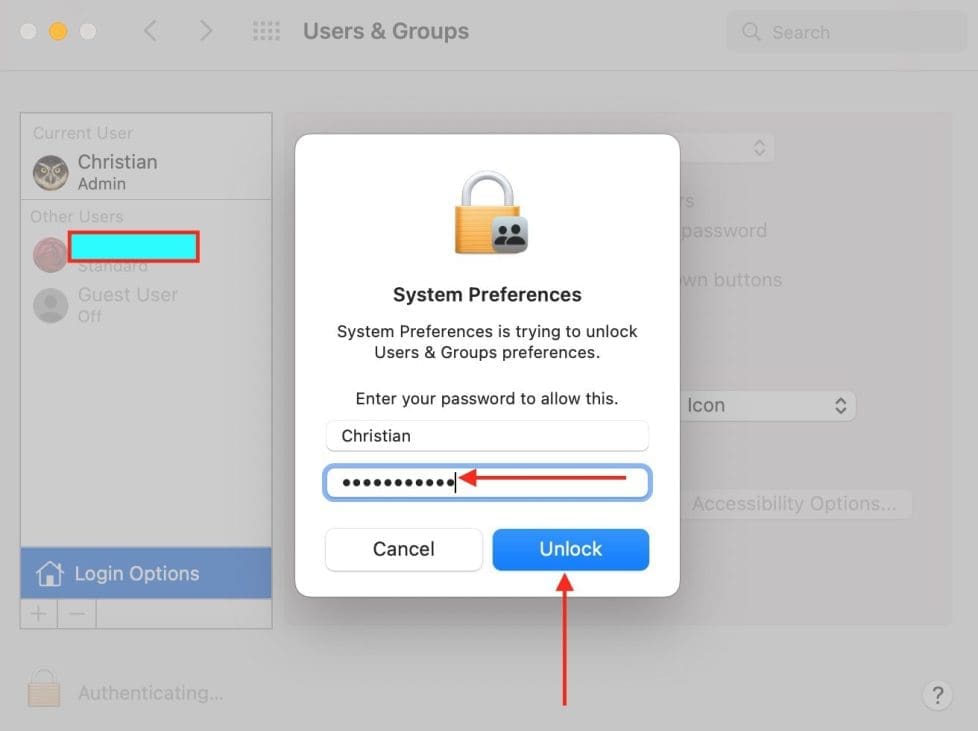
Click on the Admin account and then the Login Option, as shown below. To effect changes that influence User Preference, we require this action.

You will be required to authenticate as shown below.
Hide Login Items at System Startup on Mac
If you want an item to launch at startup, but not to pop-up on the screen. The app/folder/document hides and runs in the background, ready for whenever you need it.Next, you will have to select the Select Login Items Tab. If you wish to hide an item upon startup, you must check the button.

Now the application you just hid will continue to open at startup but will be hidden from your sight, allowing you to see your desktop first.

Stop Apps From Opening Startup Mac
Also, if you wish to remove OneDrive as an example, select OneDrive or your application, and then click on Minus sign to remove from the list. As you can see below, I have prevented OneDriveand NortonSecure VPN from starting automatically on macOS.

Note: For some specific applications, you could actually stop them from running automatically with the application itself. Alternatively, Suppose you are unable to find Mac startup programs not in login items as described above.
In that case, it is most likely due to launch daemons and agents hidden within your Mac Libraries. These files tell your Mac computer to launch programs independently of regular startup items.
You may check the library because most apps do not use Login Items in System Preferences to run on startup. They use a different method, and you must explore system folders to find the startup items.
Launch Finder, open Macintosh HD – the internal disk of your Mac computer and select Library and look for folders named LaunchAgents and LaunchDeamons. I have deliberately removed the .plist files that may be connected to a certain program or service.
Alternatively, hit the keyboard combination: Press  + Shift+g. In the window that opens, enter ~/Library and click on Go
Also, the StartupItems folder can also be sued in preventing Apps from starting automatically on Mac.
How to stop apps from opening on startup in Mac using Dock
Another quick way to stop apps from opening up at startup is from the Mac Dock. Below are the steps to achieve this.
On your Mac Dock, right-click the Mac App that starts during login. In my case, it is Visual Studio. From the context menu, select Options. The app that is set to open automatically when your Mac boot up will have a checkmark next to Open at Login as shown below.
Note! If you are having issues using this method, please the steps above will definitely help your resolve this issue. This is because, when an app is configured under the login items to start automatically, the methods below will not be sufficient enough to fix it.

Click on Open at Login to uncheck it.

Prevent Apps from Reopening after Restart or Shutdown
It may happen that whenever you shut down or restart your Mac, these apps will still be open. This is because you have configured your device to reopen all Windows when login back in.
To disable this, click Click on the Apple menu

Then select Restart or Shut Down from the drop-down list. Uncheck the Reopen windows when logging back in option, then click on the Restart or Shut Down button to activate the process.

I hope you found this blog post on how to Hide or Stop Apps Like OneDrive from Auto-Opening helpful. If you have any questions, please let me know in the comment session.


