Skip to content

TechDirectArchive

Hands-on IT, Cloud, Security & DevOps Insights

  • Home
  • About
  • Advertise With US
  • Reviews
  • Contact
  • Toggle search form
Home » Windows » How to modify Windows 11 Taskbar via Intune and GPO
  • ios microsoft remote desktop app
    Remote Desktop can not find the computer FQDN and this might mean that FQDN does not belong to the specified network Windows
  • SQL server authentication mode
    Change from SQL Server and Windows Authentication Mode to Windows authentication Mode Oracle/MSSQL/MySQL
  • ext
    How to install a standalone DriveLock Encryption software on Windows Security | Vulnerability Scans and Assessment
  • Docker internal external
    Running Docker commands returns Docker is not recognized as an internal or external command Containers
  • windows update 03
    How to automate Windows Update with PowerShell Scripts
  • BitLocker
    Unable to find my BitLocker Recovery Key in AD Windows
  • Git not Recognized Image banner
    Fix Git is not recognised as an internal or external command Version Control System
  • oracle virtualbox
    Fix VirtualBox Virtual Machine Encountered a Non-Fatal problem Virtualization

How to modify Windows 11 Taskbar via Intune and GPO

Posted on 14/08/202214/12/2023 Imoh Etuk By Imoh Etuk No Comments on How to modify Windows 11 Taskbar via Intune and GPO
Windows-11-taskbar-features-remove-1
Windows 11 Taskbar and Desktop

In this article, we shall discuss How to modify Windows 11 Taskbar via Intune and GPO. Discover the Windows 11 Taskbar, it has been widely embraced since its release by Microsoft. While similar to Windows 10 customization, a.json file replaces the Start Menu section in XML. This guide demonstrates how to modify the Windows 11 Taskbar with ease using Intune and Group Policy Objects. You can also learn how to Hide or Remove the Search Button from Windows 11 Taskbar, how to Hide or Remove the Search Button from Windows 10 Taskbar.

Before you can modify the Taskbar using GPO, you need to create the start layout XML file with the below code. I have created mine as Taskbar.xml and saved it on the Desktop of my PC.

<?xml version="1.0" encoding="utf-8"?>
<LayoutModificationTemplate
    xmlns="http://schemas.microsoft.com/Start/2014/LayoutModification"
    xmlns:defaultlayout="http://schemas.microsoft.com/Start/2014/FullDefaultLayout"
    xmlns:start="http://schemas.microsoft.com/Start/2014/StartLayout"
    xmlns:taskbar="http://schemas.microsoft.com/Start/2014/TaskbarLayout"
    Version="1">
  <CustomTaskbarLayoutCollection PinListPlacement="Replace">
    <defaultlayout:TaskbarLayout>
      <taskbar:TaskbarPinList>
        <taskbar:DesktopApp DesktopApplicationID="MSEdge"/>
        <taskbar:DesktopApp DesktopApplicationID="Microsoft.Windows.Explorer"/>
      </taskbar:TaskbarPinList>
    </defaultlayout:TaskbarLayout>
 </CustomTaskbarLayoutCollection>
</LayoutModificationTemplate>

Removing "PinListPlacement="Replace" from the XML file will simply add pinned apps to the TaskBar and make it different from the default one.

Also see how to create Task Manager Shortcut: How to add access, pin the Task Manager on Windows 11, Microsoft blocks workaround that enables Windows 11 users to avoid its Edge Browser.

Modify the Windows 11 Taskbar using Intune

With the same Configuration Profile employed for the Windows 10 Start Menu layout, we can install a Custom layout on the Windows 11 Taskbar using Intune. Before the end user logging in for the first time, the policy must be implemented.

To do this, login into your Intune account using this link, and click on All Services->Devices-> Windows

All-Services-Windows
All Services in Intune

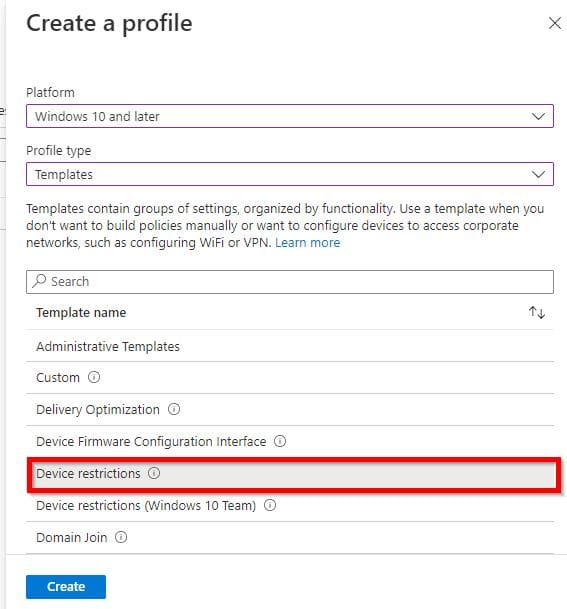
Next, create a configuration profile and select "Device Restriction".
Configuration-Policy
Creating Configuration Profile

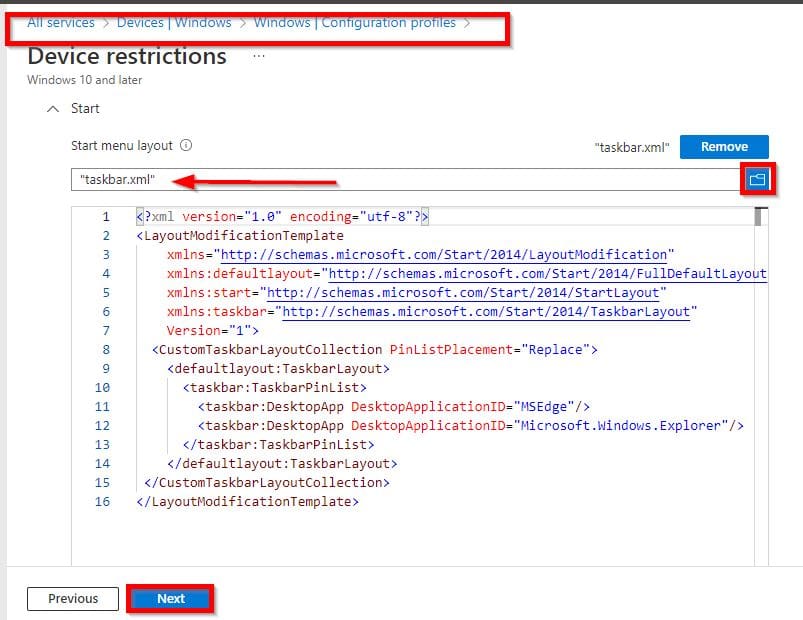
In the Device Restriction tab, click on the "Start" section to import the.xml file to use. I have my XML file saved in a folder named “Custom Taskbar.”

XML-file
Taskbar.xml file

Now import the XML file:

Start-Session-Import-Files
Importing XML File

See how to carry out some other common tasks on Windows 11 in the following guides; how to end a program via the Task Manager in Windows 11, how to enable or disable Screen Saver in Windows 10 or Windows 11 via Windows Settings or Group Policy, and 5 ways to take screenshots on Windows 11.

Enhancing Desktop Navigation with Group Policy

The “Start Layout” policy we utilized for Windows 10 to import the Windows 11 Taskbar and Start Menu layout can also be applied to deploy a personalized Taskbar through Group Policy.

The Taskbar functionality remains unaffected. Place the .xml file on a shared location for client accessibility.

Note: If this approach is utilized, the end user will no longer be able to PIN any apps to the Start Menu. To modify Windows 11 Taskbar using Group Policy, follow the steps below:

1: From the floating on your Windows 11, click on the search for Group Policy

Floating-Taskbar-on-Windows-11
Windows 11 Taskbar

As highlighted in the image below, double-click to open it.

Search-for-GPO
Search for Group Policy

2. In the Local Group Policy window, expand the Computer Configuration tab and navigate to Administrative Templates.

Look for the Start Menu, specifically the Start Menu Layout settings to customize your Windows 11 Taskbar.

Editing-Taskbar-in-Group-Policy
Manage the Taskbar in Windows 11

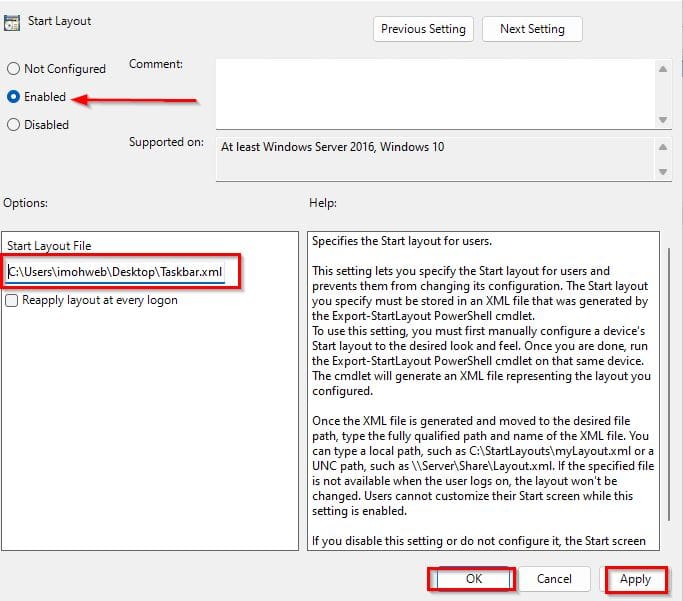
3. Double-click on the Start Layout and select "Enabled". In the Group Policy, you need to point to the “taskbar.xml” file you want the computer to use as shown on the screenshot below.
Modifying-Taskbar
Pointing the Start layout to the Start Layout File

The change the end user made to the Taskbar on the next login will be overwritten if the Group Policy is applied to a computer that has already been deployed.

I hope you found this guide useful on how to modify Windows 11 Taskbar via Intune and GPO. Please feel free to leave a comment below.

Rate this post

Thank you for reading this post. Kindly share it with others.

  • Click to share on X (Opens in new window) X
  • Click to share on Reddit (Opens in new window) Reddit
  • Click to share on LinkedIn (Opens in new window) LinkedIn
  • Click to share on Facebook (Opens in new window) Facebook
  • Click to share on Pinterest (Opens in new window) Pinterest
  • Click to share on Tumblr (Opens in new window) Tumblr
  • Click to share on Telegram (Opens in new window) Telegram
  • Click to share on WhatsApp (Opens in new window) WhatsApp
  • Click to share on Pocket (Opens in new window) Pocket
  • Click to share on Mastodon (Opens in new window) Mastodon
  • Click to share on Bluesky (Opens in new window) Bluesky
  • Click to share on Threads (Opens in new window) Threads
  • Click to share on Nextdoor (Opens in new window) Nextdoor
Windows, Windows Server Tags:Operating System, Windows 11, Windows 11 taskbar

Post navigation

Previous Post: How to fix White Screen in Microsoft Teams
Next Post: Reveal Windows WiFi password of Network you are connected to

Related Posts

  • Screenshot 2020 05 16 at 15.33.24
    How to install Telnet via the command line Windows Server
  • Enable only Windows Admin to shutdown PC
    Allow only Administrators to shut down and reboot Server Windows
  • nicedisk les chatfield cropped 100734348 large
    How to create a bootable USB using Rufus on Windows Windows
  • Hyper V VM creation
    How to Create a Windows Server VM on HyperV Windows Server
  • RDP Certificate Issues
    Connecting to the RDP host: Fix the Certificate could not be verified back to the root certificate Mac
  • sdfg
    How to Upgrade Windows Admin Center Manually Windows Server

More Related Articles

Screenshot 2020 05 16 at 15.33.24 How to install Telnet via the command line Windows Server
Enable only Windows Admin to shutdown PC Allow only Administrators to shut down and reboot Server Windows
nicedisk les chatfield cropped 100734348 large How to create a bootable USB using Rufus on Windows Windows
Hyper V VM creation How to Create a Windows Server VM on HyperV Windows Server
RDP Certificate Issues Connecting to the RDP host: Fix the Certificate could not be verified back to the root certificate Mac
sdfg How to Upgrade Windows Admin Center Manually Windows Server

Leave a Reply Cancel reply

You must be logged in to post a comment.

Microsoft MVP

VEEAMLEGEND

vexpert-badge-stars-5

Virtual Background

GoogleNews

Categories

veeaam100

sysadmin top30a

  • ios microsoft remote desktop app
    Remote Desktop can not find the computer FQDN and this might mean that FQDN does not belong to the specified network Windows
  • SQL server authentication mode
    Change from SQL Server and Windows Authentication Mode to Windows authentication Mode Oracle/MSSQL/MySQL
  • ext
    How to install a standalone DriveLock Encryption software on Windows Security | Vulnerability Scans and Assessment
  • Docker internal external
    Running Docker commands returns Docker is not recognized as an internal or external command Containers
  • windows update 03
    How to automate Windows Update with PowerShell Scripts
  • BitLocker
    Unable to find my BitLocker Recovery Key in AD Windows
  • Git not Recognized Image banner
    Fix Git is not recognised as an internal or external command Version Control System
  • oracle virtualbox
    Fix VirtualBox Virtual Machine Encountered a Non-Fatal problem Virtualization

Subscribe to Blog via Email

Enter your email address to subscribe to this blog and receive notifications of new posts by email.

Join 1,841 other subscribers
  • RSS - Posts
  • RSS - Comments
  • About
  • Authors
  • Write for us
  • Advertise with us
  • General Terms and Conditions
  • Privacy policy
  • Feedly
  • Telegram
  • Youtube
  • Facebook
  • Instagram
  • LinkedIn
  • Tumblr
  • Pinterest
  • Twitter
  • mastodon

Tags

AWS Azure Bitlocker Microsoft Windows PowerShell WDS Windows 10 Windows 11 Windows Deployment Services Windows Server 2016

Copyright © 2025 TechDirectArchive


Loading Comments...
 

You must be logged in to post a comment.