Skip to content

TechDirectArchive

Hands-on IT, Cloud, Security & DevOps Insights

  • Home
  • About
  • Advertise With US
  • Reviews
  • Contact
  • Toggle search form
Home » Windows » How to Install and Configure WordPress on Your Windows Computer Using WAMP SERVER
  • 1 kajkbmlyehn0inifwrh 8w
    How to install Kerberos packages with Cygwin on Windows Windows Server
  • Featured image   Black screen issue
    How to Fix Black Screen Issues on Windows 11/10 Windows
  • Featured image 1
    How to Share Microsoft Outlook Calendar on Desktop and on Web Microsoft Exchange/Office/365
  • MDT Workbench Crashes when opening WinPE tab Properties
    Fix MDT Workbench Crashes when opening WinPE tab Properties Windows
  • Featured Image 1
    System Drive Conversion: MBR to GPT on Windows 10 Storage
  • ChatGPT on Linux
    Set Up and Use ChatGPT in Linux Terminal Linux
  • iCloud for Windows
    Use iCloud for Windows: How to install and uninstall iCloud for Windows Mac
  • Azure VMware Solution Private Cloud
    How To Deploy Azure VMware Solution Private Cloud AWS/Azure/OpenShift

How to Install and Configure WordPress on Your Windows Computer Using WAMP SERVER

Posted on 03/09/202221/03/2024 Temitope Odemo By Temitope Odemo No Comments on How to Install and Configure WordPress on Your Windows Computer Using WAMP SERVER
WordPress installation

In this article, I will be explaining all the steps on how to install and configure WordPress on your Windows computer using WAMP. If you are not ready to purchase a domain name and hosting and you want to complete your website development locally before deploying to the production or live environment then you can decide to install and configure WordPress on your local system using WAMP. Please see How to convert images from PNG to JPG on WordPress, Windows, and Mac, WordPress site on Azure: How to create a website hosted in Azure.

WAMP means Windows, Apache, MySQL, and PHP, it is free software that you can install and configure on your Windows computer that can give you the same experience as if you are in the production or live environment.

This help you to make the needed adjustment and changes on your website and you will be able to view and see the behavior before deployment to production. WAMP help you to complete the development of your website and install themes and plugins, and you can test the website to confirm it is free of bug before all files are transferred to production.

Before WAMP came into existence you would need to download and configure the web server and database separately and each of them run independently before you can use it for your development. This is where WAMP comes in as it has all that you need from webserver to database into one single application.

Exploring WordPress Installation and Configuration on Windows Computer Using WAMP

WordPress is a content management system (CMS) that allows you to host and build websites both on production and locally. WordPress contains a lot of themes and plugins that you can use to customize your website.

Read this if you want to know How to Install and Setup WordPress into a cPanel and Configure Your First WordPress Theme, and

Now the first thing to do is to install WAMP, this Webserver will act as localhost without the need for a web host.

1. Download WAMPSERVER which this website which can both be 64 bits or 32 bits depending on your system specification and install it on your local computer.

Configure WordPress
WampServer Downloads

2. The version I downloaded is wampserver3.2.6_x64.exe. Run the file and select your language.

Windows computer
Selecting Your Language

3. After selecting your language just follow the Wizard has it guide you on the installation steps. Accept the Agreement and move on.

WAMP Server
Installation Wizard

Change Installation location

4. You can change the default location to install the WAMP Server

WordPress installation
Wamp location

5. I will advise you select and leave the Default installation values instead of Customize installation.

Windows computer
Selecting Components

6. Keep clicking the Next button and if everything looks good, click on the Install button.

WAMP Server
Installation in Progress

7. The default browser is internet explorer and you may choose to change to another browser of your choice. But I prefer the internet explorer.

Configure WordPress
Selecting your browser

Also, see How to integrate WordPress site with WP Telegram, Deploy WordPress on Azure App Service: How to install MySQL Workbench on Local Computer to connect with Azure Database for MySQL,

How to Install and Configure WordPress

8. The default Text Editor is Notepad and you may wish to use another Editor. In my own installation, I will leave it at the default.

Windows computer
Selecting your editor

9. Click on Finish button after successful installation. To confirm that the WAMP have been completed successfully check the bottom right corner if you will see the WAMP icon.

But if you cannot find it you can go and search for WAMP and click on it to launch it.

image-41
Launching WAMP

10. By the time you try to launch the WAMP it is very possible this error pops out.

The code execution cannot proceed because MSVCR110.dll was not found. Reinstalling the program may fix this problem

image-42
MSVCR110.dll

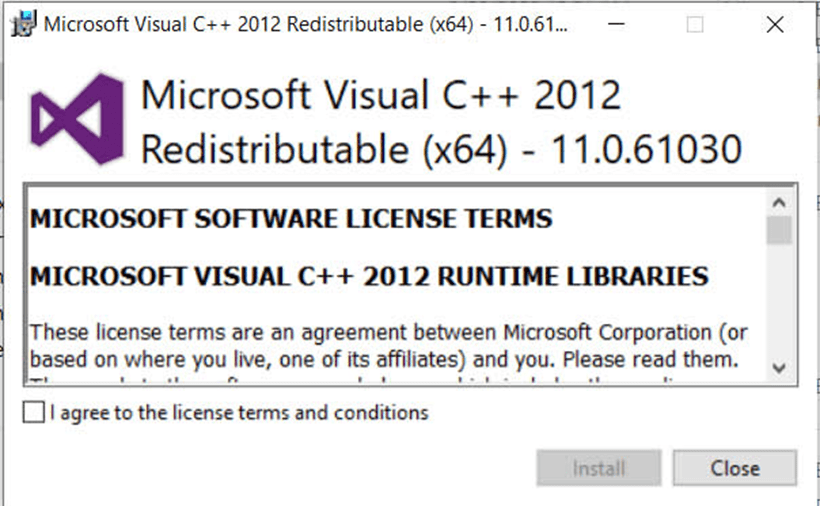
11. Download the MSVCR110.dll

image-43
Microsoft Visual C++ 2012

12.  After installing the file you should be able to launch the WAMP and once the WAMPSERVER’s icon colour is green means it is ok and all services should be running fine.

image-44
Wampserver Started

13. From the image above you can check services like PhpMyAdmin, Apache, PHP, MySQL, MariaDB. It is possible for you to Start All Services, Stop All Services, Restart All Services.

To confirm if the WAMP is successfully installed you can browse URL and must display the below image.

image-45
Server Configuration

Download, Installation, and Folder Placement on WAMP

14. Download the latest version of WordPress. After installation extract the files and copy to the root folder of the WAMP. You may decide to rename the folder but in this article the name of the folder is wordpress and will be copied to www.

image-46
wordpress folder

15. Now confirm if all is well by typing the URL/ “wordpress-folder” into your browser and will display the below image. Select your preferred language and click Continue.

image-47
wordpress CMS

16. Now you need to enter the below details and to do that you will need to set-up the MySQL database

image
WordPress. Let’s go

17. Setting up MySQL database by clicking on PhpMyAdmin or browsing phpmyadmin. This is what you will use to configure your database.

image-1
Wampserver PhpMyAdmin

18. Enter root as the username and make the password blank. Click Go

image-2
phpMyAdmin Login

Setting Up a Database for WordPress Installation

19.  Click on Databases and create a new database. After creating the DB you will now go back to Step 16 to enter the new DB name in otherto complete the wordpress installation by clicking Lets’s go!

In the username space enter root and leave the password space blank.

image-3
Creating a Database

20. If all goes well you will see the below message and you will click Run the installation.

image-4
Running the Instatllation

21. Setup your login details into the wordpress environment and click Install WordPress.

image-5
Your WordPress Credentials

22. Once installation is completed you will see this Success message and you can now login. Congratulations!!!

image-6
Success Message

23. Your Wordpres is Live and Ready on your local computer

image-7
Welcome to WordPress

I hope you found this blog post on how to Install and Configure WordPress on Your Windows Computer Using WAMP SERVER interesting and helpful. In case you have any questions do not hesitate to ask in the comment section.

Rate this post

Thank you for reading this post. Kindly share it with others.

  • Click to share on X (Opens in new window) X
  • Click to share on Reddit (Opens in new window) Reddit
  • Click to share on LinkedIn (Opens in new window) LinkedIn
  • Click to share on Facebook (Opens in new window) Facebook
  • Click to share on Pinterest (Opens in new window) Pinterest
  • Click to share on Tumblr (Opens in new window) Tumblr
  • Click to share on Telegram (Opens in new window) Telegram
  • Click to share on WhatsApp (Opens in new window) WhatsApp
  • Click to share on Pocket (Opens in new window) Pocket
  • Click to share on Mastodon (Opens in new window) Mastodon
  • Click to share on Bluesky (Opens in new window) Bluesky
  • Click to share on Threads (Opens in new window) Threads
  • Click to share on Nextdoor (Opens in new window) Nextdoor
Web Server, Windows Tags:Microsoft Windows, MySQL, MySQL database, MySQL-server, Windows 10, Windows 11, Windows Server 2016

Post navigation

Previous Post: How to enable or disable Windows Defender Antivirus Scanning periodically on Windows via Windows Settings
Next Post: Access AWS Management Console and Create Resources with AWS CLI on Windows

Related Posts

  • Featured image defaultStartPage
    Change the default start page for File Explorer on Windows 11 Windows
  • Azure VM Creation With CLI 1
    Deploy a Linux virtual machine (VM) on Azure using the Azure CLI AWS/Azure/OpenShift
  • shut down 650x300 1
    How to prevent users from shutting down in a Virtual Machine Windows
  • image 6
    Set Browers and Windows to reopen Apps on Startup Windows
  • windows update 03
    Fix Windows cannot check for updates in Windows 8, 7, and 10 Windows
  • Featured image   Dark mode
    How to enable dark theme in Windows 11 Windows

More Related Articles

Featured image defaultStartPage Change the default start page for File Explorer on Windows 11 Windows
Azure VM Creation With CLI 1 Deploy a Linux virtual machine (VM) on Azure using the Azure CLI AWS/Azure/OpenShift
shut down 650x300 1 How to prevent users from shutting down in a Virtual Machine Windows
image 6 Set Browers and Windows to reopen Apps on Startup Windows
windows update 03 Fix Windows cannot check for updates in Windows 8, 7, and 10 Windows
Featured image   Dark mode How to enable dark theme in Windows 11 Windows

Leave a Reply Cancel reply

You must be logged in to post a comment.

Microsoft MVP

VEEAMLEGEND

vexpert-badge-stars-5

Virtual Background

GoogleNews

Categories

veeaam100

sysadmin top30a
 
  • 1 kajkbmlyehn0inifwrh 8w
    How to install Kerberos packages with Cygwin on Windows Windows Server
  • Featured image   Black screen issue
    How to Fix Black Screen Issues on Windows 11/10 Windows
  • Featured image 1
    How to Share Microsoft Outlook Calendar on Desktop and on Web Microsoft Exchange/Office/365
  • MDT Workbench Crashes when opening WinPE tab Properties
    Fix MDT Workbench Crashes when opening WinPE tab Properties Windows
  • Featured Image 1
    System Drive Conversion: MBR to GPT on Windows 10 Storage
  • ChatGPT on Linux
    Set Up and Use ChatGPT in Linux Terminal Linux
  • iCloud for Windows
    Use iCloud for Windows: How to install and uninstall iCloud for Windows Mac
  • Azure VMware Solution Private Cloud
    How To Deploy Azure VMware Solution Private Cloud AWS/Azure/OpenShift

Subscribe to Blog via Email

Enter your email address to subscribe to this blog and receive notifications of new posts by email.

Join 1,841 other subscribers
  • RSS - Posts
  • RSS - Comments
  • About
  • Authors
  • Write for us
  • Advertise with us
  • General Terms and Conditions
  • Privacy policy
  • Feedly
  • Telegram
  • Youtube
  • Facebook
  • Instagram
  • LinkedIn
  • Tumblr
  • Pinterest
  • Twitter
  • mastodon

Tags

AWS Azure Bitlocker Microsoft Windows PowerShell WDS Windows 10 Windows 11 Windows Deployment Services Windows Server 2016

Copyright © 2025 TechDirectArchive


Loading Comments...
 

You must be logged in to post a comment.