Skip to content

TechDirectArchive

Hands-on IT, Cloud, Security & DevOps Insights

  • Home
  • About
  • Advertise With US
  • Reviews
  • Contact
  • Toggle search form
Home » Windows » How to remove RDS Client Access Licenses from RDS Server
  • TERRAFORM ON LINUX FEATURE IMAGE
    How to Install Terraform on Linux Linux
  • Zoom Blurred Background
    Why Zoom blurred background option is not available to you on Mac JIRA|Confluence|Apps
  • Object First OOTBI   Best Storage Repo for Veeam
    Understanding User Roles & Access Control in Object First OOTBI Backup
  • cookies9
    How to remove third-party cookies from Microsoft Edge Windows
  • Featured image 5
    How to uninstall and prevent the installation of Microsoft Teams on Windows Windows
  • Featured image
    Latest Improvement to File Explorer on Windows 11 Windows
  • yxxycx yx
    How to change the Default First-Site-Name in Active Directory Windows Server
  • Burn ISO on MAC   Proxmox installation
    Create a bootable USB on Mac: Proxmox VE Setup Virtualization

How to remove RDS Client Access Licenses from RDS Server

Posted on 22/11/202222/08/2023 Christian By Christian No Comments on How to remove RDS Client Access Licenses from RDS Server
RecomveRDSlicense

Each user and device that connects to a Remote Desktop Session host need a client access license (CAL). You use RD Licensing to install, issue, and track RDS CALs. There is a licensing grace period of 120 days during which no license server is required. Once the grace period ends, clients must have a valid RDS CAL issued by a license server before they can log on to an RD Session Host server. Here is a guide on how to install HTML 5 Web Client for Microsoft RDS Server. In this article, you will learn How to remove RDS Client Access Licenses from RDS Server.

Please see Remove Remote Desktop Services Role on Windows Server, How to add and remove RDS Collection, How to Remove and Manage RDS Licenses, and The following servers in this deployment are not part of the deployment Pool: Create an RDS Session Host and Collection.

How does Remote Desktop Licensing Work?

When a user or a device connects to an RD Session Host server, the RD Session Host server determines if an RDS CAL is needed. The RD Session Host server then requests an RDS CAL from the Remote Desktop license server. If an appropriate RDS CAL is available from a license server, the RDS CAL is issued to the client, and the client is able to connect to the RD Session Host server and from there to the desktop or apps, they’re trying to use.

Remove RDS Client Access Licenses from RDS Server

Why would you remove an RDS CALs

Having previously entered the wrong quantity of license, there was a need to reduce it. In your case, this might not be the reason. But if for whatever reason, you wish to remove an RDS CALs from an RDS Server, or have the entire RD licensing database rebuilt.  This is possible as Microsoft allows you to remove an individual CAL license pack using PowerShell, or the database.  In this guide, I will be showing you how to do it.

To install a new license, you would need the MBSA number from your Microsoft license management and the license type. Here is a guide on how to install a new Per User Remote Desktop Services license.
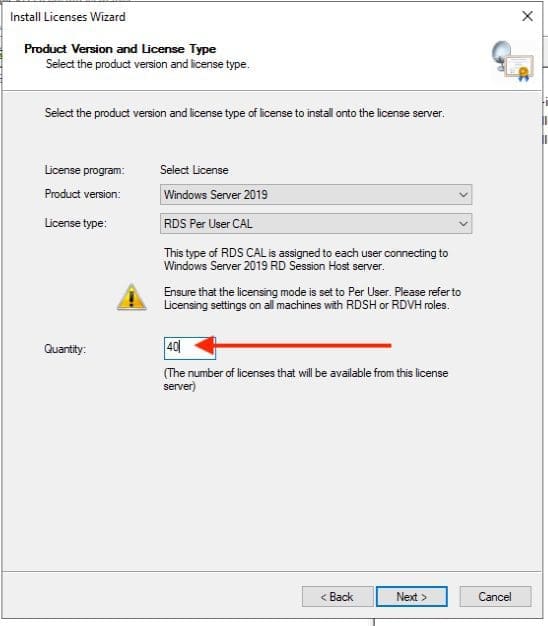
fCapture45rf

As you can see from the image below, we have a total/Available licenses of 40 installed. This was wrong and there is a need to fix it by reducing the RDS CALs licenses.

Capture6e3

Note: You can also run PowerShell commands to check the number of CAL with the following command below.

Get-WmiObject Win32_TSLicenseKeyPack|Select KeyPackId, ProductVersion, TotalLicenses, TypeAndModel|Format-List

check-RDS-CALs-licenseswithPowerShell

Remove Licenses With Id Count

To remove the additional license, kindly determine the KeyPack ID as shown in any of the images above. To determine the keyPackID with PowerShell, please run the command below.

wmic /namespace:\\root\CIMV2 PATH Win32_TSLicenseKeyPack CALL UninstallLicenseKeyPackWithId votre-KeyPackId

Also, the number of CALs to be removed should be noted. In this guide, you will see, I want to remove 30 CALs. Here is the PowerShell command that will enable you to do this. “Invoke-WmiMethod -Class Win32_TSLicenseKeyPack -Name RemoveLicensesWithIdCount -ArgumentList <KeyPackId>,<NumberOfCALsToRemove>“

Invoke-WmiMethod -Class Win32_TSLicenseKeyPack -Name RemoveLicensesWithIdCount -ArgumentList 4, 30
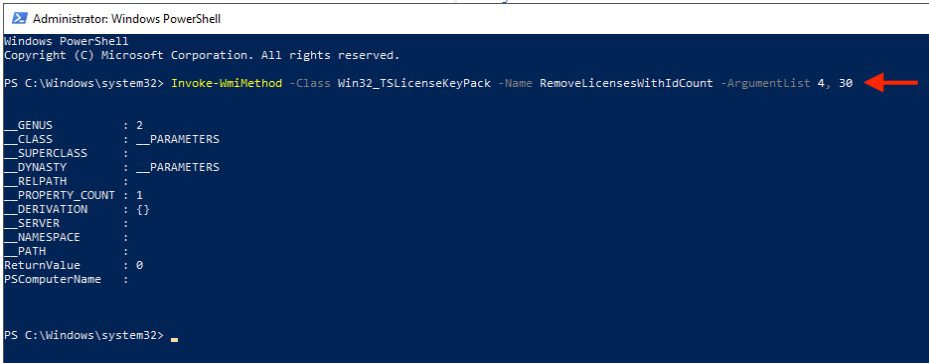
PowerShell-capture45f

As you can see below, we have successfully reduced the number of CAL licenses.
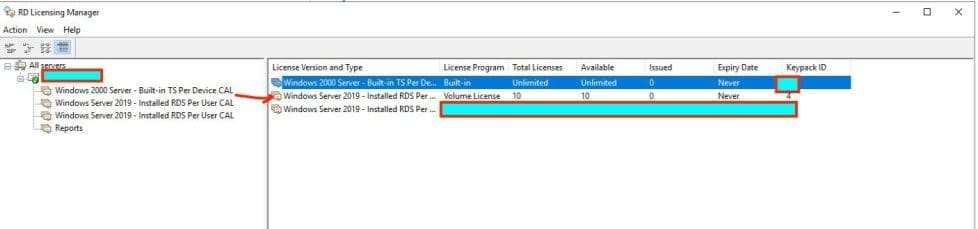
removeperuser65ff

As I said, you can also verify using the command as well “Get-WmiObject Win32_TSLicenseKeyPack|Select KeyPackId, ProductVersion, TotalLicenses, TypeAndModel|Format-List“.

Please see Commandline: How to create an AMI from the CLI, how can I tell if a password is set for a user account, WARNING: The provided hosts list is empty only the localhost is available and note that the implicit localhost does not match all, and DriveLock Error: The server could not be reached or validated: Timeout expired. The Time out expired prior to obtaining a connection from the pool.

Rebuild the RDS CALs Database

Before proceeding, kindly ensure you have noted your MS License agreement that includes the Authorization number, License number, License type (User/Device CAL), and Quantity proceeding. When this is done, please proceed with the steps below.

  • Stop the Remote Desktop Licensing service
  • Rename C:\Windows\System32\lserver\TLSLic.edb to C:\Windows\System32\lserver\TLSLic.old
  • Start the Remote Desktop Licensing service
  • All licenses will now be cleared out of RD Licensing Manager, and you will need to reinstall the licenses you want to add back in

I hope you found this blog post helpful on how to remove RDS Client Access Licenses from RDS Server. Please let me know in the comment session if you have any questions.

Rate this post

Thank you for reading this post. Kindly share it with others.

  • Click to share on X (Opens in new window) X
  • Click to share on Reddit (Opens in new window) Reddit
  • Click to share on LinkedIn (Opens in new window) LinkedIn
  • Click to share on Facebook (Opens in new window) Facebook
  • Click to share on Pinterest (Opens in new window) Pinterest
  • Click to share on Tumblr (Opens in new window) Tumblr
  • Click to share on Telegram (Opens in new window) Telegram
  • Click to share on WhatsApp (Opens in new window) WhatsApp
  • Click to share on Pocket (Opens in new window) Pocket
  • Click to share on Mastodon (Opens in new window) Mastodon
  • Click to share on Bluesky (Opens in new window) Bluesky
  • Click to share on Threads (Opens in new window) Threads
  • Click to share on Nextdoor (Opens in new window) Nextdoor
Windows Tags:Microsoft Windows, rds, RDS CALs, Remote Access, Remote Desktop, RemoteConnection, Windows 10, Windows 11, Windows Server 2016

Post navigation

Previous Post: Kerberos Delegation: A Comprehensive Guide
Next Post: Fix MBAM Client Deployment is only supported on MBAM 2.5 SP1

Related Posts

  • windows 1
    How to query, stop and delete a service in Windows Windows
  • Missing ADML File
    Fix an appropriate resource file could not be found for LAPS Windows
  • Standby Mode
    Disable modern standby on Windows 10 and 11 Windows
  • RE4ncJa
    How to configure favorites on Microsoft Edge via Group Policy Windows
  • App Locker
    Harden your Veeam Backup Server with Microsoft AppLocker Windows
  • sandboxx
    Use Windows Sandbox as a security feature Virtualization

More Related Articles

windows 1 How to query, stop and delete a service in Windows Windows
Missing ADML File Fix an appropriate resource file could not be found for LAPS Windows
Standby Mode Disable modern standby on Windows 10 and 11 Windows
RE4ncJa How to configure favorites on Microsoft Edge via Group Policy Windows
App Locker Harden your Veeam Backup Server with Microsoft AppLocker Windows
sandboxx Use Windows Sandbox as a security feature Virtualization

Leave a Reply Cancel reply

You must be logged in to post a comment.

Microsoft MVP

VEEAMLEGEND

vexpert-badge-stars-5

Virtual Background

GoogleNews

Categories

veeaam100

sysadmin top30a

  • TERRAFORM ON LINUX FEATURE IMAGE
    How to Install Terraform on Linux Linux
  • Zoom Blurred Background
    Why Zoom blurred background option is not available to you on Mac JIRA|Confluence|Apps
  • Object First OOTBI   Best Storage Repo for Veeam
    Understanding User Roles & Access Control in Object First OOTBI Backup
  • cookies9
    How to remove third-party cookies from Microsoft Edge Windows
  • Featured image 5
    How to uninstall and prevent the installation of Microsoft Teams on Windows Windows
  • Featured image
    Latest Improvement to File Explorer on Windows 11 Windows
  • yxxycx yx
    How to change the Default First-Site-Name in Active Directory Windows Server
  • Burn ISO on MAC   Proxmox installation
    Create a bootable USB on Mac: Proxmox VE Setup Virtualization

Subscribe to Blog via Email

Enter your email address to subscribe to this blog and receive notifications of new posts by email.

Join 1,839 other subscribers
  • RSS - Posts
  • RSS - Comments
  • About
  • Authors
  • Write for us
  • Advertise with us
  • General Terms and Conditions
  • Privacy policy
  • Feedly
  • Telegram
  • Youtube
  • Facebook
  • Instagram
  • LinkedIn
  • Tumblr
  • Pinterest
  • Twitter
  • mastodon

Tags

AWS Azure Bitlocker Microsoft Windows PowerShell WDS Windows 10 Windows 11 Windows Deployment Services Windows Server 2016

Copyright © 2025 TechDirectArchive


Loading Comments...
 

You must be logged in to post a comment.