Skip to content

TechDirectArchive

Hands-on IT, Cloud, Security & DevOps Insights

  • Home
  • About
  • Advertise With US
  • Reviews
  • Contact
  • Toggle search form
Home » Windows Server » How to demote and remove a Domain Controller on Windows Servers
  • Windows Container
    How to Install a Windows Server Container Host Containers
  • Synology Diskstaion update to latest version 7.3
    Download and update Synology DiskStation NAS to DSM 7.3 Storage
  • maxresdefault
    How to add one or more external displays with your Mac Mac
  • telnet
    Could not open a connection to the host, on the port, connect failed Windows Server
  • Missing ADML File
    Fix an appropriate resource file could not be found for LAPS Windows
  • Set Microsoft Defender AV to Passive mode on a Windows Server
    Set Microsoft Defender AV to Passive mode on a Windows Server Security | Vulnerability Scans and Assessment
  • EC2 Public IP
    How to Allocate, Associate, Disassociate and Release Elastic IP Address from an EC2 Instance AWS/Azure/OpenShift
  • 960x0
    How to resolve request timed out when pinging Windows Server

How to demote and remove a Domain Controller on Windows Servers

Posted on 27/08/202215/10/2024 Temitope Odemo By Temitope Odemo No Comments on How to demote and remove a Domain Controller on Windows Servers
DC-2

In this article, you will learn how to demote and remove a Domain Controller on Windows Servers. According to techdirectarchive a domain controller (DC) is a server computer that responds to authentication requests. It participates in the replication and contains a complete copy of all directory information for its domain. If you want to know how to Promote a Windows server to a Domain Controller then you can read this: Active Directory: How to Setup a Domain Controller.

Sometimes you may no longer need a server to act as the domain controller that is where the demotion of a DC comes into play. In this article, I will be showing you how to decommission a domain controller through the demotion of the DC.

Here is a YouTube video on how to demote and remove a domain controller

Here are some other related articles that might interest you: Active Directory: How to add a second Domain Controller to your environment, how to allow RDP access for non-administrators on a Domain Controller, and how to install and configure Active Directory Domain Services on Windows Server 2022.

How to demote and remove a Domain Controller

1: To do this, please open the Server Manager as shown below.

image-21
Server Manager

2. Click on Manage and from the drop-down select Remove Roles and Features
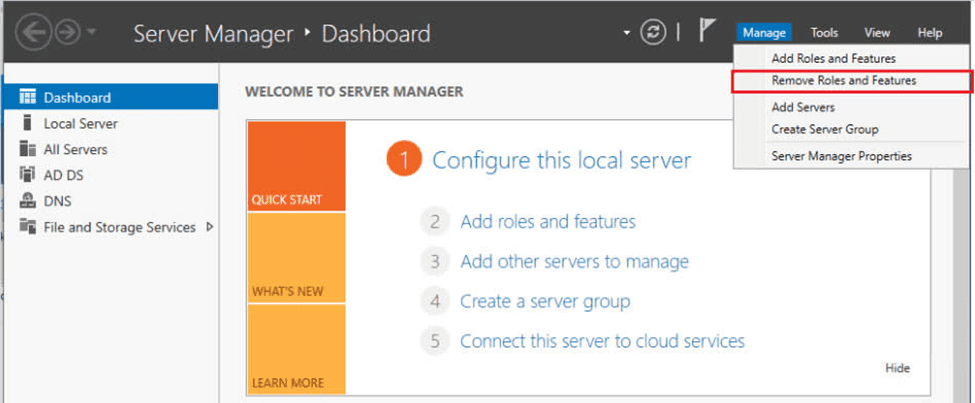
image-22
Server Manager Dashboard

Please see how to fix Error “Connectivity to a writable domain controller from node could not be determined because of an error: The distinguished name of the node could not be determined“.

Select the Right Server from the Server pool

3. Make your Server selection from the pool of servers if you have more than one server and click next.

image-23
Selecting Specific Server

4. On the Server Roles Page uncheck Active Directory Domain Services and click Next.

image-24
Removing Server Role

Please refer to these interesting guides: How to Query Windows BitLocker status remotely, how to fix the trust relationship between this workstation and the primary domain failed, What are screensavers? Reasons to use or not use them anymore, and how to Capture and Record your Screen in Windows 10 with Xbox Game Bar.

Remove Roles and Features

5. Immediately after you uncheck you will get a popup page to remove features that require Active Directory Domain Services.

If you want to remove the ADDS completely make sure you check to Remove management tools.

image-25
Removing Roles and Features

6. Despite the Validation results you must still click on Demote this domain controller

image-26
Demoting DC

7. On the next page you can decide to change the credentials to use to perform the demotion operation. Please do not check Force the removal of this domain controller if the current server is not the last DC in the domain.

image-27
Credentials

Please see How to add a new Domain Controller to an Existing Domain, and How to remove WDS role via the GUI and PowerShell.

DNS Removal

8. You will always receive a warning message if the current server is used for DNS. You will need to re-assign another server as DNS because the DNS role on the DC will be removed.

9. On the next page check the box Proceed with removal and click next

image-28
Getting the Warning

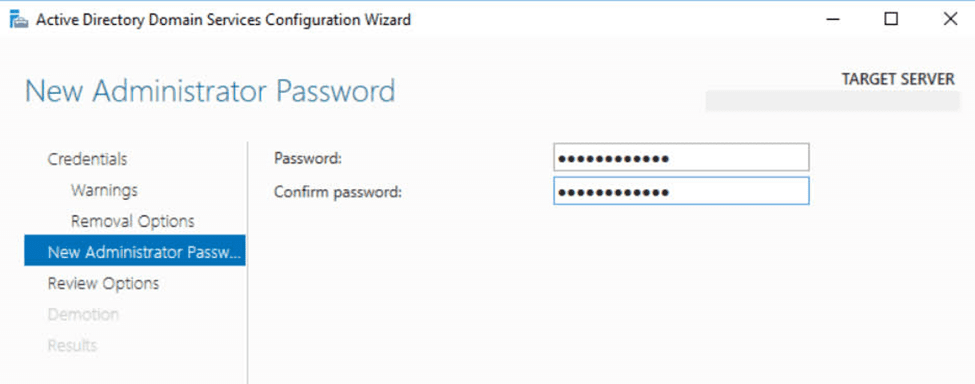
10. You may decide to check or uncheck Remove DNS delegation and click next. On the next page enter the new administrator password which will be the local administrator account on this server.

Removal-options
image-29
Setting New Administrator

Please refer to this similar guide: How to uninstall Microsoft SQL Server on Windows 10 and Windows Server, “Remove Office license file: How do you change the account that Office says belong to on Mac“, and how to uninstall Microsoft SQL Server on Windows 10 and Windows Server

Demote the Domain Controller

11. On the next page click the Demote button. Immediately the server will be demoted and rebooted and you can log in with the local admin password or the domain credentials if it now belongs to another domain.

Demote-DC

Next, you PC will be restarted automatically.

Restart-Server-to-rmove-DC

Also, see This computer is a domain controller: The snap-in cannot be used on a domain controller, domain accounts are managed by ADUC snap-in.

Step 2: Remove ADDS and DNS Roles

Click on Manage and select “Remove Roles and Features”. Follow the prompt and click next to remove the ADDS features as shown below.

Remove-ADDS-Roles-and-features

Remove the DNS Features

Remove-DNS-roles

Confirm removal of selected roles

Remove-selected-roles

Feature removal succeeded as shown below.

Removal-succeeded

Launch the Remove Roles and Feature wizard again to remove the DNS roles and ADDS role as shown below.

Remove-roles

I hope you found this blog post on how to demote and remove a Domain Controller on Windows Servers Interesting and helpful. In case you have any questions do not hesitate to ask in the comment section.

5/5 - (1 vote)

Thank you for reading this post. Kindly share it with others.

  • Click to share on X (Opens in new window) X
  • Click to share on Reddit (Opens in new window) Reddit
  • Click to share on LinkedIn (Opens in new window) LinkedIn
  • Click to share on Facebook (Opens in new window) Facebook
  • Click to share on Pinterest (Opens in new window) Pinterest
  • Click to share on Tumblr (Opens in new window) Tumblr
  • Click to share on Telegram (Opens in new window) Telegram
  • Click to share on WhatsApp (Opens in new window) WhatsApp
  • Click to share on Pocket (Opens in new window) Pocket
  • Click to share on Mastodon (Opens in new window) Mastodon
  • Click to share on Bluesky (Opens in new window) Bluesky
  • Click to share on Threads (Opens in new window) Threads
  • Click to share on Nextdoor (Opens in new window) Nextdoor
Windows Server Tags:Active Directory, Active Directory Domain Services, DC, Domain, Domain Controller, Microsoft Windows, Windows 10, Windows 11, Windows Server 2016

Post navigation

Previous Post: How to change the default RDP port in Windows
Next Post: Fix Hyper-V VM Stuck in Stopping State

Related Posts

  • image 41
    INACCESSIBLE BOOT DEVICE: Fix Your PC ran into a problem and needs to restart Windows
  • Screenshot
    How to change the Windows Pagefile Size Windows Server
  • find my device banner
    How to Enable Find My Device on Windows 11 Windows
  • fhgjk
    Replicating MDT Deployment Share: How to Create a Selection Profile and Link MDT Deployment Shares Windows Server
  • powershell commands lede 1024x276 1
    Enable WinRM on Windows Servers and Windows PCs Scripts
  • fghj
    MDT deployment failed and Stuck at Command Prompt: Windows installation does not proceed via PXE boot Windows Server

More Related Articles

image 41 INACCESSIBLE BOOT DEVICE: Fix Your PC ran into a problem and needs to restart Windows
Screenshot How to change the Windows Pagefile Size Windows Server
find my device banner How to Enable Find My Device on Windows 11 Windows
fhgjk Replicating MDT Deployment Share: How to Create a Selection Profile and Link MDT Deployment Shares Windows Server
powershell commands lede 1024x276 1 Enable WinRM on Windows Servers and Windows PCs Scripts
fghj MDT deployment failed and Stuck at Command Prompt: Windows installation does not proceed via PXE boot Windows Server

Leave a Reply Cancel reply

You must be logged in to post a comment.

Microsoft MVP

VEEAMLEGEND

vexpert-badge-stars-5

Virtual Background

GoogleNews

Categories

veeaam100

sysadmin top30a

  • Windows Container
    How to Install a Windows Server Container Host Containers
  • Synology Diskstaion update to latest version 7.3
    Download and update Synology DiskStation NAS to DSM 7.3 Storage
  • maxresdefault
    How to add one or more external displays with your Mac Mac
  • telnet
    Could not open a connection to the host, on the port, connect failed Windows Server
  • Missing ADML File
    Fix an appropriate resource file could not be found for LAPS Windows
  • Set Microsoft Defender AV to Passive mode on a Windows Server
    Set Microsoft Defender AV to Passive mode on a Windows Server Security | Vulnerability Scans and Assessment
  • EC2 Public IP
    How to Allocate, Associate, Disassociate and Release Elastic IP Address from an EC2 Instance AWS/Azure/OpenShift
  • 960x0
    How to resolve request timed out when pinging Windows Server

Subscribe to Blog via Email

Enter your email address to subscribe to this blog and receive notifications of new posts by email.

Join 1,839 other subscribers
  • RSS - Posts
  • RSS - Comments
  • About
  • Authors
  • Write for us
  • Advertise with us
  • General Terms and Conditions
  • Privacy policy
  • Feedly
  • Telegram
  • Youtube
  • Facebook
  • Instagram
  • LinkedIn
  • Tumblr
  • Pinterest
  • Twitter
  • mastodon

Tags

AWS Azure Bitlocker Microsoft Windows PowerShell WDS Windows 10 Windows 11 Windows Deployment Services Windows Server 2016

Copyright © 2025 TechDirectArchive


Loading Comments...
 

You must be logged in to post a comment.