Prevent OS Reinstallation: Change from legacy BIOS to UEFI


Switching from Legacy BIOS to UEFI is a common need for modern computers to take advantage of new features, improved security, and faster boot times. However, many fear this transition because they think it requires reinstalling the operating system (OS). In this guide, we’ll explore “how you can”Prevent OS Reinstallation: Change from legacy BIOS to UEFI mode without needing to reinstall the OS”. Please see How to enable Secure Boot on PC to install Windows 11, and Run MBR and GPT conversion with the best GPT converter.
Also, see Why does the legacy PXE not does work on Generation 2 VM, How to set up a VM via PXE boot on a Generation 1 VM, and How to Change the Log File Directory location in IIS.
What are the Differences Between UEFI and BIOS
Before diving into the process, let’s briefly touch on what BIOS and UEFI are and why you might want to switch.
BIOS (Basic Input/Output System) is the traditional firmware interface that has been used for decades. It initializes hardware during the boot process and provides runtime services for operating systems. BIOS has a more limited feature set and supports fewer partitions on drives (only MBR – Master Boot Record).
UEFI (Unified Extensible Firmware Interface) is the modern replacement for BIOS. It supports larger hard drives, faster boot times, enhanced security features, and a more intuitive graphical interface. It uses the GUID Partition Table (GPT) instead of MBR, allowing for more partitions and improved data integrity.
Switching to UEFI allows you to leverage these advantages, but doing so traditionally required a clean OS installation. Fortunately, there are ways to avoid that.
Please see “What are the Differences between UEFI and BIOS”, how to Create a web page to visualize the output of BitLocker Script, and how to Query and display Windows information via WMI Explorer.
Why Change from BIOS to UEFI Mode?
Switching from Legacy BIOS to UEFI has several advantages:
- Improved Boot Times: UEFI mode generally boots faster than Legacy BIOS, reducing your startup time.
- Support for Large Drives: UEFI supports hard drives over 2TB, which is particularly useful for modern storage requirements.
- Enhanced Security: UEFI supports Secure Boot, which helps protect your system from malware and unauthorized OS loading.
- Modern Features and Capabilities: UEFI brings additional features like networking, a graphical user interface, and mouse support, which are not available with BIOS.
- Future-Proofing: With more hardware manufacturers favoring UEFI, future-proofing your system makes it compatible with newer technology.
Preparing for the Switch: Disable BitLocker
If you’re using BitLocker encryption, you’ll need to disable or suspend it before converting from Legacy BIOS to UEFI.
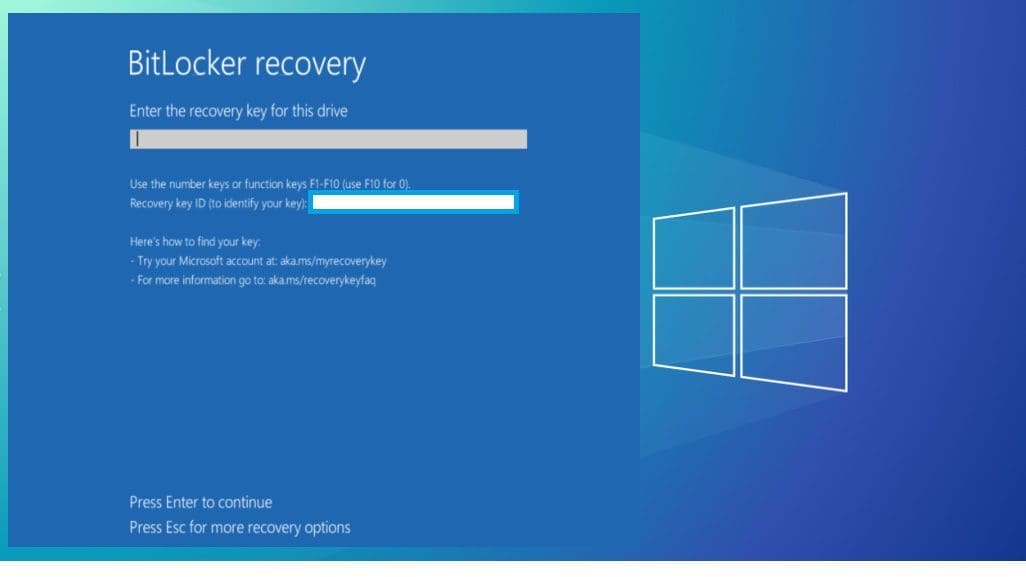
BitLocker does not support converting your drive from Legacy BIOS to UEFI while active, and attempting to do so may result in data loss or an inability to boot into your OS.
To suspend BitLocker:
Open the Start menu and search for Manage BitLocker.

Click on Suspend Protection or Turn off BitLocker in BitLocker Drive Encryption. Confirm your action when prompted.

This step is crucial for a smooth conversion process.
For more on BitLocker, please see How to Disable BitLocker on Windows 10, Perform BitLocker Recovery Password Rotation in Active Directory, and how to Force BitLocker Recovery mode: How to unlock BitLocker Protected Drive.
Option 1: Reinstall the Operating System (OS)
The most straightforward but time-consuming method of switching from Legacy BIOS to UEFI is to reinstall your OS. This approach guarantees a clean transition, as the system is set up with UEFI from the start. Here’s a brief overview of this process:
Backup Your Data: Always start by backing up important files. This process will erase everything on your primary drive.
Create a Bootable UEFI USB Drive: Download the OS installation media and create a bootable USB drive that supports UEFI. This can be done using tools like the Media Creation Tool for Windows or using Rufus. Please see Create a Windows 10 or 11 bootable USB with UEFI support.

Install the OS: Boot from the UEFI USB drive and proceed with the OS installation. Ensure the drive is formatted as GPT during setup.
While effective, this method involves downtime and the hassle of reinstalling all applications and restoring data.
Option 2: Convert Legacy BIOS to UEFI Without Reinstalling OS
A less invasive method is to convert the system from Legacy BIOS to UEFI without reinstalling the OS. This method preserves your existing installation, applications, and data. Follow these steps carefully:
Step 1: Check Compatibility
Before converting, ensure your disk uses the GUID Partition Table (GPT) instead of MBR. UEFI mode requires GPT. Open Disk Management (press Win + X and select Disk Management).

Right-click on your system disk and select Properties.

Check if the partition style is GPT under the Volume tab. If it’s MBR, you’ll need to convert it.

Before making any changes, backup all important files and data. While the conversion process is generally safe, there’s always a risk of data loss.
Step 2: Convert the Drive from MBR to GPT
Type cmd in the Windows search bar, right-click on Command Prompt, and select “Run as administrator.”

Windows provides a built-in tool called MBR2GPT that simplifies the conversion process. Enter the following commands:
mbr2gpt /validateThis command checks whether the drive can be converted.

If the validation is successful, proceed with:
mbr2gpt /convert
This converts the drive from MBR to GPT format. The tool will automatically update the partition layout and boot information.
Please, see “how to convert a GPT disk into an MBR disk error: Windows cannot be installed on drive 0 Partition 1“, and how to Fix Windows defender blocked incoming connection on Windows.
Step 3: Change Firmware Settings
Reboot your system and enter the firmware settings. This is usually done by pressing a specific key like F2, F12, Del, or Esc during the boot process.
Locate the boot settings and change the mode from Legacy to UEFI. Save the changes and exit the firmware settings.

Your system should now boot in UEFI mode without requiring a full OS reinstall. You can verify the mode by checking the System Information tool (msinfo32.exe) and looking for “BIOS Mode” set to UEFI.

Conclusion
Switching from Legacy BIOS to UEFI may seem challenging, but with the right steps, you can do it smoothly without reinstalling your OS.
Whether you reinstall or convert your current installation, UEFI offers valuable benefits for modern systems. Remember to back up your data and follow the steps carefully for a successful transition.
I hope you found this article useful on “Prevent OS Reinstallation: Change from legacy BIOS to UEFI.” Please feel free to leave a comment below.