You can customize the Windows PE (WinPE) boot images included with the Windows ADK by adding drivers, optional components, and the latest cumulative updates, because they include only a minimal set of features and drivers by default. In this guide, we shall discuss “Steps to customize Windows PE boot images”. Please, see how to enable or disable Secure Boot in Windows via UEFI Firmware Settings. Here is how to update Veeam Backup for Proxmox Plugin to support PVE 9.0.
Note: WinPE boot media relies on the same Secure Boot trust chain as full Windows. That trust is validated against the UEFI db (allowed certificates) and dbx (revoked certificates) stored in firmware. Please, see “Update WinPE Boot Images with Windows UEFI CA Certificates [Part 2], and Secure Boot 2023 Compliance Across WinPE, MDT, WDS, and ADK: Boot Chain Alignment and PXE Validation [Final Part]“.
Previously, you had to uninstall and reinstall the Windows ADK and the Windows PE add-on to get support for new releases. Now, starting with Windows ADK 10.1.26100.2454 (December 2024) and later, users can update their ADK installations using patches without uninstalling and reinstalling the entire kit. You can read more “how to download and install the Windows ADK Patches“.
Also, see how to update Proxmox VE 9.0 now Supported by Veeam. Here is how to run Windows 11 on HyperV, and how to enable Secure Boot on PC to install Windows 11.
Run the latest ADK and WinPE
The latest Windows ADK and WinPE add-on provide the necessary tools and baseline support for modern hardware and deployment scenarios. However, they do not automatically include the latest security updates or cumulative patches.
WinPE images shipped with the ADK represent a snapshot in time. To ensure the boot image includes the latest security fixes such as mitigations for vulnerabilities like BlackLotus, and updated Secure Boot certificates. You must manually service the WinPE image. This involves mounting the winpe.wim file and injecting the latest cumulative updates (LCUs) using DISM.
Without this step, the customized WinPE environment may lack critical security updates and could fail to boot on newer systems that enforce updated Secure Boot trust chains.
Note: If you are using Microsoft Configuration Manager, you may require additional features installed, such as the User State Migration Tool (USMT). For me, I do not have the need to install the USMT.
Please, see Tape Backup Troubleshooting in Veeam: Real Cases, [World Backup Day] V13 Upgrade Failure: Veeam Configuration Backup Saved the Day, and Fix unable to contact Server: This may be the server does not exist.
Uninstall Windows ADK and WinPE
Since the boot images from the ADK 10.1.26100.1 (May 2024) and later already contain the cumulative update to address the BlackLotus UEFI bootkit vulnerability. I will be uninstalling the previous versions of ADK and WinPE as shown below.

As you can see below, I am uninstalling the Windows Assessment and Deployment Toolkit (ADK).

I am also uninstalling the Windows Preinstallation Environment (WinPE). These steps are required to install the new and latest versions of ADK and WinPE.

Upon downloading the ADK and WinPE, proceed and have them installed. As you can see, I have installed ADK already and now installing the WinPE. Note that it must be installed in this order.

Since Windows 25H2 was released to WSUS today the 14.10.2025 at the time of creating this blogpost [Posted today on 14.04.2026 though]. This also means that we have a new ADK and WinPE Add-on for Windows. I have no choice than to modify this guide and test with the new ADK and WinPE. This also means, I will not be testing with Windows 25H2 Image (install.wim) as well
Therefore, I will be uninstalling the ADK and WinPE and installing the latest version as shown below.

As you can see below, I have installed the latest ADK and now installing the latest WinPE at the time of writing this guide.

Please, see What are the Differences between UEFI and BIOS, and how to add additional CC400W Cameras to Synology Surveillance Station.
Securing the Original Boot Image
When customizing WinPE boot images, it is not sufficient to rely solely on the latest Windows ADK and WinPE add-on. Modern systems are transitioning from the legacy Microsoft UEFI CA 2011 certificates to the new Windows UEFI CA 2023 certificates, which are required for continued Secure Boot compatibility beyond 2026.
WinPE images generated from the ADK may still use boot components signed with older certificates unless explicitly updated at the time of writing this article. As a result, a default WinPE image may fail to boot on systems whose firmware trusts only the newer 2023 certificate chain.
To ensure compatibility, you must update the WinPE boot environment to use boot manager binaries signed with the Windows UEFI CA 2023 certificate. This involves mounting the WinPE image and replacing or updating the EFI boot files accordingly. These steps will be discussed in the next guide “Secure Boot Certificate updates in Boot Images“.
Note: Additionally, Secure Boot validation depends on the firmware trust stores (DB and DBX). If the target system firmware has been updated to include only the 2023 certificates, any WinPE media signed with the older 2011 certificate may be rejected during boot.
Backup Boot Image
Below is the path to the WinPE file. Before proceeding with the application of Dynamic OS updates etc. It is recommended to make a backup copy of the boot image that needs to be updated.
C:\Program Files (x86)\Windows Kits\10\Assessment and Deployment Kit\Windows Preinstallation Environment\amd64\en-us\winpe.wim
This approach preserves a pristine, unmodified copy of the original boot image, allowing for a straightforward rollback in the event of any issues with subsequent iterations of the updated boot image. I have made my backup this way as shown in the image below.

You could do this via PowerShell or Comamnd Prompt as shown below. To automatically overwrite an existing backed-up boot image without confirmation in a script. Add the /Y parameter to the end of the command line.
Copy-Item "C:\Program Files (x86)\Windows Kits\10\Assessment and Deployment Kit\Windows Preinstallation Environment\amd64\en-us\winpe.wim" "C:\Program Files (x86)\Windows Kits\10\Assessment and Deployment Kit\Windows Preinstallation Environment\amd64\en-us\winpe.bak.wim"
copy "C:\Program Files (x86)\Windows Kits\10\Assessment and Deployment Kit\Windows Preinstallation Environment\amd64\en-us\winpe.wim" "C:\Program Files (x86)\Windows Kits\10\Assessment and Deployment Kit\Windows Preinstallation Environment\amd64\en-us\winpe.bak.wim"
Here is how to remove an MDT Deployment Share, and how to add “boot and install images to WDS and configure Multicast transmission via the GUI and WDSUTIL“.
Customize WinPE (drivers, optional components, updates)
Mount the WinPE Image
Please, see how To Get Install.WIM From Windows 10 Installation File.
This next step involves mounting the WinPE image. As you can see, this completed successfully.

Please, see How to Enable or Disable Touch Screen in Windows 10, and What are the differences between Lite-Touch and Zero-Touch installation?
Download cumulative update (CU)
Navigate to the Microsoft Update Catalog and search for the latest cumulative update matching your WinPE architecture (x64 or ARM64) and version (Windows 11 24H2 or 25H2).

Note: Modern updates are provided as .msu files. You do not need to extract them; DISM handles .msu files directly
Add Components to WinPE Image (Optional )
Use the Deployment Image Servicing and Management (DISM) tool to inject optional components (OCs) and security updates. It is recommended to use the version of DISM that matches your ADK.
%DISM-24H2%\Dism /image:F:\path to your mount path\Mount /add-package /packagepath:"C:\Program Files (x86)\Windows Kits\10\Assessment and Deployment Kit\Windows Preinstallation Environment\amd64\WinPE_OCs\de-De\<Component2>.cab"
Any custom update CABs or MSUs you download can be added individually. However, if you have multiple updates, point the /PackagePath to a folder containing all your .msu and .cab files. DISM will automatically sequence and install them in the correct order.
Note that this process does not simply copy the CAB or MSU files into the image directory. Instead, DISM merges and installs their contents into the WinPE file system. These changes are only finalized when you unmount and commit the image. For a deep dive into these parameters, please refer to the following article “DISM Operating System Package (.cab or .msu) Servicing Command-Line Options“.
Add Drivers to WinPE (Optional)
According to Microsoft, Windows PE boot images require only a minimal set of drivers to provide basic functionality.
In most cases, you do not need to add drivers to a default Windows ADK WinPE image, as it already includes a broad set of common drivers. Only add drivers after verifying that specific hardware is not supported.
When drivers do need to be added, generally only network (NIC) drivers are needed. Occasionally, mass storage (disk) may also be needed.
If you are using method above. Especially, when using Microsoft Configuration Manager or the Microsoft Deployment Toolkit (MDT) boot images, Do not manually add drivers to the boot image using the above steps.
If you use Microsoft Configuration Manager or Microsoft Deployment Toolkit (MDT) to generate boot images, do not manually inject drivers using DISM.
Instead, import and manage drivers within these tools, configure the boot image to include the appropriate selection profile, and regenerate the boot images, as these tools handle driver injection automatically and more reliably as sown below.

In MDT, Out-of-Box Drivers refers to the driver repository within the deployment share. MDT injects the required drivers into the LiteTouchPE boot image when you update the deployment share based on the Selection Profile assigned to the WinPE settings.
It is recommended to import drivers into MDT rather than manually copying them between deployment shares to ensure the database maintains proper driver metadata and management.

Please, see “BitLocker Protection off: Update UEFI/BIOS to fix issues“. Also, see download and install Fujitsu DeskUpdate & DeskUpdate Manager, and how to check the BIOS version on Windows.
Add Components to the Winpe.wim boot Image
WinPE images require additional servicing beyond the base ADK to ensure compatibility with modern hardware and security requirements. These updates are typically sourced from the Microsoft Update Catalog and must be stored locally. For example, (C:\WIM-Packages\ or F:\DISM-Packages) before being applied using DISM.
Please, see How to uninstall and upgrade ADK, WinPE, and MDT. Also, see how to Configure Active Directory-Based Activation (ADBA) for Windows.
Download Packages / Acquire the “SafeOS update”
The SafeOS update is the most relevant servicing package for WinPE. It updates Windows Preinstallation and Recovery environments, ensuring compatibility with modern boot and setup scenarios, including Secure Boot–related components and recovery functionality.
SafeOS updates should be applied to WinPE images such as WinPE.wim or LiteTouchPE.wim before deployment. Applying Updates to WinPE. Both .cab and .msu packages can be integrated into a mounted WinPE image using DISM:
- MSU files can also be installed directly using DISM in modern Windows ADK environments
- CAB files can be added directly using
/Add-Package
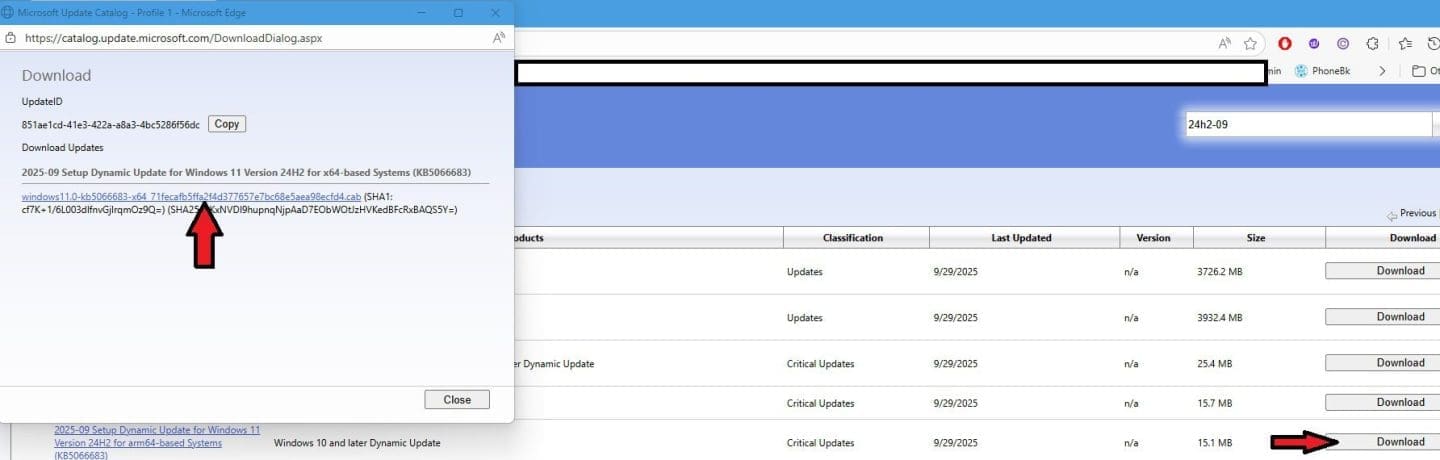
To download these updates, navigate to the Microsoft Update Catalog. Next, search for the appropriate SafeOS updates, Dynamic Update packages etc for your Windows version.
- Safe OS Dynamic Update YYYY-MM
- Setup Dynamic Update YYYY-MM (Not applicable to WinPE, but install.wim)
- Latest cumulative update YYYY-MM, (Not applicable to WinPE, but install.wim)
- Dynamic OS Update YYYY-MM (Not applicable to WinPE, but install.wim)
To learn more about Dynamic Updates, kindly take a look at this guide form Microsoft Learn. For me, I will start off by downloading the Safe OS.

Do this also for the Servicing stack Dynamic Update. Do this also for the cumulative update as well. All other updates required have been downloaded behind the scene as described above.
Please, see steps in Creating a WinPE USB Drive: Fixing System Boot Issues. Also, see The schema version of the database is from a newer version of wsus.
Overview of Windows Image Types for Servicing and Customization
Properly servicing Windows installation media requires working across multiple image types, each serving a different stage of the deployment lifecycle. Some servicing steps may overlap, depending on consistency and security requirements.
- Windows Preinstallation Environment (WinPE): WinPE is a lightweight operating system used for installation, deployment, and recovery scenarios. This guide focuses primarily on customizing and servicing WinPE boot images such as WinPE.wim or LiteTouchPE.wim.
- Windows Operating System Image (Install.wim): The install.wim file contains one or more Windows editions and serves as the base operating system image used for deployment. While this guide primarily focuses on WinPE, install.wim may be referenced later for comparison or extended servicing scenarios.
Please, see Fix Error 0xc1420127: The specified image in the specified wim is already mounted for read and write access. Here is how to set up and configure the Key Management System (KMS)
Add SafeOS Update to WinPE boot image
The SafeOS update applies to the Windows Preinstallation Environment and recovery stack. It provides updated components for Windows Setup and recovery environments. This ensures compatibility with modern hardware, updated boot components (such as bootmgr.efi), and servicing improvements.
These updates also align the WinPE boot environment with current Secure Boot requirements by ensuring compatibility with updated Microsoft signing and revocation policies used in modern UEFI systems.
SafeOS updates are typically required when working with newer Windows versions such as Windows 11 24H2 or 25H2 to ensure that WinPE remains compatible with current deployment and recovery standards.
As part of this guide, the relevant SafeOS update package is obtained from the Microsoft Update Catalog and applied directly to the mounted WinPE image.
You can learn more about this process in the following Microsoft article. The SafeOS Dynamic Update includes refreshed boot manager binaries and updated UEFI certificate support required for modern Secure Boot environments.
Please see “Workaround and Permanent fix for this snap-in performed a non-valid operation and has been unloaded: To continue using this snap-in restart MMC or try loading the snap-in again, and “Out-of-Band Security Update for PrintNightmare: Patch released for Windows Print Spooler Remote Code Execution Vulnerability“.
Copy boot files from mounted boot image to ADK installation path
Note: Please take a look at this article “Secure Boot 2023 Compliance Across WinPE, MDT, WDS, and ADK: Boot Chain Alignment and PXE Validation [Final Part]” on how to copy boot manager banaries and update the winpe.wim file with the latest CUs and safOS update.
Some cumulative updates may include updated boot-critical files such as bootmgr.efi and related EFI boot components. After servicing the WinPE image, Microsoft recommends copying these updated boot files into the Windows ADK media directory structure used to generate deployment images.
This ensures that any bootable media created from the ADK (such as ISO, WDS, or MDT boot images) uses the updated boot components and remains consistent with the serviced WinPE image.
Note: This step does not modify the ADK installation itself. It ensures that the boot media generated from the ADK uses the updated boot files extracted from the serviced WinPE image. You are free to either use the PowerShell or Command Line for this as shown below.
copy "C:\Program Files (x86)\Windows Kits\10\Assessment and Deployment Kit\Windows Preinstallation Environment\amd64\Media\bootmgr.efi" "C:\Program Files (x86)\Windows Kits\10\Assessment and Deployment Kit\Windows Preinstallation Environment\amd64\Media\bootmgr.bak.efi"
copy "<Mount_folder_path>\Windows\Boot\EFI\bootmgr.efi" "C:\Program Files (x86)\Windows Kits\10\Assessment and Deployment Kit\Windows Preinstallation Environment\amd64\Media\bootmgr.efi"
copy "C:\Program Files (x86)\Windows Kits\10\Assessment and Deployment Kit\Windows Preinstallation Environment\amd64\Media\EFI\Boot\bootx64.efi" "C:\Program Files (x86)\Windows Kits\10\Assessment and Deployment Kit\Windows Preinstallation Environment\amd64\Media\EFI\Boot\bootx64.bak.efi"
copy "<Mount_folder_path>\Windows\Boot\EFI\bootmgfw.efi" "C:\Program Files (x86)\Windows Kits\10\Assessment and Deployment Kit\Windows Preinstallation Environment\amd64\Media\EFI\Boot\bootx64.efi"
Please see How to check the version of Windows ADK, AZURE Kubernetes Service (AKS) upgrade minor version from 1.32.3 to 1.33.7, and Reset or reinstall Windows Server without deleting the VM.
Install Packages to Install.wim
While this guide primarily focuses on WinPE, the same servicing principles apply to the Windows operating system image (install.wim). The difference is that install.wim supports a broader set of update types. This includes Dynamic Updates used during setup and in-place upgrades.
Update Types for install.wim
- Cumulative Update: Provides the latest security and quality fixes for the target Windows version (e.g., Windows 11 24H2 or 25H2). This is the primary update applied to the OS image.
- Setup Dynamic Update: Enhances the setup and upgrade process by preserving features such as language packs and Features on Demand (FODs) during upgrades.
- Dynamic Update (DU): Updates Windows Setup components (the installation engine). These updates are typically applied to installation media rather than the WinPE runtime image.
Applying Packages to install.wim
You can integrate .msu and .cab packages into a mounted install.wim image using DISM:
Dism /Image:"F:\path of your choice\mount" /Add-Package /PackagePath:"F:\path of your choice\update.msu"
Dism /Image:"F:\path of your choice\mount" /Add-Package /PackagePath:"F:\path of your choice\update.cab"
Please see Build a New DC vs Swing Migration: Upgrade Server OS Correctly. Also, see Azure File Sync: How to enable Self-Service restore, and Unicode Manipulation: CVE-2026-25177 Privilege Escalation in AD.
Unmount Image
After completing all modifications, commit the changes and unmount the WinPE or install image using DISM. DISM has two valid but separate workflows. Therefore, feel free to use any of the commands below:
Dism /Unmount-Wim /MountDir:"F:\path of your choice\mount" /Commit
To unmount the lite touch image, please run the command below.
Dism /Mount-Wim /WimFile:F:\path of your choice\ /Unmount-Wim /MountDir:F:\path of your choice\Mount /commit

Update boot image
Updating the base winpe.wim in the ADK is only half the battle. You should regenerate the boot.wim your deployment platform to “ingest” these changes. Depending on your environment, follow the relevant path below for MDT.
To ensure your LiteTouchPE.wim and ISOs reflect the changes made to the ADK:
- Open the Deployment Workbench.
- Right-click your Deployment Share and
- Select Update Deployment Share, and choose “Completely regenerate the boot images.”
Please see this guide on how to create a deployment workbench “ADK|WinPE|MDT: Deploy Windows with WDS“. After following through all the detailed steps, you will need to update the deployment share and generate new boot images.

As you can see, the deployment share is being updated.

Deployment share correctly updated. Ideally, even without validating the Secure Boot certificate. You should be able to PXE boot and deploy the OS across your organization.

Please, see “What is ADK, MDT, Microsoft Endpoint Configuration Manager (SCCM), Intune, Autopilot, and WSUS, and how to fix Windows PE working for Windows 11 and Windows Server 2022.
FAQs
This error occurs when you try to install an optional component that depends on another prerequisite component which hasn’t been installed. To resolve this, ensure all prerequisite components are added in the correct order before installing dependent components. Also, it could truly mean it is not applicable to the image. Take a look at the log.
No, from my tests. The Windows ADK version 10.1.26100.2454 does not support the Microsoft Windows UEFI CA 2023 certificate.
No. Microsoft refreshes the install.wim file in their monthly ISO releases to include the latest cumulative and servicing stack updates. Therefore, unless you’re maintaining a static, long-term offline image, updating install.wim manually is usually unnecessary.
Error 0x800f0823 occurs when the WinPE boot image requires a Servicing Stack Update (SSU) before the CU can be installed. This happens when using older Windows ADK and WinPE versions that don’t include the latest servicing stack.
When you manually add a cumulative update to a Configuration Manager or MDT boot image, update the winpe.wim from the Windows ADK instead of the generated boot.wim. This ensures your changes are not lost, because Configuration Manager or MDT can overwrite or rebuild boot.wim, while updates applied to winpe.wim persist through future refreshes.
I hope you found this article very useful on “Steps to customize Windows PE boot images”. Please, feel free to leave a comment below.