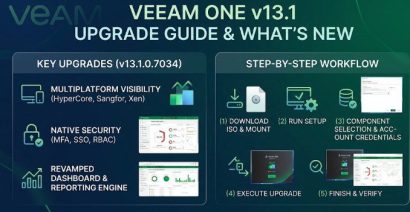
Unlike VBR (Veeam Backup and Replication), Veeam Recovery Orchestrator (VRO) v13 is still Windows-based. Just like Veeam ONE, it does not have a Linux-based VSA (Appliance model). To run VRO, you must install VRO on a standard Microsoft Windows Server. In this article, we shall discuss how to perform an In-place upgrade of Veeam Recovery Orchestrator to version 13.1. Please see how to deploy Veeam Recovery Orchestrator and Agents to VBR and VEM, and how to replace Veeam Recovery Orchestrator License.
As mentioned above, even though the application logic remains on Windows, the backend databases are strictly split as shown below:
- Microsoft SQL (MS SQL) Server: MS SQL Server (Standard or Enterprise recommended) is used to host the VRO core configuration and recovery plan database.
- PostgreSQL: If you are bundling Veeam Backup and Replication, and Veeam ONE alongside VRO for compliance. That is, the new v13 telemetry and reporting components use the PostgreSQL engine.
Away from the architecture for now, upgrading enterprise disaster recovery infrastructure (VRO) in this case requires precise planning to ensure minimal downtime and continuous availability. Veeam Recovery Orchestrator (VRO) v13.1 introduces crucial enhancements for orchestration and automated recovery testing which we will touch very shortly.
Therefore, before you upgrade, please refer to the Veeam Recovery Orchestrator 13.1 Release Notes for system requirements and known issues, and also do well to see the full What’s New document. You will also find the following post on the Veeam Community Hub very insightful “Veeam Recovery Orchestrator v13.1: More Flexibility, Less Manual Work“.
Verify Your Current Version
Before proceeding to upgrade, it makes sense to check your installed version details. To do this, log into the Veeam Recovery Orchestrator Web UI. Navigate to Server Settings > About and note the current VRO Server build (version 13.0.0.1167) for example as shown below.
Note: our goal is to get the Veeam Recovery Orchestrator to 13.1.0.483 while the embedded Veeam Backup & Replication build to 13.1.0.411 and the embedded Veeam ONE build to 13.1.0.7034. This new versions will be displayed in an image at the end of this guide.

According to the official Veeam Recovery Orchestrator 13.1 user guide, VRO 13.1 can be upgraded directly only from VRO 13. Upgrade from VRO 7.2.1, 7.2, 7.1, 7, etc., directly to 13.1 is not supported. VRO 7.2.1 must first be upgraded to VRO 13, and then from VRO 13 to 13.1.
| Starting Version | Direct to VRO 13.1? | Required Upgrade Path |
|---|---|---|
| VRO 13.0.x | Yes | 13.0.x to 13.1 |
| VRO 13.0.2 (13.0.2.27) | Yes | 13.0.2 to 13.1 |
| VRO 13 P1 (13.0.0.1167) | Yes | 13 P1 to 13.1 |
| VRO 13 (13.0.0.1005) | Yes | 13 to 13.1 |
| VRO 7.2.1 (7.2.1.290) | No | 7.2.1 to 13 to 13.1 |
| VRO 7.2 / 7.1 / 7 / 6 | No | Supported intermediate versions to VRO 13 to 13.1 |
Please see how to Deploy Veeam Recovery Orchestrator and Agents to VBR and VEM, how to Integrate Hyper-V [SCVMM] with Veeam Recovery Orchestrator, and how to Fix failed to connect to the backup server: Make sure it is online.
Download the VRO 13.1 Installer
Now that we know the required upgrade path, we have to download the Veeam Recovery Orchestrator 13.1 installer (ISO) from the Veeam downloads page

Right-click the downloaded ISO file, and select Mount as shown below.

Run setup as shown below

On the splash menu, click on “Upgrade”.

Review the license terms and click I Accept as shown below.

Review the component target versions as mentioned above (VRO Server/Web UI to 13.1.0.483, VBR Server to 13.1.0.411, Veeam ONE to 13.1.0.7034) and click Next.

It automatically detects my existing license, so there is no need to browse to a local license file or sign in with Veeam. Click next to proceed.

Provide the service account credentials for “TDAVRO\Administrator” in my case and click on Next.

Please see how to Fix broken Repository Path in Veeam Scale-Out Backup Repository, how to Integrate Hyper-V: Install System Center Virtual Machine Manager, and how to build and deploy a Docker Image with Kubernetes Cluster.
Scanning and Enabling missing Components
Please wait while the setup wizard scans for missing prerequisites
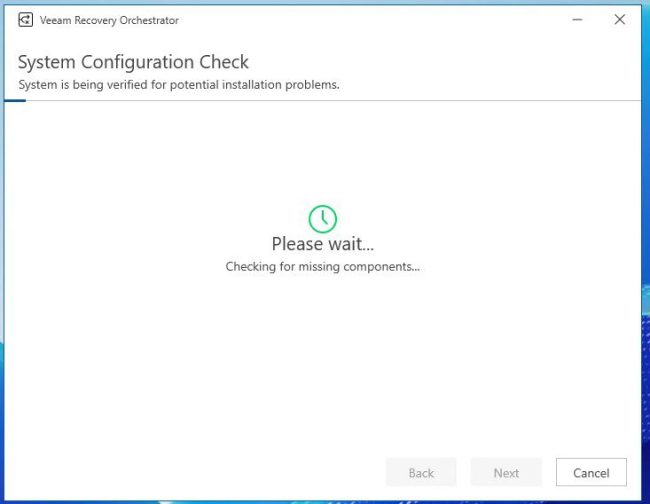
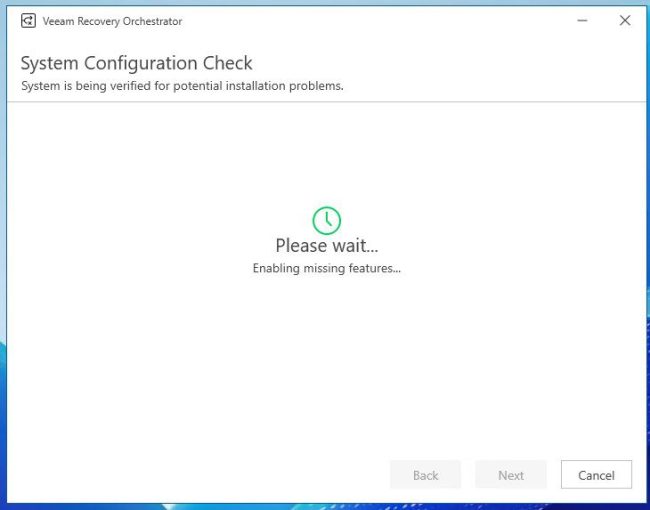
As you can see, the setup installs missing features automatically and a reboot is flagged by prerequisite check (Microsoft Visual C++ 2017–2026 Redistributable in my case and this requires a system restart). Click Reboot and note that we will start all over again but we will not be required to restart anymore.

Click on Yes on the pop-up prompt to proceed with the restart

Please see how to Fix INACCESSIBLE_BOOT_DEVICE in Windows and Windows Server, how to fix Windows Boot Error 0xc0000098 (winload.efi), and how to Fix Veeam Proxmox VE Backup Error: Failed to prepare disk for backup.
Database Configuration
After restarting, re-launch the setup. Unfortunately, we have to start all over and because we alreday have the images above, there is no need having to show those steps again.
Click on Next to validate the SQL instance conenction settings
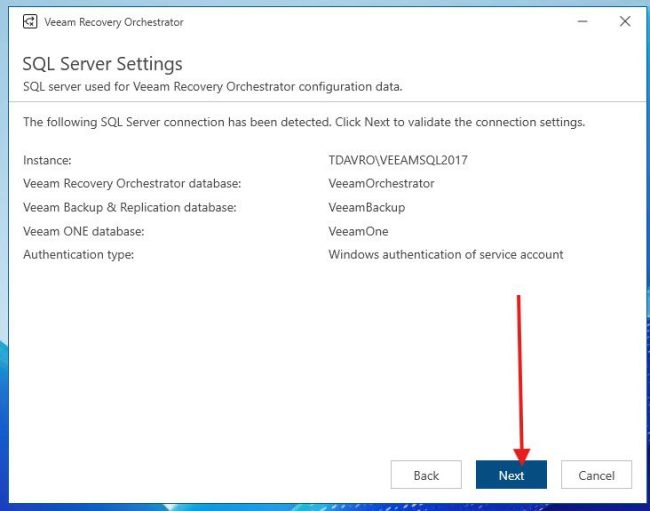
Confirm the prompt indicating the configuration database is in use by clicking Yes.

Confirm connecting to and upgrading the VeeamBackup database.

I will leave all as default here, then click Next.

Please wait while the current configuration is checked for compatibility issues as shown below.

The below are mere warning and will click next to get past the configuration check.

On the Port Configuration, click on Next

Please see Google Drive Broken on Windows: Fix and Prevent it from happening again, How to fix Error 202: AMD Software Installer Fails to install Update, and Resolve Veeam ONE “The specified property cannot be found” and License Mismatch Errors During upgrade.
Execute the VRO Upgrade
On the Ready to Upgrade summary screen, verify your service account, database paths, and caching port once again.Then click upgrade to begin processing the update steps.

Monitor progress as the installer upgrades each module. Here, setup is upgrading the Veeam Backup & Replication Server

The Veeam Backup & Replication Console is being upgraded

The Veeam Explorers is being upgraded.

Upgrading Veeam Agents Redistributables

Here the Veeam ONE Client is being upgraded.

Upgrading Veeam ONE Server

Upgrading Veeam ONE Web Services

Upgrading Plug-ins for Veeam Backup & Replication

Upgrading Veeam Recovery Orchestrator Server

Upgrading Veeam Recovery Orchestrator Web UI.

As you can see in step 11 of 11, the setup is being finalized.

When any services fails, please do not cancel. Click on Retry until this step correctly completes.

Once the setup wizard displays the “Successfully upgraded” dialog, click FINISH to close the installer.

Please see how to fix Update Error 0x800f0831 in Windows or Windows Server, Backing Up OpenShift Is Not the Same as Recovering It, and Veeam Agent for Windows deployment failing with Access Denied.
Post-Upgrade Validation
After Step 11 completes successfully, launch the VRO Web UI. Log in to verify that all recovery plans, site definitions, and DataLab configurations remain intact.
Then, navigate to Administration > About and verify that all embedded modules report their target v13.1 builds as previopusly mentioned above and as shown below.
- Veeam Recovery Orchestrator: 13.1.0.483
- Veeam Backup & Replication (Embedded): 13.1.0.411
- Veeam ONE (Embedded): 13.1.0.7034

Now that all build numbers are validated, the VRO (disaster recovery orchestration) platform is fully updated and ready for production use again.
Note: VRO 13.1 ships with Veeam Updater included; however at time of release, Updater is not active according to the documentation. It only listens for an upcoming update for the Updater Plugin itself, which will enable Updater itself and it will thereafter show available VRO updates and upgrades.

The plug-in helps you identify critical patches and updates and provides three key capabilities:
- Update scheduling and automation: Define maintenance windows and control when updates are installed.
- Mandatory updates: Enforce required patch levels across managed Veeam Backup & Replication components.
- Bulk update management: Update multiple infrastructure components at once, making large-scale maintenance faster and easier.
In 13.1 GA release there are two issues to note:
- Launching the Updater dedicated UI from VRO web UI ‘About’ page may result in a ‘missing certificate’ warning from the browser. To resolve this, import the certificate which Updater presents by exporting it from the browser session then re-importing.
- In the Updater UI a message will be displayed “Failed to find a Veeam Recovery Orchestrator installation”. This is expected, and only means that the Veeam Updater Repository does not yet contain any downloads for VRO. When updater is later enabled as detailed above, this warning will disappear.
I hope you found this blogpost on “In-place upgrade of Veeam Recovery Orchestrator to version 13.1” very useful. Please feel free to leave a comment below.