Skip to content

TechDirectArchive

Hands-on IT, Cloud, Security, Veeam & DevOps

  • Home
  • About
  • Advertise With US
  • Reviews
  • Tech News
  • Contact
  • Toggle search form

Upgrading Veeam Backup Enterprise Manager to v13.1 and Applying System Updates

Posted on 26/08/202627/08/2026 IT Expert By IT Expert No Comments on Upgrading Veeam Backup Enterprise Manager to v13.1 and Applying System Updates
  1. Home
  2. Backup
  3. Upgrading Veeam Backup Enterprise Manager to v13.1 and Applying System Updates
VBEM Upgrade

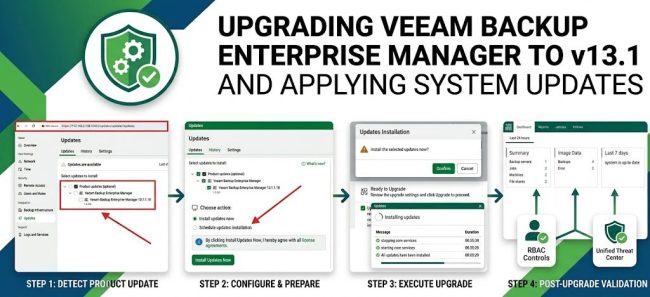
Veeam Backup Enterprise Manager (VBEM) provides centralized management, global data visibility, and Role-Based Access Control (RBAC) across multi-server backup environments. In this guide, we will walk through upgrading Enterprise Manager to version 13.1.1.18 via the web-based Veeam Host Management Console, aand applying underlying OS and security updates. Please see Veeam Enterprise Manager setup and User Role management, How to license Veeam Enterprise Manager and Add VBR Servers, and how to perform In-place upgrade of Veeam Recovery Orchestrator to version 13.1.

Note: With Veeam v13, you can choose to deploy your Veeam Backup Enterprise Manager (VBEM) using either the new “Linux-based Veeam Software Appliance (VSA)” or a traditional “self-managed “Windows-based” deployment. Both share the exact same core product code. While the VSA eliminates manual OS patching as we will see in this guide.

Note: The VSA (Veeam Software Appliance) is an application delivery image. When booting the VSA installer, it prompts you to select which core product to install: Veeam Backup & Replication (VBR) or Veeam Backup Enterprise Manager (VBEM) as discussed here “how to setup Veeam Software Appliance v13“. While the “VIA (Veeam Infrastructure Appliance)” is strictly used for secondary data-plane and fabric roles.

You can deploy a VIA to act as a Hardened Repository (VHR), backup proxy, gateway server, or mount server. Here are some key architectural rules for v13;

  • Unified Installer, Separate Deployments: Even though both VBR and VBEM can now be deployed as a Linux-based VSA, they do not sit inside the same appliance instance. You deploy one VSA instance to act as your VBR server, and a separate VSA instance if you want your VBEM server on Linux.
  • Cross-Platform Compatibility: A Linux-based VBEM appliance can seamlessly connect to, monitor, and manage both Linux-based VSA backup servers and traditional Windows-based VBR servers

This distinction is important because upgrading VBEM and updating the underlying operating system are two separate maintenance activities. With the above distinction established, let us proceed with the upgrade of the Veeam Backup Enterprise Manager server to version 13.1.1.18, followed by the required security updates.

Please see Set up Veeam Backup for Microsoft Azure, “Demystifying Zero Trust with Veeam: Design your Architecture“, and how to upgrade Veeam Backup and Replication v11 to 12.1.

Updating/Upgrading Veeam Backup Enterprise Manager

Before starting the upgrade, verify the current Veeam Backup Enterprise Manager (VBEM) version of the appliance. The upgrade can then be performed through the web-based Veeam Host Management Console without requiring a dowload of an ISO as it is for Windows based instalaltion

Next, navigate through the Veeam Host Management Console and check for available updates. As you can see below, there are updates available.

install updates
install updates

I will proceed and select the optional product updates which will in turn select all other updates and will click on “Install Updates Now”.As you can see below, this ensures that the VBEM or VEM as often referred to is brought up to date with version number 13.1.1.18

updates to install
updates to install

On the installation prompt, click on “Confirm”.

confirm
confirm

As you can see below, the configuration is being validated

validate confguration
The console runs a background configuration validation

Please, see How to upgrade Veeam Backup and Replication 12.3, how to restore MSSQL Server on Azure VMs using Azure Backup, and MSSQL Server Error 833: Synthesis of Real-World Case Studies.

Upgrading Veeam Backup Enterprise Manager to 13.1

Click to update license automatically to maintain uninterrupted workload usage reporting and click on upgrade to begin downloading package files, stopping core services, applying binary updates, and restarting services automatically.

upgrade VBEM to 13.1

As mentioned above, packages are being downloaded right now.

installing updates
installing updates

The below image are the detailed view of the process that happened during the VBEM upgrade as mentioned above.

installation progress

Please see Google Drive Broken on Windows: Fix and Prevent it from happening again, how to fix Error 202: AMD Software Installer Fails to install Update, and how to Resolve Veeam ONE “The specified property cannot be found” and License Mismatch Errors During upgrade.

Installing System and Security Updates

After updating the application layer, the Host Management Console flags mandatory OS and security packages as shown below.

security updates
security updates

Select the mandatory updates and click on What’s new to see the content of the updates as shown below which are (aspnetcore-runtime-10.0, .NET Core and ASP.NET Core runtimes). Close the what’s new dialog window and click on Install.

install updates and what is new

Click on confirm as shown below.

cofirm install
cofirm install

The console logs sequential execution times as shown below.

installing updates
installing updates

At this stage, the core services are being started.

installing updates and starting services

Click Finish as shown below.

update complete
update complete

As yoiu can see, the console confirms that the system is up to date.

system upto date
system upto date

Now you can access the Veeam Enterprise Manager Web UI once again.

Acccess VBEM
Acccess VBEM

Once signed into the Enterprise Manager Web UI (https://<IP-or-Hostname>:443), and we can see the summary widget for the last 7 days.

VBEM Dashboard
VBEM Dashboard

I hope you foudn this guide on “Upgrading Veeam Backup Enterprise Manager to v13.1 and Applying System Updates” very useful. Please feel free to leave a comment below.

5/5 - (1 vote)

Thank you for reading this post. Kindly share it with others.

  • Share on X (Opens in new window) X
  • Share on Reddit (Opens in new window) Reddit
  • Share on LinkedIn (Opens in new window) LinkedIn
  • Share on Facebook (Opens in new window) Facebook
  • Share on Pinterest (Opens in new window) Pinterest
  • Share on Tumblr (Opens in new window) Tumblr
  • Share on Telegram (Opens in new window) Telegram
  • Share on WhatsApp (Opens in new window) WhatsApp
  • Share on Mastodon (Opens in new window) Mastodon
  • Share on Bluesky (Opens in new window) Bluesky
  • Share on Threads (Opens in new window) Threads
  • Share on Nextdoor (Opens in new window) Nextdoor
Backup Tags:Applying System Updates to VEM, Upgrading Veeam Backup Enterprise Manager, VBEM update, Veeam Backup Enterprise Manager

Post navigation

Previous Post: In-place upgrade of Veeam Recovery Orchestrator to version 13.1
Next Post: Veeam ONE 13.1.0.7034 Upgrade: Complete Pre-flight and Step-by-Step Guide

Related Posts

  • Azure Backup 1
    How to Install Azure Backup Agent AWS/Azure/OpenShift
  • Object First OOTBI Appliance Configuration
    How to Configure Object First OOTBI Appliance Backup
  • Remove Orphaned VHR Repository
    Unable to Remove Orphaned VHR Repository v2 from VBR v13 Backup
  • Fix Failed to Connect a Hyper V Standalone to Veeam Backup
    Invalid Credentials “Fix Failed to Connect a Hyper-V Standalone to Veeam Backup” Backup
  • Veeam
    Install and configure Veeam Backup and Replication Community Edition Backup
  • resolving veeam one licensing issues e1786454703127
    Resolve Veeam ONE “The specified property cannot be found” and License Mismatch Errors During upgrade Backup

More Related Articles

Azure Backup 1 How to Install Azure Backup Agent AWS/Azure/OpenShift
Object First OOTBI Appliance Configuration How to Configure Object First OOTBI Appliance Backup
Remove Orphaned VHR Repository Unable to Remove Orphaned VHR Repository v2 from VBR v13 Backup
Fix Failed to Connect a Hyper V Standalone to Veeam Backup Invalid Credentials “Fix Failed to Connect a Hyper-V Standalone to Veeam Backup” Backup
Veeam Install and configure Veeam Backup and Replication Community Edition Backup
resolving veeam one licensing issues e1786454703127 Resolve Veeam ONE “The specified property cannot be found” and License Mismatch Errors During upgrade Backup

Leave a Reply Cancel reply

You must be logged in to post a comment.

Microsoft MVP

VEEAMLEGEND

vexpert-badge-stars-5

Virtual Background

GoogleNews

Categories

veeaam100

Veeam Vanguard

  • Secure Boot 2023 Compliance for wds e1781352448233
    Secure Boot 2023 Compliance Across WinPE, MDT, WDS, and ADK: Boot Chain Alignment and PXE Validation [Final Part] Windows
  • homefolder
    Change the name of your macOS user account and home folder Mac
  • IIS8
    How to add an account to the local IIS_IUSRS group Windows Server
  • AzureMonitor
    Configure Azure Monitor for VMs on Azure Stack Hub AWS/Azure/OpenShift
  • diagnostic6
    How to enable and use Diagnostic Data Viewer on Windows Windows
  • Customizing Windows PE e1776163892496
    Steps to customize Windows PE boot images Windows
  • Norton AV
    Enable or disable Norton silent mode on Mac Anti-Virus Solution
  • Norton Antivirus Free Download For Mac 1st
    How to fix repeated app-blocking connection alerts from Norton on Mac Mac

Subscribe to Blog via Email

Enter your email address to subscribe to this blog and receive notifications of new posts by email.

Join 1,762 other subscribers
  • RSS - Posts
  • RSS - Comments
  • About
  • Authors
  • Write for us
  • Advertise with us
  • General Terms and Conditions
  • Privacy policy
  • Feedly
  • Telegram
  • Youtube
  • Facebook
  • Instagram
  • LinkedIn
  • Tumblr
  • Pinterest
  • Twitter
  • mastodon

Tags

Active Directory Azure Bitlocker Microsoft Windows PowerShell WDS Windows 10 Windows 11 Windows Deployment Services Windows Server 2016

Copyright © 2026 TechDirectArchive

Loading Comments...

You must be logged in to post a comment.