Skip to content

TechDirectArchive

Hands-on IT, Cloud, Security, Veeam & DevOps

  • Home
  • About
  • Advertise With US
  • Reviews
  • Contact
  • Toggle search form

Azure Managing Subscriptions with PowerShell: From Login-AzAccount to Resource Control and Private Endpoint Verification for Azure File Share”

Posted on 02/06/202623/06/2026 Link State By Link State No Comments on Azure Managing Subscriptions with PowerShell: From Login-AzAccount to Resource Control and Private Endpoint Verification for Azure File Share”
  1. Home
  2. AWS/Azure/OpenShift
  3. Azure Managing Subscriptions with PowerShell: From Login-AzAccount to Resource Control and Private Endpoint Verification for Azure File Share”
Banner AzLogin 1

In this guide we shall discuss “Azure Managing Subscriptions with PowerShell: From Login-AzAccount to Resource Control and Private Endpoint Verification for Azure File Share””. In the world of cloud computing, efficient resource management is essential to ensure security, performance, and cost control. Microsoft Azure provides several tools to manage complex environments, including PowerShell, which allows you to automate operations and simplify repetitive tasks. Please see Azure Application Gateway: Practical Configuration Guide, and Azure Arc for SQL Server PAYG: Installation, Connectivity Requirements and Operational Best Practices.

This article is designed as a practical guide to help you navigate the main commands of the Az PowerShell module, starting from authentication using Login-AzAccount to exploring subscriptions, resource groups, and specific resources. Additionally, it includes practical examples for querying advanced services such as Azure Storage Sync, with a focus on identifying Cloud Endpoints.

Special attention is also given to the verification of Private Endpoints for Azure File Shares, an essential aspect for ensuring secure and private connectivity between your environments and Azure storage services.

Please see How to Assign a Public IP to Azure Virtual Machine (VM), how to Upgrade Veeam ONE to 13.0.2.6723 to Address Security Fixes, and Fix Vulnerable Veeam Backup and Replication 13.0.1.2067 and Earlier.

1: Install and Authenticate to Azure

Before starting, make sure the Az module is installed:

Install-Module -Name Az

or

Install-Module -Name Az -Scope CurrentUser -Repository PSGallery -Force
01 Install Az 1

Check available commands related to account management:

Get-Command AzAccount -Module Az*
02 Get Command 1

Authenticate to Azure:

Login-AzAccount
03 Login Az Account 1

Please see how to upgrade Veeam One from v12 to v13, how to Integrate Trellix ePolicy Orchestrator with a Syslog Server, and Veeam Backup and Replication: PowerShell must be Remote Signed.

2: Explore Azure Subscriptions

List all available subscriptions:

Get-AzSubscription
Filter subscriptions by Tenant ID:
Get-AzSubscription -TenantId ******************************f
Select a specific subscription:
Select-AzSubscription -SubscriptionId ********************************9
04 Get Az 1 1
05 Get Az Sub 1

Please see Prevent Automatic Driver Updates in Windows and Xen-Orchestra, how to Switch from IP Addresses to DNS for Backup Infrastructure in VBR, and how to remove a Repository from Veeam Backup and Replication.

3: Explore Resource Groups and Resources

List all resources:

Get-AzResource

Retrieve a specific Resource Group:

Get-AzResourceGroup -Name YourFilesRG

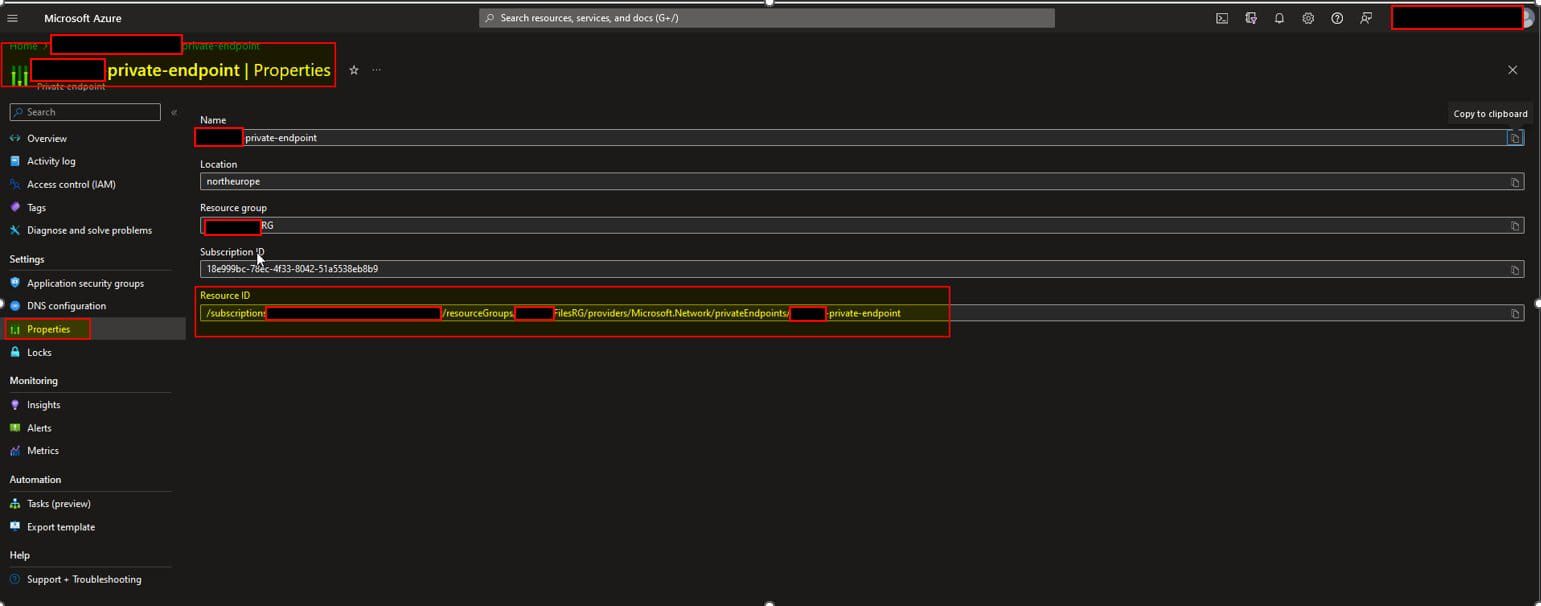
Retrieve details of a specific resource (e.g., Private Endpoint):

Get-AzResource -ResourceId /subscriptions/******9/resourceGroups/Your-FilesRG/providers/Microsoft.Network/privateEndpoints/your-private-endpoint
07 Get Az Resource ID 1

Retrive Endpoint From GUI

06 EndPoint Gui 1

Please see how to Update Veeam Backup & Replication to Build 13.0.1.2067, and how to Fix broken Repository Path in Veeam Scale-Out Backup Repository.

4: Verify Private Endpoint for Azure File Share

Private Endpoints allow secure access to Azure services over a private network.

To verify a Private Endpoint associated with an Azure File Share:

Get-AzPrivateEndpoint -ResourceGroupName "YourFilesRG"

To inspect its configuration in detail:

$pe = Get-AzPrivateEndpoint -Name "your-private-endpoint" -ResourceGroupName "YourFilesRG"
$pe.NetworkInterfaces
$pe.PrivateLinkServiceConnections
Check the linked storage account (Azure Files):
$pe.PrivateLinkServiceConnections.PrivateLinkServiceId

 This value should reference a Microsoft.Storage resource, confirming that the Private Endpoint is connected to an Azure Storage Account hosting File Shares.

08 Get Resource Group 1

5: Retrieve Azure File Sync Cloud Endpoint

To identify the Cloud Endpoint used in Azure File Sync:

Get-AzStorageSyncCloudEndpoint -ResourceGroupName "Your-RG" -StorageSyncServiceName "your-syncservice" -SyncGroupName "-Your-sync-disk-g"

This command returns:

  • Storage Account linked to sync
  • Azure File Share name
  • Cloud Endpoint configuration
09 Get Az Storage Sync 1

Please see how to Leverage Azure Blob Storage as an Object Storage Repo in Veeam, and PXE Boot Failure: “Access Denied or Aborted” with Secure Boot on [Part 4].

6: Architecture Overview: Azure File Share with Private Endpoint

Below is a simplified architecture showing how a Private Endpoint secures access to an Azure File Share:

+—————————+
| On-Premises |
| (Client / Server) |
+————-+————-+
|
| VPN / ExpressRoute
|
+————-v————-+
| Azure VNet |
| |
| +——————-+ |
| | Private Endpoint |————————+
| | (Private IP) | |
| +——————-+ |
| |
+———————————————–+
|
v
+———————-+
| Azure Storage |
| Account |
| (File Share) |
+———————-+ 

Conclusion

Using PowerShell with the Az module, you can efficiently:

  • Authenticate to Azure
  • Manage subscriptions and tenants
  • Explore and query resources
  • Validate Private Endpoint configurations
  • Inspect Azure File Sync components

This approach is particularly useful in enterprise environments where automation, governance, and security validation are critical.

I hope you found this guide on “Azure Managing Subscriptions with PowerShell: From Login-AzAccount to Resource Control and Private Endpoint Verification for Azure File Share” very useful. Please feel free to leave a comment below.
Thank you for reading this post. Kindly share it with others.

  • Share on X (Opens in new window) X
  • Share on Reddit (Opens in new window) Reddit
  • Share on LinkedIn (Opens in new window) LinkedIn
  • Share on Facebook (Opens in new window) Facebook
  • Share on Pinterest (Opens in new window) Pinterest
  • Share on Tumblr (Opens in new window) Tumblr
  • Share on Telegram (Opens in new window) Telegram
  • Share on WhatsApp (Opens in new window) WhatsApp
  • Share on Mastodon (Opens in new window) Mastodon
  • Share on Bluesky (Opens in new window) Bluesky
AWS/Azure/OpenShift Tags:Azure administration, Azure cloud management, Azure File Share, Azure Files connectivity, Azure Networking, Azure PowerShell, Azure private endpoint, Azure private link, Azure resource control, Azure resource management, Azure security, Azure storage account, Azure subscription management, Login-AzAccount, Manage Azure subscriptions with PowerShell, PowerShell Azure automation, PowerShell for Azure administrators, Set-AzContext, Verify Azure private endpoint

Post navigation

Previous Post: Azure Arc for SQL Server PAYG: Installation, Connectivity Requirements and Operational Best Practices
Next Post: Azure Application Gateway: Practical Configuration Guide

Related Posts

  • create a new Azure SQL Database
    How to create a new Azure SQL Database [PaaS] AWS/Azure/OpenShift
  • How to Set up a Single Site to Site VPN Connection on AWS
    Setup a Site-to-Site VPN Connection on AWS AWS/Azure/OpenShift
  • Delete AWS EBS Volume
    How to delete an Elastic Block Store Volume on AWS AWS/Azure/OpenShift
  • s3versioning
    Hosting Static Website and Versioning on AWS S3 AWS/Azure/OpenShift
  • Screenshot 2020 05 13 at 19.23.25
    AWS Command-Line Interface: How to configure AWS CLI [Part 1] AWS/Azure/OpenShift
  • feature image app services
    How to Migrate Azure Web Apps AWS/Azure/OpenShift

More Related Articles

How to Register Devices to Microsoft Intune and EntraID Using My Company Portal Register Devices to Intune and EntraID Using Company Portal AWS/Azure/OpenShift
image 54 How to enable Amazon S3 default bucket encryption using S3 Console AWS/Azure/OpenShift
FEATUREIMAGE How to work with Azure Cognitive Service AWS/Azure/OpenShift
Continuous Deployment Pipeline Using AWS CodePipeline Setup a Continuous Deployment Pipeline with AWS CodePipeline AWS/Azure/OpenShift
hero azure activedirectory How to add and verify a custom domain name to Azure Active Directory AWS/Azure/OpenShift
Create an S3 Bucket Backup Repository: How to Create Amazon S3 buckets AWS/Azure/OpenShift

Leave a Reply Cancel reply

You must be logged in to post a comment.

Microsoft MVP

vexpert-badge-stars-5

Virtual Background

VEEAMLEGEND

Categories

Top 30 Sysadmin blog

veeaam100

Veeam Vanguard

  • Screenshot
    An error occurred while attempting to start the selected VM Virtualization
  • maxresdefault 2
    AWS CodeCommit: A Guide to Efficient Usage Version Control System
  • admin6 1
    How to run Apps as an administrator on Windows Windows
  • How to Disable the Password Manager of Google Chrome
    How to Disable the Password Manager of Google Chrome Password Manager
  • HighA
    Virtual Machine Scale Set: Demonstrating High Availability in Azure AWS/Azure/OpenShift
  • screenshot 2020 03 29 at 18.19.50
    Shortcut for Windows update: How to create a shortcut for Windows scheduled task Windows Server
  • loc
    Solve VMware workstation .lck error [Part 1] Virtualization
  • dism failed errors windows thumbnail 1
    Error 0x800f0830: Discard the modified Image and start again, no operation was performed Windows Server

Subscribe to Blog via Email

Enter your email address to subscribe to this blog and receive notifications of new posts by email.

Join 1,745 other subscribers
  • RSS - Posts
  • RSS - Comments
  • About
  • Authors
  • Write for us
  • Contact
  • Advertise with us
  • General Terms and Conditions
  • Privacy policy
  • Feedly
  • Telegram
  • Youtube
  • Facebook
  • Instagram
  • LinkedIn
  • Tumblr
  • Pinterest
  • Twitter
  • mastodon
  • Bsky

Tags

Active Directory Azure Bitlocker Microsoft Windows PowerShell WDS Windows 10 Windows 11 Windows Deployment Services Windows Server 2016

Copyright © 2026 TechDirectArchive

Loading Comments...

You must be logged in to post a comment.