Skip to content

TechDirectArchive

Hands-on IT, Cloud, Security, Veeam & DevOps

  • Home
  • About
  • Advertise With US
  • Reviews
  • Tech News
  • Contact
  • Toggle search form

How to fix Error 202: AMD Software Installer Fails to install Update

Posted on 11/08/202611/08/2026 IT Expert By IT Expert No Comments on How to fix Error 202: AMD Software Installer Fails to install Update
  1. Home
  2. Windows
  3. How to fix Error 202: AMD Software Installer Fails to install Update
A graphic showing a system optimization guide with highlighted messages about pending updates for Windows and AMD drivers. The left side displays Windows Update settings prompting a restart, while the right side features the AMD Install Manager indicating that chipset driver installations are pending.

In this article, we shall discuss how to fix Error 202: AMD Software Installer Fails to install Update. With this error message, AMD Software Installer Cannot Proceed as a Windows Update is Currently in Progress. Please see Upgrading Azure AD Connect to Microsoft Entra Connect Sync, PCI Driver Error: Connection to Deployment Share could not be made, and Steps to Fix the “Invalid OS GUID” Error in MDT.

Cause “AMD Software Installer Fails to install Update”

This error is prompted when the Software Installer has detected that a Windows update is currently in progress and cannot proceed until the update has successfully completed as shown in the image below.

Screenshot of AMD Install Manager displaying updates, highlighting a failed installation for 'AMD Software: Adrenalin Edition' with a prompt to view details.

Please see Resolve Veeam ONE “The specified property cannot be found” and License Mismatch Errors During upgrade, How to fix Update Error 0x800f0831 in Windows or Windows Server, and Faulting SecHealthUI: Resolve Windows Defender Notification.

Solution

The fix to this issue is very simple. Open Windows Update to check on the progress of current update(s). This can be done by typing “Windows Update Settings” in the Windows search box, then hit the Enter key.

If an update is in progress, wait until it completes. As you can see below, our attention is currently needed.

Screenshot of the Windows Settings interface displaying the Home section, with options for System, Bluetooth & devices, Network & internet, Personalization, and more. It indicates that the laptop is connected and secured, but the Windows Update section shows 'Attention needed'.

When you click to expand the Windows update. You can see that there is a pending “Restart” required.

Next, restart the system and then install the AMD Software Package. If an update has completed but pending a system restart, please restart the system and then install the AMD Software Package.

Screenshot of Windows Update settings showing a restart required notification and options for updates.

Please see How to Update Your AMD Radeon Display Adapter Driver, how to update Proxmox VE to the latest version 9.2.3 today, and Secure Boot 2023 Compliance Across WinPE, MDT, WDS, and ADK: Boot Chain Alignment and PXE Validation [Final Part].

Update the AMD Software Adrenalin Edition

You should launch the AMD Software Adrenalin Edition to initiate updates as shown below.
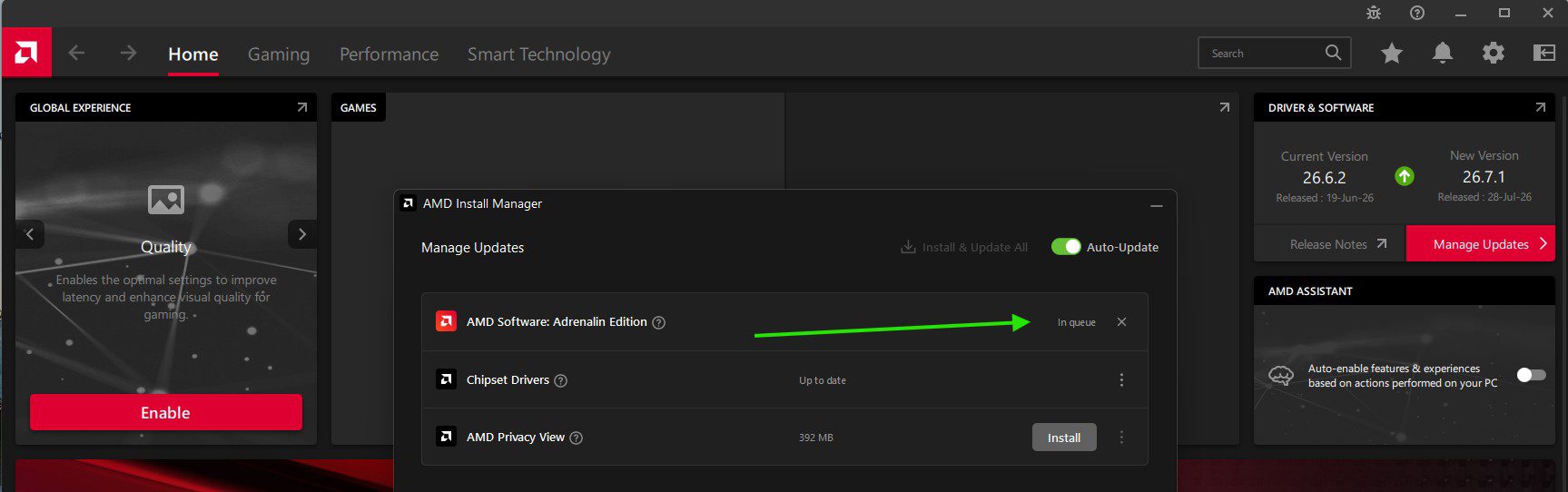
Screenshot of the AMD Install Manager interface displaying options for managing software updates, including the status of AMD Software: Adrenalin Edition with an install button and options for chipset drivers.
The Adrenalin interface serves as the update checker.

Currently installing the AMD Software Adrenalin Edition updates as shown below.

Screenshot of AMD Install Manager showing updates, with 'AMD Software: Adrenalin Edition' installation at 0% progress.

Please see the update progress

Screenshot of AMD Install Manager displaying update options, including 'AMD Software: Adrenalin Edition' with a progress of 15% installed, 'Chipset Drivers' marked as up to date, and 'AMD Privacy View' with a size of 392 MB and an install button.

As you can see below, the Adrenalin Edition and the Chipset Drivers are up to date.

Screenshot of AMD Install Manager showing Manage Updates section with 'AMD Software: Adrenalin Edition' and 'Chipset Drivers' marked as up to date, and 'AMD Privacy View' listed with size 392 MB and an 'Install' button.

I hope you found this post on “how to fix Error 202: AMD Software Installer Fails to install Update” very useful. Please feel free to leave a comment below.


5/5 - (1 vote)

Thank you for reading this post. Kindly share it with others.

  • Share on X (Opens in new window) X
  • Share on Reddit (Opens in new window) Reddit
  • Share on LinkedIn (Opens in new window) LinkedIn
  • Share on Facebook (Opens in new window) Facebook
  • Share on Pinterest (Opens in new window) Pinterest
  • Share on Tumblr (Opens in new window) Tumblr
  • Share on Telegram (Opens in new window) Telegram
  • Share on WhatsApp (Opens in new window) WhatsApp
  • Share on Mastodon (Opens in new window) Mastodon
  • Share on Bluesky (Opens in new window) Bluesky
  • Share on Threads (Opens in new window) Threads
  • Share on Nextdoor (Opens in new window) Nextdoor
Windows Tags:AMD Install Manager, AMD Software Installer Fails, Driver Updates, Microsoft Windows, Windows 10, Windows 11

Post navigation

Previous Post: Resolve Veeam ONE “The specified property cannot be found” and License Mismatch Errors During upgrade
Next Post: Google Drive Broken on Windows: Fix and Prevent it from happening again

Related Posts

  • fghjk
    Map a Network Drive: How to mount a Network Drive Windows
  • How to Disable Integrated Graphics
    How to Disable Integrated Graphics on Windows Windows
  • Windows10
    Configure new GPO settings and Security baseline for Windows Windows
  • Explorer Error
    How to fix an attempt was made to reference a Token that does not exist Network | Monitoring
  • banner 1
    How to use the Program Compatibility Troubleshooter to Test Application Compatibility on Windows 11 Windows
  • BitLocked suspended and resumed
    Query MBAM-protected Client for non-compliance [Part 2] Windows

More Related Articles

fghjk Map a Network Drive: How to mount a Network Drive Windows
How to Disable Integrated Graphics How to Disable Integrated Graphics on Windows Windows
Windows10 Configure new GPO settings and Security baseline for Windows Windows
Explorer Error How to fix an attempt was made to reference a Token that does not exist Network | Monitoring
banner 1 How to use the Program Compatibility Troubleshooter to Test Application Compatibility on Windows 11 Windows
BitLocked suspended and resumed Query MBAM-protected Client for non-compliance [Part 2] Windows

Leave a Reply Cancel reply

You must be logged in to post a comment.

Microsoft MVP

VEEAMLEGEND

vexpert-badge-stars-5

Virtual Background

GoogleNews

Categories

veeaam100

Veeam Vanguard

  • Create Password Policies via GPO
    How to Create a Password Policy with Group Policy Object Windows
  • cv
    Add languages to Windows images using DISM and PowerShell Windows Server
  • Review of Stellar Repair for Outlook
    A Review of Stellar Repair for Outlook Reviews
  • SysInternals Tools set
    Download and use Windows Sysinternals Tools locally Windows
  • VeeamIgnite2022
    Veeam at Microsoft Ignite 2022 from 12-14 October Backup
  • Actualidad 211741393 129861581 1050x760
    Edge GPO settings: All Group Policies available to configure Microsoft Edge Settings Windows Server
  • article 1280x720.192a2586
    Windows Deployment Services: How to setup and install WDS role Windows Server
  • images 2
    How to configure and use Pleasant Password RDP SSO Password Manager

Subscribe to Blog via Email

Enter your email address to subscribe to this blog and receive notifications of new posts by email.

Join 1,768 other subscribers
  • RSS - Posts
  • RSS - Comments
  • About
  • Authors
  • Write for us
  • Advertise with us
  • General Terms and Conditions
  • Privacy policy
  • Feedly
  • Telegram
  • Youtube
  • Facebook
  • Instagram
  • LinkedIn
  • Tumblr
  • Pinterest
  • Twitter
  • mastodon

Tags

Active Directory Azure Bitlocker Microsoft Windows PowerShell WDS Windows 10 Windows 11 Windows Deployment Services Windows Server 2016

Copyright © 2026 TechDirectArchive

Loading Comments...

You must be logged in to post a comment.