Skip to content

TechDirectArchive

Hands-on IT, Cloud, Security & DevOps Insights

  • Home
  • About
  • Advertise With US
  • Reviews
  • Contact
  • Toggle search form
Home » Windows Server » How to target WSUS clients with the registry keys
  • images 8
    Microsoft Direct Access: Now Always On VPN Windows Server
  • downloadzoom recording
    How to download a shared ZOOM recording JIRA|Confluence|Apps
  • fix
    How to fix Windows cannot find the Microsoft software license terms Windows Server
  • system
    How to fix the system cannot find the file specified when adding LP, LIP, and FoD packages to Windows Images Windows Server
  • fix IP addressed blocked Synology
    IP Address blocked on Synology NAS due to forgotten Password Storage
  • How to Enable or Disable Inherited Permissions for Files and Folders in Windows
    How to Enable or Disable Inherited Permissions for Files and Folders in Windows Windows
  • Credential Sync acrosss devices
    How to sync your passwords across iOS and Mac devices Mac
  • intro to azure cloud shell
    The Overview of Azure Cloud Shell AWS/Azure/OpenShift

How to target WSUS clients with the registry keys

Posted on 10/03/201814/04/2025 Christian By Christian 8 Comments on How to target WSUS clients with the registry keys

The Windows Registry is a hierarchical database that stores low-level settings for the Microsoft Windows operating system and for applications that opt to use the registry. The kernel, device drivers, services, Security Accounts Manager, and user interface can all use the registry. In this article, you will learn how to target WSUS clients with registry keys. Please see WSUS Setup: How to configure Windows server update services, and Client Visibility Issues: Fix WSUS Clients appear then disappear in the console.

Here are some related WSUS contents. Handy WSUS Commands(Windows Server Update Services Commands, WAUACLT, PowerShell and USOClient). Also, see how to Start, Stop and Restart Windows Server Update Services (WSUS) via PowerShell and CMD.

Steps to target WSUS clients with the registry keys

The below syntax should be saved with the .reg extension and in order to create the registry keys. In this step. I will be using the registry key as this can also be used to point the server to the Upstream server.

Create the registry key and save it anywhere on your PC. Next, double-click to run the reg file created, and reboot your PC.

Here is what the registry settings would look like, you can modify this by specifying the IP address. In the previous example, I used the local group policy. For more articles written by me on the Windows registry, see the following hyperlinks. What is Registry Editor and how to access the registry hives? and how to search through the Windows registry.

Windows Registry Editor Version 5.00

[HKEY_LOCAL_MACHINE\SOFTWARE\Policies\Microsoft\Windows\WindowsUpdate]
"ElevateNonAdmins"=dword:00000001
"WUServer"="http://x.x.x.x:8530"
"WUStatusServer"="http://x.x.x.x6:8530"

[HKEY_LOCAL_MACHINE\SOFTWARE\Policies\Microsoft\Windows\WindowsUpdate\AU]
"NoAutoUpdate"=dword:00000000
"AUOptions"=dword:00000003
"ScheduledInstallDay"=dword:00000000
"ScheduledInstallTime"=dword:0000000f
"AutoInstallMinorUpdates"=dword:00000001
"UseWUServer"=dword:00000001

For more articles I have written, see the following hyperlinks: Configuring WSUS Email Notification to Work With Office365, How to setup and configure Windows server update services (WSUS), and Important Areas to Master on WSUS (Installed and not applicable, Install 1/4, and Installed / Not applicable 100)

Run the created Registry Key

After saving the file with the .reg extension and running it, these entries will be created in the registry

Note: You can also use the local group policy alongside additional options.

In order to be reported and have the WSUS server approve updates on the server, run the following commands below. These commands below force our servers to contact the WSUS server.


They both can also be run at the same time as shown below. Please see how to disable automatic Windows updates.

Navigate to the WSUS server and refresh the computer group, this server should appear.
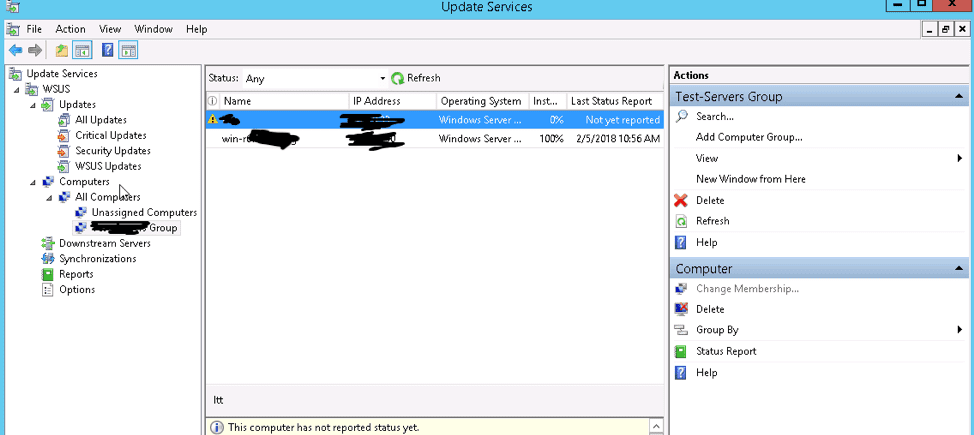
Also, see How to apply Windows Updates from WSUS to the server using AWS RunCommand, and How to Configure SSL between WSUS servers (Upstream and Downstream Servers)

View WSUS Reports

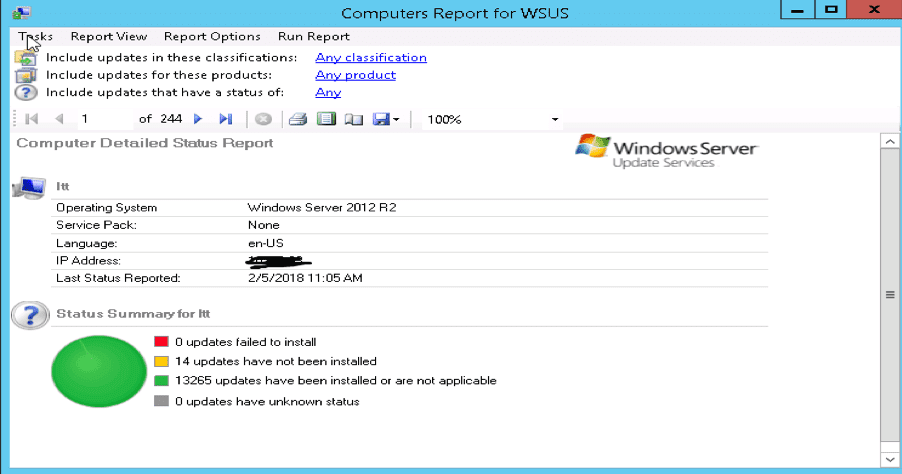
Note: To view the report, you will have to download and install Microsoft Report Viewer.

With this installed reports can be generated as shown below
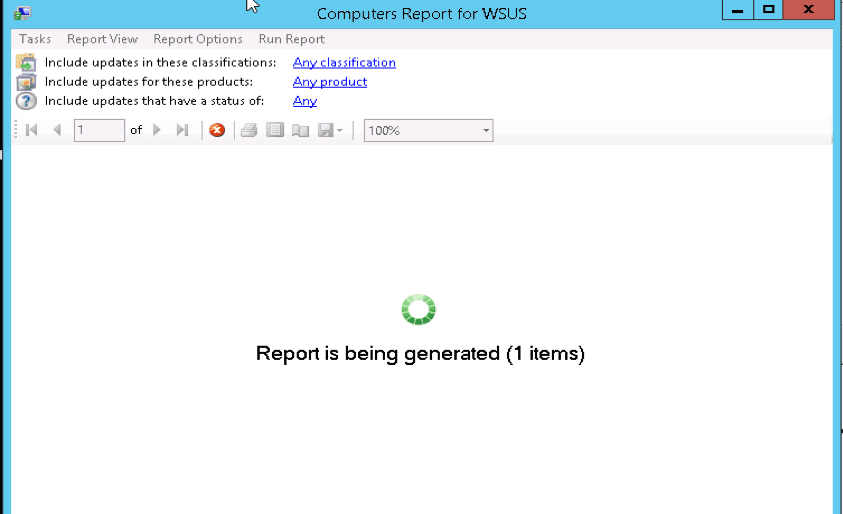

Windows Server Update Services: Windows 2016 Servers does not show up on WSUS console, and WSUS clients appear and disappear from the WSUS Update Services console.

FAQs

How does the AU Client work with WSUS?

The AU client understands each client setting, communicates with the WSUS server on a scheduled basis, and keeps your client up to date. Each supported Microsoft OS includes its own version of the AU client; however, the client machine updates the AU client to the latest version when it first contacts your WSUS server to ensure compatibility.

Why does the AU client need to update when connecting to a WSUS server?

The AU client must update to the latest version to ensure compatibility with WSUS and its features. This update occurs automatically when the client machine first contacts the WSUS server, allowing the AU client to apply the correct settings and manage updates effectively.

I hope you found this blog post helpful on how to target WSUS clients with the registry keys. Please refer to this article on how to disable unused Cisco Access Ports. If you have any questions, please let me know in the comment session.

5/5 - (1 vote)

Thank you for reading this post. Kindly share it with others.

  • Click to share on X (Opens in new window) X
  • Click to share on Reddit (Opens in new window) Reddit
  • Click to share on LinkedIn (Opens in new window) LinkedIn
  • Click to share on Facebook (Opens in new window) Facebook
  • Click to share on Pinterest (Opens in new window) Pinterest
  • Click to share on Tumblr (Opens in new window) Tumblr
  • Click to share on Telegram (Opens in new window) Telegram
  • Click to share on WhatsApp (Opens in new window) WhatsApp
  • Click to share on Pocket (Opens in new window) Pocket
  • Click to share on Mastodon (Opens in new window) Mastodon
  • Click to share on Bluesky (Opens in new window) Bluesky
  • Click to share on Threads (Opens in new window) Threads
  • Click to share on Nextdoor (Opens in new window) Nextdoor
Windows Server Tags:Microsoft Windows, RegEdit, Registry Keys, RegistryEditor, Windows 10, Windows 11, Windows Registry, Windows Server 2016

Post navigation

Previous Post: How to configure Windows server update services
Next Post: Configure SSL connection for WSUS Upstream and Downstream Servers

Related Posts

  • article 1280x720.192a2586
    How to fix Scheduled task status prompts error 0x800710E0 Windows Server
  • Task Scheduler Error 0x2 1
    How to fix Windows Task Scheduler 0x2 Error Windows
  • Configure AD LDAPs
    Generate a self-signed SSL certificate: Enable LDAP over SSL Windows Server
  • How to Convert a Distribution Group to a Security Group
    How to convert distribution group to security group Windows Server
  • article 1280x720.192a2586
    Windows Deployment Services: How to setup and install WDS role Windows Server
  • diagnose
    How to Diagnose a Windows Hardware Issue Windows

More Related Articles

article 1280x720.192a2586 How to fix Scheduled task status prompts error 0x800710E0 Windows Server
Task Scheduler Error 0x2 1 How to fix Windows Task Scheduler 0x2 Error Windows
Configure AD LDAPs Generate a self-signed SSL certificate: Enable LDAP over SSL Windows Server
How to Convert a Distribution Group to a Security Group How to convert distribution group to security group Windows Server
article 1280x720.192a2586 Windows Deployment Services: How to setup and install WDS role Windows Server
diagnose How to Diagnose a Windows Hardware Issue Windows

Comments (8) on “How to target WSUS clients with the registry keys”

  1. Avatar photo GhostRaven says:
    02/12/2021 at 6:58 AM

    can I use DC server to apply the new WSUS ip ? I change the policy but the register table is not change。

    Log in to Reply
    1. chris Christian says:
      03/12/2021 at 12:54 AM

      YES, please!

      Log in to Reply
  2. Avatar photo GhostRaven says:
    02/12/2021 at 7:05 AM

    when I change the register table as you show above, it works well. but I have thousands of PC. So how can i apply the new WSUS server ip to all the clients.

    Log in to Reply
    1. chris Christian says:
      03/12/2021 at 12:49 AM

      Please use Group Policy Management (GPO) to target the clients in a Domain environment!

      Log in to Reply
  3. Avatar photo Raghu says:
    01/08/2023 at 9:19 AM

    I made a GPO and pushed it from the AD server. However, the majority of virtual computers display “the RPC server is unavailable”.

    Log in to Reply
    1. Avatar photo Christian says:
      01/08/2023 at 9:59 AM

      Since this affects only a subset of PCs’, there is no need to troubleshoot (verify) the policies with WSUS client agent. Could you verify if the WSUS agent service (wuauserv) is running? If yes, run (gpupdate /force) and re-run this command (wuauclt /detectnow) to fix or update the agent, run. This could also be a network-related issue (DNS-related). If all the services are running, the DNS flush and renew might fix it.

      Kindly take a look at the Windows Event Viewer (windowsupdate.log) for more information as there could be other reasons why the error is prompted.

      Log in to Reply
  4. Avatar photo Vinnny says:
    24/10/2023 at 2:48 PM

    so cool!

    Log in to Reply
    1. chris Christian says:
      25/10/2023 at 7:00 PM

      Thank you, Vinnny!

      Log in to Reply

Leave a Reply Cancel reply

You must be logged in to post a comment.

Microsoft MVP

VEEAMLEGEND

vexpert-badge-stars-5

Virtual Background

GoogleNews

Categories

veeaam100

sysadmin top30a

  • images 8
    Microsoft Direct Access: Now Always On VPN Windows Server
  • downloadzoom recording
    How to download a shared ZOOM recording JIRA|Confluence|Apps
  • fix
    How to fix Windows cannot find the Microsoft software license terms Windows Server
  • system
    How to fix the system cannot find the file specified when adding LP, LIP, and FoD packages to Windows Images Windows Server
  • fix IP addressed blocked Synology
    IP Address blocked on Synology NAS due to forgotten Password Storage
  • How to Enable or Disable Inherited Permissions for Files and Folders in Windows
    How to Enable or Disable Inherited Permissions for Files and Folders in Windows Windows
  • Credential Sync acrosss devices
    How to sync your passwords across iOS and Mac devices Mac
  • intro to azure cloud shell
    The Overview of Azure Cloud Shell AWS/Azure/OpenShift

Subscribe to Blog via Email

Enter your email address to subscribe to this blog and receive notifications of new posts by email.

Join 1,839 other subscribers
  • RSS - Posts
  • RSS - Comments
  • About
  • Authors
  • Write for us
  • Advertise with us
  • General Terms and Conditions
  • Privacy policy
  • Feedly
  • Telegram
  • Youtube
  • Facebook
  • Instagram
  • LinkedIn
  • Tumblr
  • Pinterest
  • Twitter
  • mastodon

Tags

AWS Azure Bitlocker Microsoft Windows PowerShell WDS Windows 10 Windows 11 Windows Deployment Services Windows Server 2016

Copyright © 2025 TechDirectArchive


Loading Comments...
 

You must be logged in to post a comment.