Skip to content

TechDirectArchive

Hands-on IT, Cloud, Security & DevOps Insights

  • Home
  • About
  • Advertise With US
  • Reviews
  • Contact
  • Toggle search form
Home » Windows Server » Configure WSUS Email Notification for Office365
  • TPM 1
    How to fix unable to find compatible TPM Windows
  • Featured image 4
    Focus on Tasks: Limit Distraction & Get Things Done on Windows Windows
  • image 166
    How to deploy a .NET application to AWS Elastic Beanstalk using AWS Tool Kit AWS/Azure/OpenShift
  • Feature image
    How to search Group Policy for a specific Setting in Windows 10 and 11 Windows
  • Screenshot 2020 05 19 at 02.57.10
    Create Central Store for Group Policy Administrative Templates Windows Server
  • Commvault Docker Images
    Pull and Push Commvault Images to Azure Container Registry AWS/Azure/OpenShift
  • S3 Bucket Public Access 1
    How to grant public access to S3 Bucket using Policy AWS/Azure/OpenShift
  • Prevent Windows from Saving RDP Connection
    Prevent Windows from Saving RDP Connection History Windows

Configure WSUS Email Notification for Office365

Posted on 10/03/201816/03/2024 Christian By Christian 2 Comments on Configure WSUS Email Notification for Office365
WSUS email setup

Configuring WSUS Email Notifications ensures effective communication. It’s a powerful way to inform subscribers about changes or updates to a website or service alongside push notifications. For related content, see these guides, Windows Server Update Services Commands, WAUACLT, PowerShell, and USOClient. How to Start, Stop, and Restart Windows Server Update Services (WSUS) via PowerShell and CMD, Windows 2016 Servers does not show up on WSUS console, and WSUS clients appear and disappear from the WSUS Update Services console.

To effectively configure WSUS Email Notification, as WSUS lacks SSL/TLS support, an SMTP relay setup is essential for connecting to the Mail Server (Office365).

For more articles I have written, see the following hyperlinks below: How to set up and configure Windows server update services (WSUS), important Areas to Master on WSUS (Installed and not applicable, Install 1/4, and Installed / Not applicable 100),

SMTP-Relay server

To Solve this problem, you will have to setup an SMTP-relay server: Setting up smtp relay on windows server 2012:

Install SMTP on Windows Server

To do this, open Server Manager and select Add Roles and Features.

roles-and-features

Select Server Selection and make sure that the server that will be running the SMTP server is selected and then select Features.

On the Select Features screen. Choose SMTP Server. You may be prompted to install additional components. If that’s the case, select Add Required Features and Click Next.

SNMP-feature

Select Install to install the SNMP Server. After the installation is finished, you may have to start the SMTP service by using the Services snap-in for the Microsoft Management Console (MMC).

install-the-SNMP-Server

See how to configure WSUS Clients to get Updates from the WSUS server using Registry settings, how to apply Windows Updates from WSUS to the server using AWS RunCommand, how to Configure SSL between WSUS servers (Upstream and Downstream Servers).

Configure SMTP on Windows Server

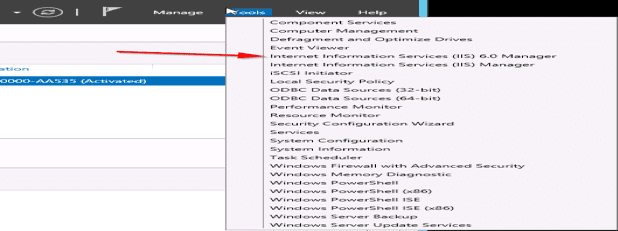
Open Server Manager, select Tools, and then select Internet Information Services (IIS) 6.0.
WSUS notification

Adjust Server Settings: SMTP Virtual Server Properties

Expand the current server, right-click the SMTP Virtual Server, and then select Properties.

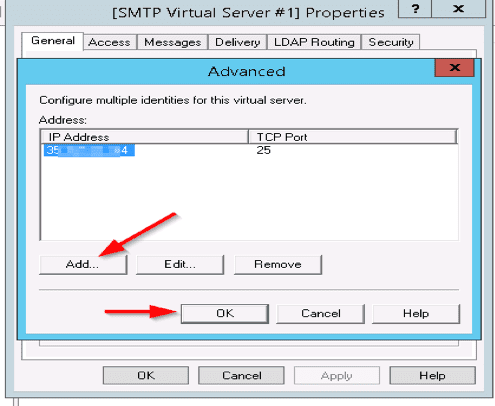
On the General tab, select Advanced, and then click on Add. Enter the Public IP of the WSUS/SMTP server if they are installed on the same server but if not enter the IP of the SMTP server followed by port 25

Office 365 WSUS integration

In the IP Address box, specify the address of the server that’s hosting the SMTP server. In the Port box, enter 25 and select OK.
WSUS email configuration

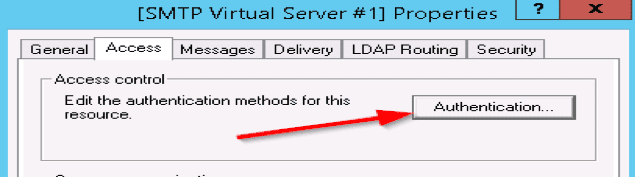
Step 3: On the Access tab, do the following: Select Authentication
WSUS email setup

and make sure that Anonymous Access is selected.

WSUS notification

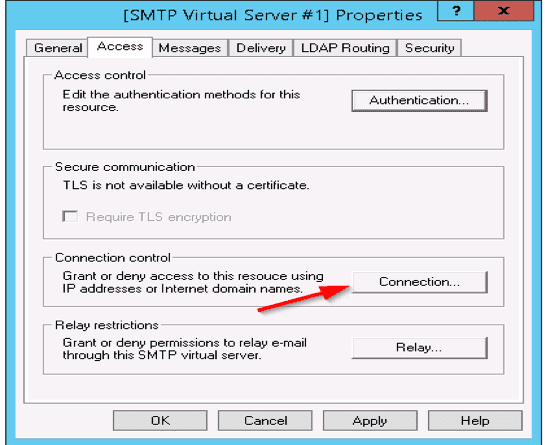
Select Connection as shown below

Office 365 WSUS integration

Select “Only the List” below, and then specify the IP addresses of the devices that will be connecting to the SMTP server, such as the WSUS server itself or a printer
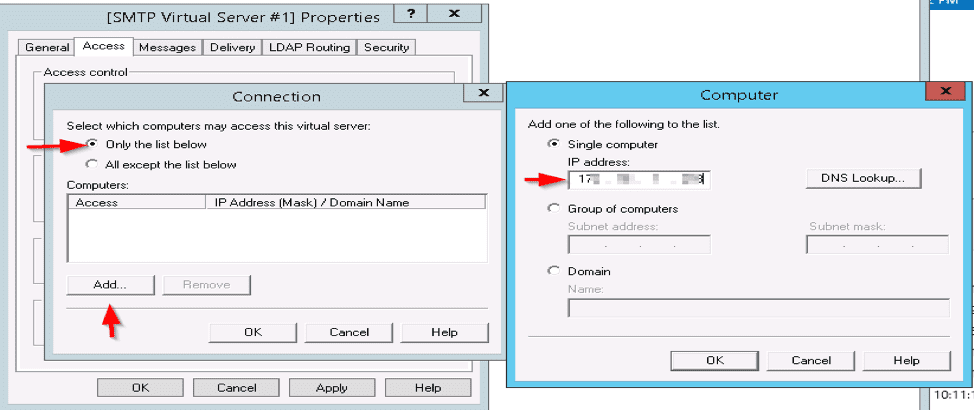
WSUS email configuration

Upon click ok, this will be granted to the Private IP address
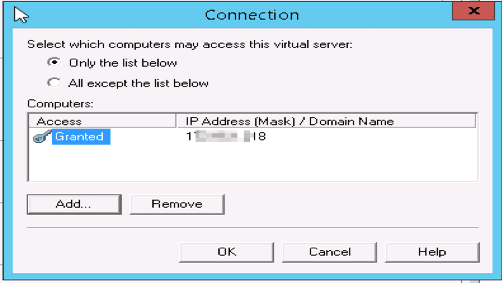
WSUS email setup

Select Relay > Only the List Below, and then specify the IP address of the devices relaying through this SMTP server
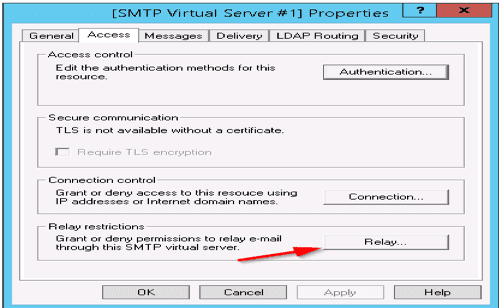
WSUS notification

While we’re here, click on “Relay” and check that the box labeled “Allow all computers which successfully authenticate to relay…” is ticked and also enter the Private IP Address here.
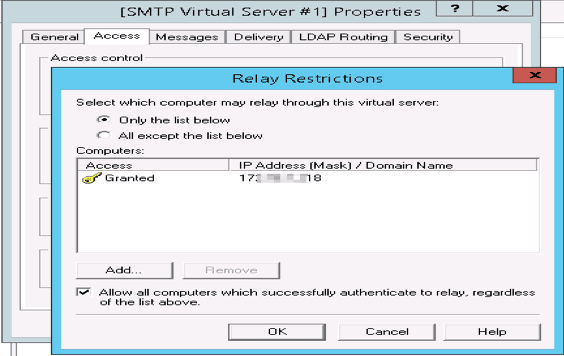
Office 365 WSUS integration

On the Delivery tab, select Outbound Security, and then do the following:
Select Basic Authentication.
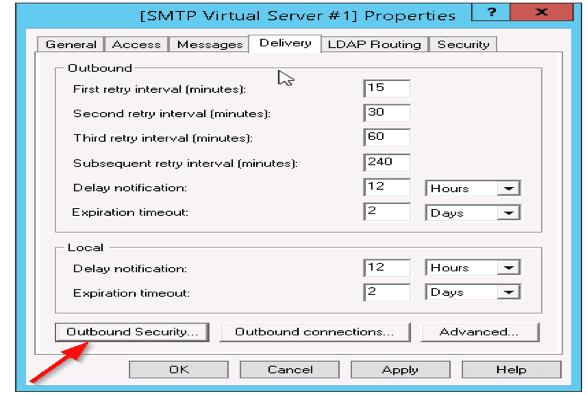
And select Anonymous access as shown below
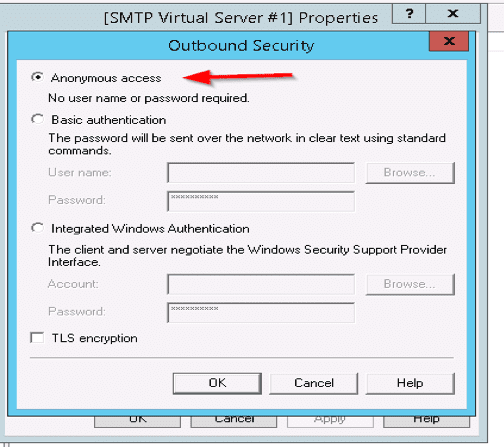
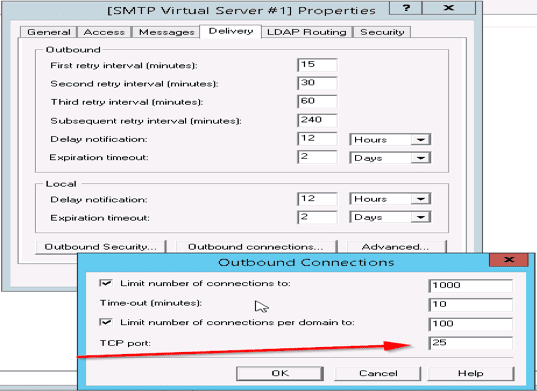
Select Outbound Connections, and in the TCP Port box, enter 25 and select OK.
Finally, Select Advanced and specify the SMTP server as smart host as the Smart Host.
Configure WSUS Email Notification: Admin Center Connection

Note: This is not smtp.office365.com. You can find this when you connect to the Office365 admin center

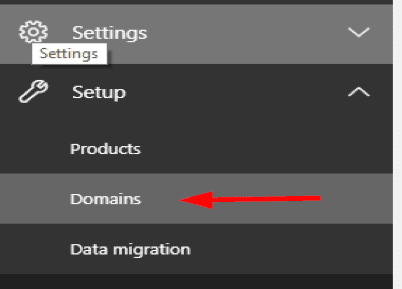
Go to settings on Office365 and select domain as shown below
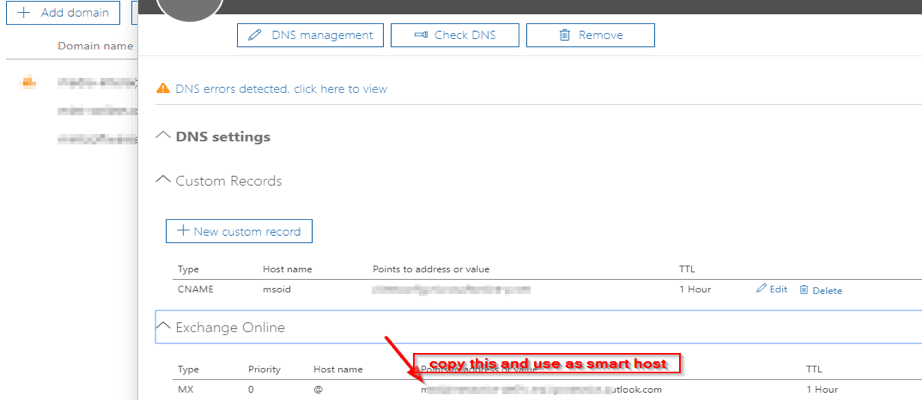
Note: Create a connector on Office365 using the EIP (Public IP Address of the SMTP server). This process is very simple. Now go back to the SMTP-Relay server,

Select Advanced and enter the FQDN and the MX record for your office365
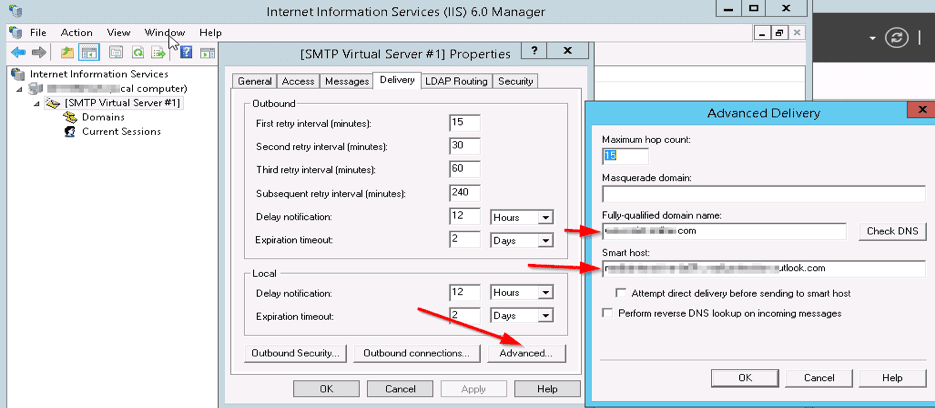
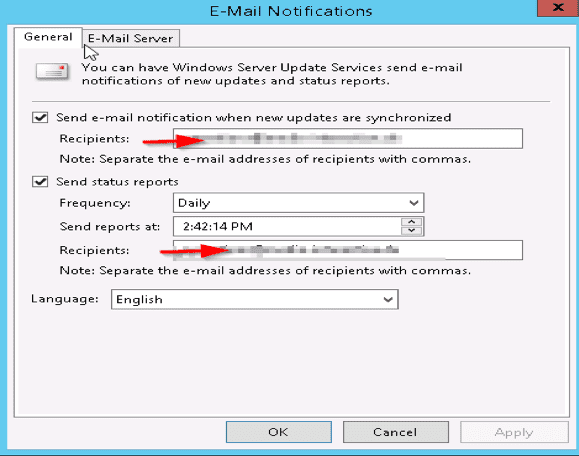
Now restart the IIS service and the SMTP service. Now go to the WSUS server (Enter your email here in order to get status report)
Test the configuration
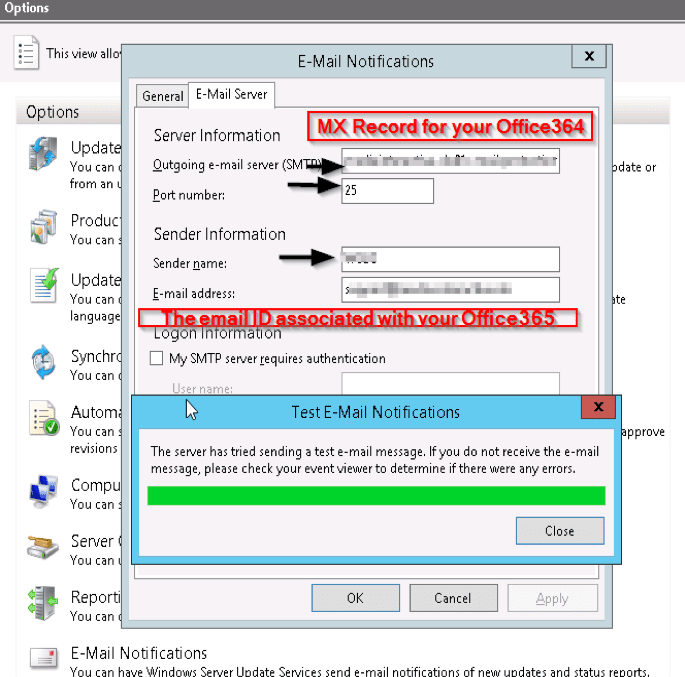
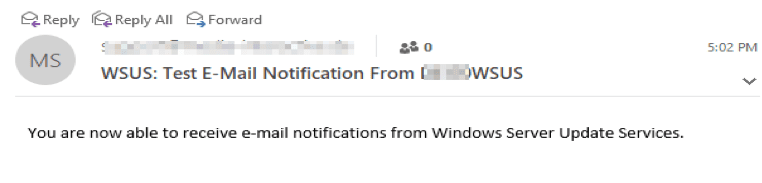
However, Now, you should get an email notification showing your smtp server-relay setup is working
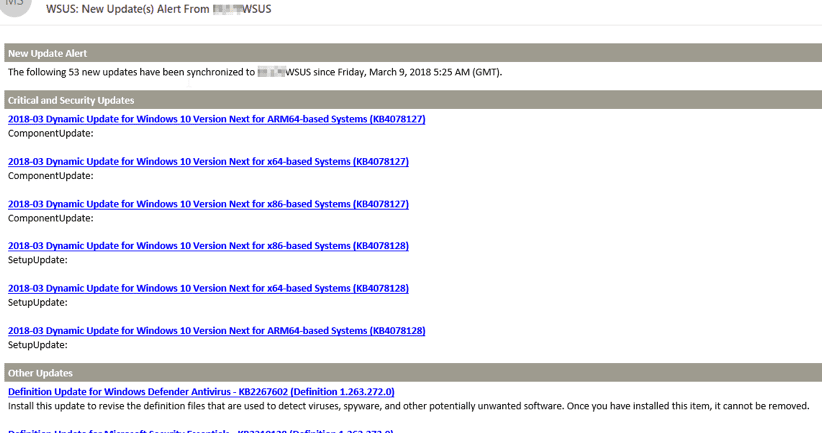
Subsequently, you should get emails from time t time showing updates status and windows updates available as shown below

I hope you found this blog post helpful. If you have any questions, please let me know in the comment session.
Rate this post

Thank you for reading this post. Kindly share it with others.

  • Share on X (Opens in new window) X
  • Share on Reddit (Opens in new window) Reddit
  • Share on LinkedIn (Opens in new window) LinkedIn
  • Share on Facebook (Opens in new window) Facebook
  • Share on Pinterest (Opens in new window) Pinterest
  • Share on Tumblr (Opens in new window) Tumblr
  • Share on Telegram (Opens in new window) Telegram
  • Share on WhatsApp (Opens in new window) WhatsApp
  • Share on Pocket (Opens in new window) Pocket
  • Share on Mastodon (Opens in new window) Mastodon
  • Share on Bluesky (Opens in new window) Bluesky
  • Share on Threads (Opens in new window) Threads
  • Share on Nextdoor (Opens in new window) Nextdoor
Windows Server Tags:email, Exchange Server, Microsoft Windows, office365, services, Windows Server 2016

Post navigation

Previous Post: Configure SSL connection for WSUS Upstream and Downstream Servers
Next Post: How to uninstall Applications with PowerShell Script

Related Posts

  • windows workstations inactivity
    Configure Windows Device Inactivity Limit Locally and Domain Wide Windows
  • PXE Boot Stuck or No Boot Image was found   Te bootloader did not find any operating system
    Fix PXE Boot Stuck or No Boot Image was found for HyperV VM Virtualization
  • article 1280x720.192a2586
    How to fix Scheduled task status prompts error 0x800710E0 Windows Server
  • logon failure and requested session denied
    Logon Failure: User has not been granted the requested logon type Windows
  • RDS Collection 1
    How to add and remove RDS Collection Windows
  • nonexistent AD
    Fix Active Directory Domain Controller (AD DS) for this domain could not be contacted Windows Server

More Related Articles

windows workstations inactivity Configure Windows Device Inactivity Limit Locally and Domain Wide Windows
PXE Boot Stuck or No Boot Image was found   Te bootloader did not find any operating system Fix PXE Boot Stuck or No Boot Image was found for HyperV VM Virtualization
article 1280x720.192a2586 How to fix Scheduled task status prompts error 0x800710E0 Windows Server
logon failure and requested session denied Logon Failure: User has not been granted the requested logon type Windows
RDS Collection 1 How to add and remove RDS Collection Windows
nonexistent AD Fix Active Directory Domain Controller (AD DS) for this domain could not be contacted Windows Server

Comments (2) on “Configure WSUS Email Notification for Office365”

  1. Avatar photo Adam Marshall says:
    07/07/2022 at 3:05 AM

    Why not just use direct send? MX Endpoint, port 25, no authentication, no SSL. Sending to a mailbox or distribution group or alias.

    Log in to Reply
    1. Avatar photo Christian says:
      07/07/2022 at 11:15 AM

      Thank you, Adam! I haven’t used O365 Direct Send. I will check this out…

      Log in to Reply

Leave a Reply Cancel reply

You must be logged in to post a comment.

Microsoft MVP

VEEAMLEGEND

vexpert-badge-stars-5

Virtual Background

GoogleNews

Categories

veeaam100

sysadmin top30a

  • TPM 1
    How to fix unable to find compatible TPM Windows
  • Featured image 4
    Focus on Tasks: Limit Distraction & Get Things Done on Windows Windows
  • image 166
    How to deploy a .NET application to AWS Elastic Beanstalk using AWS Tool Kit AWS/Azure/OpenShift
  • Feature image
    How to search Group Policy for a specific Setting in Windows 10 and 11 Windows
  • Screenshot 2020 05 19 at 02.57.10
    Create Central Store for Group Policy Administrative Templates Windows Server
  • Commvault Docker Images
    Pull and Push Commvault Images to Azure Container Registry AWS/Azure/OpenShift
  • S3 Bucket Public Access 1
    How to grant public access to S3 Bucket using Policy AWS/Azure/OpenShift
  • Prevent Windows from Saving RDP Connection
    Prevent Windows from Saving RDP Connection History Windows

Subscribe to Blog via Email

Enter your email address to subscribe to this blog and receive notifications of new posts by email.

Join 1,836 other subscribers
  • RSS - Posts
  • RSS - Comments
  • About
  • Authors
  • Write for us
  • Advertise with us
  • General Terms and Conditions
  • Privacy policy
  • Feedly
  • Telegram
  • Youtube
  • Facebook
  • Instagram
  • LinkedIn
  • Tumblr
  • Pinterest
  • Twitter
  • mastodon

Tags

Active Directory AWS Azure Bitlocker Microsoft Windows PowerShell WDS Windows 10 Windows 11 Windows Server 2016

Copyright © 2025 TechDirectArchive


Loading Comments...
 

You must be logged in to post a comment.