Create a certificate template for BitLocker Network Unlock


The certificate template defines the policies and rules that a CA uses when a request for a certificate is received. A certificate template adds some versatility to your PKI environment and helps reduce overhead. When creating your own template, you have multiple options that will guide the CA on how to handle incoming requests and these templates can be viewed using the Certificate Templates snap-in. In this article, I will show you how to Create a certificate template for BitLocker Network Unlock. See this guide on how to install and configure AD Certificate Services. Also see the following interesting how-to articles on how to import a certificate into the Trusted Root and Personal file certificate store, and how to request a certificate signing request in Windows using Microsoft Management Console.
Also, see how to export a certificate in PFX format in Windows, how to Force BitLocker Recovery mode: How to unlock BitLocker Protected Drive, How to unlock a fixed drive protected by BitLocker via the Control Panel or Command Prompt in Windows, and how to Generate a self-signed SSL certificate: How to enable LDAP over SSL with a self-signed certificate.
Why you need to deploy a digital Certificate
In order to get rid of the annoying warnings when you open some pages on the internet. You will have to deploy a digitally signed certificate on the web server. Without it, you are required to acknowledge the risk of connecting to the site. To mitigate this, I will be setting up Active Directory Certificate Services to help issue and sign certificates.
Now you will agree with me that certificates are a powerful tool for proving one’s identity online. The owner of a certificate can digitally sign data, and a verifier can use the public key from the certificate to verify it. A properly configured Active Directory Certificate Services (Certification Authority) can use the certificate template to create and issue certificates.
Launch the Certificate Template Console
There are different ways to launch the Certificate Template Console and I will be showing the two of them. The first is via the Server Manager and the second is through the certificate template snap-in (certtmpl.msc).
1: Via the Server Manager: Click on Tools and select Certification Authority as shown below
This will open up the certification Authority window as shown below. Right-click on “Certificate Template” and
– Click on Manage, this will open up the Certificate Template Console

2: Via the Snap-in console (certtmpl.msc): In this method, you will have to type in the “certtmpl.msc” in the Windows Search button or from the run dialog box. To fire up this console from the run dialog box. Search for run and type “certtmpl.msc” as shown below


Regardless of the method you chose to use, it will open up the Certificate Template Console as you can see below.

Use-case: Certificate template for BitLocker Network Unlock
Now I will be creating a certificate template for BitLocker Network Unlock. For more on this topic, see the following guide “How to configure Bitlocker Network Unlock“, and how Bitlocker Network Unlock works.
To do this, locate the user template. Right-click the template name, and select Duplicate Template.

This will open up the Properties of the new template. On the Compatibility tab, change the Certification Authority and Certificate recipient fields to Windows Server 2016 and Windows 10/Windows Server 2016, respectively.
Note: Ensure all resulting changes are selected by pressing ok. 


Publish certificate in Active Directory
Select the General tab of the template. The Template display name and Template name should clearly identify that the template will be used for Network Unlock.
Clear the check box for Publish certificate in Active Directory.

Select the Request Handling tab. In the Purpose drop-down menu, select Encryption and click on YES to accept the change to certificate purpose.
Ensure the Allow private key to be exported option is selected.

Set the cryptographic Key Size
Select the Cryptography tab. Set the Minimum key size to 2048. (For this template, you can use any Microsoft cryptographic provider that supports RSA. But for simplicity and forward compatibility, we recommend using Microsoft Software Key Storage Provider).
Select Requests must use one of the following providers. If you have multiple providers, please clear all options except for your selected cryptography provider, such as the Microsoft Software Key Storage Provider.

Select the Subject Name tab. Select Supply in the request. On the certificate templates dialog box prompt, select OK.


Select the Issuance Requirements tab. Then select both CA certificate manager approval and Valid existing certificate.

Select the Extensions tab. Then select Application Policies and click on Edit.
In the Edit Application Policies Extension dialog box, select Client Authentication, Encrypting File System, and Secure Email. Then choose Remove.

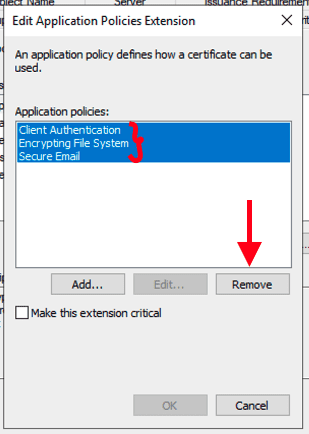
In the same Edit Application Policies Extension dialog box as above. Click on Add.

In the Add Application Policy dialog box, select New.
In the New Application Policy dialog box, enter the following information in the space provided, and then select OK to create the BitLocker Network Unlock application policy.
- Name: BitLocker Network Unlock
- Object Identifier: 1.3.6.1.4.1.311.67.1.1

Select the newly created BitLocker Network Unlock application policy, and then select OK as shown below.

Click on ok again to close this window below

With the Extensions tab still open, select Edit Key Usage Extension, and then ensure the “Allow key exchange only with key encryption (key encipherment)” is selected.
Then select Make this extension critical.

Grant the Enrol Permission
Select the Security tab. Confirm that the Domain Admins group has been granted “Enroll Permission”.

Select OK to complete the configuration of the template. We now have a template configured for BitLocker Network Unlock as shown below.

Publish the Created Certificate Template
Let’s publish the created template and make it available on the CA. To add the Network Unlock template to the certificate authority, open the certificate authority snap-in (certsrv.msc).
Right-click Certificate Templates, and choose New, Certificate Template to Issue.

Now select the created BitLocker Network Unlock certificate and click on OK.

As you can see, the template is now available in the certificate authority as shown below.

I hope you found this blog post helpful on how to create a certificate template for BitLocker Network Unlock. If you have any questions, please let me know in the comment session.


This is a great article about BitLocker Network Unlock. Would this template also work for creating a certificate template for smart card BitLocker in general (local drives, not network unlock)? If not, it would be nice if you could cover that.
Hello Mike,
Firstly, thank you very much for your kind words. We have not tested this yet! We will create a ticket out of this request to test this.
Well I think I found my issue from your other network unlock article. I need to upgrade the CA. I can only go as far as Server 2012 with Windows 8.1. These are not valid for our network environment. Thanks!
You are welcome!