Skip to content

TechDirectArchive

Hands-on IT, Cloud, Security & DevOps Insights

  • Home
  • About
  • Advertise With US
  • Reviews
  • Contact
  • Toggle search form
Home » Windows » Create and access a hidden share folder on Windows
  • Featured image Win1022H2
    How to get the Windows 10 Version 22H2 Update Windows
  • speedtest
    How to set up a self-hosted speed test server on Ubuntu Linux Linux
  • cockpit
    Installation and configuration of Cockpit on CentOS Linux Linux
  • Featured image Audioissue
    How to Fix Audio Services Not Responding on Windows 10 and 11 Windows
  • Exchange Admin Centre   EMC
    How to grant Access to User Mailbox Network | Monitoring
  • screenshot 2020 02 08 at 15.53.31
    Enable Automatic Logon on Windows Windows Server
  • Featured image Clearing cache
    How to clear cache in Windows 11 Windows
  • apply and install Veeam NFR Licence
    How to apply and install Veeam NFR License Backup

Create and access a hidden share folder on Windows

Posted on 11/03/202107/08/2024 Christian By Christian No Comments on Create and access a hidden share folder on Windows
adm

Administrative shares are also referred to as “hidden shares”. The hidden shares on a Windows PC have a name that ends with a dollar sign ($). These are shares available on the network share that is not visible when viewing another PC’s shares but are still accessible when the share name (hidden share) is known. See this troubleshooting guide for more information “Error Code: 0x80070035: MDT unable to access the Log share, the Network Path was not found“. In this article, I will be showing you how to Create and access a hidden share folder on Windows. Also, see Hide or Remove Search Button from Windows 10 Taskbar, and how to hide the Windows 10 Taskbar.

Windows includes some Administrative shares, such as PRINT$, FAX$, C$, IPC$, and ADMIN$. Here are some similar errors “You require permission from the trusted installer: How to delete or rename files protected by Trusted Installer”, Error 740: Elevated permissions are required to run DISM.

Administrative shares are beneficial when you wish to hide resources (directories) from users without completely denying them access will ACLs. My use case here is, I will be created a hidden directory for the Windows deployment log.

This is needed to store entries when devices are deployed via MDT. You may want to see the following comprehensive guide on “how to deploy Windows using ADK, MDT, and WDS“.

Create an Administrative Share

Part 1: To create a hidden share, kindly follow the steps below. First, we will need to create a new folder. You do not need to create a new folder if you already have one.

All you need to do is launch File Explorer and navigate to the folder you want to share. Please follow the steps discussed in step 3 below after the creation of a new folder.

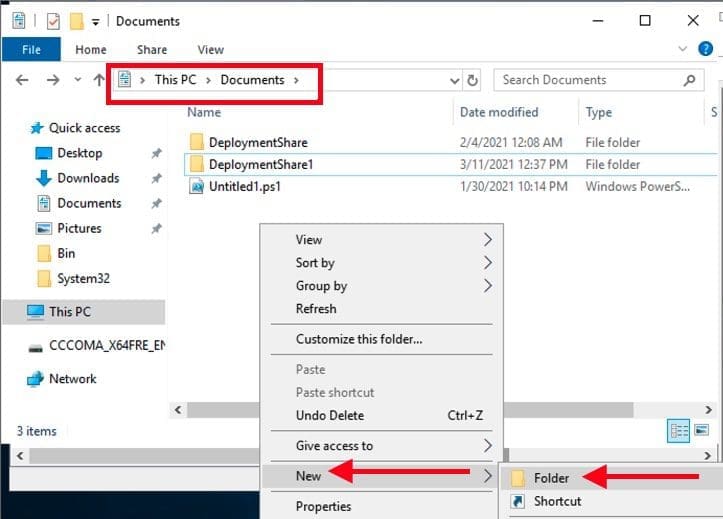
Part 2: I assumed here that you do not have a folder already, I will be working you through the steps to create a new folder now. Open File Explorer and navigate to the folder you wish to have your share created in as shown below

Right-click on the folder and select New
folder1

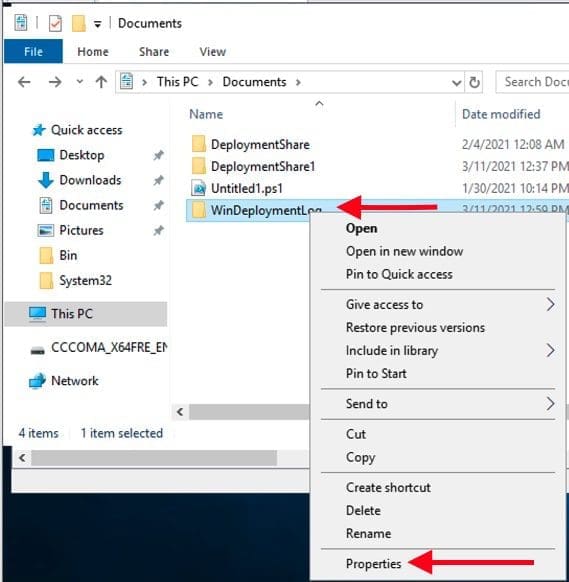
Part 2: Right-click the newly created folder, or an existing folder and select the Properties option.
Permissions

Also, see “Folder Access Denied: You require permission from SYSTEM: Unable to delete old windows folder“.

Enable Folder Sharing

This will open a Folder properties windows you just created. Click on the Sharing tab, and click on Advanced Sharing

sh1

Please see How to hide Folders and Files from Search Results in Windows, Implemented MBAM? Here is how to hide the Default BitLocker Drive Encryption item in the Windows Control Panel. Also, see how to Compact Virtual Hard Disks, and how to Prevent Windows from Saving RDP Connection History.

Enter the Share Name and Share the Folder

On the advanced Sharing Window, click on “Share this Folder”. Under the “Settings” section, type a name share name, and add the “$” character at the end to make the folder hidden.

Note: You do not need to add spaces within the share name. Click on Apply.

Screenshot-2021-03-11-at-13.22.47

Add the Desired Permission

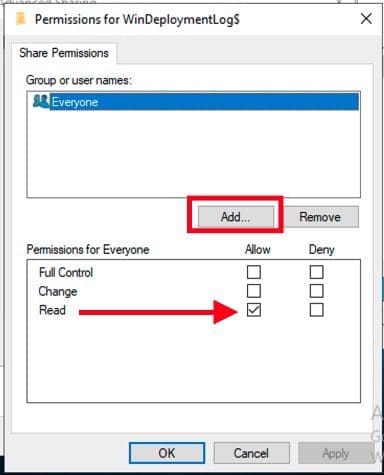
Optional: Also Click on Permission if you wish to add more users with full administrative rights. To do this, click on the Add button below and select the right permission for the person or groups afterwards.
Permission

You will be prompted to select the users or groups as shown below. Enter the name and click on Check name. Click on Ok afterwards.

Screenshot-2021-03-11-at-13.32.55
Screenshot 2021 03 11 at 13.32.55
Screenshot-2021-03-11-at-13.33.07
Screenshot 2021 03 11 at 13.33.07

Now, assign the desired permissions as shown below. This should depend on your company policy for the user or group.

Screenshot-2021-03-11-at-13.37.17

On the Advanced Sharing Window, click on OK to have it closed. You will be left with the window below. Click on close. When you are done creating the administrative share.

Screenshot-2021-03-11-at-13.39.38

The shared folder will be invisible henceforth using File Explorer on any device. However, it’ll still be accessible using the folder path\\TECHDARCHIVEDC\winDeploymentlog$.

Screenshot-2021-03-11-at-13.47.57
Screenshot 2021 03 11 at 13.47.57
Screenshot-2021-03-11-at-13.48.17
Screenshot 2021 03 11 at 13.48.17

Kindly refer to the following guides for more information on WDS and MDT. How to setup and install WDS role, how to configure DHCP Server option 60, 66, and 67 for WDS, how to remove Windows Deployment Services role via the GUI and PowerShell, how to add boot and install images to WDS and configure Multicast transmission via the GUI/WDSUTIL, and how to deploy images to computers or virtual machines using WDS.

Set the Advanced (special Permission)

This step is Optional: For Advanced (special Permission), you will have to click on the Security tab and navigate to.

Screenshot-2021-03-11-at-13.49.25

This will open the Advanced Security for the folder you created.

Screenshot-2021-03-11-at-13.51.07

To see all the available shares on this server, launch the Computer Management Tool as shown below and navigate to the shared folder.

Screenshot-2021-03-12-at-23.46.06-1

I hope you found this blog post helpful on how to Create and access a hidden share folder on Windows. If you have any questions, please let me know in the comment session.

5/5 - (1 vote)

Thank you for reading this post. Kindly share it with others.

  • Click to share on X (Opens in new window) X
  • Click to share on Reddit (Opens in new window) Reddit
  • Click to share on LinkedIn (Opens in new window) LinkedIn
  • Click to share on Facebook (Opens in new window) Facebook
  • Click to share on Pinterest (Opens in new window) Pinterest
  • Click to share on Tumblr (Opens in new window) Tumblr
  • Click to share on Telegram (Opens in new window) Telegram
  • Click to share on WhatsApp (Opens in new window) WhatsApp
  • Click to share on Pocket (Opens in new window) Pocket
  • Click to share on Mastodon (Opens in new window) Mastodon
  • Click to share on Bluesky (Opens in new window) Bluesky
  • Click to share on Threads (Opens in new window) Threads
  • Click to share on Nextdoor (Opens in new window) Nextdoor
Windows Tags:deployment, Microsoft Deployment Toolkit (MDT), WDS, Windows 10, Windows 11, Windows Server 2016

Post navigation

Previous Post: Failure 5456: Unable to determine destination disk, partition, and/or drive, see BDD Log
Next Post: Error Code: 0x80070035: MDT unable to access the Log share, the Network Path was not found

Related Posts

  • ghm
    Single App Kiosk Mode Configuration using MDM Bridge WMI Provider Windows
  • asdfgh
    Install RSAT on Windows via Windows features Windows
  • Synergy software kvm
    Why Software KVMs such as Synergy is replacing Hardware KVMs Linux
  • Assigned Access
    Single App Kiosk Mode: Assigned Access using Local Settings Windows
  • Wordpress
    How to Install and Configure WordPress on Your Windows Computer Using WAMP SERVER Web Server
  • PrintButton
    How to add Print Drivers with PowerShell, RUNDLL32, and VBScript in Windows 10 Windows

More Related Articles

ghm Single App Kiosk Mode Configuration using MDM Bridge WMI Provider Windows
asdfgh Install RSAT on Windows via Windows features Windows
Synergy software kvm Why Software KVMs such as Synergy is replacing Hardware KVMs Linux
Assigned Access Single App Kiosk Mode: Assigned Access using Local Settings Windows
Wordpress How to Install and Configure WordPress on Your Windows Computer Using WAMP SERVER Web Server
PrintButton How to add Print Drivers with PowerShell, RUNDLL32, and VBScript in Windows 10 Windows

Leave a Reply Cancel reply

You must be logged in to post a comment.

Microsoft MVP

VEEAMLEGEND

vexpert-badge-stars-5

Virtual Background

GoogleNews

Categories

veeaam100

sysadmin top30a

  • Featured image Win1022H2
    How to get the Windows 10 Version 22H2 Update Windows
  • speedtest
    How to set up a self-hosted speed test server on Ubuntu Linux Linux
  • cockpit
    Installation and configuration of Cockpit on CentOS Linux Linux
  • Featured image Audioissue
    How to Fix Audio Services Not Responding on Windows 10 and 11 Windows
  • Exchange Admin Centre   EMC
    How to grant Access to User Mailbox Network | Monitoring
  • screenshot 2020 02 08 at 15.53.31
    Enable Automatic Logon on Windows Windows Server
  • Featured image Clearing cache
    How to clear cache in Windows 11 Windows
  • apply and install Veeam NFR Licence
    How to apply and install Veeam NFR License Backup

Subscribe to Blog via Email

Enter your email address to subscribe to this blog and receive notifications of new posts by email.

Join 1,839 other subscribers
  • RSS - Posts
  • RSS - Comments
  • About
  • Authors
  • Write for us
  • Advertise with us
  • General Terms and Conditions
  • Privacy policy
  • Feedly
  • Telegram
  • Youtube
  • Facebook
  • Instagram
  • LinkedIn
  • Tumblr
  • Pinterest
  • Twitter
  • mastodon

Tags

AWS Azure Bitlocker Microsoft Windows PowerShell WDS Windows 10 Windows 11 Windows Deployment Services Windows Server 2016

Copyright © 2025 TechDirectArchive


Loading Comments...
 

You must be logged in to post a comment.