Automate Infrastructure Deployments in the Cloud with Ansible and Azure Pipelines


Ansible is an open-source product that automates cloud provisioning, configuration management, and application deployments. When using Ansible you can easily provision virtual machines, containers, and networks and complete cloud infrastructures. Also, Ansible allows you to automate the deployment and configuration of resources in your environment. In this article, you will learn how to Automate Deployments in the Cloud with Ansible & Azure Pipelines. Please see Concept of Ansible on Windows using Cygwin, Concept of Ansible on Windows using Cygwin, How To Use Azure Key Vault secrets in Azure Pipelines, and how to fix “Ansible error: Server unreachable, ssl: auth method ssl requires a password“.
Ansible includes a suite of Ansible modules that can be executed directly on remote hosts or via playbooks. Users can also create their own modules. Modules can be used to control system resources – such as services, packages, files or execute system commands.
In this article, you will be learning how Ansible can be used to implement Infrastructure as Code (IaC), and how to automate infrastructure deployments in the Cloud with Ansible and Azure pipelines.
Also refer to some of the related guides: How to install Ansible on Windows with Cygwin, how to install and configure Ansible on Ubuntu, how to configure a remote server (windows) to Support Ansible, and how to install Kerberos packages in Windows via Cygwin.
Prerequisites to Setting up the Ansible and Azure Pipelines
To get started, you will need a valid and active Azure account. If you do not have one, you can sign up here.
- You will need an Azure DevOps account. If you do not have one, you can sign up here.
- You can as well use the Azure DevOps Demo Generator to provision the project on your Azure DevOps organization. This URL will automatically select the Ansible template in the demo generator.
Create an Azure service principal with Azure CLI
Ansible includes a suite of modules for interacting with Azure Resource Manager, giving you the tools to easily create and orchestrate infrastructure on the Microsoft Azure Cloud. Using the Azure Resource Manager modules requires authenticating with the Azure API. In this lab, you will use Azure service principal for authentication.
- Login to the Azure portal
- Click Cloud Shell and select Bash.
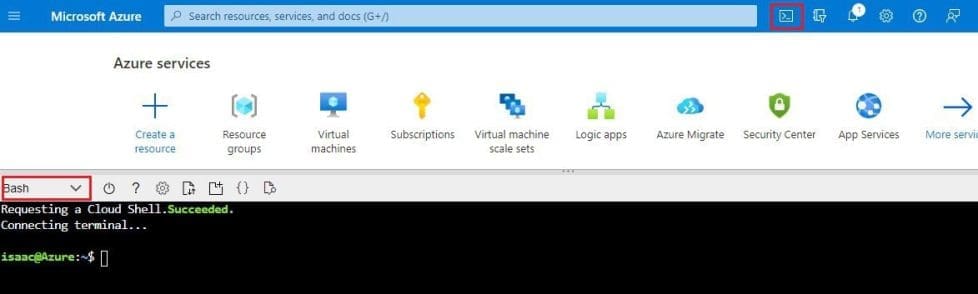
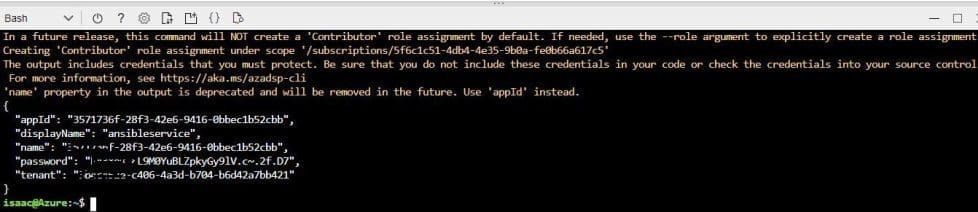
Enter the following command by replacing ServicePrincipalName with your desired value.
az ad sp create-for-rbac --name ServicePrincipalNameIt will give you a JSON output as shown in the image. Copy the output to notepad. This details required in your next tasks.
Enter the following command to get Azure SubscriptionID and copy the same to notepad.
az account show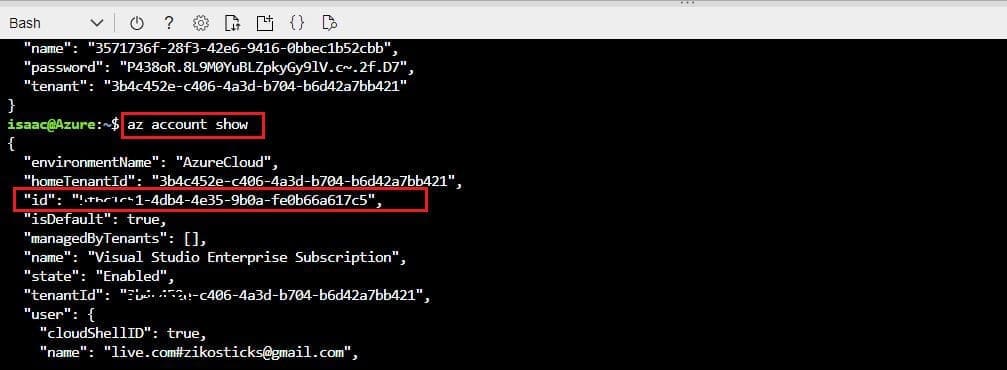
Please see Using Awx to deploy, schedule and run playbooks, How to sync on-premises AD with Azure AD via Azure AD Connect, and How to deploy MBAM for Bitlocker Administration.
Configure Ansible on a Linux machine
To create and provision the resources in Azure with Ansible, we need to have a Linux VM with Ansible configured. In this article, you will deploy an Azure Linux VM which is pre-installed and configured with Ansible. Click here to Deploy to Azure an Ubuntu 18.04 VM with Ansible.
Provide all the necessary information as is shown o the image below. this takes approximately 5-10 minutes to complete the deployment.
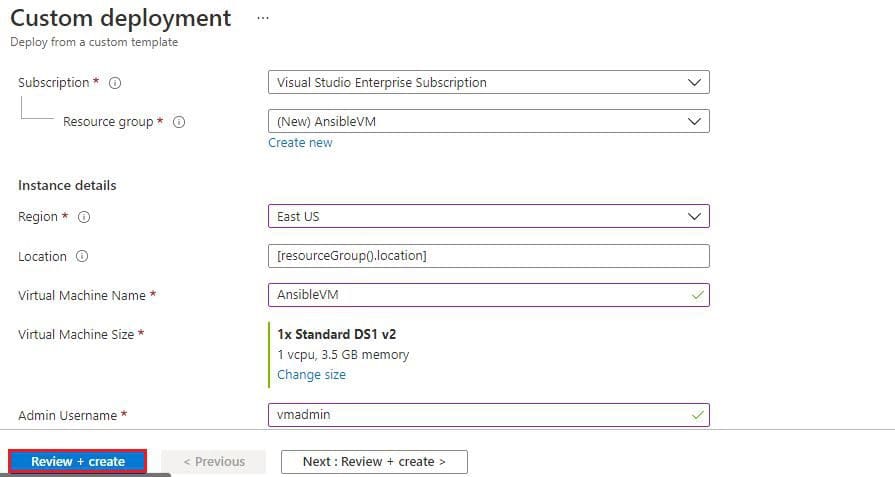
Once the deployment is successful, navigate to the resource group and select the VM.

Connect to the VM via SSH
Click Connect and copy the login command under the SSH tab.
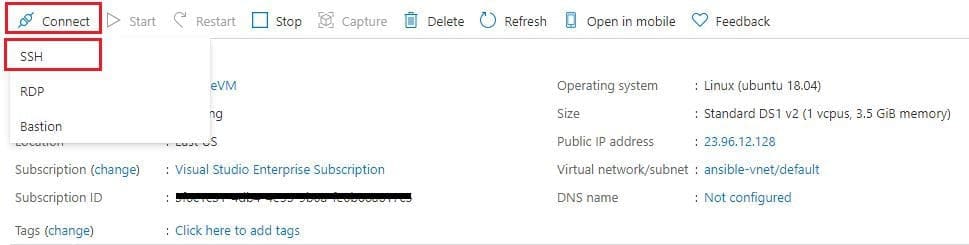
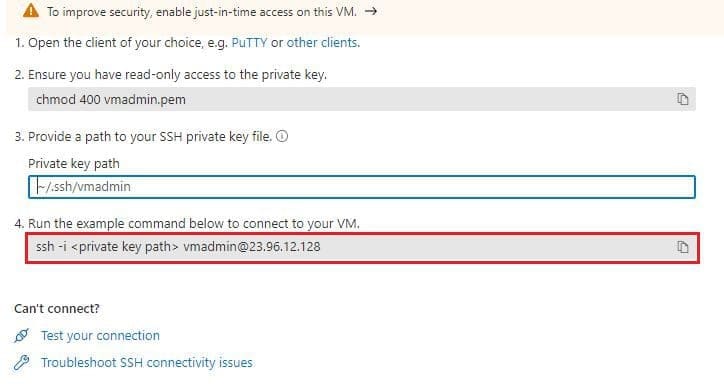
Open a Command prompt and paste the copied login command and log in. It will prompt for confirmation to connect, type Yes and provide the Password you have given in step 1.
ssh vmadmin@23.96.12.128
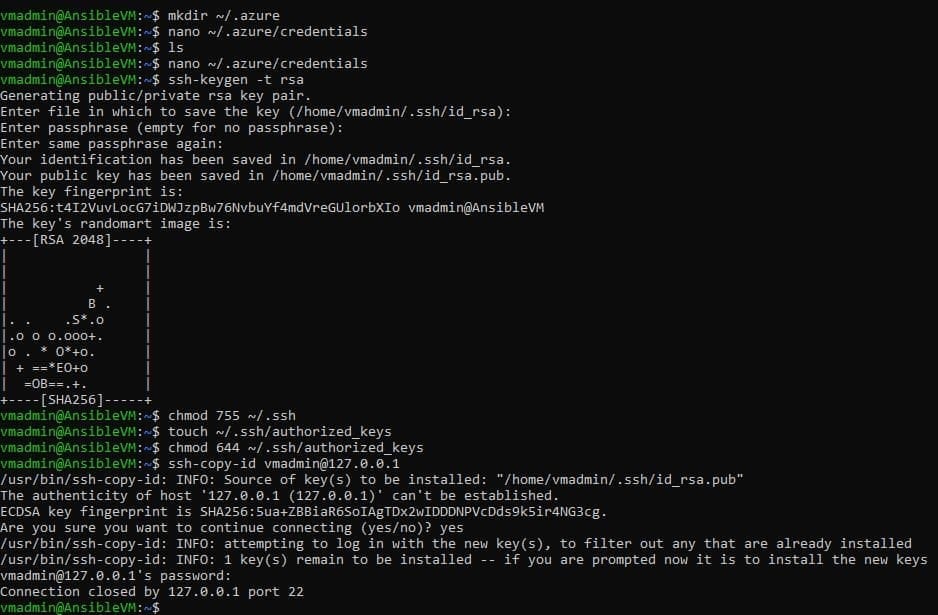
Now we must create a directory named .azure in the home directory and a credentials file under it. Type the following commands to create them.
- mkdir ~/.azure
- nano ~/.azure/credentials
Insert the following lines into the credentials file. Replace the placeholders with the information from the service principal details you copied in the previous task. Press Ctrl+O to save the file and Ctrl+X to exit from the text editor.
subscription_id=<your-Azure-subscription_id>

client_id=<azure service-principal-appid>

secret=<azure service-principal-password>

tenant=<azure serviceprincipal-tenant>
Create a pair of private and public keys
Ansible is an agentless architecture-based automation tool . Only it needs ssh authentication using Ansible Control Machine private/public key pair. Now let us create a pair of private and public keys. Run the following command to generate a private/public key pair for ssh and to install the public key in the local machine.
ssh-keygen -t rsa

chmod 755 ~/.ssh

touch ~/.ssh/authorized_keys

chmod 644 ~/.ssh/authorized_keys

ssh-copy-id vmadmin@127.0.0.1
Note: Replace vmadmin with your VM username in the above command.
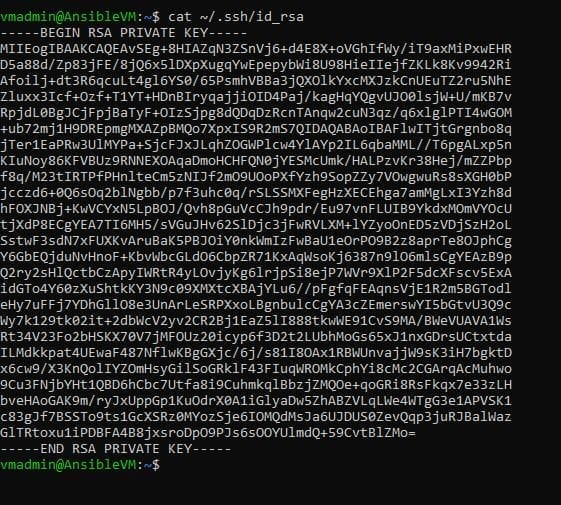
cat ~/.ssh/id_rsaIn the next task, you need SSH private key to create SSH endpoint in the Azure DevOps service. Run the following command to get the private key. Copy the private key to Notepad.
Create a SSH Service Connection in Azure DevOps
To connect and run playbooks through Ansible VM in Azure pipelines, we need to have a connection between Azure DevOps and Ansible VM. This service connection provides authentication to Ansible.
- Navigate to the project we created above using Azure DevOps Demo Generator.
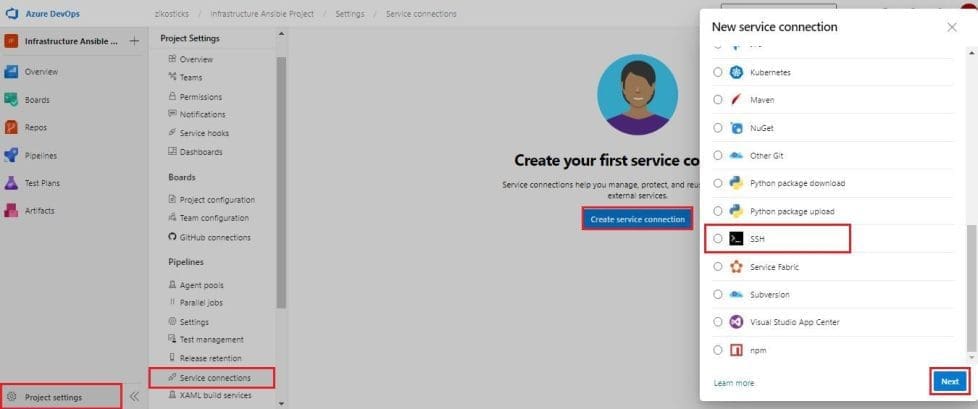
- Navigate to Project Settings –> Service Connections. Select +New service connection and select SSH
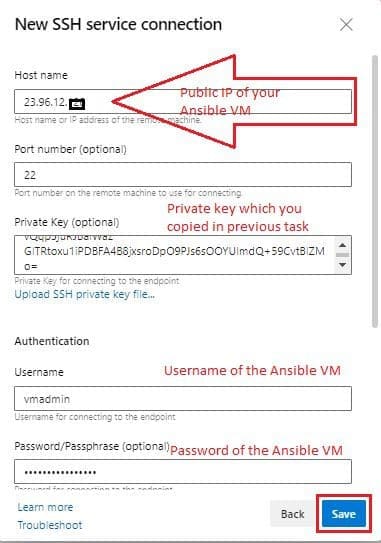
In Add an SSH service connection window provide the required details and click OK to save the connection.
Use Case 1: Examine the Ansible playbook (IaC) in your Source code
We will use SmartHotel360-CouponManagement, a sample Java application backed by a MySQL database. We will examine the Ansible playbook which helps you to provision the Azure resources required to deploy SmartHotel java application.
- Navigate to your project. Select Repos.
- Select the webapp.yml file under the ansible-scripts folder. Go through the code.

What is a webapp.yml file?
webapp.yml is an Ansible playbook file written in YAML format. Ansible Playbooks are Ansible’s configuration, deployment, and orchestration language. They can describe a policy you want your remote systems to enforce or a set of steps in a general IT process. These playbooks use the YAML file format to define a model of a configuration or a process.
Ansible includes a suite of modules for interacting with Azure Resource Manager, giving you the tools to easily create and orchestrate infrastructure on the Microsoft Azure Cloud.
In this article, we want to deploy an Azure Resource Group, App service plan, App Service, and MySQL database required to deploy the website.
And we have added a playbook file (Infrastructure as Code) to the source control repository in your Azure DevOps project which can deploy the required Azure resources.
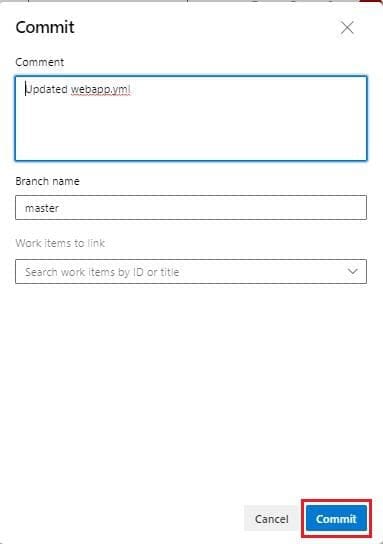
Update the playbook webapp.yml as the following. On line no_23 change the name of the App service from Linux to Windows as the following image

Then commit
Also, on the line no_66 change the EndIpAddress from 255.255.255.255 to 0.0.0.0 as the following image

Use Case 2: Build your application using Azure CI Pipeline
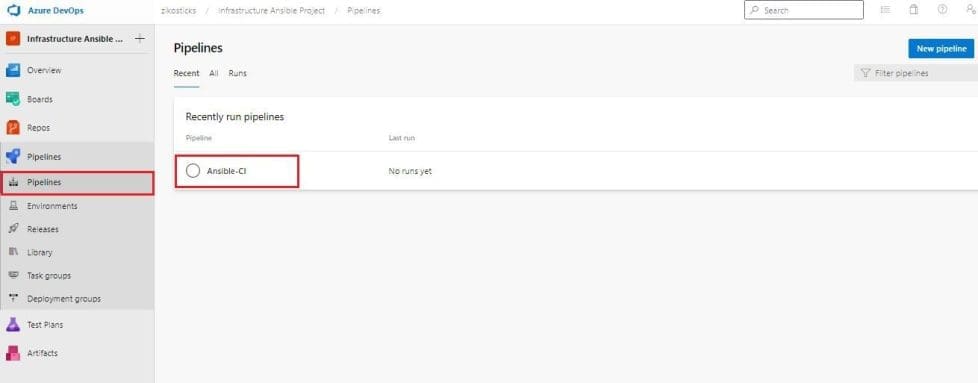
Let’s build an application and publish the required files to an artifact called Drop. Navigate to Pipeline > Builds. Select Ansible-CI and click Edit.
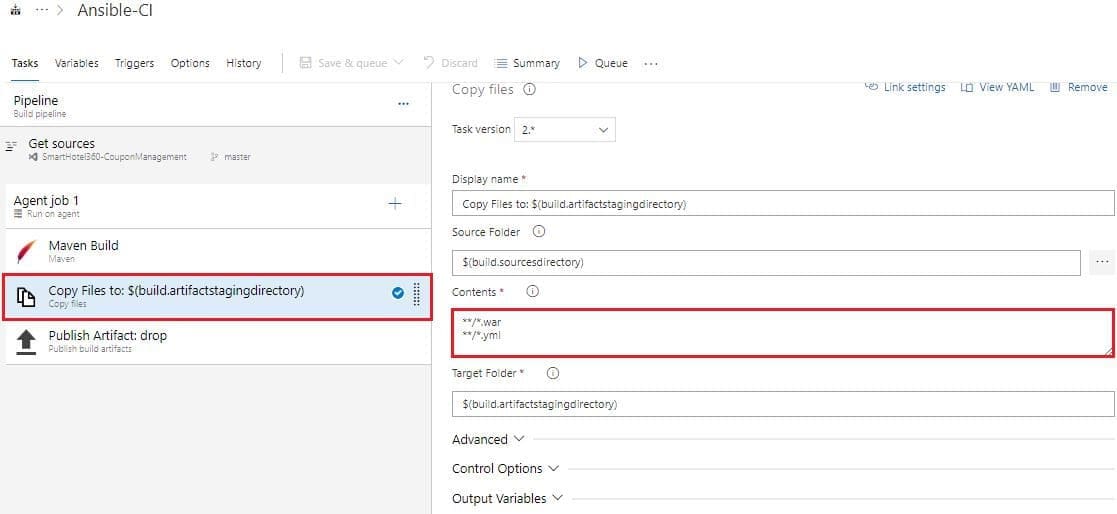
Your build pipeline will look like as below. This CI pipeline has tasks to compile Java project. The Maven in the pipeline will restore dependencies, build, test and publish the build output into a war file (package) which can be deployed to a web application.

In addition to the application build, we need to publish Ansible scripts so that it will be available in CD pipeline. So, we configured Copy files task to copy Ansible playbook .yml and the java web package .war file to Artifacts directory.
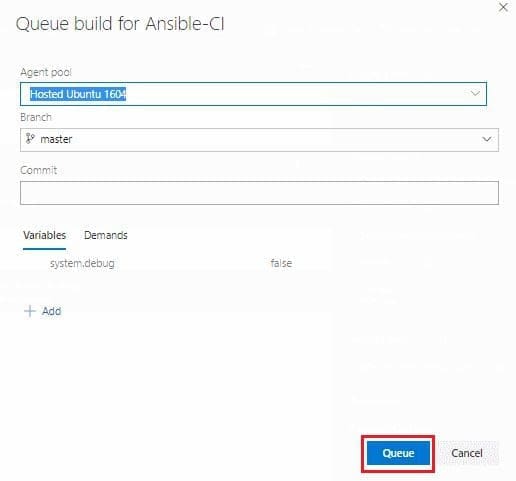
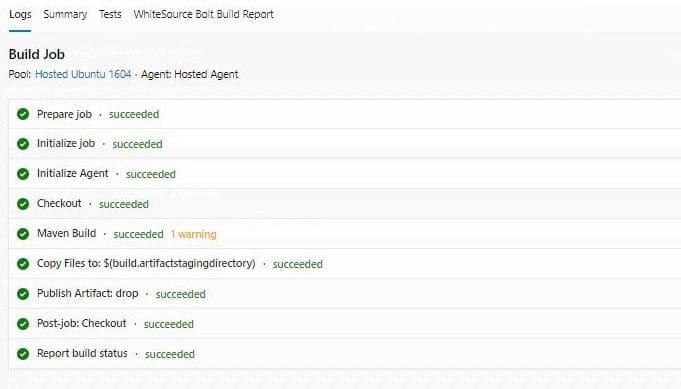
Now click Queue at the top to trigger the build. Once the build success, verify that the artifacts have ansible_scripts folder and ROOT.war file in the drop.
Use Case 3: Deploy resources using Ansible in Azure CD Pipeline
We will create azure resources using Ansible as part of our deployment (CD) pipeline and deploy the SmartHotel Coupon management application to the App service provisioned by Ansible.
Navigate to your Pipeline > Releases. Select Ansible-CD and click Edit pipeline.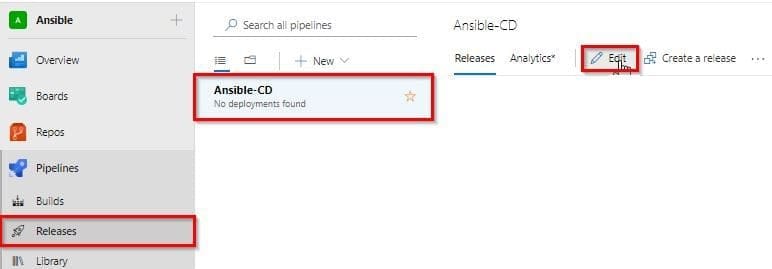
Then select Azure Dev stage and click View stage tasks to view the pipeline tasks.

Then you will see the tasks as below.
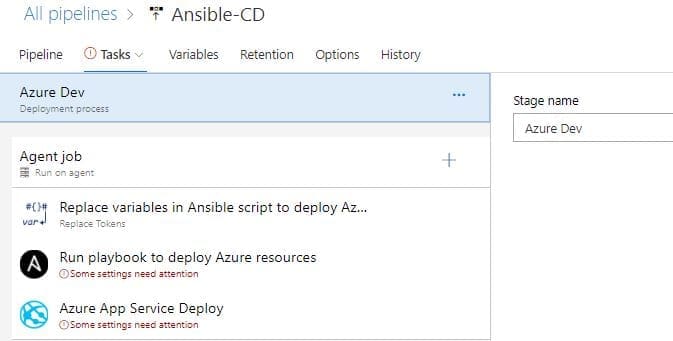
Select the Replace Tokens task.

If you observe the webapp.yml file in Use Case 1, Step 2 you will see there are few values are suffixed and prefixed with __. For example __ webappName __. Using Replace tokens task we will replace those values with the variable values defined in the release pipeline.
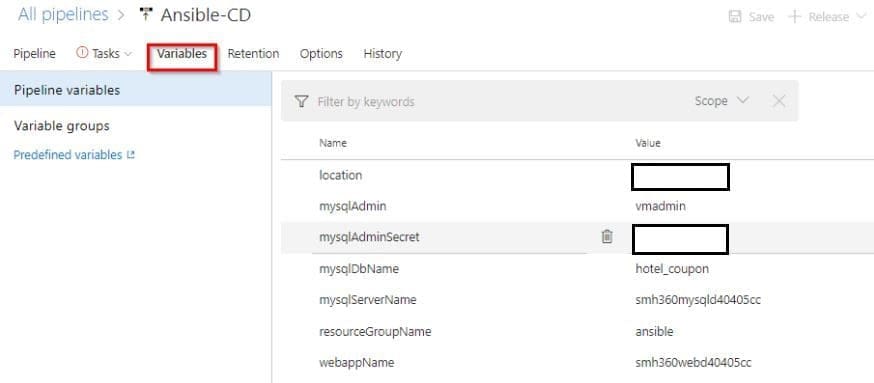
Your CD pipeline is provisioned with some default values. If required you can change the variable values.
Deploy Azure Resources via the Playbook
Select the Ansible task. We have to integrate with Ansible. This task executes a given Ansible playbook on a specified list of Inventory nodes via the command line interface.
This task requires that the Playbook files be located either on a private Linux agent or on a remote machine where the Ansible automation engine has been installed. Select Ansible Location as Remote Machine and select Ansible SSH endpoint that you created earlier following the image below.
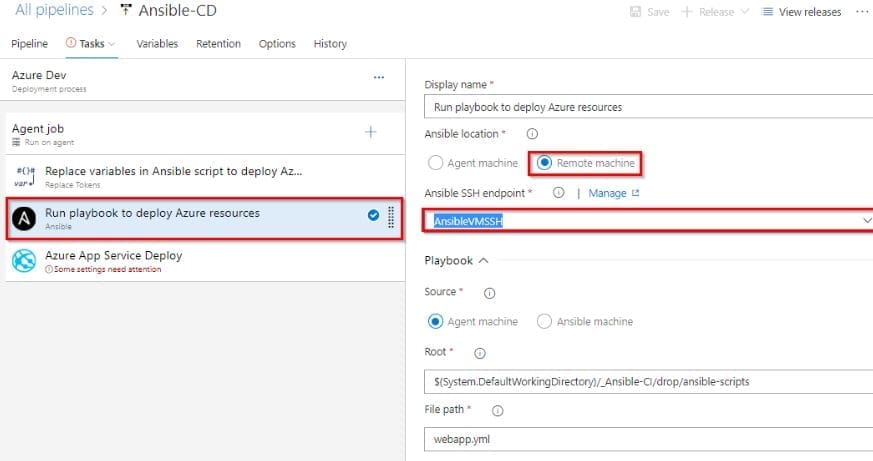
Under the Inventory section, select Host list as inventory location and enter pubic ip of your ansible vm in Host list field as shown below.
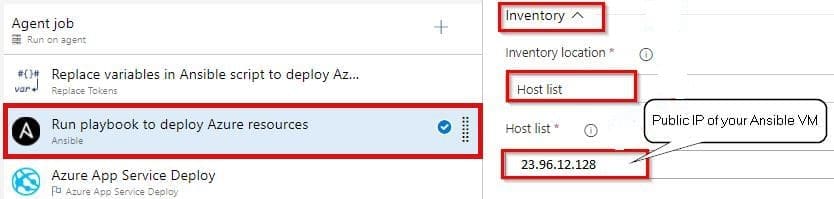
Select Azure App Service Deploy task. Select the Azure subscription from the drop-down list and click Authorize to configure Azure service connection.
And this application requires few app settings to connect to the MySQL database provisioned using Ansible script. That we are updating using the App settings parameter in the task.
This task will deploy the SmartHotel360-CouponManagement package to Azure app service which is provisioned by the Ansible task in the previous step.

Once you are done Save the changes and Create a release.
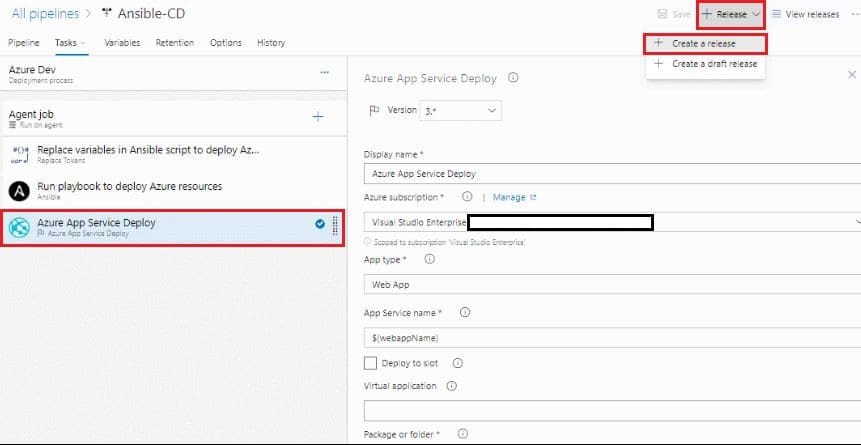

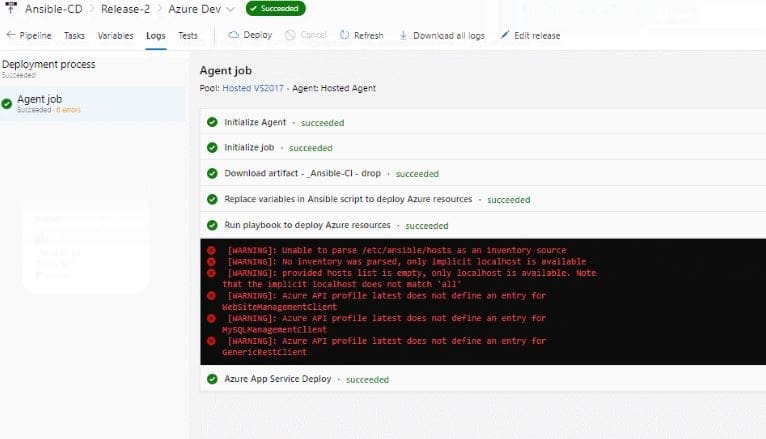
Once the release is successful navigate to your Azure portal. Search for smh360web in App services.
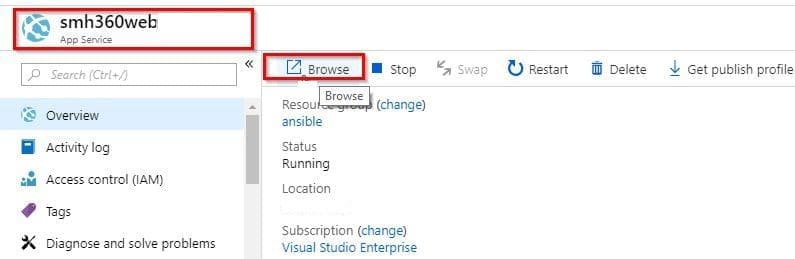
Select the app that was created with smh360-xxxx and browse to view the application deployed.
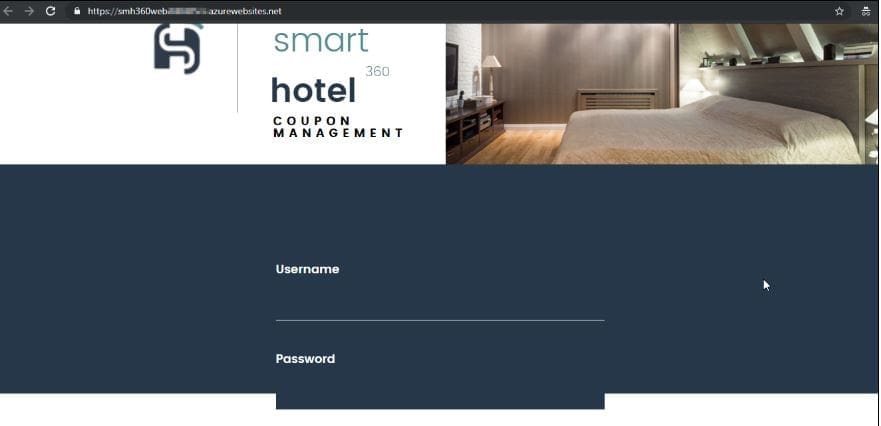
You can Login to the site with the following credentials.
Username: me@smarthotel360.com

Password: 1234
In this article, you have learned how to automate Infrastructure Deployments in the Cloud with Ansible and Azure Pipelines.