The term “git” was not used as the name of a cmdlet, function, script file, or executable Program recognized


In this article, we shall discuss how to fix the term “git” was not used as the name of a cmdlet, function, script file, or executable Program recognized. Git is a free and open-source distributed version control system designed to handle everything from small to very large projects with speed and efficiency. Please see Kindly refer to some of these related guides: How to install Git on macOS, how to clone a repository and install software from GitHub on Windows, Panic: Failed to register the GitLab-runner, you may be having network issues, and how to install and uninstall Docker Desktop on Windows 10 and Windows Server.
The most widely used modern version control system in the world today is Git. Git is a mature, actively maintained open source project originally developed in 2005 by Linus Torvalds, the famous creator of the Linux operating system kernel. Having a distributed architecture, Git is an example of a DVCS (hence Distributed Version Control System).
Rather than have only one single place for the full version history of the software as is common in once-popular version control systems like CVS or Subversion (also known as SVN), in Git, every developer’s working copy of the code is also a repository that can contain the full history of all changes. It is worth noting that, Git was designed with performance, security, and flexibility at heart.
The following error below was prompted because Git was not installed on Windows. Also, there is no environment variable or path defined where the docker executable programs are located.
section_end:xxxxxxxxx:prepare_script
[0Ksection_start:xxxxxxxxx:get_sources
[0K[0K[36;1mGetting source from Git repository[0;m[0;m
[32;1mFetching changes with git depth set to 50...[0;m
&: The term "git" was not used as the name of a cmdlet, function, script file, or executable
Program recognized. Check the spelling of the name, or that the path is correct (if included), and
repeat the process.
In C:\windows\TEMP\build_scriptxxxxxxxxx\script.ps1:221 Zeichen:3
+ & "git" "config" "-f" "C:\GitLab-Runner\builds\xxxxxxxxx\0\documentati ...
+ ~~~~~
+ CategoryInfo : ObjectNotFound: (git:String) [], CommandNotFoundException
+ FullyQualifiedErrorId : CommandNotFoundException
section_end:xxxxxxxxx:get_sources
[0Ksection_start:xxxxxxxxx:cleanup_file_variablesInstall Git on Windows
However, To resolve this issue, we must install Git on Windows, as shown below. Browse to the official Git website and click on the 64-bit Git for Windows Setup as shown below.

Moreover, Browse the downloaded setup file as shown below. Double-click the file to extract and launch the installer.

In addition, Accept the User Access Control if you have it enabled in your environment. Nonetheless, Click on Yes to proceed. You may want to learn how to turn UAC on or off in Windows.

Consequently, Please review the GNU General Public License, and when you’re ready to install, and then click on Next.

Similarly, The installer will ask you for an installation path. Nevertheless, I will be leaving the default location unless you have reason to change it, and click Next.

Therefore, In the component selection window, for me, I will leave everything as default. Additionally, Click on Next to proceed

Furthermore, As you can see, the installer will offer to create a start menu folder. Just click on Next.

However, Select a text editor you’d like to use with Git. Moreover, Use the drop-down menu to select an editor of your choice. I am okay with the default editor. Click on Next to continue.

In addition, The next step allows you to choose a different name for your initial branch. Nonetheless, The default is ‘master.’ Unless you’re working in a team that requires a different name, leave the default option and click Next.

Furthermore, Kindly refer to these related guides: How to create and deploy a local Registry Server with Docker Image, how to Pull your first Nginx Container Image from Docker Hub and deploy it to your local machine, Azure DevOps and GitHub integration for Docker and Kubernetes deployment, how to create a static pod in Kubernetes, and how to install, register and start GitLab Runner on Windows.
Customizing PATH Environment for Enhanced Command Line Control
Consequently, I will be selecting the second option. This allows you to change the PATH environment. Similarly, The PATH is the default set of directories included when you run a command from the command line. Leave this on the middle (recommended) selection and click Next.

I will be selecting the Use bundled OpenSSH as shown below. I will click on Next to proceed.

Nevertheless, The below window relates to server certificates. Most users should use the default. Therefore, If you’re working in an Active Directory environment and you have a Certificate Authority server set up, you may need to switch to Windows Store certificates. Click Next.

Additionally, I will be selecting the very first option as it converts line endings. It is recommended that you leave the default selection.
Furthermore, This relates to the way data is formatted and changing this option may cause problems. Click on Next.

However, I will be using the second option. Click on Next to continue.

Moreover, The installer now asks what the git pull command should do as described in the image below. In addition, The default option is recommended unless you specifically need to change its behavior. Click Next to continue with the installation.

Please decide on which credential helper to use. Nonetheless, Git uses credential helpers to fetch or save credentials. Consequently, Leave the default option as it is the most stable one, and click Next.

Similarly, The default options are recommended. However, this step allows you to decide which extra option you would like to enable. Nevertheless, If you use symbolic links, which are like shortcuts for the command line, tick the box. Click Next.

Therefore, Below are experimental options. I will leave them unchecked and then click on install.

Additionally, As you can see below, Git is currently being installed and on the next window, the installation is completed.


Furthermore, Git has various modes of use. Below are some of the ways to launch Git in your enviornment. To launch Git Bash open the Windows Start menu, type git bash, and press Enter or click the application icon as shown in the image below.


Now, you should restart your GitLab runner now that Git has been installed on ypur device. Then try to launch the build job again. It should work correctly. But if it doesn't, then follow the steps discussed below.Set the PATH to point at the Git installation
You will need to set (add) the following paths to the system variable as shown below. The steps I will be describing are exactly the same on Windows 10 and Windows 11.
C:\Program Files\Git\bin\
C:\Program Files\Git\cmd\
In the Start Menu, and click on Settings as shown below. Alternatively, you can use the taskbar search, search for “environment variable” or right-click on This PC and then click on Properties .

This will open the Settings window as shown below. Click on System

Navigate to the About menu and on the right-hand window, click on Advanced System Settings.

Click on the Advanced Tab as shown below. Click the “Environment Variables” button at the bottom.

Let’s create a System Variable. To do this, click on New as shown below.

ATH editor, add C:\Program Files\Git\bin\ and C:\Program Files\Git\cmd\ to the end of the list.


As you can see below, the system variable has been configured and set.

Note: After creation, you can select the system variable and click on Edit to edit the path. Now, you can close the Environment Variable. Here is a similar guide discussing how to resolve “Running Docker commands returns Docker is not recognized as an internal or external command“.
Restart the GitLab Runner again
If you do not restart the GitLab-runner, the build job will still fail 🙂 To avoid this, please restart the GitLab-Runner as shown below. To do this via the Command line, please follow the steps discussed below.

Ove via the services.msc. The same result will be achieved.

Run the build Job again
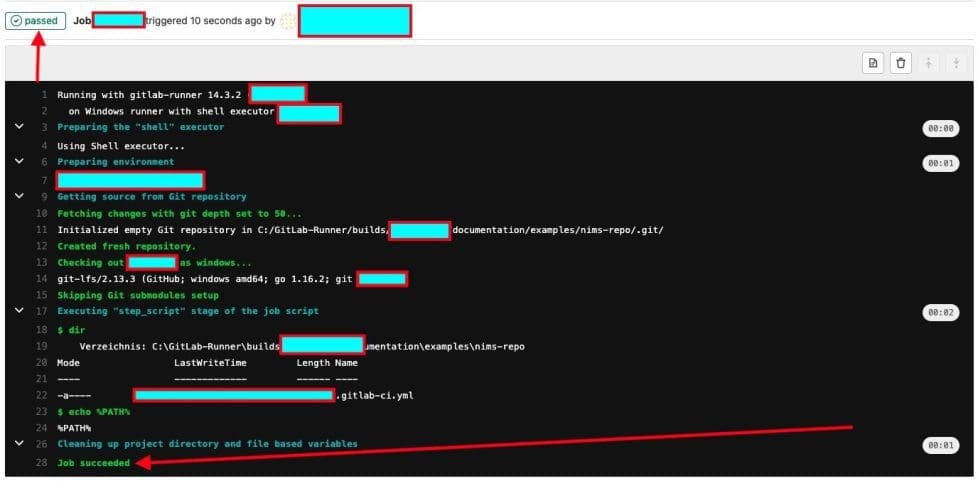
As you can see below, I have run the build job again, everything is fine and the task passed (succeeded).
I hope you found this blog post on “The term “git” was not used as the name of a cmdlet, function, script file, or executable Program recognized” helpful. If you have any questions, please let me know in the comment session.


