How to fix the Security Database on the Server does not have a Computer Account for this Workstation Trust Relationship on Windows Server [Part 2]

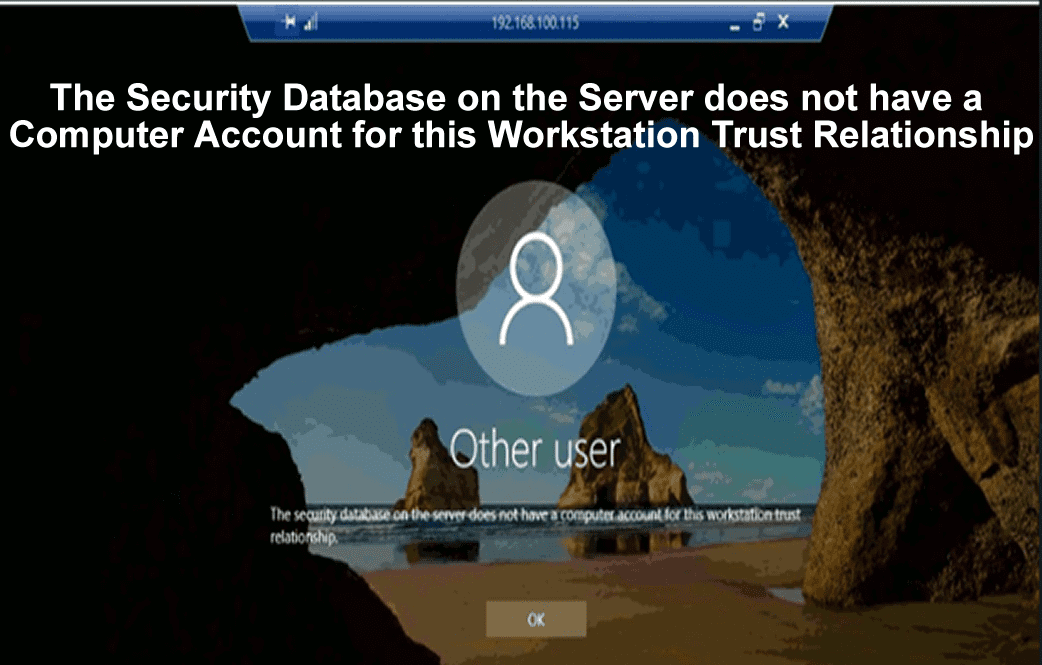
There are always daily system issues that users have to deal with and one of these issues is the “The Security Database on the Server does not have a Computer Account for this Workstation Trust Relationship”. This is one type of specific error that never seems to go away and it sometimes appears when you try logging into the system. This issue appears on various versions of the Windows operating system but more on Windows Server OS. You may want to see the following articles: How to synchronize your on-premises AD with Azure Active Directory using the Azure AD Connect tool, Configure TCP/IP Parameters: Post OS Installation and configuration of Windows Server 2019 properties, and how to fix the trust relationship between this workstation and the primary domain failed.
What are the Causes of this problem? Please take a look at the [Part 1] guide “The security database on the server does not have a computer account for this workstation trust relation“.
I have listed out the possible causes of this issue below, which also has a possible resolution path: However, Check a related guide on How to Quickly Fix Windows Search Bar Not Working
- Misconfiguration of time & date settings – Moreover, A misconfiguration of the time & date settings on the server can cause this issue and display the error.
- Possibility of the connection between the client and the domain controller timing out – In addition, when a connection is timing out could lead to this type of issue.
- Issues with DNS & Windows Firewall – Nonetheless, when there is an issue with DNS addresses or Windows Firewall may also lead to this kind of error.
Below are solution steps to the server login issue
Consequently, It is now vital that the date and time on your server or personal system should be correct as this will help to avoid some issues related to date & timing. Similarly, Sometimes when your system BIOS restarts this could affect the correctness of the date and time and some individuals forget to reset or correct it.
a). Now Open Date and Time settings on your server.
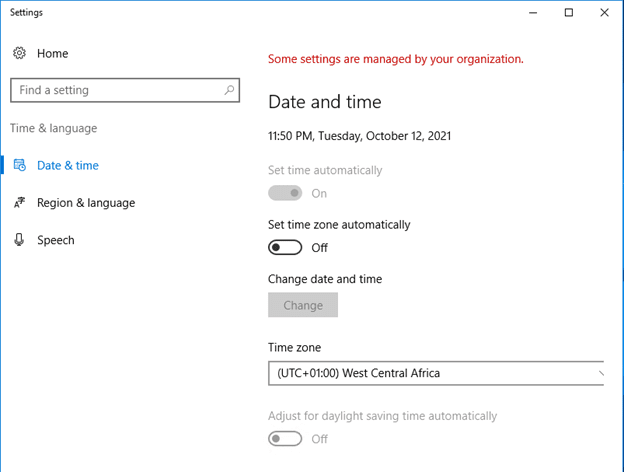
b). Nevertheless, In the Date and Time tab, confirm that your computer’s date and time settings are properly aligned with your current location. Therefore, If you confirm that the time is not correct, then you need to turn the Set time automatically option ON or OFF to adjust the setting.
c). If the “Set time automatically” option is turned ON, you can select the correct time zone from the dropdown list. Additionally, After doing this, restart the server and try to login again, By now, the issue may be resolved with this guide.

Furthermore, If the above does not work. Then you can also go via the Control Panel to synchronize your system time with an online time server which will always feed the correct time.
Follow these steps:
a). However, Open the Control Panel through the start menu or by typing “control.exe” in the Run box, and click OK.
b). Moreover, In the Control Panel at the top right side, select View by Category and click on the Clock and Region button to open this section.

How to fix the Security Database on the Server
c). In addition, Click on the Set the time and date button in the Internet Time tab. Click the Change settings button.
d). Nonetheless, Check the box next to the “Synchronize with an Internet time server” option and choose “time.windows.com” in the server drop-down, and click on the Update and OK button.
Try logging in again to see if the issue still persists.

Checking for DNS and Firewall Issues
Consequently, Sometimes, this issue could result from a connection issue with the domain controller. Similarly, there would be a need to check the DNS and Windows firewall if there are any issues within this area. Follow the steps below to set some Windows Firewall rules and reset DNS addresses.
a). Open the Command Prompt from the search box. Type and right-click Command Prompt, from the context menu select Run as administrator.
b). Type the following commands one after each other in the command prompt and press enter. Wait for the operation to complete successfully.


Try logging in again to see if the issue still persists.
Changing the Connection Setting
Furthermore, Sometimes this problem can be a result of a connection issue between the server and the domain controller which could be resolved by just removing the server from the domain and setting it back to the workgroup and rejoining the server back to the domain.
Follow the steps below on the resolution:
a). Right-click My Computer/This PC and from the context menu select Properties.
b). Click the Change settings button at the right side of the Properties window.

c). In the Computer Name tab click the Change button at the bottom right part of the window. Under the Member of section, change from Domain radio button to Workgroup and click OK.
d). Restart the server and go back to the change settings section undo the earlier changes and switch back to the domain.
Try logging in again to see if the issue still persists.

Using PowerShell Commands
If you have tried all the above steps and the issue still persists, then you might need to try some PowerShell commands to try logging in. These commands have the reputation of fixing this kind of issue and the reason why we are mentioning it in this guide.
a). You can open the PowerShell by right-clicking the Start menu button and selecting the Windows PowerShell (Admin) option from the context menu.

b). If you’re encountering issues, like those related to the Workstation Trust Relationship, you might be wondering how to fix the Security Database on the Server. One solution involves utilizing PowerShell. Just locate it in the search box, right-click, and choose the option to Run as administrator.
c). In the PowerShell console, type the below commands one after the other and click enter. Where you see the bracket in the below command should be replaced with your server information.

In times of server access woes, knowing “How to fix the Security Database on the Server” can be your saving grace.
I hope you found this blog post on How to Fix The Security Database on the Server does not have a Computer Account for this Workstation Trust Relationship” issue on the Windows Server very interesting and helpful. In case you have any questions, do not hesitate to ask in the comment section.



Sir, Unable to login the server . i have entered the password of domain and also local administrator account in server.