How to use the Azure Cloud Shell or Azure CLI and Azure PowerShell


Azure Administrators use tools to interact with the cloud environment and complete such tasks as, deploying dozens or hundreds of resources at a time, configuring individual services using scripts, and viewing rich reports across usage, health, costs, and more. You must select and use a tooling option and your choices can include the Azure portal, Azure PowerShell, Azure CLI, or Azure Cloud Shell. Therefore, I will be showing you how to use the Azure Cloud Shell or Azure CLI and Azure PowerShell.
Also here are some of my related guides: How to install and configure Ansible on Ubuntu, how to install Ansible on Windows with Cygwin, how to automate infrastructure deployments in the cloud with ansible and azure pipelines, how to install Kerberos packages in Windows via Cygwin, how to configure a remote server (windows) to Support Ansible, and how to deploy azure vmware solution private cloud.
How to use the Azure portal
The Azure portal lets you build, manage, and monitor everything from simple web apps to complex cloud applications in a single, unified console You can access the portal at https://portal.azure.com
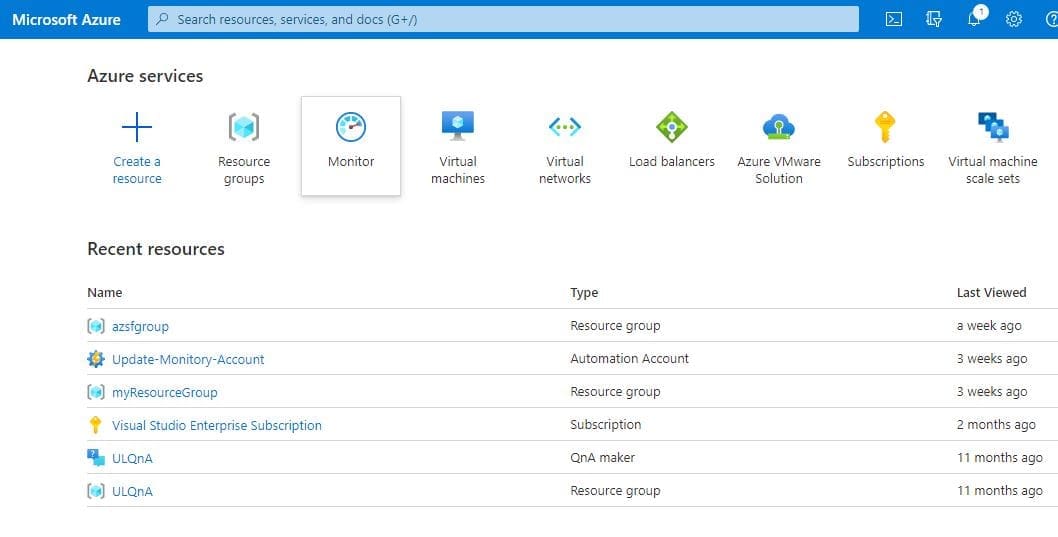
With the Azure portal, you can do the following below
- Search resources, services, and docs.
- Manage resources.
- Create customized dashboards and favorites.
- Access the Cloud Shell.
- Receive notifications.
- Links to the Azure documentation.
Use Azure Cloud Shell
Azure Cloud Shell is an interactive, browser-accessible shell for managing Azure resources.
It provides the flexibility of choosing the shell experience that best suits the way you work. Linux users can opt for a Bash experience, while Windows users can opt for PowerShell.
Cloud Shell, it self enables access to a browser-based command-line experience built with Azure management tasks in mind. You can use Cloud Shell to work untethered from a local machine in a way only the cloud can provide.

The Azure Cloud Shell features:
This steps include the following listed below;
- Requires a resource group, storage account, and Azure File share.
- Uses the same Azure file share for both Bash and PowerShell.
- Is assigned to one machine per user account.
- Persists $HOME using a 5-GB image held in your file share.
- Permissions are set as a regular Linux user in Bash.
- Is temporary and requires a new or existing Azure Files share to be mounted.
- Offers an integrated graphical text editor based on the open-source Monaco Editor.
- Authenticates automatically for instant access to your resources.
- Runs on a temporary host provided on a per-session, per-user basis.
- Times out after 20 minutes without interactive activity.
Use Azure PowerShell
Azure PowerShell serves as a module that you add to Windows PowerShell or PowerShell Core to enable you to connect to your Azure subscription and manage resources. Azure PowerShell requires PowerShell to function.
PowerShell provides services such as the shell window and command parsing. Azure PowerShell adds the Azure-specific commands.
For example, Azure PowerShell provides the New-AzVm command that creates a virtual machine inside your Azure subscription. To use it, you would launch the PowerShell application and then issue a command such as the following command:

Azure PowerShell is also available in two ways: inside a browser via the Azure Cloud Shell, or with a local installation on Linux, macOS, or the Windows operating system.
In both cases, you have two modes from which to choose: you can use it in the interactive mode in which you manually issue one command at a time, or in scripting mode where you execute a script that consists of multiple commands.

What is the Az module?
Az is the formal name for the Azure PowerShell module containing cmdlets to work with Azure features.
It contains hundreds of cmdlets that let you control nearly every aspect of every Azure resource. The following features below can use for the Az module, which are:
- Resource groups
- Storage
- VMs
- Azure AD
- Containers
- Machine learning
Please see Understanding The Overview Concept of Azure Cloud Shell, and how to fix AWS CLI Error: All commands return Unknown output type [None].
Use The Azure CLI
Azure CLI is a command-line program to connect to Azure and execute administrative commands on Azure resources.
It runs on Linux, macOS, and Windows, and allows administrators and developers to execute their commands through a terminal, command-line prompt, or script instead of a web browser.
For example, to check the version of the Az, you would use a command such as the following:
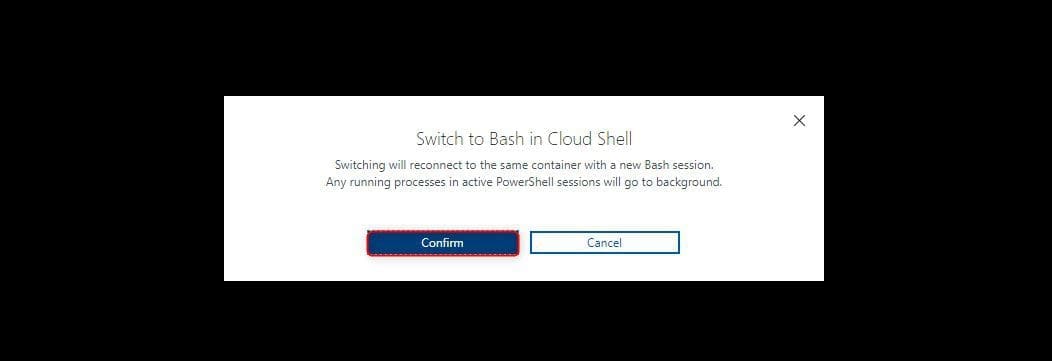

Azure CLI provides cross-platform command-line tools for managing Azure resources. You can install this locally on computers running the Linux, macOS, or Windows operating systems. You can also use Azure CLI from a browser through Azure Cloud Shell.
Azure CLI lets you control nearly every aspect of every Azure resource. You can work with resource groups, storage, VMs, Azure Active Directory (Azure AD), containers, machine learning, and so on.
Azure CLI can be used interactively or through scripts:
- Interactive. First, for Windows operating systems, launch a shell such as cmd.exe, or for Linux or macOS, use Bash. Then issue the command at the shell prompt.
- Scripted. Assemble the Azure CLI commands into a shell script using the script syntax of your chosen shell. Then execute the script.
Commands in the CLI are structured in groups and subgroups. Each group represents a service provided by Azure, and the subgroups divide commands for these services into logical groupings. For example, the storage group contains subgroups including account, blob, storage, and queue.
How to use the Az find command
Let say you wanted to find a particular command you need, the way to do that is to use az find. For example, if you want to find commands that might help you manage a storage blob, you can use the following find command:
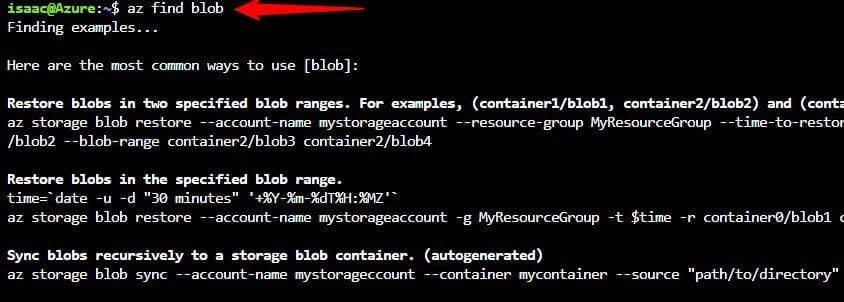
Some of the Az commands that can be of help are:
COMMANDS
az help
To get more help
az account
Manage Azure subscription information.
This article provided a step-by-step overview of Configuring Azure resources with different kinds of tools.
I hope you have found this article useful on how to use the Azure Cloud Shell or Azure CLI and Azure PowerShell.


