Cyclic Redundancy: Resolve Data Error on Inaccessible Hard Drive


In this article, we shall discuss “Cyclic Redundancy: Resolve Data Error on Inaccessible Hard Drive”. Cyclic Redundancy Check (CRC) is a data verification method that a computer uses to check the accuracy of data on the disks (hard disk drive, optical disks such as CD, DVD, etc). Please see how to Fix “Unknown hard error” on Windows Server and Windows 10, how to perform vulnerability scan on Microsoft SQL Server, and Periodic Scanning: How to schedule Windows Defender Antivirus to scan on Windows.
CRC detects accidental changes to raw data residing in the storage media. The CRC error occurs due to hard drive corruption, misconfigured files, registry file corruption, cluttered disks, unsuccessful program installation, or when there’s a bad spot on the media.
Despite a specific cause, the CRC error is a serious issue that must be resolved as soon as possible to avoid a system failure and, most importantly, data loss. Fortunately, few options are available to solve the following CRC (Cyclic Redundancy Check) errors:
- Drive Is Not Accessible data error (Cyclic Redundancy Check).
- Data Error (CRC) Error Message in Outlook due to a corrupt personal folder (.pst).
- Cyclic Redundancy Check Error on an optical disc (CD, DVD etc.).
Before we proceed, I will like to point you to the following articles where related PC problems such as the one we’re about to resolve were discussed in detail. They’re:
- How to Solve “The parameter is incorrect” problem on External Hard Disk in Windows
- How to fix CPU at 100% when nothing is running problem on Windows
- How to fix Unknown Hard Error on Windows Server and Windows 10
- No sound on Google Chrome: How to fix sound not working on Google Chrome
- How to Resolve Microsoft RDP Connection Black Screen
How to Solve the Data Error (Cyclic Redundancy Check) Issue
1. Using CHKDSK Utility:
To solve CRC error, you must repair the hard drive by running the CHKDSK utility via command prompt. CHKDSK checks the health status of your hard drive and fixes logical file system errors, bad sectors & file system metadata.
You can run CHKDSK using the following steps below:
- Connect the storage device to your PC.
- Press ‘Windows+Q’ and type cmd in the search bar.
- Right-click on the ‘Command Prompt’ and select ‘Run as Administrator’.

4. A command prompt window appears. Then type chkdsk E: /f where E is the hard drive or any other media storage device letter connected to your system.
Alternatively, you can type chkdsk E: /F /E /R for scanning and repairing the drive at the same time. But here we’re running chkdsk E: /f command only.
The drive we are going to check and repair the CHSDSK command is labeled with volume letter E in our computer: There is a folder within the drive named "Existing Files" and we need to access its contents, it's reported "Existing Files is not Accessible". Data error (cyclic redundancy check) as shown in the screenshot below.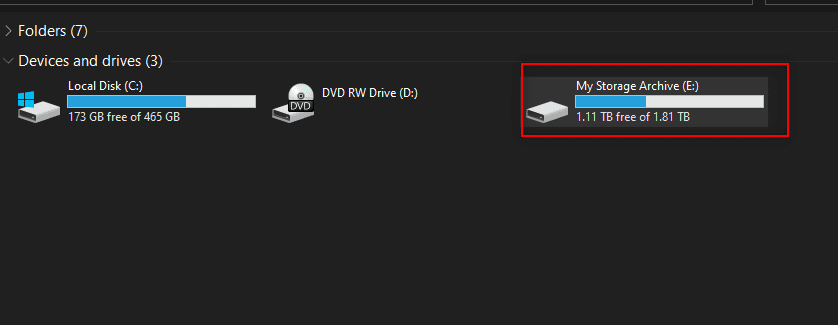

5. Press the Enter key and wait until chkdsk utility repairs the disk errors.


As you can see from the screenshots above, the chsdsk command checks the corrupted drive in stages that’s stages 1, 2, and 3.
What to do After the CHSDSK drive Checks and Repairs
After CHKDSK completes error checking, re-connect storage media to the system and then try to access it from File Explorer.
If you can access the data without any error; immediately copy data from it to a safe location on your system and format the hard drive or any other storage media via Disk Management tool Cyclic Redundancy or DiskPart.
See Initialize and format a virtual disk to learn how to format disk drive through the Disk Management tool in one of my articles on how to Solve “The parameter is incorrect” problem on External Hard Disk in Windows.
NOTE: If using the CHSDSK command doesn't solve the problem, you need to format your storage drive. Bear in mind that opting for formatting option will erase all the data from the storage device. If you don’t want to lose your data, it is recommended that you follow to the last solution given in this post as formatting option should only be your last resort.2. Run SFC Scan
SFC stands for System File Checker, which is used to repair Windows system files including Windows DLL files, registry files, or other protected files. Sometimes due to corrupt file systems or registry files, as discussed above, CRC error will occur.
The SFC scan finds the file issue and replaces the corrupted or damaged file with a new one. The entire process can take around 5 to 20 minutes depending on the size and volume of the files. To run an SFC scan, follow these steps:
- Connect the storage drive
- Click the Windows icon to open the search bar
- Type cmd. Right-click on ‘Command Prompt’ and select ‘Run as Administrator’ from the options
- Type sfc /scannow in the cmd window and hit the ‘Enter’ button to run the SFC scan
Data Recovery Tool: A Next Step Solution
After the SFC scan is finished, restart the system and try accessing the files from the storage media. If the problem still persists, please opt into using any data recovery tool available in the market as explained in the next solution below.
3. Using a Data Recovery Tool
If none of the solutions listed above works for you, take the help of some powerful data recovery software like EaseUS Data Recovery Tool or Stellar Data Recovery Professional for Windows. Any of these tools will help you recover data from severely corrupted, formatted, re-formatted, inaccessible hard drives, and lost or deleted hard drive partitions with a few simple clicks.
Why Use Data Recovery Cyclic Redundancy Tools
Data Recovery tools such as listed above guarantee safe and secure data recovery from all types of storage media formatted in exFAT, FAT (FAT16, FAT32), and NTFS such as USB sticks, hard drives, and even from scratched optical disks (CD/DVD).
How to Fix Cyclic Redundancy problem with Data Recovery Software
1: Start by connecting the storage drive to your computer through the USB port. If you are prompted to ‘Format Hard Drive’ on a message box, click ‘No’.
2: Launch the data recovery software which could be EaseUS Data Recovery Tool or Stellar Data Recovery Professional depending on the one you installed.

1: As shown on the screenshot above, check the ‘All Data’ checkbox to select and recover drive files, folders, and other deleted data from the external hard drive. Cyclic Redundancy You can also check individual boxes.
2: Click the ‘Next’ button, and then choose the connected storage drive. Here the drive we want to scan is labeled with letter E and it’s selected. See the screenshot below.

3. Turn on “Deep Scan” – The Deep Scan option takes more time as it completely searches for the deleted data deep inside the hard drive based on file signatures and it also facilitates recovery of RAW data.
- If you want to recover drive data from deleted, inaccessible, or un-allocated partition, select ‘Can’t Find Drive’ under Other Locations and click the ‘Scan’ button.
- On the next screen, select your drive and click the ‘Search’ button. All deleted partitions will be listed under the ‘Partitions Found’ box.
- Select the partition and click the ‘Scan’ button to start scanning. If nothing is found, click on the ‘Deep Scan’ link at the bottom to start Deep Scan.

File Preview and Recovery Process
In the left pane you will see a tree-like view, there also you can see all the recovered files and folders. Click on the “File Type“ tab to view files segregated by type if you want to. Cyclic Redundancy You can also click on a file to preview it before finally starting the recovery process.

5. Select the checkboxes of the data that you want to recover and then click the ‘Recover’ button.
6. Click the “Browse” button to select the location where you want to save the recovered data. Make sure you don’t select the same drive.

Lastly, to recover corrupt files or repair bad hard Cyclic Redundancy drive sectors using EaseUs Data Recovery Tools, follow the same process as the one stated in recovering data with Stellar Data Recovery Professional above. Refer to the screenshot below.


I hope you found this article useful on Cyclic Redundancy: Resolve Data Error on Inaccessible Hard Drive. Please feel free to leave a comment below.


