How to use Command-Line on Git Bash and GitHub Desktop to PUSH local code to GitHub

GitHub is a code repository and hosting platform for version control and collaboration. The software GitHub is a Microsoft platform that helps the development team to collaborate on different projects from anywhere in the world. GitHub Desktop is an application that allows you to interact with GitHub using a Graphical User Interface (GUI) instead of using the command line. The git push command is used to transfer or push your commit, this is usually made on your local branch in your computer to a remote repository like GitHub or any other code repository.
If you need to read more on the deployment of codes, code repository, and API requests you can read these: How to clone a repository and install software from GitHub on Windows, Azure DevOps and GitHub integration for Docker and Kubernetes deployment, How to deploy your Angular App to Azure from Visual Studio Code, How to Setup SonarLint in VS Code for your App Project, How to Use Postman with the Amazon Pinpoint API, How to use Postman for your POST Request.
Before you start this task you need to create a GitHub account here.
Using the Command line to PUSH to GitHub
- First login to GitHub and create a new repository where you will push your code to in GitHub. However, Create a new repository by clicking the + sign and select New repository.

- Nonetheless, Now fill up all the required details like the repository name, a description which is optional, and also make the repository public for this task.

- After creating your desired repository, you must open a Git Bash. You can download it here if you do not have it installed yet.
- Now move to the specific path in your local computer where your code is saved locally by typing cd ‘path_name.’ Moreover, The cd commands stand for change directory, which is used to change to the working directory on your system and locate your file.

Now initialize the git repository
- Use git init to initialize the repository. This command is used to create a new empty repository. Furthermore, The ‘.git‘ is created at the top level of your project and places all of the revision information in one place.

Now add the file to the new local repository.
- Use git add . in your Git bash to add all the files.

- Use git status in your Git bash to view all the files that will be part of the first commit.

You can Commit the files in your local repository by writing a commit message.
- You can create a commit message by writing git commit -m ‘your message’. This commands help to add the change to the local repository. Moreover, The “m” is a flag for a message and help to define the changes that were carried out and the reason for the change.

- Moreover, You can now copy your remote repository’s URL from your GitHub account.

- You will now need to add the URL copied from your remote repo to where your local content from your repository is pushed. Nonetheless, Use this command git remote add origin ‘your_url_name’
- The “origin” is the remote name while the remote URL in this instance is https://github.com/mastert002/techdirectarchive_repo.git
Now push your code in your local repository to GitHub
- The command git push –u origin master pushes your local code to GitHub.
- In the command, the origin is the default remote repository, while the –u is upstream, and the master is the branch.
- Now fill in your GitHub username and password to complete the push to GitHub

However, If you supply the correct credentials, you will get the below message
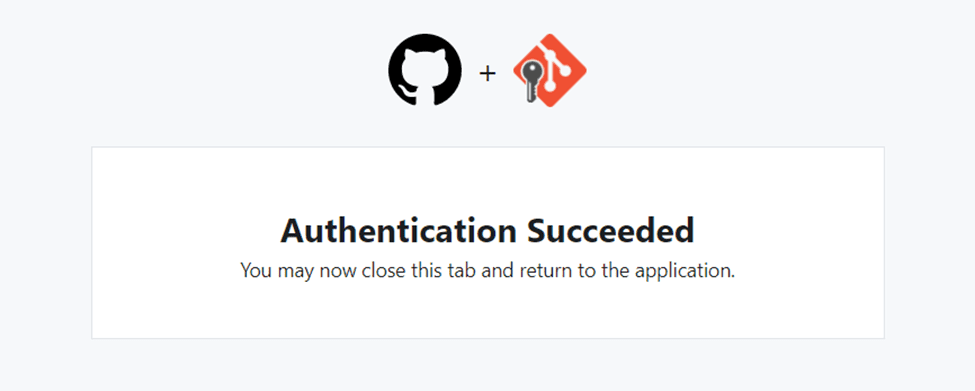
Nonetheless, Your local repository will be pushed to GitHub Repository successfully

Moreover, You can now view your files in your GitHub repository.

Using GitHub Desktop to PUSH your local code to GitHub repository.
Furthermore, You can download GitHub Desktop from here. This platform has a Graphical User Interface that can help you to push your code from a local repository to a GitHub repository.

After installing the GitHub Desktop, you can give it access to your GitHub account.

- Click on Authorize desktop

- Now create a new local repository inside
C:\Users\techdirecharchives\Documents\GitHub

- Now click on Publish repository and enter the name of your repository. However, This will be automatically created on GitHub, and all your codes inside the local repository will be pushed to the new repository on GitHub.

- Moreover, When you check your GitHub repository, you will see the new repository created.

Now move to GitHub Desktop and commit to master
- However, You can see the files added to the local repository. Nonetheless, You must also write your commit message and click “Commit to master or main.”

Pushing your main branch from GitHub Desktop to GitHub.
- Moreover, You can click “Push origin” to publish all your local codes to GitHub.

- Successfully pushed all codes to GitHub.

I hope you found this blog post on How to use Command-Line and GitHub Desktop to PUSH local code to GitHub interesting and helpful. In case you have any questions do not hesitate to ask in the comment section.