Skip to content

TechDirectArchive

Hands-on IT, Cloud, Security & DevOps Insights

  • Home
  • About
  • Advertise With US
  • Contact
  • Reviews
  • Toggle search form
Home » Mac » How to Cancel Office 365 Family Subscription

How to Cancel Office 365 Family Subscription

Posted on 10/07/202202/09/2023 Christian By Christian No Comments on How to Cancel Office 365 Family Subscription
How to Cancel Office 365 Family Subscription

Microsoft 365 is a subscription-based model that includes the most collaborative, up-to-date features in one seamless, integrated experience. Microsoft 365 includes the robust Office desktop apps that you’re familiar with, like Word, PowerPoint, and Excel. You also get extra online storage and cloud-connected features that let you collaborate on files in real time. Kindly refer to these related guides: How to complete Microsoft Office 365 Family Subscription, and how to Hide or Remove the Search Button from Windows 11 Taskbar,

With a subscription, you’ll always have the latest features, fixes, and security updates along with ongoing tech support at no extra cost. Microsoft 365 Family plan lets you share your subscription with your family for up to 6 people, and use your apps on multiple PCs, Macs, tablets, and phones.

Also see how do you change the account that Office says it belongs to on a Mac, and how to remove Microsoft Outlook, Teams, Words PowerPoint, and Excel apps from Mac.

Microsoft Office365 Subscription Cancellation

In my case, I never needed it, I have an active Office 2019 running on my PC and also have the possibility to download Office from my University or work.

If for some reason you have decided to cancel your Microsoft Office 365 family subscription. The process is very straightforward, and you will also be able to remove your payment method as well. To do this, kindly navigate to the following link.

On the “All subscription page”, click on Cancel Subscription as shown below.

click on Cancel Subscription

You will receive another prompt to click on “Cancel Subscription” so please proceed by clicking on it.

click on Cancel Subscription

As shown below, I have cancelled my Microsoft Office 365 subscription.

office365 cancelled

Remove Microsoft Office365 Payment Method

To do this, kindly navigate to the following billing/payment page. Please note that accessing this page requires logging in.

Click on payment & Billing, click on the payment option, and then manage your payment window will open as shown below.

Since I used PayPal as a payment method in concluding the subscription, I have decided to remove it. To do this, click on Remove Account.
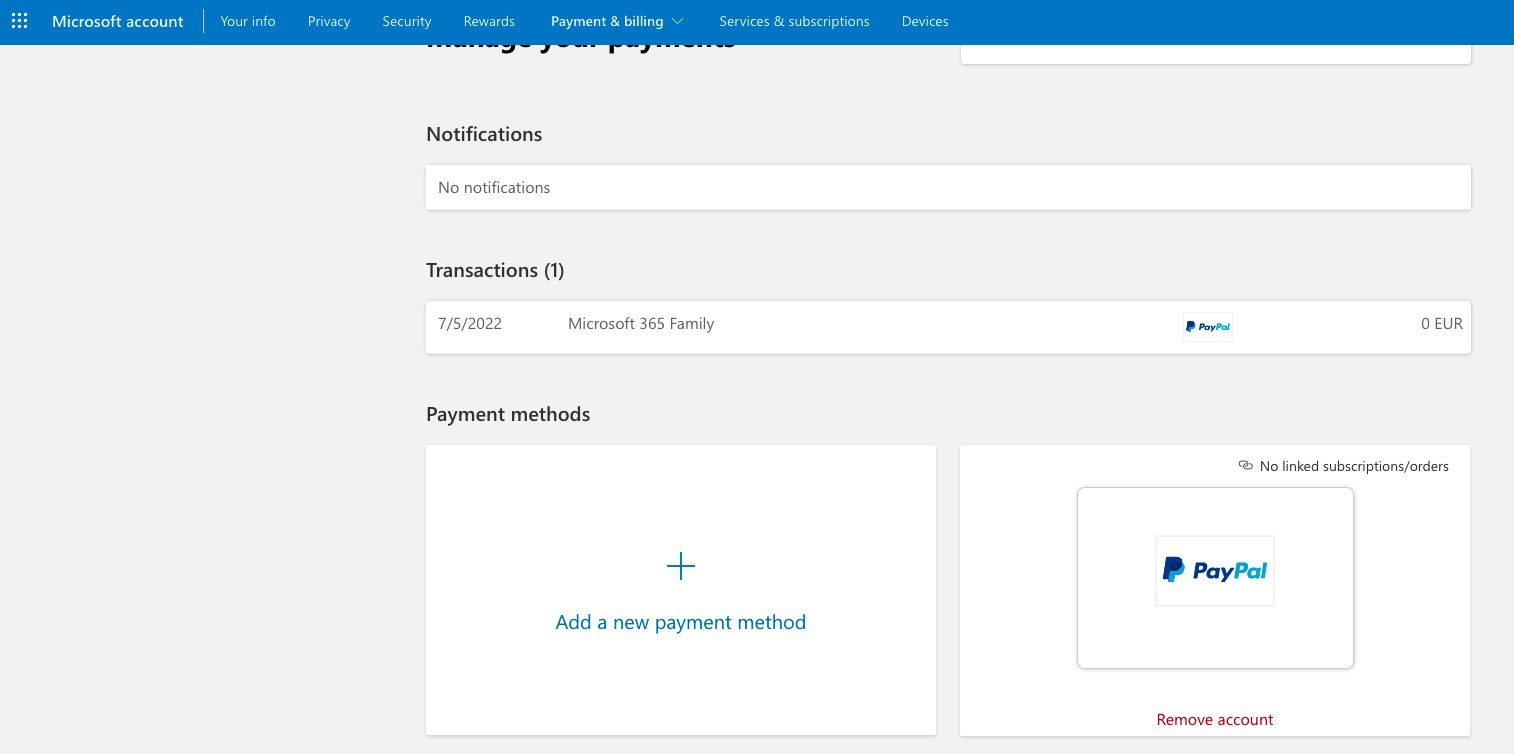
remove paypal

You will be asked to confirm. Click on Remove as shown below.

remove linked payment method

As you can see, the payment method (PayPal) has been successfully removed.

Payment method removed. The click on close

Upon clicking on”Close”, you will be dropped right back into the Manage your payment window as shown below. I will just sign out from here.

No more payment method

I hope you found this blog post on How to Cancel Office 365 Family Subscription helpful. If you have any questions, please let me know in the comment session.

Rate this post

Thank you for reading this post. Kindly share it with others.

  • Share on X (Opens in new window) X
  • Share on Reddit (Opens in new window) Reddit
  • Share on LinkedIn (Opens in new window) LinkedIn
  • Share on Facebook (Opens in new window) Facebook
  • Share on Pinterest (Opens in new window) Pinterest
  • Share on Tumblr (Opens in new window) Tumblr
  • Share on Telegram (Opens in new window) Telegram
  • Share on WhatsApp (Opens in new window) WhatsApp
  • Share on Mastodon (Opens in new window) Mastodon
  • Share on Bluesky (Opens in new window) Bluesky
  • Share on Threads (Opens in new window) Threads
  • Share on Nextdoor (Opens in new window) Nextdoor
JIRA|Confluence|Apps, Mac Tags:microsoft, Microsoft Office, Microsoft Office 365, office, office0365, office365

Post navigation

Previous Post: How to complete Microsoft Office 365 Family Subscription
Next Post: How to install and activate Office 2019 on your Mac PC

Related Posts

  • Screenshot 2020 05 16 at 17.13.18
    What is Jira re-indexing and why you should perform it JIRA|Confluence|Apps
  • Screenshot 2022 04 25 at 16.46.34
    Hide YouTube Subscriber Count: Privacy for Channel Subscriptions JIRA|Confluence|Apps
  • Prevent the downloads of apps without password on App store
    Download Apps without passwords on App Store Mac
  • multcloud
    Best Way to Backup Dropbox to Box JIRA|Confluence|Apps
  • WhatsApp
    How to retrieve deleted WhatsApp messages on iPhone JIRA|Confluence|Apps
  • Screenshot 2022 05 21 at 11.42.39
    How to remove a member from Trello Board JIRA|Confluence|Apps

More Related Articles

Screenshot 2020 05 16 at 17.13.18 What is Jira re-indexing and why you should perform it JIRA|Confluence|Apps
Screenshot 2022 04 25 at 16.46.34 Hide YouTube Subscriber Count: Privacy for Channel Subscriptions JIRA|Confluence|Apps
Prevent the downloads of apps without password on App store Download Apps without passwords on App Store Mac
multcloud Best Way to Backup Dropbox to Box JIRA|Confluence|Apps
WhatsApp How to retrieve deleted WhatsApp messages on iPhone JIRA|Confluence|Apps
Screenshot 2022 05 21 at 11.42.39 How to remove a member from Trello Board JIRA|Confluence|Apps

Leave a Reply Cancel reply

You must be logged in to post a comment.

Microsoft MVP

VEEAMLEGEND

vexpert-badge-stars-5

Virtual Background

GoogleNews

Categories

veeaam100

Veeam Vanguard

  • screenshot 2020 02 08 at 15.53.31
    Enable Automatic Logon via Windows Registry Windows
  • Error 0x800f0823 The specified package cannot be added to this Windows Image
    Error 0x800f0823: Wizard.hta Screen stuck during WDS Deployment Windows Server
  • Route53AWS
    Set up and configure Route 53 for your Domain in AWS AWS/Azure/OpenShift
  • Screenshot 2020 05 14 at 18.00.59
    Linux Error 13: Permission denied – Are you root Linux
  • web application architecture main
    Request timed out and Destination Host Unreachable, Transit Failed, General Failure Windows
  • Certificate does not contain the private key
    Server Certificate could not be updated: Private key does not match Windows Server
  • images 5
    How to use the Pleasant Password Server tool Password Manager
  • Slide1
    Read-only Files: Saving Files in VIM Editor on Linux/Unix-like OS Linux

Subscribe to Blog via Email

Enter your email address to subscribe to this blog and receive notifications of new posts by email.

Join 1,814 other subscribers
  • RSS - Posts
  • RSS - Comments
  • About
  • Authors
  • Write for us
  • Advertise with us
  • General Terms and Conditions
  • Privacy policy
  • Feedly
  • Telegram
  • Youtube
  • Facebook
  • Instagram
  • LinkedIn
  • Tumblr
  • Pinterest
  • Twitter
  • mastodon

Tags

Active Directory Azure Bitlocker Microsoft Windows PowerShell WDS Windows 10 Windows 11 Windows Deployment Services Windows Server 2016

Copyright © 2025 TechDirectArchive


Loading Comments...
 

You must be logged in to post a comment.