Skip to content

TechDirectArchive

Hands-on IT, Cloud, Security, Veeam & DevOps

  • Home
  • About
  • Advertise With US
  • Reviews
  • Contact
  • Toggle search form

How to forcefully remove Language Pack on Windows 10 and 11

Posted on 14/07/202211/12/2023 Imoh Etuk By Imoh Etuk No Comments on How to forcefully remove Language Pack on Windows 10 and 11
  1. Home
  2. Windows
  3. How to forcefully remove Language Pack on Windows 10 and 11
How-to-Remove-Language-Pack

In this article, we will discuss how to forcefully remove Language Pack on Windows 10 and 11. Windows 10 and 11 are available in various languages, and you can even install language packs for each language you speak. This feature allows you to use a specific language for display (Settings and File Explorer) while still using a different language for the keyboard, apps, and websites. See the following related articles: how to add languages to your Personal PC, how to change or add another keyboard language in Windows Server, Local Experience Packs: How to add languages to Windows images using DISM and PowerShell.

With millions of worldwide users, Windows OS is one of the most popular desktop and laptop operating systems. Currently, it’s installed on over 900 million devices.

As a result of its large user base, it supports the majority of languages. While most users won’t change default display languages, they can install new language packs in Windows (10 & 11). If using multiple languages and facing settings issues, the option to remove a secondary pack might be unavailable. For instance, the upgrade process may unintentionally install a package with the same base language as the display language, resulting in an inability to remove either language.

You need to remove a language but the option is greyed out. Don’t worry; you can use a workaround to swiftly eliminate the unwanted pack using a few PowerShell commands. Let me demonstrate this in the guide. Here, I’m going to show you this in Windows 11. The steps in Windows 10 are the same thing. So feel free to apply the same steps if you’re using Windows 10.

How to remove language packs using PowerShell

Most times, the option to remove the language pack gets greyed out. In such cases, the best bet is to use PowerShell to remove it. The following are the steps to take:

Step 1 – Right-click and run PowerShell as an admin by searching for it in the Windows search bar.

Language Bundle
Opening PowerShell

When the PowerShell console opens up, type the following Cmdlet to display the list of languages currently installed on your PC:

Get-WinUserLanguageList
Screenshot
List of Currently Installed Language Packs

From the screenshot above, I have 3 language packs and I have highlighted the one I want to remove. You should also make a note of the language you wish to remove.

Step 2 – Type the following commands (one at a time) to remove the language that you don’t need and press enter.

1. $LangList = Get-WinUserLanguageList
2. $MarkedLang = $LangList | where LanguageTag -eq "LANGUAGETAG"
3. $LangList.Remove($MarkedLang)
4. Set-WinUserLanguageList $LangList -Force
Localization Pack
Removing Language Pack
Note: in the second Cmdlet command, ensure to replace "LANGUAGETAG" with the code of the language you want to remove. For example, en-DE, if your primary language is not the German English, and it's the pack you want to delete.

Simply rerun the Cmdlet command to verify the removal of the language.

Get-WinUserLanguageList
Multilingual Module
Language Pack Removed

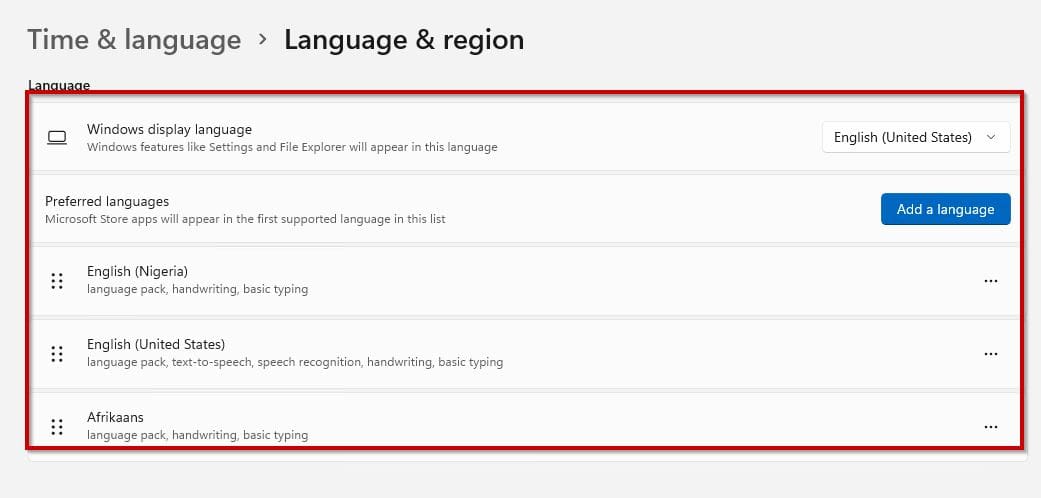
After you’ve finished the steps, open the Settings app by pressing the Windows key + I and navigate to the "Region & language” page, where the language you couldn’t remove before should now be gone. (If you wish to remove another language if necessary, repeat the steps)

Language Bundle
Screenshot before Removing the Language

If you want to remove a primary language, keep in mind that you must first set a new language as the new default before the Remove button appears.
Screenshot
Screenshot After Removing the Language

Explore these captivating guides that may pique your interest: How to install Zoom video conference software in Linux System,  how to manage your Cloud Assets in AWS with CloudQuery, and Charmed Kubernetes: How to install CNF certified Kubernetes in AWS.

I hope you found this blog post on how to forcefully remove Language Pack on Windows 10 and 11 helpful. If you have any questions, please let me know in the comment session.

Rate this post

Thank you for reading this post. Kindly share it with others.

  • Share on X (Opens in new window) X
  • Share on Reddit (Opens in new window) Reddit
  • Share on LinkedIn (Opens in new window) LinkedIn
  • Share on Facebook (Opens in new window) Facebook
  • Share on Pinterest (Opens in new window) Pinterest
  • Share on Tumblr (Opens in new window) Tumblr
  • Share on Telegram (Opens in new window) Telegram
  • Share on WhatsApp (Opens in new window) WhatsApp
  • Share on Mastodon (Opens in new window) Mastodon
  • Share on Bluesky (Opens in new window) Bluesky
  • Share on Threads (Opens in new window) Threads
  • Share on Nextdoor (Opens in new window) Nextdoor
Windows Tags:PowerShell, PowerShell Cmdlet, Windows 10, Windows 11

Post navigation

Previous Post: How to install Zoom video conference software on Linux System
Next Post: How to Exit Linux Vim or Vi Editor

Related Posts

  • rdp4
    How to change the default RDP port in Windows Network | Monitoring
  • SysInternals Tools set
    Download and use Windows Sysinternals Tools locally Windows
  • Capture 37
    How to Configure Network Load Balancing on Windows Server Backup
  • How to Disable the Password Manager of Google Chrome
    How to Disable the Password Manager of Google Chrome Password Manager
  • images 1
    How to reset and reinstall Windows 10 locally Windows
  • Featured image
    How to Disable or Uninstall OneDrive on Windows 10 and 11 Backup

More Related Articles

rdp4 How to change the default RDP port in Windows Network | Monitoring
SysInternals Tools set Download and use Windows Sysinternals Tools locally Windows
Capture 37 How to Configure Network Load Balancing on Windows Server Backup
How to Disable the Password Manager of Google Chrome How to Disable the Password Manager of Google Chrome Password Manager
images 1 How to reset and reinstall Windows 10 locally Windows
Featured image How to Disable or Uninstall OneDrive on Windows 10 and 11 Backup

Leave a Reply Cancel reply

You must be logged in to post a comment.

Microsoft MVP

VEEAMLEGEND

vexpert-badge-stars-5

Virtual Background

GoogleNews

Categories

veeaam100

Veeam Vanguard

  • linux tux minimalism 4k 42 2560x1700 1 1
    Warning useradd: the home directory already exists. Not copying any file from skel director into it Linux
  • images 4 1
    How to export passwords from KeePass Database to Pleasant Password Server Password Manager
  • Driver Automation Tool
    Windows Driver Management: Upgrade Driver Automation Tool Windows
  • redirects3endpoint
    How to redirect requests for your bucket’s website endpoint to another bucket or domain AWS/Azure/OpenShift
  • reboot computer
    Determine the last boot time of a Windows Server Windows Server
  • Use PowerShell to View and Change BIOS Settings
    Use PowerShell to View and Change BIOS Settings Windows
  • Featured image RAM requirement for PC
    How much RAM does your Windows PC really need? Windows
  • Logon fsilure errors
    Logon Failure Reasons for Windows Event Viewer Windows Server

Subscribe to Blog via Email

Enter your email address to subscribe to this blog and receive notifications of new posts by email.

Join 1,786 other subscribers
  • RSS - Posts
  • RSS - Comments
  • About
  • Authors
  • Write for us
  • Advertise with us
  • General Terms and Conditions
  • Privacy policy
  • Feedly
  • Telegram
  • Youtube
  • Facebook
  • Instagram
  • LinkedIn
  • Tumblr
  • Pinterest
  • Twitter
  • mastodon

Tags

Active Directory Azure Bitlocker Microsoft Windows PowerShell WDS Windows 10 Windows 11 Windows Deployment Services Windows Server 2016

Copyright © 2025 TechDirectArchive

Loading Comments...

You must be logged in to post a comment.