Skip to content

TechDirectArchive

Hands-on IT, Cloud, Security & DevOps Insights

  • Home
  • About
  • Advertise With US
  • Reviews
  • Contact
  • Toggle search form
Home » Linux » How to Install MongoDB on a Linux System
  • Featured image 1
    How to Change User Account Type in Windows 10 Windows
  • Task Scheduler Error 0x2 1
    How to fix Windows Task Scheduler 0x2 Error Windows
  • How to Remove Language Pack
    How to forcefully remove Language Pack on Windows 10 and 11 Windows
  • disableautomaticoffload
    How to Disable Automatic Offloading of Apps on iPhones Mac
  • dvssvd
    Windows Cached Credentials: How does cached domain logon work? Windows
  • Fix OneDrive Error
    How to Fix OneDrive Error 0x80071129: The tag present in the reparse point buffer is invalid Windows
  • dfggg 1
    Configuring SimpleSAMLPHP Windows Server
  • apply and install Veeam NFR Licence
    How to apply and install Veeam NFR License Backup

How to Install MongoDB on a Linux System

Posted on 29/07/202229/06/2023 Raphael Gab-Momoh By Raphael Gab-Momoh No Comments on How to Install MongoDB on a Linux System
How to install MongoDB in Linux command line - feature_image_mongo

MongoDB is an open-source, cross-platform document-oriented database application. Furthermore, the database application is a NoSQL database application that uses JSON-like documents with optional schemas. This article will teach you how to install MongoDB on a Linux System or Ubuntu 22.04 server. Meanwhile, we set our environment in Azure. You’ll also learn how to set up a remote connection to your MongoDB database. You can access other useful and related tutorials and guides from here: How to Install Docker Portainer on Linux and How to install Zoom video conference software in Linux System and How to Set Up Flutter with Android Studio on Linux and How to install AnyDesk on a Linux Machine and How to install AnyDesk on a Linux Machine

Other insightful guides can be referenced here: How to install and configure Apache Cassandra on Linux Server and How to fix “An Attempt Was Made to Reference a Token That Does Not Exist” in Windows 10 and How to upgrade from Ubuntu 20.04 LTS to 22.04 LTS with Authentication: How to use a Fido Certified U2F Key

Prerequisites to Install MongoDB on a Linux Server

  • A system running Ubuntu 22.04 or Higher
  • A user account with sudo privileges
  • Access to the command line/terminal

Step1: Initial Server Setup

Start by updating the server packages to the latest available:

sudo apt update
sudo apt dist-upgrade -y
How to install MongoDB in Linux command line - upgradeable
sudo apt dist-upgrade -y

Step2: Install Required Packages on your Linux Server

To import the key, you may need to install gnupg. It is rarely required because it may be installed by default. If you don’t already have it, you may install it using the following command.

sudo apt install gnupg
How to install MongoDB in Linux command line - gnupg
gnupg

Install Libssl1

You need to install libssl1 to install MongoDb on Ubuntu 22.04 otherwise you will receive an error like the one below.

To install libssl1 follow the below steps

echo "deb http://security.ubuntu.com/ubuntu impish-security main" | sudo tee /etc/apt/sources.list.d/impish-security.list
sudo apt update
sudo apt install libssl1.1

You may now install MongoDB because you have installed all the prerequisite packages.

Step3: Install MongoDB

Using the apt package manager, we will install MongoDB Community Edition with LTS.

Import the public key using the following command.

wget -qO - https://www.mongodb.org/static/pgp/server-5.0.asc | sudo apt-key add -

Add the MongoDB repository to the sources list.

How to install MongoDB in Linux command line - libss
libss
echo "deb [ arch=amd64,arm64 ] https://repo.mongodb.org/apt/ubuntu focal/mongodb-org/5.0 multiverse" | sudo tee /etc/apt/sources.list.d/mongodb-org-5.0.list

How to install MongoDB in Linux command line - multi
source list

Update the packages and install MongoDB

sudo apt update
sudo apt install -y mongodb-org
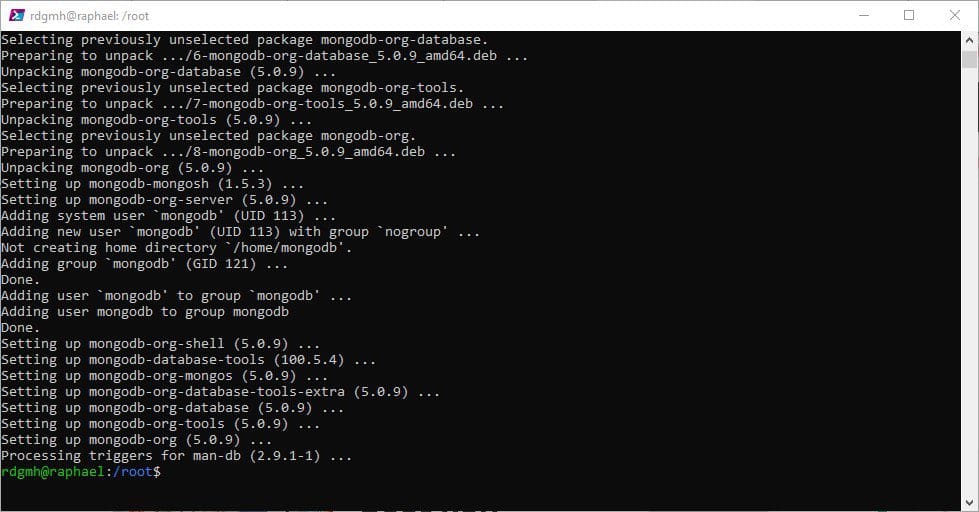
How to install MongoDB in Linux command line - mongodb
install mongodb

Once the setup is finished, enable MongoDB to start automatically when the machine boots.

sudo systemctl enable mongod
command line - enablemongo
enable mongo

Start MongoDB server.

sudo service mongod start

The status may be seen by using the following command.

sudo service mongod status
 - status
status

Configure MongoDB on Your Linux Server

We can now configure MongoDB to continue installing it on our Linux system, set it up to allow remote connections, and build a new database.

Secure MongoDB

Edit MongoDB config file.

sudo vim /etc/mongod.conf

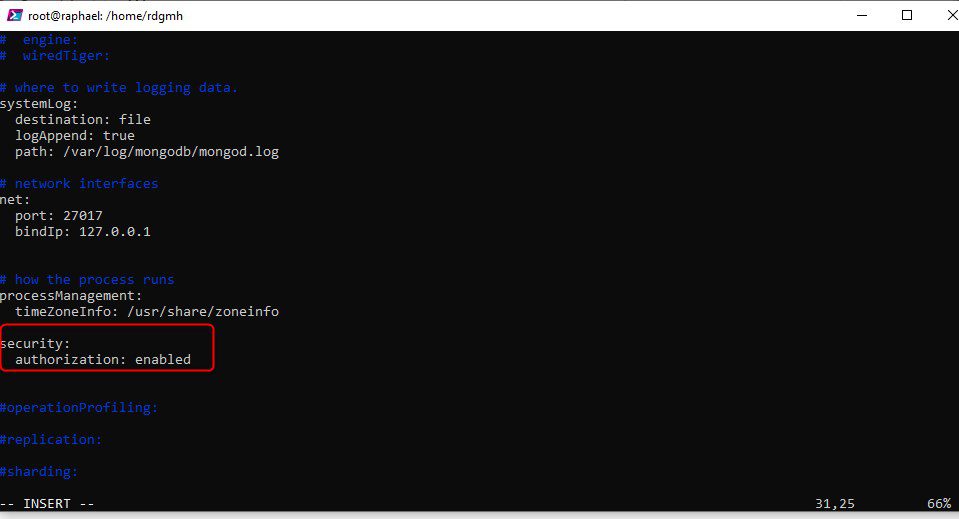
Uncomment the security section #security and enable authorization. The finished version should look like this.

How to install MongoDB in Linux command line - security-1
blank security
security:
  authorization: enabled
How to install MongoDB in Linux command line - security-enabled
security enabled

Enable Remote Connections From Your Linux Command Line

You must change the same file and add your internal or private IP address to the network interfaces to enable remote connections. Nonetheless, your setup should be like the one shown below.

net:
  port: 27017
  bindIp: 127.0.0.1,192.168.42.51,20.127.236.51
How to install MongoDB in Linux command line - net

Replace 192.168.142.51 with your IP address.

If you have a firewall, enable it for port 27017.

Because I am using an Azure Vm for this, I had to go to the networking section and added port 27017

Restart MongoDB for the changes to take effect.

sudo systemctl restart mongod

Using the following command, confirm whether MongoDB allows remote connections.

sudo lsof -i | grep mongo
mongod    3866         mongodb   12u  IPv4  33773      0t0  TCP instance-1.c.project_id.internal:27017 (LISTEN)
mongod    3866         mongodb   13u  IPv4  33774      0t0  TCP localhost:27017 (LISTEN)

Create MongoDB Admin User from Linux Server

Connect to MongoDB shell using mongosh command.

mongosh
Current Mongosh Log ID: 62948cd79def2ce0319469d5
Connecting to:          mongodb://127.0.0.1:27017/?directConnection=true&serverSelectionTimeoutMS=2000&appName=mongosh+1.4.2
Using MongoDB:          5.0.8
Using Mongosh:          1.4.2

Change to admin database.

use admin

Create admin user with all privileges and setup password.

db.createUser({user: "admin" , pwd: passwordPrompt() , roles: [{ role: "userAdminAnyDatabase" , db: "admin"}]})

When required, type your password.

Enter exit to exit the shell.

You may now connect to MongoDB using the connection string below.

mongodb://admin:password@External-IP:27017/database

MongoDB Service Commands in Linux Command Line

Start MongoDB

sudo systemctl start mongodb

Stop MongoDB

sudo systemctl stop mongodb

Disable MongoDB

sudo systemctl disable mongodb

Restart MongoDB

sudo systemctl restart mongodb

Summary

You’ve now learned how to install MongoDB on a Linux System or Ubuntu server, as well as how to configure it for remote connections.
Rate this post

Thank you for reading this post. Kindly share it with others.

  • Click to share on X (Opens in new window) X
  • Click to share on Reddit (Opens in new window) Reddit
  • Click to share on LinkedIn (Opens in new window) LinkedIn
  • Click to share on Facebook (Opens in new window) Facebook
  • Click to share on Pinterest (Opens in new window) Pinterest
  • Click to share on Tumblr (Opens in new window) Tumblr
  • Click to share on Telegram (Opens in new window) Telegram
  • Click to share on WhatsApp (Opens in new window) WhatsApp
  • Click to share on Pocket (Opens in new window) Pocket
  • Click to share on Mastodon (Opens in new window) Mastodon
  • Click to share on Bluesky (Opens in new window) Bluesky
  • Click to share on Threads (Opens in new window) Threads
  • Click to share on Nextdoor (Opens in new window) Nextdoor
Linux, Storage

Post navigation

Previous Post: How to Set Up Flutter with Android Studio on Linux
Next Post: How to Install Zabbix Monitoring Tool on a Linux System

Related Posts

  • linux tux minimalism 4k 42 2560x1700 1 1
    Warning useradd: the home directory already exists. Not copying any file from skel director into it Linux
  • HAProxy
    Deploying a load balancer from scratch and adding backend servers Linux
  • systemd services
    How to use Systemd Timers on Linux Linux
  • Manage Log Files via Logrotate
    How To Use Logrotate For Managing Log Files In Ubuntu Linux Linux
  • FimageUbuntuUpgrade
    How to Upgrade From Ubuntu 20.04 LTS to 22.04 LTS Linux
  • Errno 256 No more mirrors to try 1
    How to solve Errno 256 Linux

More Related Articles

linux tux minimalism 4k 42 2560x1700 1 1 Warning useradd: the home directory already exists. Not copying any file from skel director into it Linux
HAProxy Deploying a load balancer from scratch and adding backend servers Linux
systemd services How to use Systemd Timers on Linux Linux
Manage Log Files via Logrotate How To Use Logrotate For Managing Log Files In Ubuntu Linux Linux
FimageUbuntuUpgrade How to Upgrade From Ubuntu 20.04 LTS to 22.04 LTS Linux
Errno 256 No more mirrors to try 1 How to solve Errno 256 Linux

Leave a Reply Cancel reply

You must be logged in to post a comment.

Microsoft MVP

VEEAMLEGEND

vexpert-badge-stars-5

Virtual Background

GoogleNews

Categories

veeaam100

sysadmin top30a

  • Featured image 1
    How to Change User Account Type in Windows 10 Windows
  • Task Scheduler Error 0x2 1
    How to fix Windows Task Scheduler 0x2 Error Windows
  • How to Remove Language Pack
    How to forcefully remove Language Pack on Windows 10 and 11 Windows
  • disableautomaticoffload
    How to Disable Automatic Offloading of Apps on iPhones Mac
  • dvssvd
    Windows Cached Credentials: How does cached domain logon work? Windows
  • Fix OneDrive Error
    How to Fix OneDrive Error 0x80071129: The tag present in the reparse point buffer is invalid Windows
  • dfggg 1
    Configuring SimpleSAMLPHP Windows Server
  • apply and install Veeam NFR Licence
    How to apply and install Veeam NFR License Backup

Subscribe to Blog via Email

Enter your email address to subscribe to this blog and receive notifications of new posts by email.

Join 1,836 other subscribers
  • RSS - Posts
  • RSS - Comments
  • About
  • Authors
  • Write for us
  • Advertise with us
  • General Terms and Conditions
  • Privacy policy
  • Feedly
  • Telegram
  • Youtube
  • Facebook
  • Instagram
  • LinkedIn
  • Tumblr
  • Pinterest
  • Twitter
  • mastodon

Tags

Active Directory AWS Azure Bitlocker Microsoft Windows PowerShell WDS Windows 10 Windows 11 Windows Server 2016

Copyright © 2025 TechDirectArchive


Loading Comments...
 

You must be logged in to post a comment.