Skip to content

TechDirectArchive

Hands-on IT, Cloud, Security & DevOps Insights

  • Home
  • About
  • Advertise With US
  • Reviews
  • Contact
  • Toggle search form
Home » Linux » How to Set Up Flutter with Android Studio on Linux
  • PXE Boot to Install OS HyperV
    Run Hype-V on Windows 11 and Install Windows OS via PXE Boot Windows
  • fhgjk
    Replicating MDT Deployment Share: How to Create a Selection Profile and Link MDT Deployment Shares Windows Server
  • Network unlock
    How to configure Network Unlock in Windows Windows Server
  • MSSQL Always On Cluster on Azure
    [AZURE] Procedure for creating an MSSQL Always On Cluster on Azure AWS/Azure/OpenShift
  • Ping commands
    Ping from Source IP Address from all environments Mac
  • LINUX CONTAINERS
    How to install LXC/LXD for container management Linux
  • Remove Custom Domain from Entra ID and Azure tenant
    Delete Azure Tenant: Remove Custom Domain from Entra ID AWS/Azure/OpenShift
  • fghj
    How to enable or disable DotNet Framework (NetFx3) via PowerShell, Control Panel, and DISM in Windows Windows

How to Set Up Flutter with Android Studio on Linux

Posted on 29/07/202230/06/2023 Raphael Gab-Momoh By Raphael Gab-Momoh No Comments on How to Set Up Flutter with Android Studio on Linux
Flutter-Feature

You can create cross-platform mobile apps using one codebase utilizing the Google development platform Flutter. Dart, a typed and object-oriented language that compiles to either native code or JavaScript, is used to create apps. This implies that users can use a single Flutter project to target desktop operating systems, the web, Android, and iOS. An interface definition framework like React is included with Flutter. Additionally, it has pre-installed Material Design and iOS-inspired components that enable you to swiftly layer up a new interface. Robust connections with integrated development environments (IDEs), live debugging tools, and others. Here’s a guide on how to set up Flutter with Android Studio. You can find other useful and similar guides here: How to Install Docker Portainer on Linux and How to install Zoom video conference software in Linux System.

Other guides can also be referenced here: How to upgrade from Ubuntu 20.04 LTS to 22.04 LTS and how to install Golang on a Linux System, how to upgrade from Ubuntu 20.04 LTS to 22.04 LTS, how To Install Google Cloud SDK on a Linux System and Weather from the Terminal: How to check whether details from the Command Line in Windows, macOS, Linux, and your Web browser.

Prerequisites to set up Flutter with Android Studio

  • A system running Ubuntu 20.04 or higher
  • A user account with admin privileges
  • Access to the command line/terminal

Setting Up Flutter With Android Studio

Flutter may be set up in a variety of methods, but in this case, we’ll utilize snap packages and Android Studio to do it. as it would take a lot of time to use their tar files from their official websites.

Utilizing snap packages speeds up the process and reduces the likelihood of running into issues. Please here are some interesting guides also: How to install Microsoft Teams on a Mac PC , how to Get, Edit, Create and Delete Registry Keys in PowerShell and How to use Systemd Timers on Linux.

Step 1: Install Flutter on your Linux machine

Install the snap package for Flutter by first opening the terminal and entering the command shown below:

	
sudo snap install flutter --classic
how to set up flutter with Android Studio  on Linux-installed
flutter installed

Run the command listed below to confirm that all necessary packages are installed before concluding the installation of flutter.

flutter

Once your Flutter is ready and all necessary packages are installed, you will get the “Welcome to Flutter!” message below. All you now require is the Android SDK.

How to set up flutter with Android Studio on Linux welcome-cloud
welcome

Step2: Install and configure Android Studio

Installing Android Studio will allow us to use the Android SDK and let it do all of the work. Open your terminal and enter the command below to install Android Studio:

sudo snap install android-studio --classic

After completing the installation of Android Studio, launch it by entering the command below:

how to set up flutter with Android Studio on Linux-installed
install android studio
android-studio

When your Android Studio launches, it will resemble the following:

how to set up flutter with Android studio on Linux-studio
android studio launched

As soon as your Android Studio launches, it Once Android Studio has launched, you will need to confirm a few options. Unless your Android Studio begins installing the Android SDKs and other required components, leave the default settings in place and keep pressing Next.

how to set up flutter with android studio on Linux - andnext
complete the installation by pressing next

Next make sure you download all the required components

how to set up flutter with android studio on Linux - components
download the components of android studio

You must see that is completed just as shown below

completed
components download complete

Step3: Set up Flutter and Accept Android licenses

Go to your terminal and enter the following command after the installation of Android Studio is complete:

flutter config --android-studio-dir /snap/android-studio/current/android-studio
how to set up flutter with android studio on Linux - configadded
flutter config

Your Android Studio directory will be configured to point to the Android Studio snap package directory you just downloaded. Run the subsequent command to open the licenses for Android now. As long as you have to, keep typing “y” to accept the licenses.

flutter doctor --android-licenses

Step 4: Verify the Flutter set up

flutter doctor
FLUTTER
flutter doctor

Run a Flutter sample app

After installing Flutter on our Laptop, let’s test it out with an example app to make sure everything is functioning as it should.

Step 1: Create a directory and CD into it

First, use the mkdir and cd commands to create a directory instead, with whatever name you choose, and then cd into it:

mkdir sample_app
cd sample_app

Step 2: Initialize the directory with Flutter starter files

Once within the directory, execute the following command:

	
flutter create .
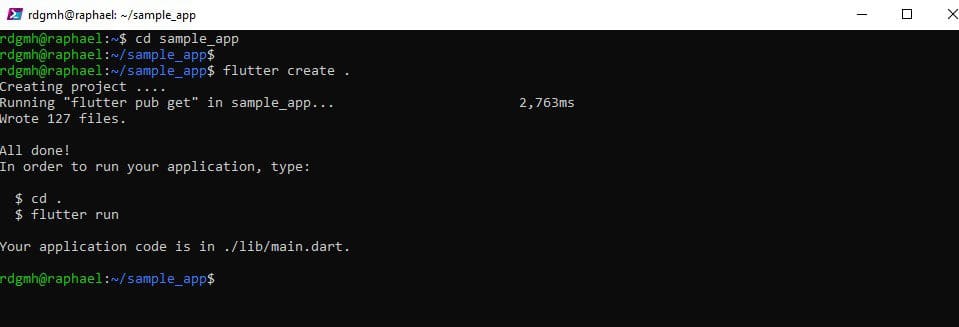
flutterrun
sample app

Step 3: Run the Flutter hello-world app

Run the following command to launch your Flutter app when flutter create has finished running:

flutter run 

Wait a bit, and then open a Chrome tab with a running program, and you should see the panels below in your Terminal and Chrome, respectively.
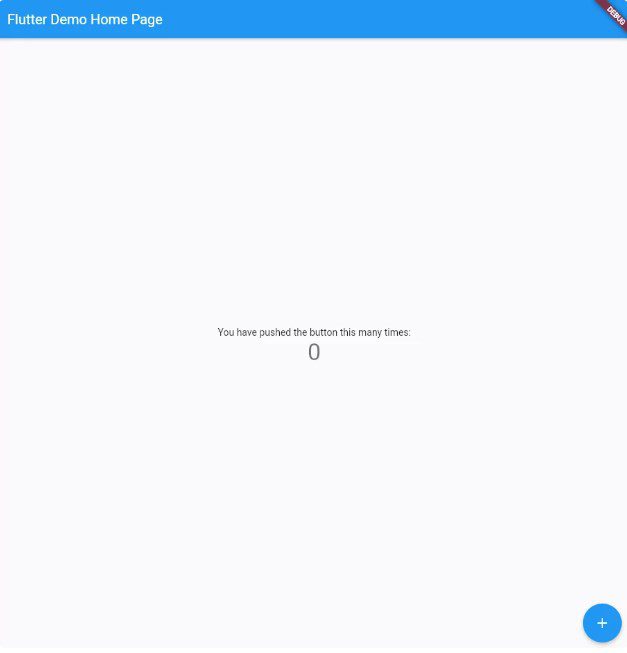
How to set up flutter with Android Studio on Linux-sample-app
flutter sample app

Summary

In this tutorial, we spoke about how to set up Flutter on a Linux machine in a simple manner that even a novice could handle. To make sure Flutter functions flawlessly, we also saw the process of launching an app.

Rate this post

Thank you for reading this post. Kindly share it with others.

  • Click to share on X (Opens in new window) X
  • Click to share on Reddit (Opens in new window) Reddit
  • Click to share on LinkedIn (Opens in new window) LinkedIn
  • Click to share on Facebook (Opens in new window) Facebook
  • Click to share on Pinterest (Opens in new window) Pinterest
  • Click to share on Tumblr (Opens in new window) Tumblr
  • Click to share on Telegram (Opens in new window) Telegram
  • Click to share on WhatsApp (Opens in new window) WhatsApp
  • Click to share on Pocket (Opens in new window) Pocket
  • Click to share on Mastodon (Opens in new window) Mastodon
  • Click to share on Bluesky (Opens in new window) Bluesky
  • Click to share on Threads (Opens in new window) Threads
  • Click to share on Nextdoor (Opens in new window) Nextdoor
Linux

Post navigation

Previous Post: How to uninstall Internet Explorer from your Windows Device
Next Post: How to Install MongoDB on a Linux System

Related Posts

  • mailx
    [MAILX ERROR: STATUS=BOUNCED] Fixing Mailx error when sending emails from Command line Linux
  • Jenkins
    How to Install Jenkins Automation Server on Ubuntu 20.04 LTS Linux
  • SUBVERSION FEATURE
    How to Install Apache Subversion on a Linux System Linux
  • How to create edit save exit file
    Mastering Vim in Linux: How to Create, Edit, Save, and Quit Files Linux
  • SUID GUID Sticky Bit 1
    Set Special File Permissions with SUID or GUID and Sticky Bit Linux
  • Screenshot 2020 05 14 at 19.28.50
    How to install and configure Rancid Linux

More Related Articles

mailx [MAILX ERROR: STATUS=BOUNCED] Fixing Mailx error when sending emails from Command line Linux
Jenkins How to Install Jenkins Automation Server on Ubuntu 20.04 LTS Linux
SUBVERSION FEATURE How to Install Apache Subversion on a Linux System Linux
How to create edit save exit file Mastering Vim in Linux: How to Create, Edit, Save, and Quit Files Linux
SUID GUID Sticky Bit 1 Set Special File Permissions with SUID or GUID and Sticky Bit Linux
Screenshot 2020 05 14 at 19.28.50 How to install and configure Rancid Linux

Leave a Reply Cancel reply

You must be logged in to post a comment.

Microsoft MVP

VEEAMLEGEND

vexpert-badge-stars-5

Virtual Background

GoogleNews

Categories

veeaam100

sysadmin top30a
 
  • PXE Boot to Install OS HyperV
    Run Hype-V on Windows 11 and Install Windows OS via PXE Boot Windows
  • fhgjk
    Replicating MDT Deployment Share: How to Create a Selection Profile and Link MDT Deployment Shares Windows Server
  • Network unlock
    How to configure Network Unlock in Windows Windows Server
  • MSSQL Always On Cluster on Azure
    [AZURE] Procedure for creating an MSSQL Always On Cluster on Azure AWS/Azure/OpenShift
  • Ping commands
    Ping from Source IP Address from all environments Mac
  • LINUX CONTAINERS
    How to install LXC/LXD for container management Linux
  • Remove Custom Domain from Entra ID and Azure tenant
    Delete Azure Tenant: Remove Custom Domain from Entra ID AWS/Azure/OpenShift
  • fghj
    How to enable or disable DotNet Framework (NetFx3) via PowerShell, Control Panel, and DISM in Windows Windows

Subscribe to Blog via Email

Enter your email address to subscribe to this blog and receive notifications of new posts by email.

Join 1,841 other subscribers
  • RSS - Posts
  • RSS - Comments
  • About
  • Authors
  • Write for us
  • Advertise with us
  • General Terms and Conditions
  • Privacy policy
  • Feedly
  • Telegram
  • Youtube
  • Facebook
  • Instagram
  • LinkedIn
  • Tumblr
  • Pinterest
  • Twitter
  • mastodon

Tags

AWS Azure Bitlocker Microsoft Windows PowerShell WDS Windows 10 Windows 11 Windows Deployment Services Windows Server 2016

Copyright © 2025 TechDirectArchive


Loading Comments...
 

You must be logged in to post a comment.