An account with the same name exists in Active Directory: Re-using the account was blocked by a security policy


In this article, you learn how to add an account with the same name exists in Active Directory: Re-using the account was blocked by a security policy. When attempting to add a pre-created PC to a domain or reuse an existing computer account. Please see Active Directory Ports: Service and network port requirements for Windows, How to find disabled Active Directory User accounts, What are Active Directory Forest, Trees, Domain, and Sites, and how to Setup a Domain Controller.
The following error below is encountered. An account with the same name exists in Active Directory. Re-using the account was blocked by the security policy. Windows updates released on and after October 11, 2022, thereby introducing additional protections (hardening) of your environment. This hardening mitigates the following “CVE-2022-38042 (Active Directory Domain Services Elevation of Privilege Vulnerability)”.
The NetJoinDomain function joins a computer to a workgroup or domain. Before proceeding to discuss this new behavior, let’s discuss how it was before. You may also want to see “Active Directory domain join troubleshooting guidance“.
Kindly refer to some of these related guides. How to delete and restore objects using Active Directory Administrative Center, and How to Manage BitLocker and FileVault with Trellix Native Encryption
Legacy behaviour
Before the installation of the October 11, 2022 update, or later cumulative updates. The client’s computer queries Active Directory for an existing account with the same name. This query occurs during domain join and computer account provisioning. If such an account exists, the client will automatically attempt to reuse it.
Note: During this time, the reuse attempt will fail if the user who attempts the domain join operation does not have the appropriate write permissions. However, if the user has enough permissions the domain join will succeed.
There are two scenarios with respect to the default behaviours and flags. Thereby disallowing the account or provisioning or reusing the account when configured only.
Reason for this behaviour: An account with the same name exists in Active Directory, re-using the account was blocked by a security policy
Microsoft released KB5020276 last month (October 2022). This modifies the domain join process and performs additional security checks before attempting to reuse existing computer accounts. These protections intentionally prevent domain join operations from reusing an existing computer account in the target domain with these exemptions.
- Account reuse attempts will be permitted if the user attempting the operation is the creator of the existing account.
- Account reuse attempts will be permitted if the account was created by a member of domain administrators.
Therefore, computer account reuse is only permitted in the following scenarios above
New behaviour: An account with the same name exists in Active Directory, re-using the account was blocked by a security policy
Once you install October 11, 2022, or subsequent cumulative updates on a client computer, during domain join. The client will perform additional security checks before attempting to reuse an existing computer account.
If an account has already been pre-positioned (created) or joined to the domain previously, and you do not fall into the two criteria of account reuse. The following error below will be prompted.
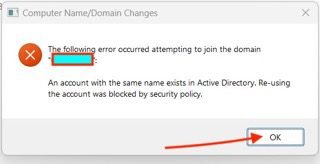
These additional security checks are done before attempting to join the computer. If the checks are successful, the rest of the join operation is subject to Active Directory permissions as before. This change does not affect new accounts.
Note: Event ID 4101 will be triggered once the error above occurs and the issue will be logged in c:\windows\debug\netsetup.log. Please follow the steps below in taking Action to understand the failure and resolve the issue.Kindly refer to these related guides: The logon attempt failed for the remote desktop connection, How to fix “An Attempt Was Made to Reference a Token That Does, and how to fix the error: An Active Directory could not be contacted or cannot find domain next existent domain.
Action Taken
Step 1: I am very okay with this hardening and will not be finding a way around it. I will simply proceed to Active Directory and have the computer account deleted. Then, I will proceed to have the device join the domain again.

Step 2: I will proceed to the device to have it joined to the domain again.
Here are some related guides. How to join a computer to the Domain, how to fix “The specified domain either does not exist or could not be contacted“, and how to fix the following error occurred attempting to rename the computer, Account already exists.
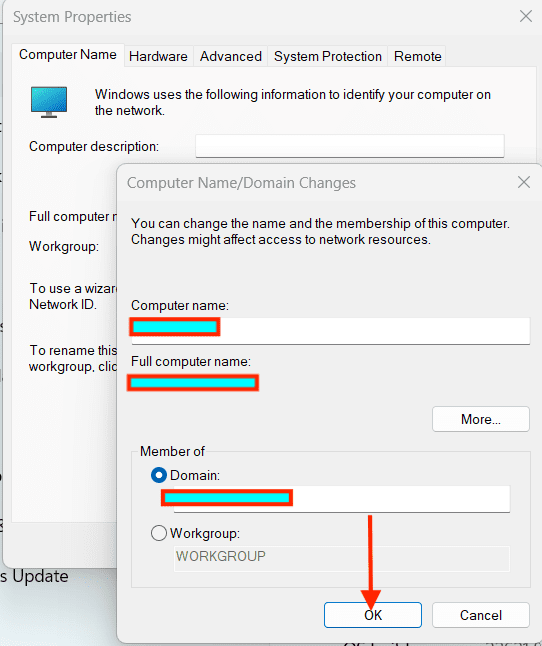
You will be prompted to enter your Domain Administrators Account credentials. Enter your credentials and click on OK.

As shown in the image below- The device has been joined to the domain successfully. Click on Ok to complete this step.

Click on Okay to restart your Computer!

Please see Why does the legacy PXE not does work on Generation 2 VM, How to Reset a Cisco 3650 Catalyst Switch, What to do after increasing the Memory of an Oracle Database, how to Perform Continuous Ping in Different Environments, and How to perform a continuous ping on macOS, Linux, Windows, Juniper and Cisco devices.
Other Workarounds
Review computer account provisioning workflows and understand if changes are required.
- Perform the join operation using the same account that created the computer account in the target domain.
- If the existing account is stale (unused), delete it before attempting to join the domain again. This is exactly the action I took!
- Rename the computer and join using a different account that doesn’t already exist. This is a possibility, but what if you really cannot use a different name? Then the next solution should work for you.
If the existing account is owned by a trusted security principal and the administrator wants to reuse the account. They might do so by temporarily setting the following registry key at the individual client computer level. Then immediately remove the registry setting after the join operation is complete. No restart is necessary for changes to the registry key to take effect.
| Path | HKLM\System\CurrentControlSet\Control\LSA |
| Type | REG_DWORD |
| Name | NetJoinLegacyAccountReuse |
| Value | 1 “Other values are ignored”. |
Note: Caution: If you choose to set this key to work around these protections. You will leave your environment vulnerable to CVE-2022-38042 unless your scenario is referenced below as appropriate. Do not use this method without confirmation that the Creator/Owner of the existing computer object is a secure and trusted security principal.
Temporarily set the Registry Setting for the individual Computer
To set the key, launch the Registry Editor of the specific device in question. Create the key, and modify the value above. You may have to create the key if it does not already exist. Please navigate to the Registry Path below
HKLM\System\CurrentControlSet\Control\LSAAs you can see, the DWORD Value “NetJoinLegacyAccountReuse” does not exist already. I will have to create it.
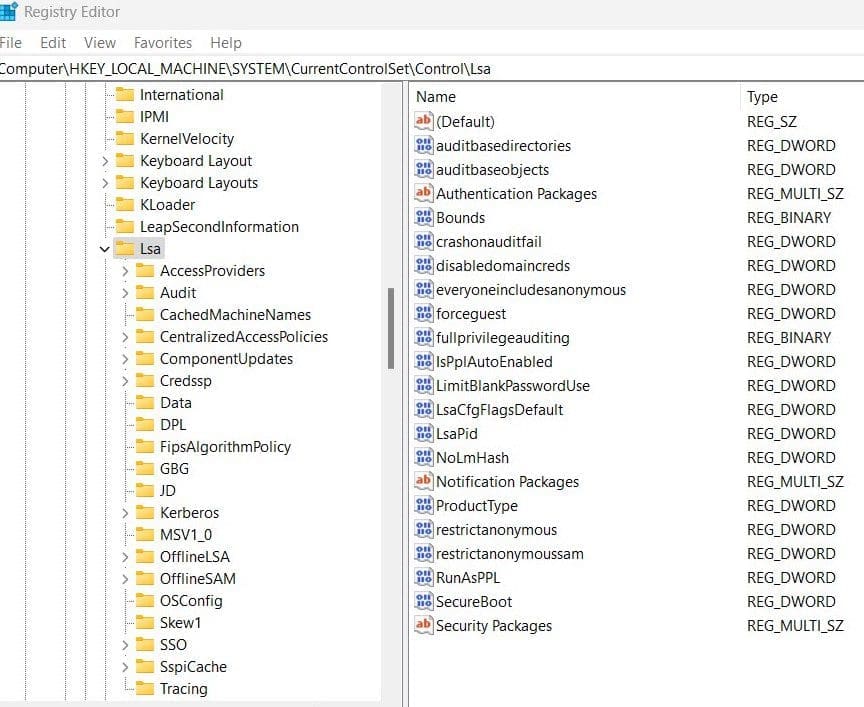

Modify the DWORD you have just created, and enter the value of 1 as discussed in the table above.

Modify the DWORD you have just created, and enter the value of 1 as discussed in the table above.

Note: In the future, Microsoft might remove support for the NetJoinLegacyAccountReuse registry setting and will have it replaced with an alternative method. When this happens, we may have to update this piece or add it to the comment session.
I hope you found this blog post helpful on Domain Join hardening: An account with the same name exists in Active Directory: Re-using the account was blocked by a security policy. Please let me know in the comment session if you have any questions.


The Reg Key workaround worked great and I didn’t have to restart to get the value to work for “
NetJoinLegacyAccountReuse”. THank you for the great article!You are welcome
hello. works for me too! had tough last two days 😀 thanks for good sleep
Awesome! I am glad you found it useful.. Cheers!
Hello,
Thank you so much for that workaround.
Thank you so much for your kind words.
Thanks, the registry edit worked for the problem I was facing, this article is a lifesaver
Thank you @Nodean for your kind words I am glad you found this article useful.
Thank you. Using a domain administrator account credentials worked fine to rejoin the domain with the same device name.
Thanks a lot for the kind words. I am glad you found it useful.