Skip to content

TechDirectArchive

Hands-on IT, Cloud, Security & DevOps Insights

  • Home
  • About
  • Advertise With US
  • Reviews
  • Contact
  • Toggle search form
Home » Windows » Find saved Wi-Fi Passwords in Windows 10 and 11
  • runlevels
    How to check your current Runlevel in Linux Linux
  • microsoft edge
    How to configure static page in Microsoft Edge browser via Local Group Policy on Windows Windows
  • template 1
    Install Group Policy Templates for Microsoft Edge and Google Chrome browsers on Windows Windows
  • PIN9 1
    How to increase Windows PIN complexity Windows
  • sandboxx
    Use Windows Sandbox as a security feature Virtualization
  • SSH Keys Generation
    How to Generate SSH keys in Windows 11 Windows
  • ssl
    SSL Encrypted Communications explained Web Server
  • article 1280x720.192a2586 1 1
    How to install WSL on Windows Server Windows Server

Find saved Wi-Fi Passwords in Windows 10 and 11

Posted on 24/11/202207/10/2024 Matthew By Matthew No Comments on Find saved Wi-Fi Passwords in Windows 10 and 11
Featured-image_wifipass
How to View Saved Wi-Fi Password

If you know how to look at saved Wi-Fi passwords on your device, you won’t have to reset and re-configure them when you need them quickly. If you have forgotten your Wi-Fi password. In this article, you will learn how to find saved Wi-Fi Passwords in Windows 10 and 11. Please see how to remove Microsoft Defender update on Windows 10 and Windows Server image, and how to view Microsoft Defender Antivirus update details on Windows 10 image (install.wim), and how to Create a Windows 10 or 11 bootable USB with UEFI support.

One of the easiest ways to know the default Wi-Fi password is to check the back of your ADSL mode. Or the router and use that to connect to your wireless network.

Windows WiFi password

However, if you’ve previously changed your Wi-Fi password, the only way to regain access to your wireless network is to either reset your modem to its default settings, find the Wi-Fi password from an old computer, or find it from other Windows 10 or 11 devices that are currently connected to the wireless network. Here is another guide on how to reveal the WiFi password of the Network you are connected to in Windows.

Here are other interesting guides you can read about How to enable or disable Windows Defender Antivirus Periodic Scanning on Windows via Windows Security, How to restore quarantined files in Microsoft Defender Antivirus,and  How to find and remove Malware with Microsoft Defender Offline. This guide shows you step-by-step how to see the saved names and passwords for wireless networks on Windows 10 or Windows 11.

View Saved Wi-Fi Passwords in Windows 10 or 11

We will be showing you three different ways in which you can quickly view the saved Wi-fi of your wireless network.  Please see Unable to connect to Eduroam WLAN: WiFi Username remembered on MAC.

Method 1: View the Wi-Fi Password of your Active Wireless Connection

If you simply want to see the Wi-Fi password for a wireless network that you are currently connected to use this method. Use one of the remaining methods to check all the stored passwords on a Windows 10 or 11 computer.

To launch the Run dialog box, press the Windows key + R together. Type ncpa.cpl in the box and hit Enter to open the Network Connections page.
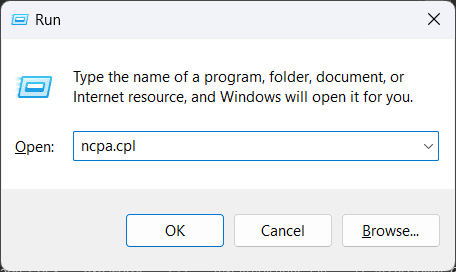
image1
Run dialog box

Right-click on your Wi-fi adapter and choose Status from the menu that appears.

image2-1
Network Connections

Click on Wireless Properties.

image3
Wi-Fi Status

Click the Security tab and check the box next to “Show characters.” You may be prompted to enter your UAC to view the Wi-Fi password for the wireless network.

image4-1

Method 2: How to View Saved Wi-fi Passwords Using Command Prompt

You can view the Wi-Fi passwords for any wireless network you’ve ever connected to using the command line. To do this follow the steps below.

Press the Windows key to open the Start menu and type CMD and select Run as an Administrator.

image5-1
Windows Start menu

Type the following command and press Enter to view all the saved Wireless profiles.

netsh wlan show profiles
image6-1
Command Prompt

You should see all the wireless networks you have previously connected to after running the above command. Find the wireless network you want to view the Wi-Fi password for, then enter the following command to display the password:

netsh wlan show profile name="Wireless-Name" key=clear

Replace the “Wireless-Name” with the name of the Wi-Fi network you want to view the password.

The command will display several information about the Wi-Fi password. Scroll down to Security Settings and view the Wi-Fi password next to Key Content.

image7-1
Command Prompt

If you are simply interested in seeing the password and know the Wi-Fi network’s name. You can also use the command shown below:

netsh wlan show profile name="network name" key=clear | find /I “Key Content”
image8
Command Prompt

Please see How to Get the Windows 10 Version 22H2 Update. Setting up and configuring Cisco WAP 551 and WAP 561, and installing ADK|WinPE|MDT: Deploy Windows with WDS. Also see 5 Steps to Fix Outlook continually prompts for passwords on Windows 10 and 11.

Method 3: How to View Saved Wi-fi Passwords Using PowerShell

You can also view the Wi-Fi passwords for any wireless network you’ve ever connected to using PowerShell. To do this follow the steps below.

Press the Windows key to open the Start menu and type PowerShell and select Run as an Administrator.

image9
Windows Start menu

Copy and paste the following command to display all the Wi-Fi networks and their passwords.

(netsh wlan show profiles) | Select-String "\:(.+)$" | %{$name=$_.Matches.Groups[1].Value.Trim(); $_} | %{(netsh wlan show profile name="$name" key=clear)} | Select-String "Key Content\W+\:(.+)$" | %{$pass=$_.Matches.Groups[1].Value.Trim(); $_} | %{[PSCustomObject]@{ PROFILE_NAME=$name;PASSWORD=$pass }} | Format-Table -AutoSize

This command lists the names and passwords of every Wi-Fi network you’ve ever connected to. Please see Windows Modules Installer: How to deactivate TrustedInstaller in Windows. How to fix Error code 0x801c001d: Automatic registration failed, failed to look up the registration service information from Active Directory with exit code unknown HResult.

image10
PowerShell

I hope you find this post helpful on how to find saved Wi-Fi Passwords in Windows 10 and 11. If you have any questions, feel free to leave them in the comment section below.

5/5 - (1 vote)

Thank you for reading this post. Kindly share it with others.

  • Click to share on X (Opens in new window) X
  • Click to share on Reddit (Opens in new window) Reddit
  • Click to share on LinkedIn (Opens in new window) LinkedIn
  • Click to share on Facebook (Opens in new window) Facebook
  • Click to share on Pinterest (Opens in new window) Pinterest
  • Click to share on Tumblr (Opens in new window) Tumblr
  • Click to share on Telegram (Opens in new window) Telegram
  • Click to share on WhatsApp (Opens in new window) WhatsApp
  • Click to share on Pocket (Opens in new window) Pocket
  • Click to share on Mastodon (Opens in new window) Mastodon
  • Click to share on Bluesky (Opens in new window) Bluesky
  • Click to share on Threads (Opens in new window) Threads
  • Click to share on Nextdoor (Opens in new window) Nextdoor
Network | Monitoring, Windows, Windows Server Tags:Microsoft Windows, Windows 10, Windows 11, Windows Server 2016

Post navigation

Previous Post: Unable to find my BitLocker Recovery Key in AD
Next Post: How to get the Windows 10 Version 22H2 Update

Related Posts

  • Recovery keys in AD 1
    Backup existing and new BitLocker Recovery Keys to Active Directory Windows Server
  • Feature image Password protect a virtual hard disk
    Create a Password-Protected VHD Using BitLocker on Windows Windows
  • Watchguard Firewall 180504 100511 1
    WatchGuard Firebox XTM Device Image Backup Network | Monitoring
  • image 2
    How to Fix Microsoft Edge Not Responding Windows
  • windows 7 stuck at loading screen thumbnail
    Disable the Windows welcome screen and shutdown screen Windows
  • the remote procedure call failed
    Error 0xc1420117: The directory could not be completely unmounted Windows Server

More Related Articles

Recovery keys in AD 1 Backup existing and new BitLocker Recovery Keys to Active Directory Windows Server
Feature image Password protect a virtual hard disk Create a Password-Protected VHD Using BitLocker on Windows Windows
Watchguard Firewall 180504 100511 1 WatchGuard Firebox XTM Device Image Backup Network | Monitoring
image 2 How to Fix Microsoft Edge Not Responding Windows
windows 7 stuck at loading screen thumbnail Disable the Windows welcome screen and shutdown screen Windows
the remote procedure call failed Error 0xc1420117: The directory could not be completely unmounted Windows Server

Leave a Reply Cancel reply

You must be logged in to post a comment.

Microsoft MVP

VEEAMLEGEND

vexpert-badge-stars-5

Virtual Background

GoogleNews

Categories

veeaam100

sysadmin top30a
 
  • runlevels
    How to check your current Runlevel in Linux Linux
  • microsoft edge
    How to configure static page in Microsoft Edge browser via Local Group Policy on Windows Windows
  • template 1
    Install Group Policy Templates for Microsoft Edge and Google Chrome browsers on Windows Windows
  • PIN9 1
    How to increase Windows PIN complexity Windows
  • sandboxx
    Use Windows Sandbox as a security feature Virtualization
  • SSH Keys Generation
    How to Generate SSH keys in Windows 11 Windows
  • ssl
    SSL Encrypted Communications explained Web Server
  • article 1280x720.192a2586 1 1
    How to install WSL on Windows Server Windows Server

Subscribe to Blog via Email

Enter your email address to subscribe to this blog and receive notifications of new posts by email.

Join 1,841 other subscribers
  • RSS - Posts
  • RSS - Comments
  • About
  • Authors
  • Write for us
  • Advertise with us
  • General Terms and Conditions
  • Privacy policy
  • Feedly
  • Telegram
  • Youtube
  • Facebook
  • Instagram
  • LinkedIn
  • Tumblr
  • Pinterest
  • Twitter
  • mastodon

Tags

AWS Azure Bitlocker Microsoft Windows PowerShell WDS Windows 10 Windows 11 Windows Deployment Services Windows Server 2016

Copyright © 2025 TechDirectArchive


Loading Comments...
 

You must be logged in to post a comment.