Skip to content

TechDirectArchive

Hands-on IT, Cloud, Security & DevOps Insights

  • Home
  • About
  • Advertise With US
  • Contact
  • Reviews
  • Toggle search form
Home » Windows » How to share an app window on Microsoft Teams
  • GitLabrunner
    Install and Register GitLab Runner on Windows Version Control System
  • Backup for Microsoft 365 and Azure
    Veeam Backup Deployment options for Microsoft 365 Data AWS/Azure/OpenShift
  • Review of Stellar Repair for Outlook
    A Review of Stellar Repair for Outlook Reviews
  • coding
    Git GUI and Gitk won’t open “Missing Tcl / Tk Aqua libraries” Version Control System
  • BitLocker MBAM Frequently Asked Questions
    Disable the Sleep Mode: UEFI and TPM and BitLocker FAQs Windows
  • Encapsulationset to Auto
    Error – Command rejected: An interface whose trunk encapsulation is “Auto” can not be configured to “trunk” mode Network | Monitoring
  • ePO installation on Windows Server
    Trellix ePolicy Orchestrator Installation on Windows Server Security | Vulnerability Scans and Assessment
  • hgbv
    Graphical Network Simulator: How to install GNS3 on macOS Network | Monitoring

How to share an app window on Microsoft Teams

Posted on 26/12/202211/04/2023 Matthew By Matthew No Comments on How to share an app window on Microsoft Teams
Featured-image_MsTeams.
Sharing App window on Microsoft Teams

From the Taskbar, you can share an app window directly into a Microsoft Teams meeting or video call in Windows 11. The feature was made so that it would be easier to share content without quickly sharing the whole desktop and so that meetings wouldn’t be interrupted. When you share an app window in Microsoft Teams, you can show your team what you’re working on in real-time and work together. The feature is built into Windows 11, and it works with any platform for video conferencing. However, developers must add it to their apps. It only works with the commercial version of Microsoft Teams at the time of writing, not the consumer version (the one built into Windows 11). In this article, you will learn how to share an app window on Microsoft Teams.

Here are other related guides you can read: How to Use a Whiteboard in a Microsoft Teams Meeting, How to Use a Whiteboard in a Microsoft Teams Meeting, How to install Microsoft Teams on a Mac PC, How to uninstall and prevent the installation of Teams in the future on Windows, How to install and configure Microsoft Teams on Ubuntu, and how new Windows 11 encryption features and security enhancements will help protect hybrid work.

How to share an app window on Microsoft Teams

The process to share an app window is straightforward on Windows 11, but you must first make sure the feature is enabled.

Please refer to these exciting guides: How to Hide the Windows 10 Taskbar, How to Hide or Remove the Search Button from Windows 11 Taskbar, How to Hide or Remove the Search Button from Windows 10 Taskbar, how to fix Error Code: 0x80070035: MDT unable to access the Log share, the Network, and how to create and access a hidden share folder on Windows devices.

Enable share an app window

To enable the option to share an app during a Teams meeting, use these steps:

Press the Windows key + I keyboard shortcut to open Settings and click on Personalization. Then select the Taskbar page on the right side.

image1-5
Personalization Settings

Click the Taskbar behaviors and from the drop-down, check the “Share any window from my taskbar” option.

image3-3
Taskbar Settings

After you’ve finished the steps, you’ll be able to share the contents of an app during a Teams meeting or call. Please see how to Hide the Action Center Taskbar Icon In Windows 10.

Share an app window on Teams

To share an app window with Microsoft Teams, use these steps:

Press the Windows key to open Start menu, search for Microsoft Teams and click the top result under best match.

image4-2
Start menu

Go to the calendar section and click the Meet now button to start a video call. You can also click on the video icon and start a video call with another person instead of a meeting.

image5-2
Microsoft Teams

Click the Join now button.

image6-2
Teams meeting

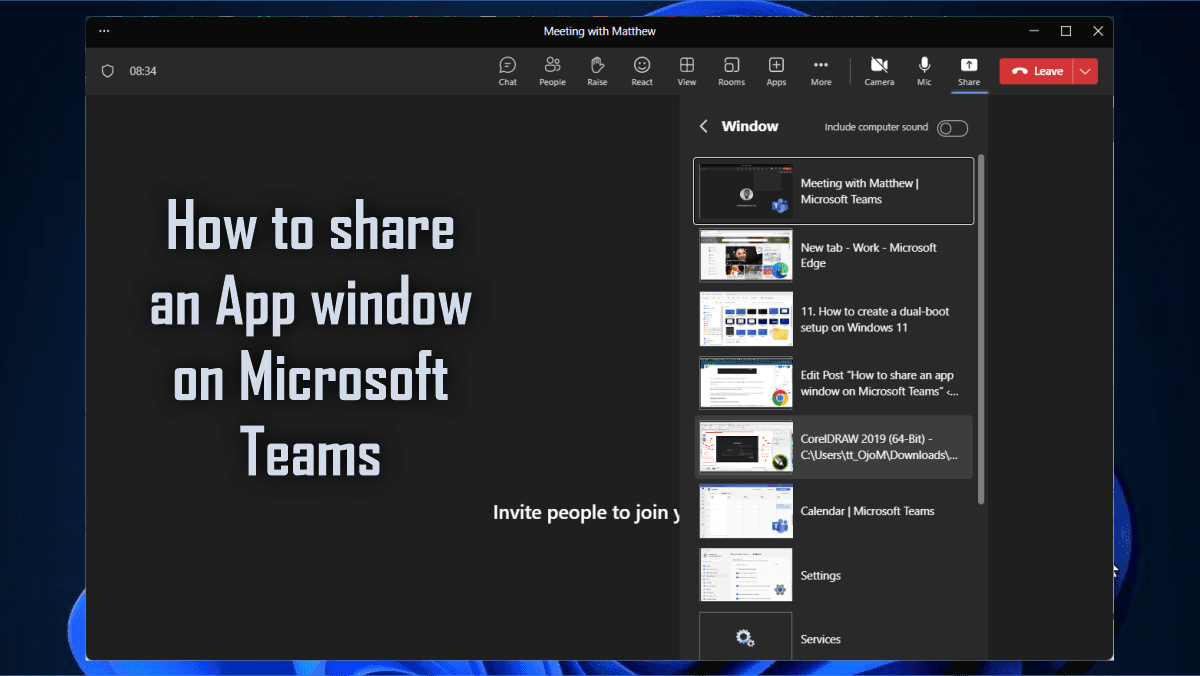
To share any app, click on the Share button you will see the option to share your current screen or other app window, select the Windows option and choose the app to share. Note: The app must be open before you can be able to share it through Microsoft Teams.

image7-2
Sharing screen on Microsoft Teams

Click Stop Presenting or hover over the app and click the Stop Sharing button or share another window to stop a particular share.

image8-2
Stop sharing Edge browser screen

After you finish the steps, only that app window will be shared during the call. You can even change the size of the window, and the feature will adjust to share only what’s in that app.

Disable share an app window

To disable the ability to share an app window, use these steps:

Press the Windows key + I keyboard shortcut to open Settings and click on Personalization. Then select the Taskbar page on the right side.

Click the Taskbar behaviors and from the drop-down, uncheck the “Share any window from my taskbar” option.
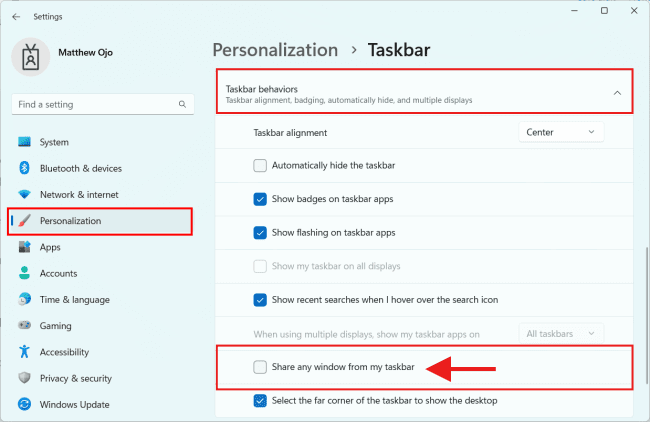
image10-2

After you complete the steps, the option to share a window will no longer be available during a Microsoft Teams call.

Conclusion

I hope you find this post helpful on how to share an app window on Microsoft Teams. If you have any questions, please leave them in the comment section below.

Rate this post

Thank you for reading this post. Kindly share it with others.

  • Click to share on X (Opens in new window) X
  • Click to share on Reddit (Opens in new window) Reddit
  • Click to share on LinkedIn (Opens in new window) LinkedIn
  • Click to share on Facebook (Opens in new window) Facebook
  • Click to share on Pinterest (Opens in new window) Pinterest
  • Click to share on Tumblr (Opens in new window) Tumblr
  • Click to share on Telegram (Opens in new window) Telegram
  • Click to share on WhatsApp (Opens in new window) WhatsApp
  • Click to share on Pocket (Opens in new window) Pocket
  • Click to share on Mastodon (Opens in new window) Mastodon
  • Click to share on Bluesky (Opens in new window) Bluesky
  • Click to share on Threads (Opens in new window) Threads
  • Click to share on Nextdoor (Opens in new window) Nextdoor
Windows Tags:Microsoft Office, Microsoft Office 365, Microsoft Teams, Microsoft Windows, office365, Teams, Windows 10, Windows 11

Post navigation

Previous Post: How to create a dual-boot setup on Windows 11
Next Post: How to transfer data from an old PC to a new PC

Related Posts

  • ClearTPM
    Clear TPM via Management Console or Windows Defender Center App Windows
  • RDP Certificate Issues
    Connecting to the RDP host: Fix the Certificate could not be verified back to the root certificate Mac
  • Screenshot 2020 07 23 at 18.29.00
    Universal, Global, and Domain Local Group Scopes Differences Windows
  • Feature image
    When Should I Use TPM or TPM + PIN Security | Vulnerability Scans and Assessment
  • How to stay protected on Windows 10 and11 device with Windows Security
    Stay protected on Windows device with Windows Security Security | Vulnerability Scans and Assessment
  • Featured image defaultStartPage
    Change the default start page for File Explorer on Windows 11 Windows

More Related Articles

ClearTPM Clear TPM via Management Console or Windows Defender Center App Windows
RDP Certificate Issues Connecting to the RDP host: Fix the Certificate could not be verified back to the root certificate Mac
Screenshot 2020 07 23 at 18.29.00 Universal, Global, and Domain Local Group Scopes Differences Windows
Feature image When Should I Use TPM or TPM + PIN Security | Vulnerability Scans and Assessment
How to stay protected on Windows 10 and11 device with Windows Security Stay protected on Windows device with Windows Security Security | Vulnerability Scans and Assessment
Featured image defaultStartPage Change the default start page for File Explorer on Windows 11 Windows

Leave a Reply Cancel reply

You must be logged in to post a comment.

Microsoft MVP

VEEAMLEGEND

vexpert-badge-stars-5

Virtual Background

GoogleNews

Categories

veeaam100

sysadmin top30a

  • GitLabrunner
    Install and Register GitLab Runner on Windows Version Control System
  • Backup for Microsoft 365 and Azure
    Veeam Backup Deployment options for Microsoft 365 Data AWS/Azure/OpenShift
  • Review of Stellar Repair for Outlook
    A Review of Stellar Repair for Outlook Reviews
  • coding
    Git GUI and Gitk won’t open “Missing Tcl / Tk Aqua libraries” Version Control System
  • BitLocker MBAM Frequently Asked Questions
    Disable the Sleep Mode: UEFI and TPM and BitLocker FAQs Windows
  • Encapsulationset to Auto
    Error – Command rejected: An interface whose trunk encapsulation is “Auto” can not be configured to “trunk” mode Network | Monitoring
  • ePO installation on Windows Server
    Trellix ePolicy Orchestrator Installation on Windows Server Security | Vulnerability Scans and Assessment
  • hgbv
    Graphical Network Simulator: How to install GNS3 on macOS Network | Monitoring

Subscribe to Blog via Email

Enter your email address to subscribe to this blog and receive notifications of new posts by email.

Join 1,839 other subscribers
  • RSS - Posts
  • RSS - Comments
  • About
  • Authors
  • Write for us
  • Advertise with us
  • General Terms and Conditions
  • Privacy policy
  • Feedly
  • Telegram
  • Youtube
  • Facebook
  • Instagram
  • LinkedIn
  • Tumblr
  • Pinterest
  • Twitter
  • mastodon

Tags

AWS Azure Bitlocker Microsoft Windows PowerShell WDS Windows 10 Windows 11 Windows Deployment Services Windows Server 2016

Copyright © 2025 TechDirectArchive


Loading Comments...
 

You must be logged in to post a comment.